 Agencies and studios
 Photographers
 Podcasters
 Video and social creators
 Marketers and content teams
Get the PDF under 14 MB and it will reach anyone on Gmail, Outlook.com, Yahoo or iCloud Mail. Most of a large PDF is page images, so shrink the images: compress them at medium quality and cap their resolution at 150 DPI. We tested it on a 24-page scan of an old magazine: it went from 38 MB to 2.2 MB, and the smallest print still read the same.
How big can an email attachment be?
Each email service sets its own limit:
- Gmail: 25 MB of attachments. Anything bigger goes out as a Google Drive link instead (Google’s help page).
- Outlook.com: 25 MB for the whole message, text included (Microsoft’s help page).
- Yahoo Mail: 25 MB for all the attachments in one message (Yahoo’s help page).
- iCloud Mail: 20 MB per message (Apple’s help page).
Your own limit is only half of it. The person you’re writing to has a limit too, and theirs is measured after the file has grown in transit. Email turns attachments into plain text for the trip, which makes them about 37% bigger, according to Google’s admin documentation. So a 19 MB PDF arrives as about 26 MB, and an iCloud address will refuse it.
That’s where 14 MB comes from. 14 MB plus 37% is just under iCloud’s 20 MB, the lowest of the four, so a 14 MB PDF gets through to all of them. Aim for 10 MB if you’re sending more than one file.
Work and school accounts can differ, because an admin sets the limit (Google Workspace example). If a PDF under 14 MB still bounces, ask your IT team what theirs is.
How to make a PDF smaller in Hangar
Hangar runs on your computer, so the PDF is never uploaded anywhere.
- Open Hangar, go to Tools, then PDF, and open PDF Compress.
- Drop your PDF on the queue, or click Drop files here, or browse. You can queue several PDFs at once.
- Leave Quality preset on Balanced. Open Advanced to see what it sets: Image quality 50, and Downsample images on with Target DPI 150.
- Click Run compress.
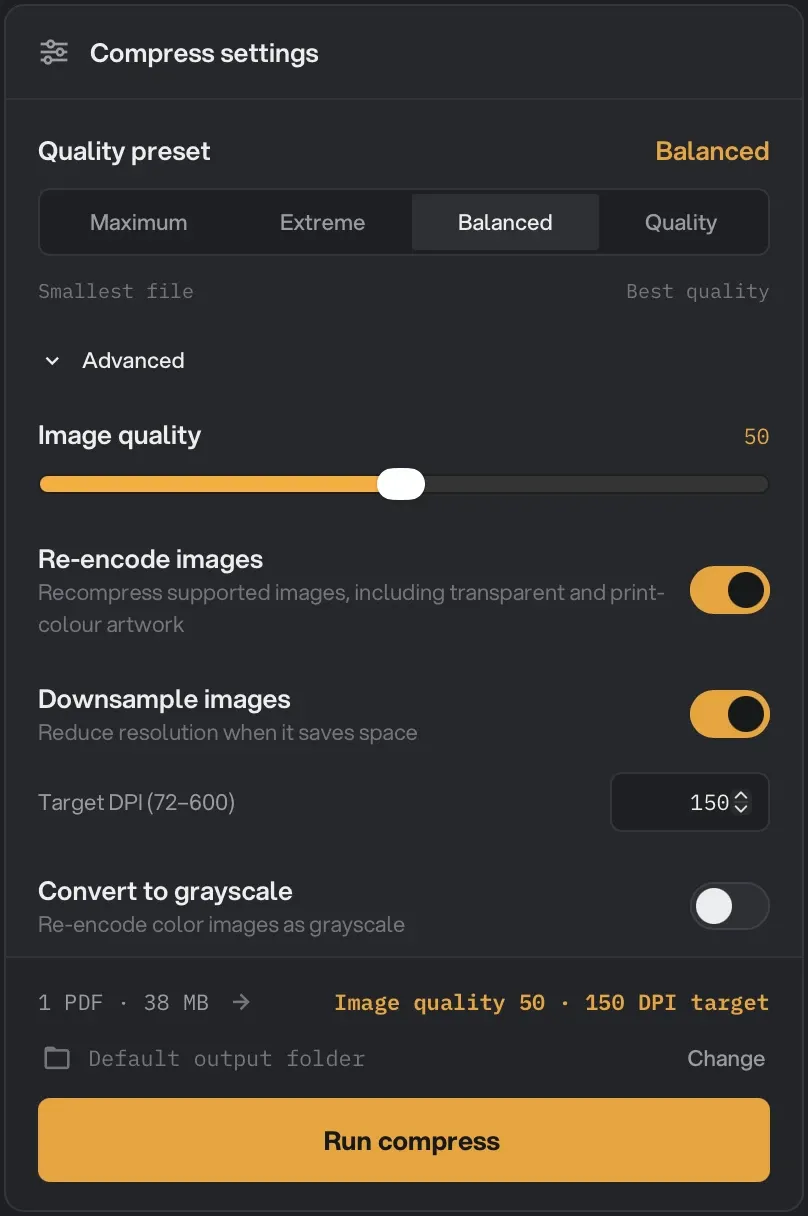
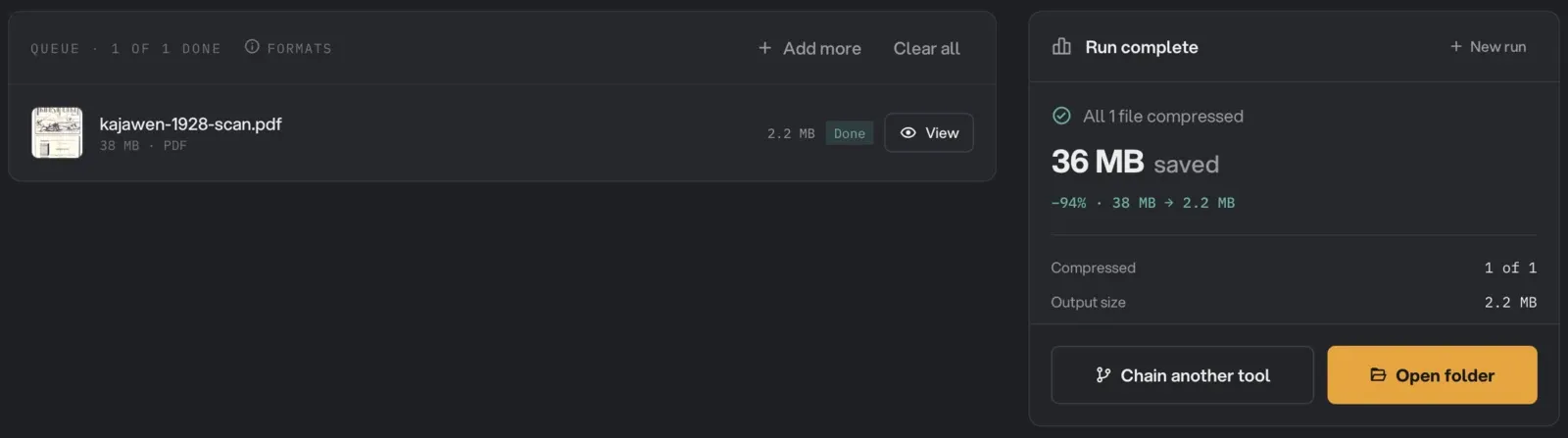
Hangar saves the smaller copy in your output folder (shown above the button as Default output folder, and Change picks another) and leaves the original where it was. When the run finishes, Open folder takes you straight to the new file. What each preset and setting does is in the Compress PDF guide.
Our scan went from 38 MB to 2.2 MB, 94% smaller, with all 24 pages intact. That’s well under the 14 MB target.
Will it look worse?
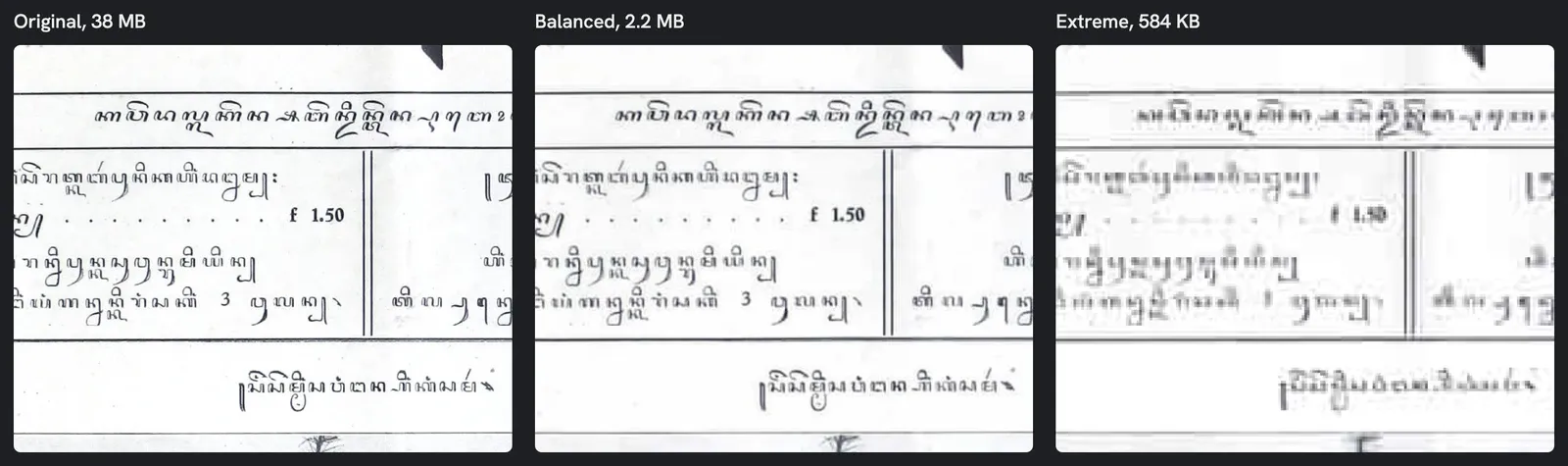
At Balanced, not in a way you’d notice. Here’s the smallest print in our scan at 100% zoom, before and after, with the Extreme preset for comparison:
Here’s what the settings change, and what they leave alone:
- Image quality decides how hard each picture is compressed. Lower numbers give a smaller file and softer images.
- Target DPI caps image resolution. DPI (dots per inch) is how much detail an image holds for its printed size. Our scan was saved at about 500 DPI, far more than a screen shows. At 150 DPI, text still reads cleanly on screen and on an office printer.
- Text, fonts and vector graphics are never touched. A text-only report we ran through Balanced came out half the size, with every word still there and selectable.
- Strip metadata is on by default and removes the author, title and XMP data. Turn it off under Advanced if the document’s title needs to stay.
If you’d rather keep more detail and you have room, the Quality preset (Image quality 70, 220 DPI) took our scan to 5.6 MB. That’s still well under 14 MB.
To check your own file, open the copy, zoom to 100% and read the smallest text on the page. If it reads, send it.
What if it’s still too big?
Try these in order:
- Turn on Convert to grayscale under Advanced if the document is black and white anyway, like a printed letter or a form. On our scan it saved a little more (2.0 MB instead of 2.2 MB).
- Pick the Extreme preset. It caps images at 72 DPI with Image quality 35, tries several encodings and keeps the smallest. Our scan dropped to 584 KB, but the small print went blurry, as the comparison above shows. It also removes files attached inside the PDF. Use it when the text is large, or when getting the email through matters more than how it looks.
- Split it into two emails with Split PDF, then compress each part.
- Send a link instead. Gmail does this for you with Google Drive, Outlook.com with OneDrive, and Apple Mail with Mail Drop, which handles up to 5 GB but deletes the file after 30 days.
There’s also a Maximum preset (Image quality 25, 72 DPI). It also converts print colours and removes bookmarks, accessibility tags and PDF/A status, so keep it for files that only need to be read on a screen.
Other ways to shrink a PDF
- Preview on a Mac. Open the PDF, choose File > Export, and pick Reduce File Size in the Quartz Filter menu. It’s free and already installed. We ran our scan through the same macOS filter and got 7.3 MB, still readable and under 14 MB, so for this file it would do the job. You can’t choose a quality or a resolution, though, and the result was more than three times the size of Hangar’s Balanced copy.
- Adobe Acrobat Pro. Its Reduce File Size and Optimize PDF commands give you detailed control, on a paid plan. We compare the two apps on our Hangar vs Adobe Acrobat page.
- Websites like Smallpdf and iLovePDF. They’re fine for a restaurant menu or a flyer. For a contract, a payslip or a scanned ID, keep the file on your computer, because a website needs you to upload it first.
Questions people ask
Does compressing a PDF lose quality?
The images lose some detail; the text doesn’t. How much the images lose depends on the settings. At Balanced, our scan looked the same at 100% zoom. At Extreme, the small print went soft.
Why is my PDF so big in the first place?
Almost always because of images: scanned pages, phone photos or high-resolution artwork. A 10-page text-only report in our test was under 200 KB. Our 24-page scan was 38 MB, because every page is a detailed image.
Can I compress several PDFs at once?
Yes. Add them all to the queue and click Run compress once. Each file gets its own smaller copy in the output folder.
Compress your PDF on your own computer with Hangar, then send it. The rest of Hangar’s PDF tools work the same way.