 Agencies and studios
 Photographers
 Podcasters
 Video and social creators
 Marketers and content teams
Every Hangar plan is a one-time purchase that covers a fixed number of computers. This guide shows how to see which computers use your key, free a seat and keep the list tidy.
Entering a key for the very first time? Start with activating your license. Moving to a new machine? Moving Hangar to a new computer has the whole path.
How many computers does each plan cover?
Plans differ only by how many computers they cover. The tools, chains and updates are the same on every plan.
- Solo: 1 computer
- Crew: 3 computers
- Fleet: 10 computers
A device is one Mac or Windows PC with Hangar activated on it. Workspaces and files on that computer are never counted, so Northwind Studio can keep one workspace per client on a single Solo seat.
Need more seats than your plan has? The pricing page compares the plans (Solo for 1 device, Crew for 3 devices, Fleet for 10 devices), and the license terms spell out what one purchase lets you do.
Open your license in Settings
Press ⌘, (Ctrl+, on Windows) to open Settings and choose License. At first you only see the Installed license card for this computer, with your plan and Active on this computer.
To see your key and every computer on it, prove the license is yours. Type the email you bought Hangar with into Purchase email and click Send code.
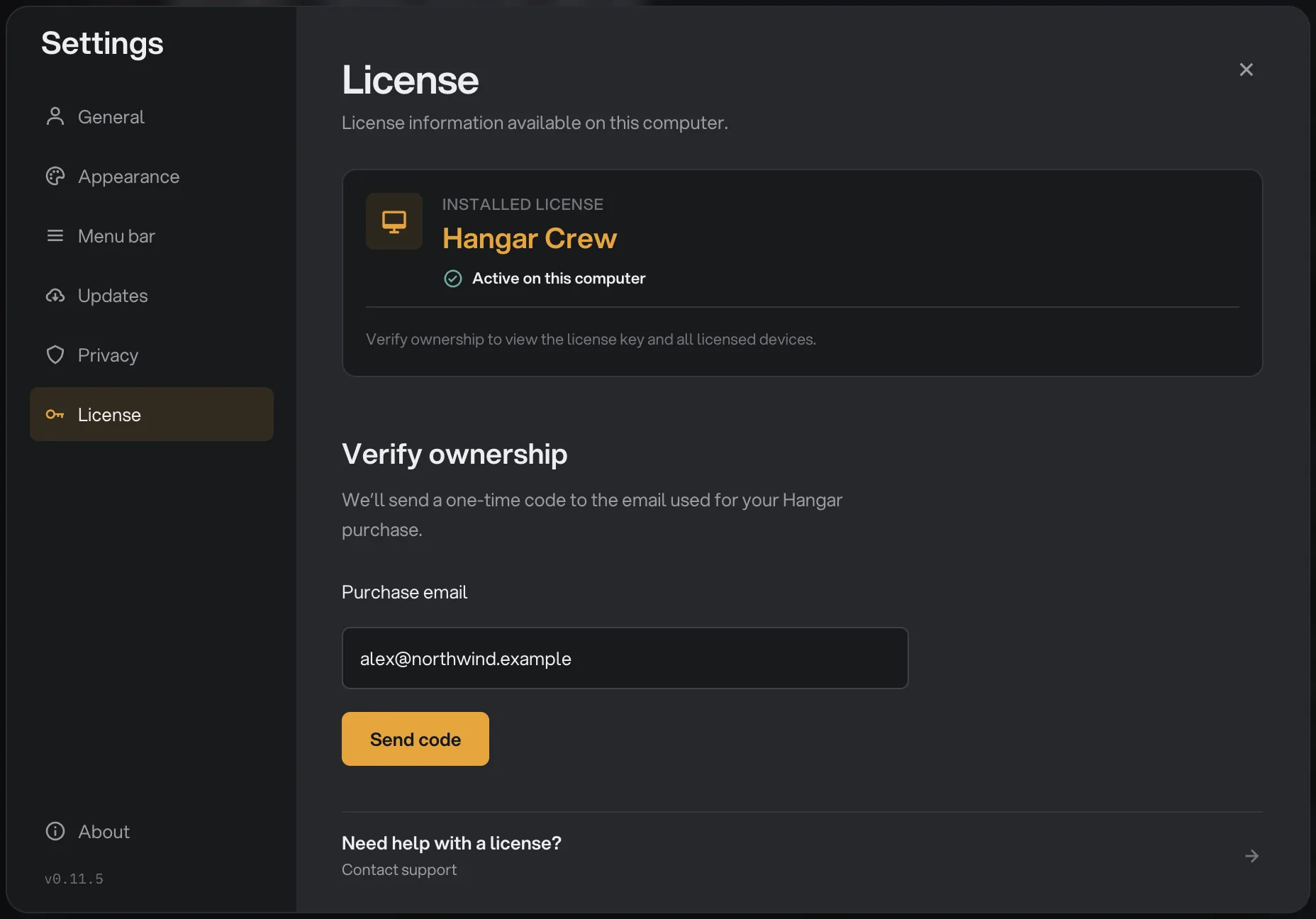
- Installed license
- Purchase email
- Send code
A six-digit code arrives by email. Enter it under Check your email and click Verify; the code expires after 15 minutes, and Change email takes you back if you typed the wrong address.
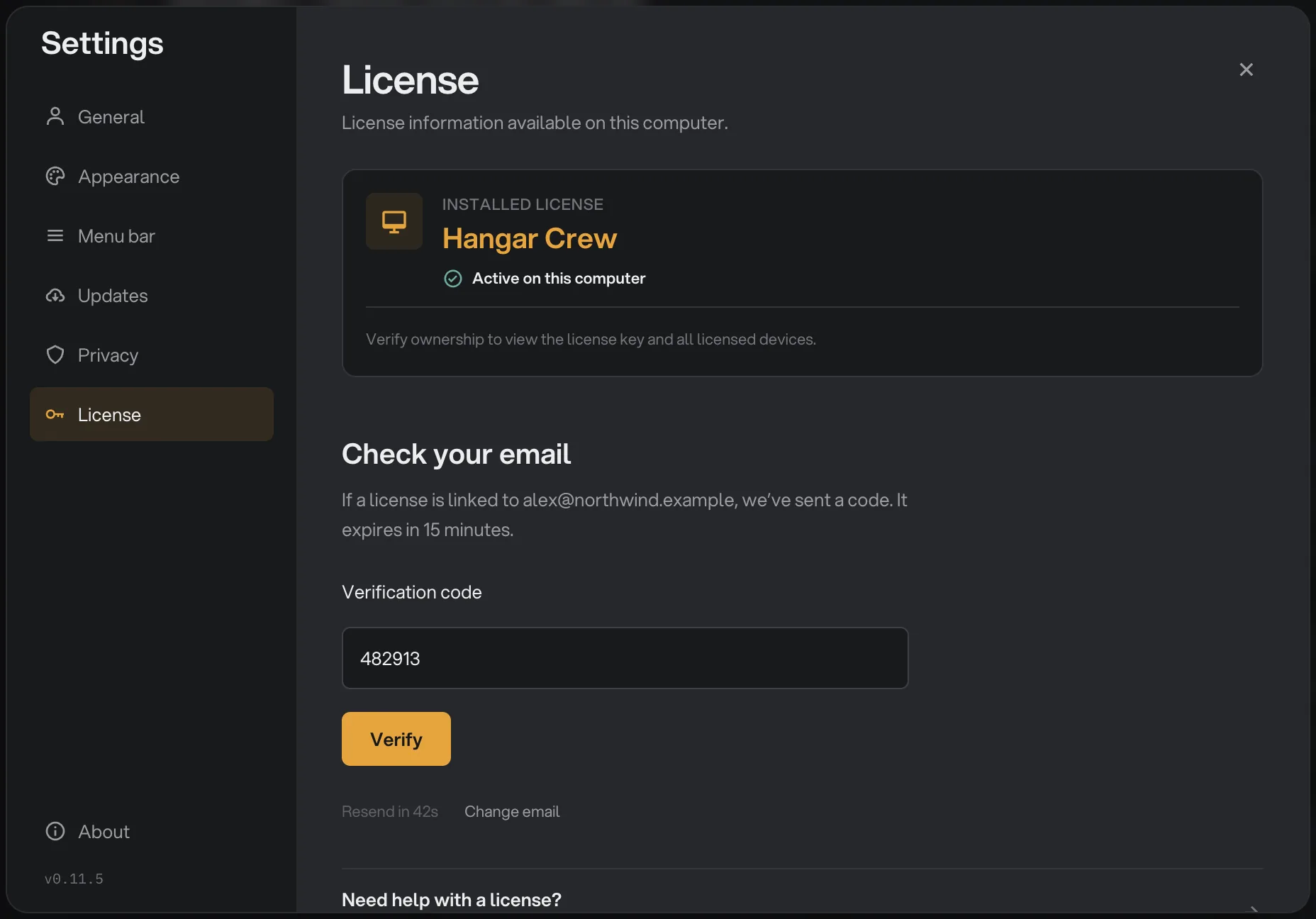
- Verification code
- Verify
See every computer on your license
Once verified, the section shows your plan with a counter such as 3 of 3 devices in use, your masked key, and a Devices list that names each computer and when it last checked in. The computer you are on reads This computer · In use.
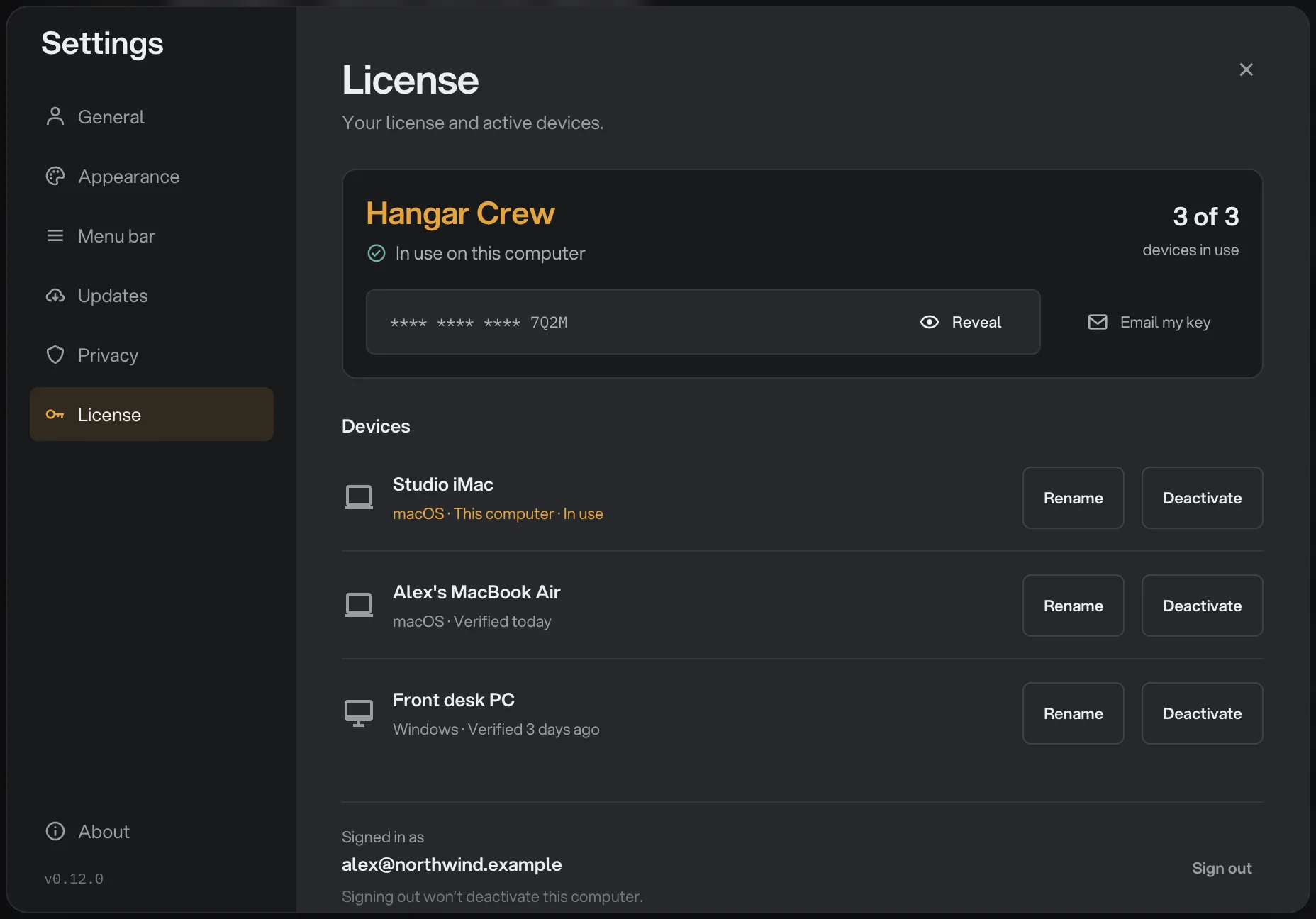
- Devices in use
- Email my key
- Devices list
- Deactivate
Need the key itself? Revealing your key shows the buttons next to it.
Deactivate a computer to free a seat
In the Devices list, click Deactivate on the computer you no longer use. Hangar asks Deactivate device?; click Deactivate again to confirm.
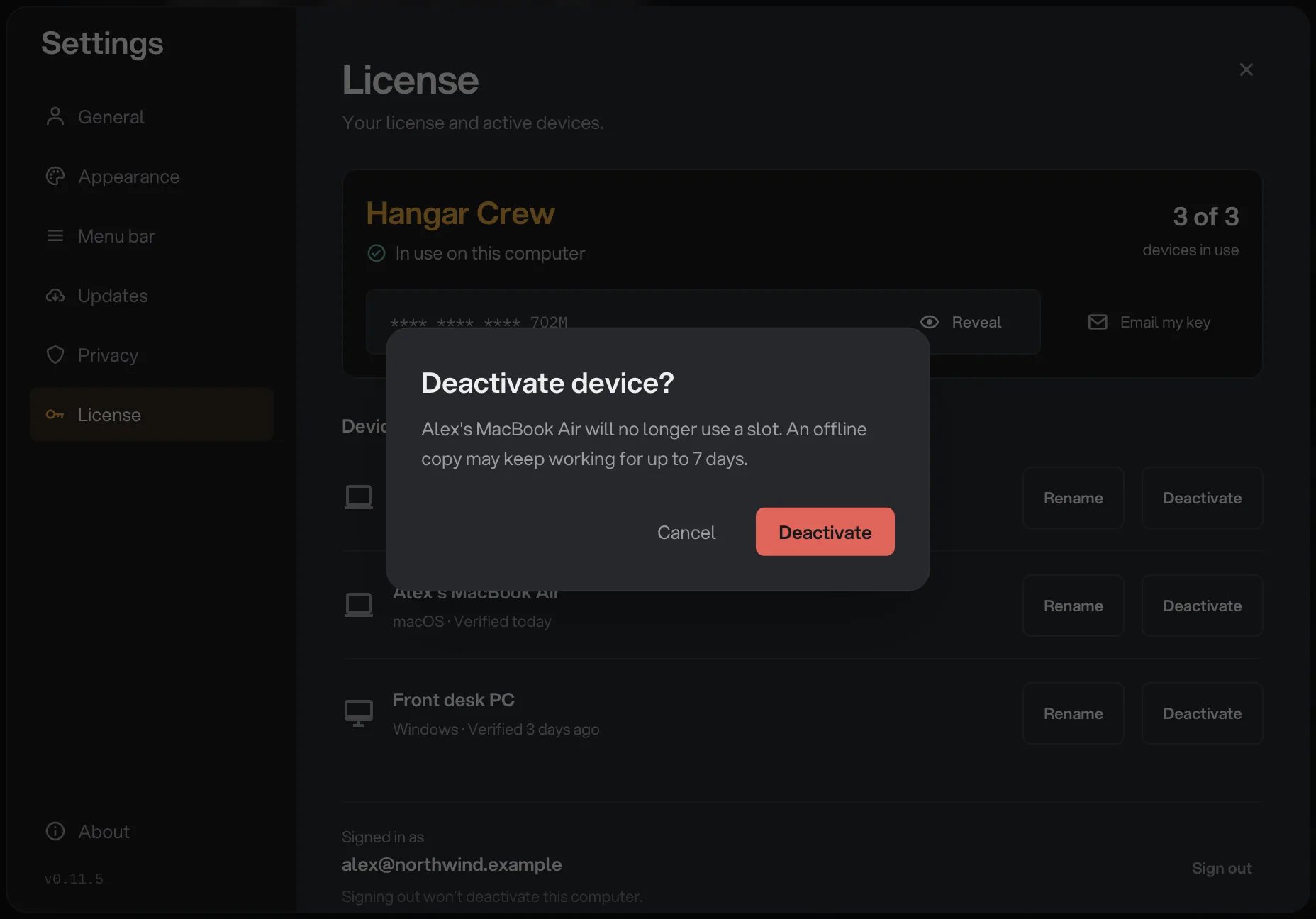
- Which computer
- Deactivate
The row disappears and the counter drops by one. It works for any computer on the list, including one that is lost, broken or already wiped.
The deactivated copy may keep working for up to 7 days if it stays offline, then it locks. Its workspaces, run history and exported files all stay where they are.
Give a computer a clearer name
Computers appear under their system name, such as DESKTOP-4KQ8N2L, which is hard to recognize later. Click Rename on any row, type a name of up to 64 characters, such as Front desk PC, and click Save.
The new name shows in Settings, on the approval pages and on hangar.tools. Use system name in the same dialog puts the original back.
Manage your computers on hangar.tools
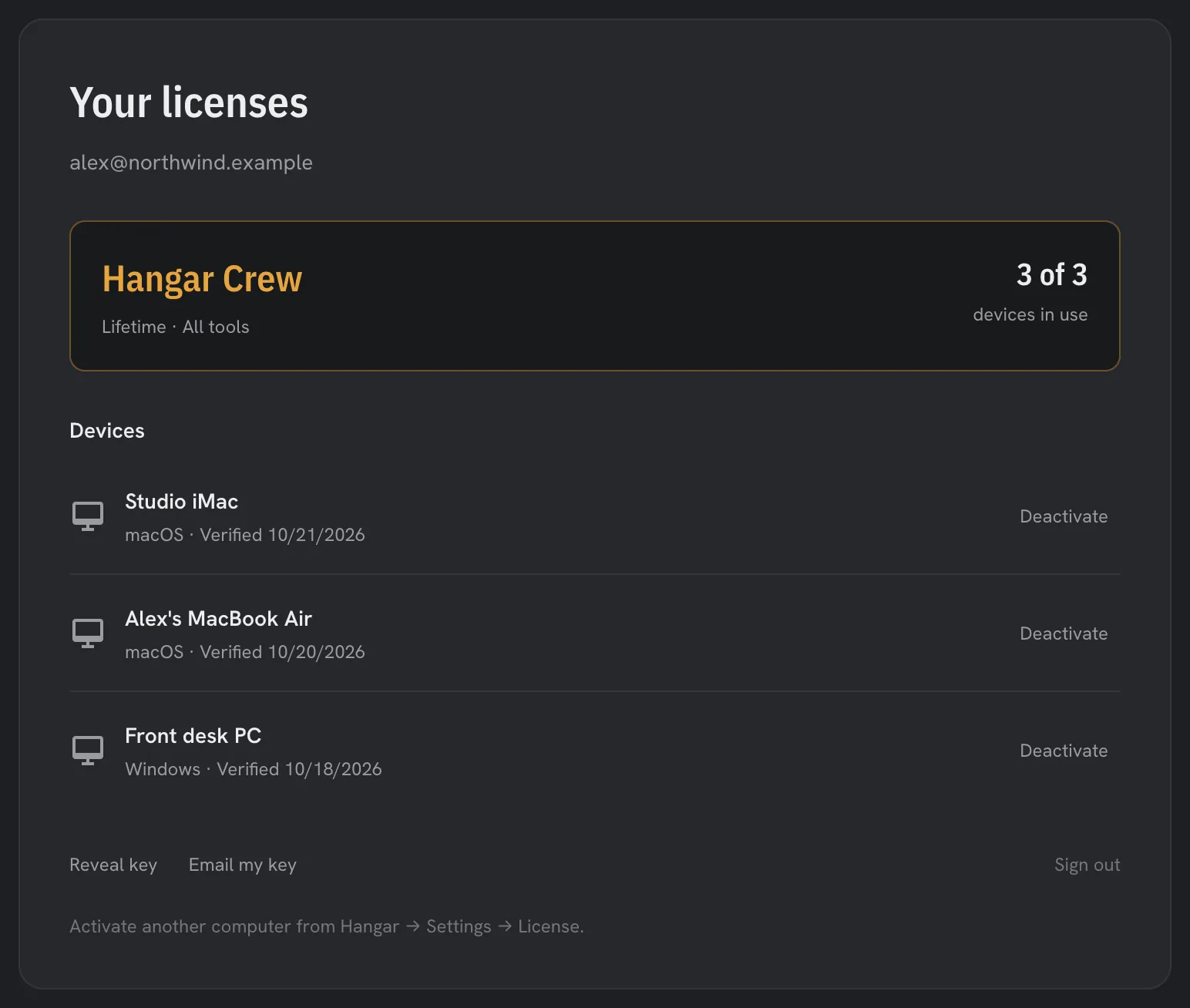
With no Hangar at hand, use your licenses on hangar.tools in any browser. Enter your purchase email under License email, type the code it sends you, and the page lists your plan and computers.
- Devices in use
- Deactivate
- Reveal key
Each computer has a Deactivate button, and Reveal key and Email my key sit underneath. The web page only frees seats: to put a computer on the license, activate it in Hangar itself.
A colleague's computer waiting for a seat? Approving a computer covers the email and the review page. For error messages and offline use, see license messages and how to fix them.
Common questions
Can I use one license on a Mac and a Windows PC?
Yes. A device is any Mac or Windows PC with Hangar activated, so a plan's computers can be any mix of the two. The same key works on both.
Does Sign out free a seat?
No. Sign out only ends the license-management session in Settings. To free a seat, click Deactivate on the computer in the Devices list.
Is Hangar a subscription?
No. Every plan is a one-time purchase that includes the updates published for the version you bought. There is nothing to renew and no monthly charge.
Still stuck?
One person reads every message, usually with a reply within a day.