 Agencies and studios
 Photographers
 Podcasters
 Video and social creators
 Marketers and content teams
A chain is a list of tools that Hangar runs in order on every file you give it. Set it up once, and a job you repeat every week, such as shrinking product photos and removing their location data, becomes one click. This guide builds the chain Northwind Studio uses for its product photos: Strip metadata, then Resize, then Compress. It starts from the Share photos privately template and saves the result as Web-ready product shots.
This guide covers building. Run a chain on many files covers running it, and Read a chain run, step by step covers the finished run.
Step 1: Open Chains and start a new chain
Click Chains in the sidebar. The page lists your saved chains and, below them, a grid of starter chains under Start from a template.
There are two ways to begin. Click New chain for an empty chain you fill in yourself, or click a template card to open the editor with that chain's steps and name already in place. A template is a normal chain, so you can change, add or remove any step before you save it.
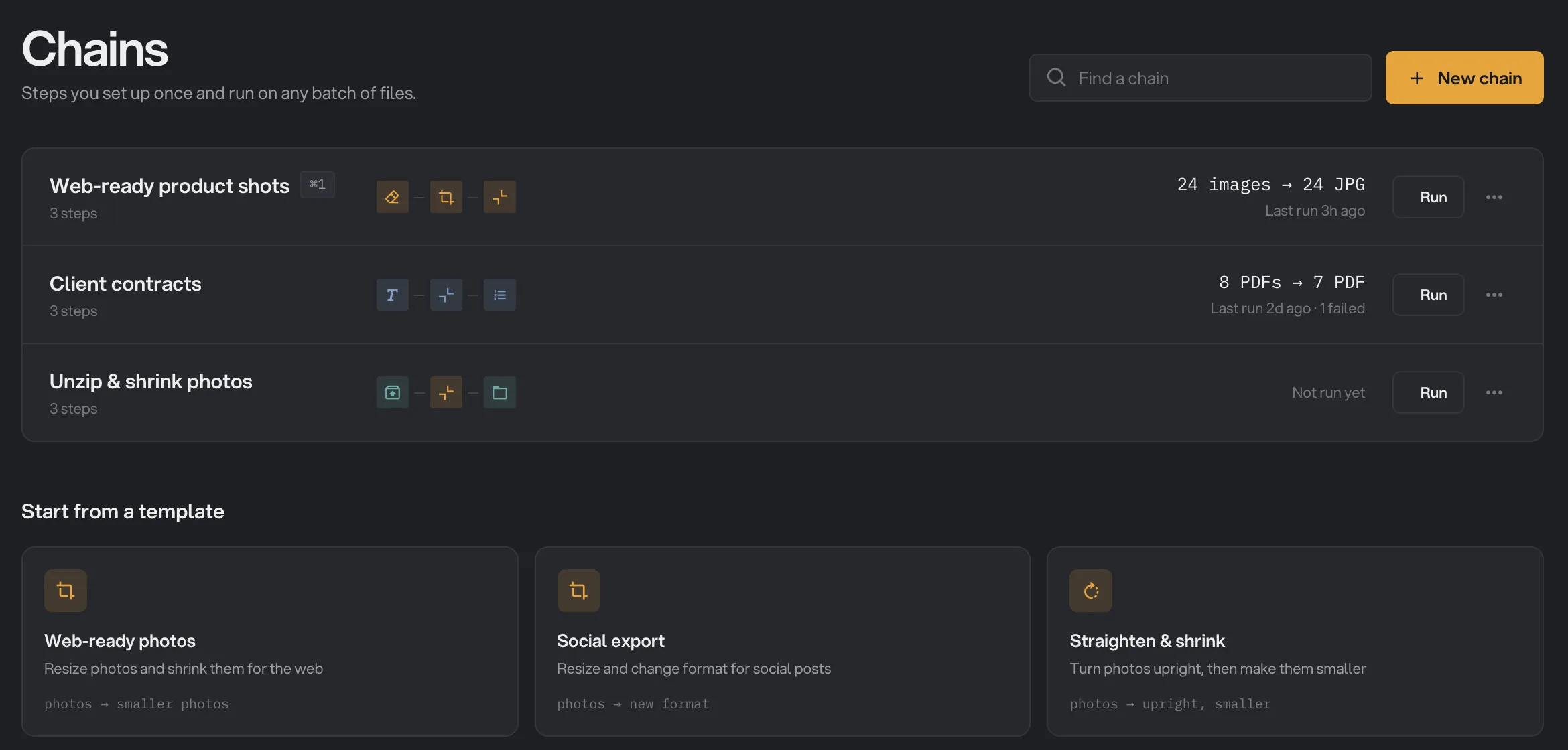
- New chain
- Find a chain
- Run
- Edit or Delete
- Start from a template
Each saved chain shows its steps, the outcome of its last run or Not run yet, and a Run button. The … menu at the end of a row has Edit and Delete…; deleting asks you to confirm first.
Step 2: Add your first tool
In an empty chain, click Add your first tool. The Add a step drawer opens on the right with the hint "Pick the first tool. Only tools that accept your files are shown."
Scroll the list, which is grouped by file type, or type in the Search tools box that appears when more than six tools fit. Every card says what goes in and what comes out, for example image → smaller for Resize. Click a tool and it lands on the canvas as a step, with its current settings summarized underneath and its output type on the right.
For Northwind's chain the first tool is Strip metadata, so the photos lose their camera and GPS details before anything else touches them.
Step 3: Add the next steps
Click Add a step at the bottom of the canvas to add a tool after the last one. To slip a tool in between two existing steps, click the + on the line between them, which reads Insert here when you hover it. To add a tool before the first step, click the + under Your files at the top of the chain.
The drawer now reads "Only tools that accept the previous step's output are shown", or, when you insert, "Only tools that fit between Strip metadata and Compress are shown." Add Resize, then Compress, and the chain's steps appear under its name.
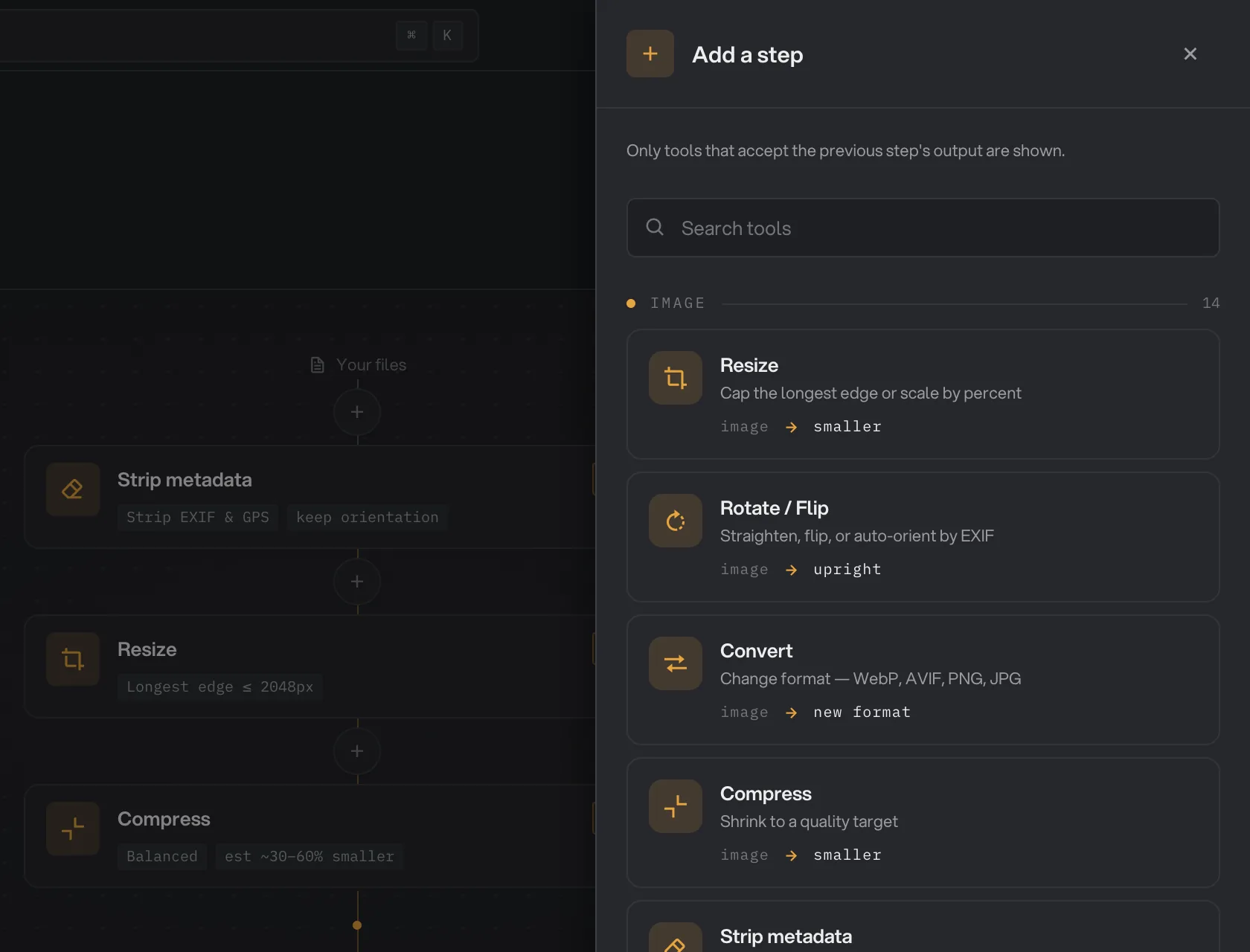
- Why some tools are hidden
- Search tools
- Click a tool to add it
- Close the drawer
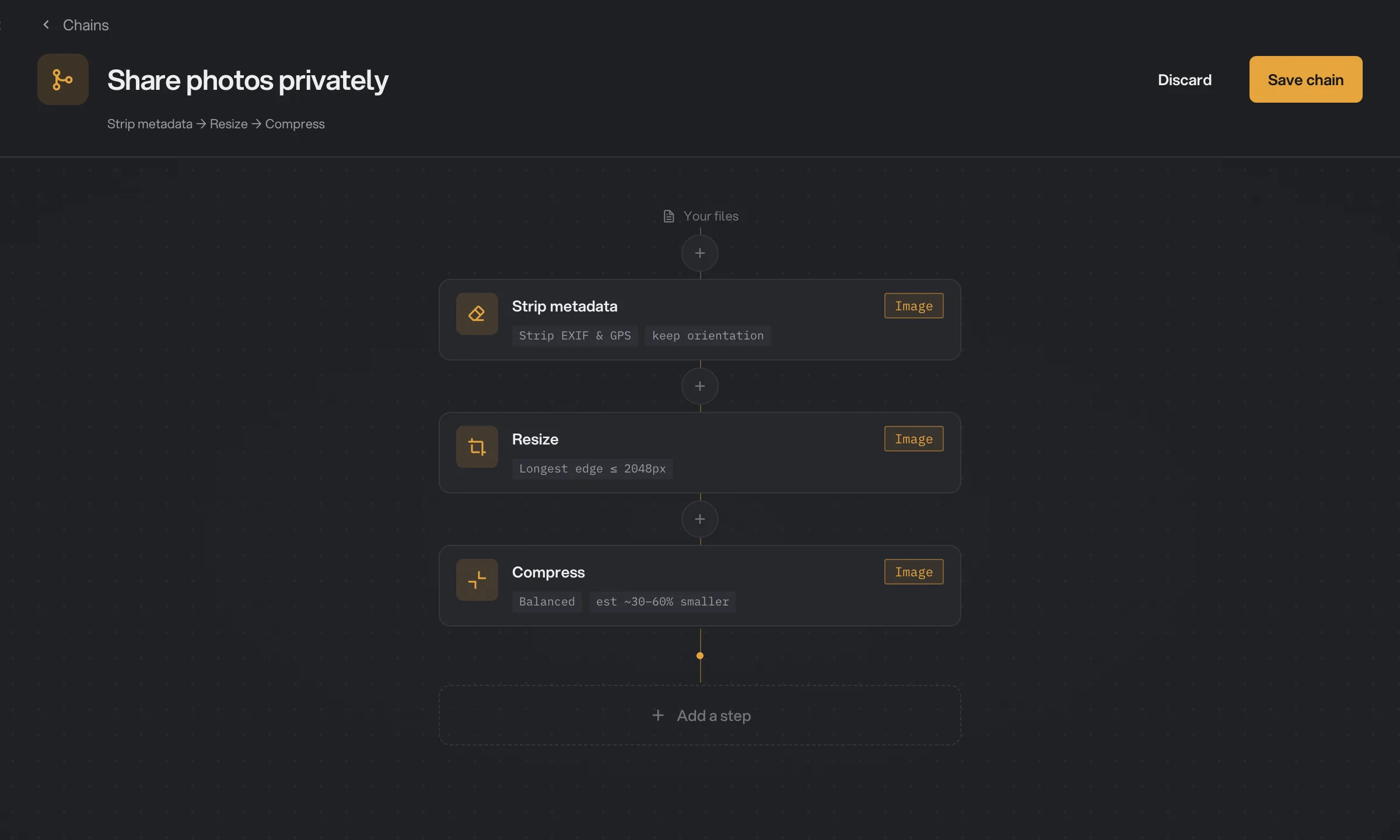
- Chain name
- Click a step for its settings
- Insert here
- Add a step
- Save chain
- Add a step before the first one
Why are some tools not offered?
Every tool accepts certain kinds of file and produces a certain kind. In a chain, each step's output becomes the next step's input, so the next tool has to accept what the previous one makes. The badge on the right of each step shows its output type, such as Image, PDF or Files.
That is why the drawer after an image step lists Compress images and Convert but not Compress PDF: there is no PDF yet to compress. If you want a PDF step in a photo chain, add a step that makes PDFs first, and the PDF tools appear after it.
When you insert between two steps, the tool has to fit both sides. If no tool can, the drawer says "No tool fits both sides of this connection." Add the tool somewhere else in the chain, or remove one of its neighbors.
Step 4: Check each step's settings
Click a step card. The drawer opens with that tool's controls, the same ones you would see on the tool's own page. The gray labels under a step sum up what is set, for example Longest edge ≤ 2048px under Resize or Balanced under Compress.
Whatever you choose here is saved with the chain and applied to every file on every run. Passwords are the exception: the Encrypt and Unlock steps show theirs as asked at run, and Hangar asks for them on the Run screen each time the chain runs. To take a step out, scroll to the bottom of its drawer and click Remove step.
Step 5: Name and save the chain
Type a name in the field at the top; it reads Untitled chain until you do. A template already has its name, which you can change. Northwind renames Share photos privately to Web-ready product shots.
Click Save chain. It becomes available once the chain has a name, at least one step and no step that fails to connect. Hangar shows Chain saved and takes you back to the Chains page, where the new row reads Not run yet next to its Run button. Discard leaves the editor without saving anything.
To change a chain later, open its … menu and choose Edit. The next run uses the new steps.
Split steps and "For each"
Some tools turn one file into many: Split PDF, Extract Pages, PDF to Images, Split Video and Split Audio. When you add one of these, a For each box appears under it, named after what the step makes: For each page for the PDF tools and For each piece for Split Video and Split Audio.
Steps inside the box run on every page separately. Click Add a step for each page to add one; the drawer offers only tools that can take a single page. Below the box, Add a final step offers Organize or Batch Rename, run once on all pages; once you add one, it sits under After every page is done.
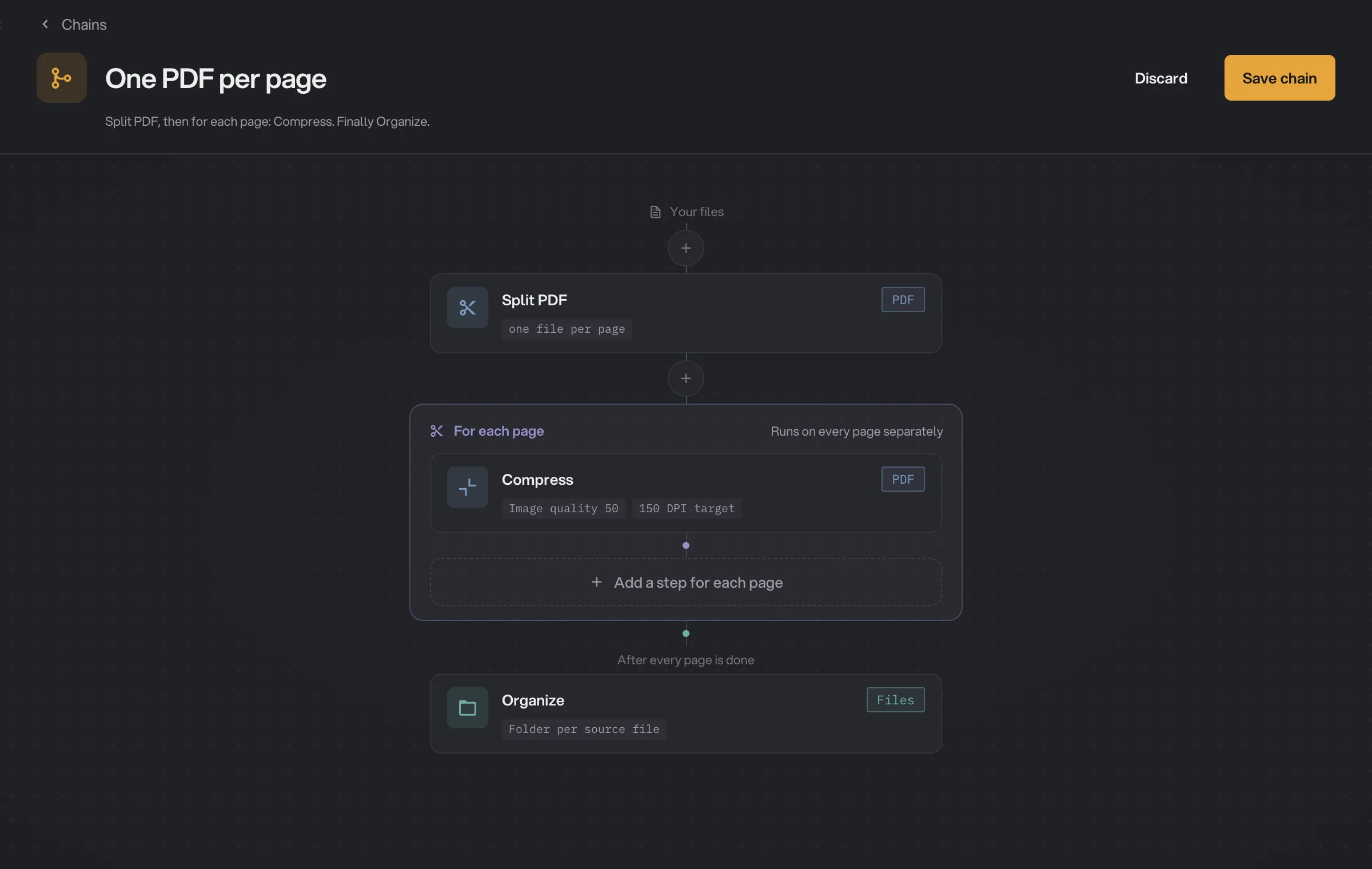
- Split step
- For each page
- Add a step for each page
- After every page is done
- Final step
A final step is different from the others: it runs once, on everything the chain made, after all the pages are done. Two tools work this way, Organize (Sort & route on this site) and Batch Rename. The One PDF per page template above uses Organize so that each PDF's pages land in their own folder instead of one big pile.
Studio tools as steps
Most tools that open a hands-on Studio are not chain steps: Trim, Captions, Mockup, Beautify, Stylize, Vectorize, Stamp, Sign and Redact run on their own from the Tools section. Some, such as Resize, Watermark and Add audio, can be steps. Set them up once in the step drawer, and the chain applies the same settings to every file.
Steps that use an on-device model (AI Upscale, and Remove background above Fast) need that model downloaded before the chain can start; AI models: what downloads and when explains the one-time download.
The 12 starter chains
Every template under Start from a template opens in the editor, ready to adjust or save as is.
- Web-ready photos: resize photos and shrink them for the web.
- Social export: resize and change format for social posts.
- Straighten & shrink: turn photos upright, then make them smaller.
- Share photos privately: remove location and camera details, then resize and shrink.
- Launch screenshots: frame screenshots on a backdrop, then shrink them.
- Searchable scans: make scanned PDFs searchable with OCR, then shrink them.
- Podcast clean-up: cut the long pauses, even out the volume, shrink the file.
- Captioned videos: write captions onto each video, then shrink it to share.
- Short clips: cut long videos into 1-minute clips, then shrink them, a folder each.
- Pages as images: turn every PDF page into an image, then shrink the images, a folder each.
- One PDF per page: break each PDF into single pages, then shrink each one, a folder each.
- Unzip & shrink photos: open zip files and shrink the photos inside. Other files are kept as they are.
Run it
Back on the Chains page, click Run on your chain, or press ⌘K (Ctrl+K on Windows) and type its name. Add files to the chain's queue; folders are not accepted, so open the folder and select the files inside. The Run forecast shows how many files you added, what the chain ends with, and how many jobs run at once.
Click Run chain. Hangar works on several files in parallel, and Stop lets the running jobs finish while keeping everything done so far. When it ends, Final inspection shows where every file went, step by step; Read a chain run, step by step explains that grid and what a failed step means for one file.
Common questions
Can I turn a finished tool run into a chain?
No. Chains are built on the Chains page, from New chain or a template. After a single tool run you can click Chain another tool to hand those results to one more tool, but that is a one-off for that run, not a saved chain.
Where does a chain save its files?
In your workspace output folder, inside a chain subfolder and then a folder for the date, for example chain/10-13. The finished run shows the exact path under Saved to, with an Open folder button. Originals are never replaced.
Can I put a Studio tool such as Captions or Trim in a chain?
No. Trim, Captions, Mockup, Beautify, Stylize, Vectorize, Stamp, Sign and Redact are not chain steps, so run them on their own from the Tools section. Some tools with a Studio, such as Resize, Watermark and Add audio, can be steps: you set them up once in the step drawer and the chain applies those settings to every file it runs on.
Can I copy a chain, or use it in another workspace?
Every chain shows on the Chains page whichever workspace you are in, so you can run it from any of them. There is no duplicate action yet: for a variant, start from a template or build the chain again, which takes a minute.
Why does my chain refuse to start?
With an empty queue, the hint under Run chain says Add files to the queue to run. Otherwise Hangar shows Could not start the chain with the reason: usually a workspace with no output folder set, or a step whose AI model is not downloaded yet (AI Upscale, or Remove background above Fast). Download the model in the step or the tool, and the chain runs.
Still stuck?
One person reads every message, usually with a reply within a day.