 Agencies and studios
 Photographers
 Podcasters
 Video and social creators
 Marketers and content teams
Hangar shows results in the style that fits the tool. A compressor leads with the megabytes it saved, an image tool opens a before/after view, a PDF tool shows every page, and a transcript opens as text you can edit. This page walks through each style, which tools use it, and how to move between files once a run is done.
If you have not run a tool yet, start with How to run a tool. Everything below happens after you press Run.
Size savings: the Run complete panel
When a run finishes, the right-hand panel switches to Run complete with a one-line summary such as "All 24 files compressed". When the batch got smaller, the panel leads with the total saved, for example 37 MB saved, and the line underneath spells it out: −63% · 58 MB → 21 MB means the whole batch went from 58 MB to 21 MB, a 63 percent reduction.
Below that, three rows give you the facts: how many files were done, the total Output size, and how long the run Took. Saved to shows the output folder; click the path to reveal it, or press Open folder. In the queue on the left, every file now shows its new size, a Done label and a View button.
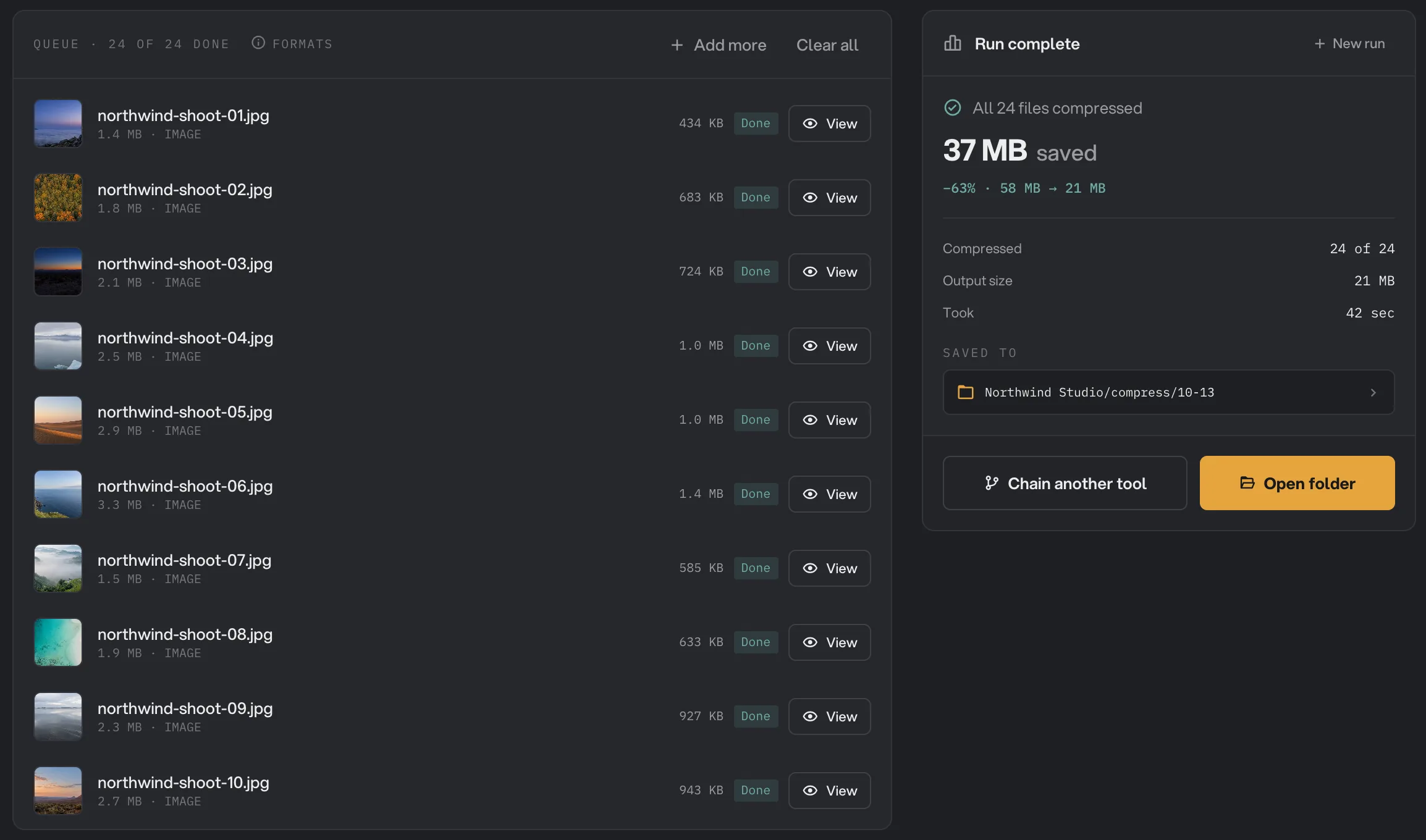
- Total saved
- Before and after sizes
- View one result
- Saved to
- Open folder
Compressors always aim for that: Compress PDF, Compress images (called Image Compress in the app), Compress video and Compress audio. A conversion or a resize can show it too. When the files did not get smaller, you get a plain summary instead, such as "Files converted to PNG." or "Files rotated." If a compressor could not make your files any smaller, the panel says so and tells you they were already optimal.
Two more buttons live in the panel. Chain another tool appears when a compatible tool exists and loads these results as the next tool's queue, for example to resize the photos you just compressed. New run clears the panel for a fresh batch.
Open a result and move between files
Click View on any finished file, or click its thumbnail, to open the preview window. The header shows the output file's name and, when the run has more than one file, a counter such as "1 / 3" so you always know where you are in the batch.
You do not need to close and reopen the window for each file. Use these keys:
- ← and → move to the previous or next file in the run.
- ↑ and ↓ move between pages of a PDF.
- Esc closes the window.
The footer of the window reports the size change for that single file in the form "in → out · N% smaller". In the screenshots below, "2.4 MB → 727 KB · 70% smaller" means the original was 2.4 MB, the output is 727 KB, and the output is 70 percent smaller. When a tool makes a file bigger the footer says "N% larger", and when nothing changed it says "Same file size". For HTML or ebook to PDF conversions, where there is no like-for-like original, the footer simply shows "PDF" and the new file's size.
Before/after comparison for images
Image results open as a comparison between Original on the left and Output on the right, with each side's pixel dimensions next to its label. Two modes are available at the top left.
Swipe lays both versions on top of each other in one aligned view. Drag the handle across the picture to reveal the original on one side and the output on the other. Home and End jump the handle to either edge. This is the quickest way to check that a compressed photo still looks like the original.
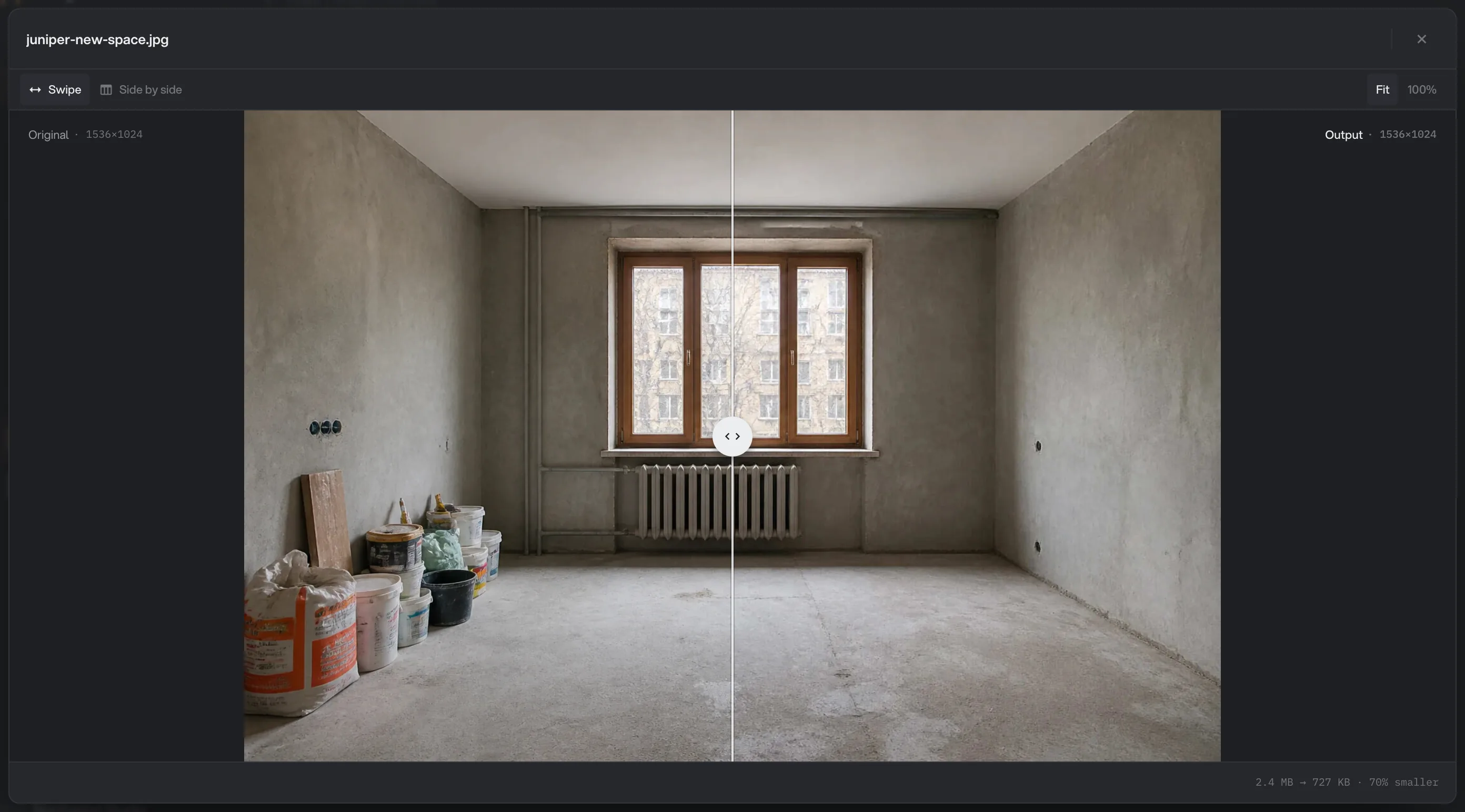
- Swipe
- Side by side
- Fit and 100%
- Drag to compare
- Size change for this file
Side by side places the two versions next to each other. Hangar switches to this mode on its own for tools that change the shape of the image, such as Crop image, Rotate & flip, Crop PDF and Organize pages, and whenever the output's aspect ratio differs from the original. A swipe would not line up, so you get both pictures whole. Choosing 100% also switches to Side by side.
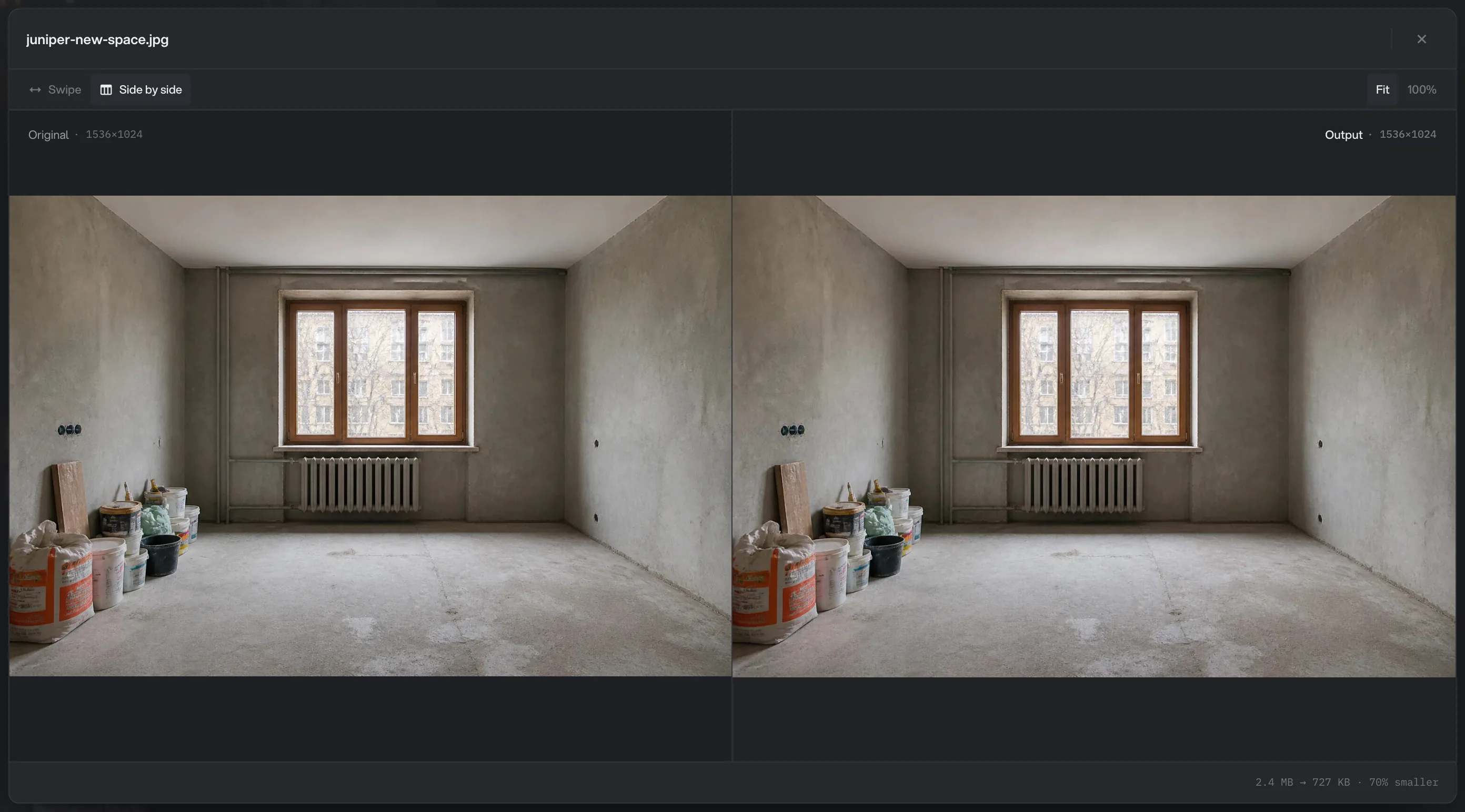
- Side by side
- Original with dimensions
- Output with dimensions
At the top right, Fit scales the image to the window and 100% shows real pixels, which is what you want when judging fine detail after AI Upscale or Remove background. If Fit has to enlarge a small image, a "Fit enlarged to" note with the percentage tells you the view is bigger than life.
PDF page previews
PDF results open on the first page with the page count in the header, for example "Page 1 of 12". Use ↑ and ↓ or the arrow buttons to page through, and ← and → to jump to the next PDF in the run. When the PDF has more than one page, two icons at the top right switch between a single page, shown large with an Original and Output comparison, and all pages, a grid of every page with the current one highlighted.
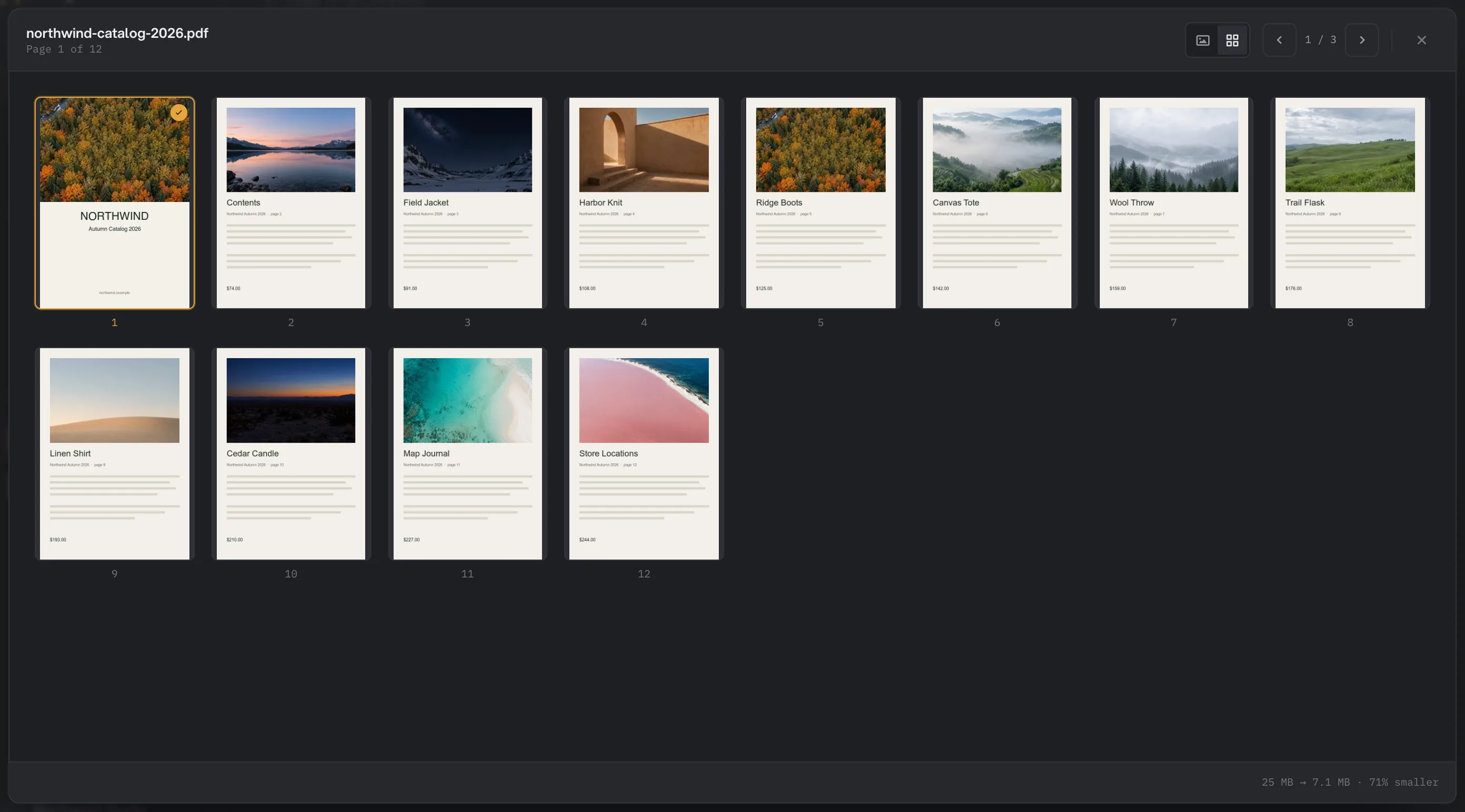
- Page 1 of 12
- Single page or all pages
- File 1 of 3
- Size change for this PDF
Tools that use it: Compress PDF, Organize pages, Crop PDF, Page numbers, Stamp, Sign PDF and Redact PDF. After OCR PDF the window gains a Visual / Text toggle. In the Visual view, Select text (on by default) lets you select the recognized words right on the page and Copy all copies them, so you can check the OCR before you share the file; a page with no words reads "No text on this page". The Text view lists all the recognized text with a Copy text button.
Large pages take a moment to draw; "Rendering page…" shows while that happens. Pieces from Split PDF are listed under the source file in the queue and open on their own, without a comparison, because each piece is a new document rather than a changed one.
Video and audio playback
Video and audio results open in a built-in player with an Original / Output switch above it. Play the output, then flip to the original and scrub to the same moment to compare; switching sides starts the player from the beginning. The transport bar at the bottom has play, the current time against the total length, a scrubber and a mute button. Video previews start muted, so press the speaker button to hear the sound. The footer shows the size change exactly as it does for images.
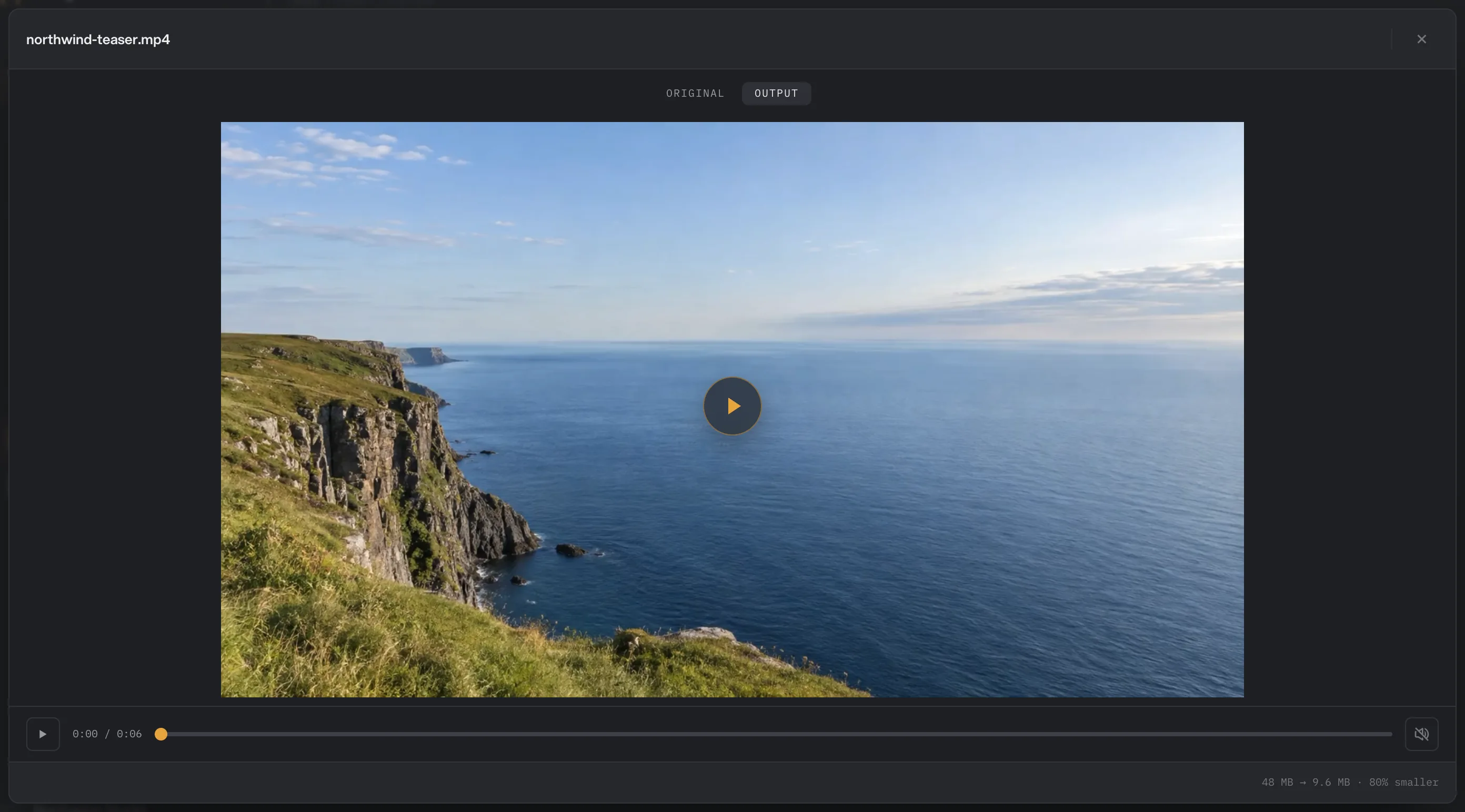
- Original / Output
- Play and scrub
- Size change for this clip
Tools that use it: Compress video, Convert video, Trim video, Watermark video, Compress audio, Trim audio and Volume & normalize. A Video to GIF result plays as an animated image. Pieces from Split video open one at a time without a comparison.
Text results: transcripts, Markdown and extracted text
Some tools produce text rather than a new version of your file, and those results open as text you can read, copy and edit in place.
A transcript from Transcribe opens cue by cue, with timestamps on the left and the words on the right, and a header that counts the cues and words. You can correct a misheard name directly in the window, then press Save changes. If you close with unsaved changes, Hangar asks "Keep your transcript changes?" and offers Keep editing or Discard & close, so a stray Esc never loses your edits.
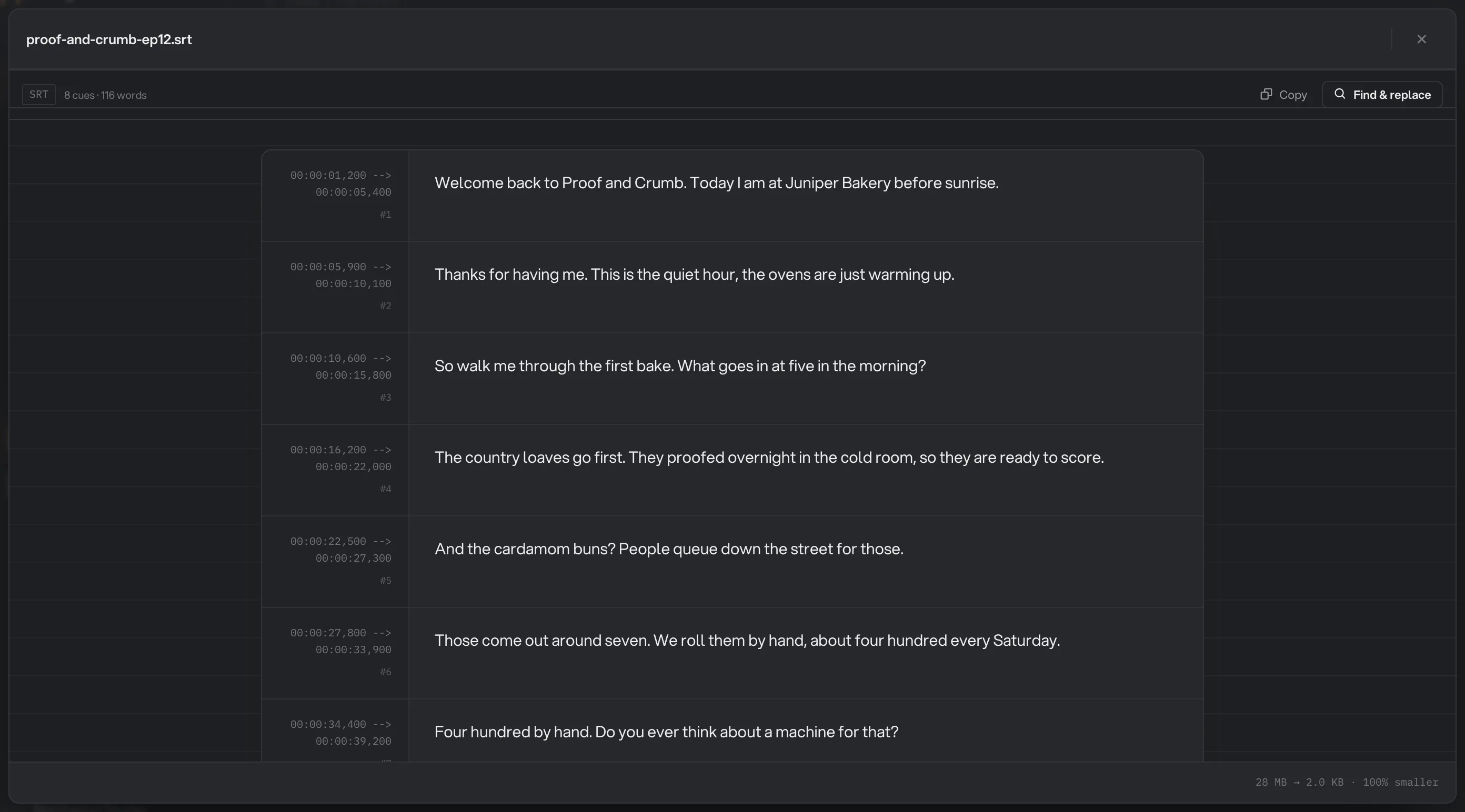
- Format, cues and words
- Copy
- Find & replace
Markdown from PDF to Markdown opens as a formatted document with real headings, lists and tables. A toggle shows the raw Markdown, and you can edit the text in place before you paste it into your notes or site. Other text outputs, such as the words Extract text reads from an image, open in a simple text view with a Copy text button.
Because text is not a file you would feed to another image or PDF tool, transcripts, text and Markdown results do not offer Chain another tool. They are saved in the output folder like everything else.
Color palettes
The JSON or CSS file that Color palette writes opens as a row of color swatches, each with its hex value, so you can read the colors without opening the file in a code editor. Switch to the raw text when you want to copy the whole file into a stylesheet.
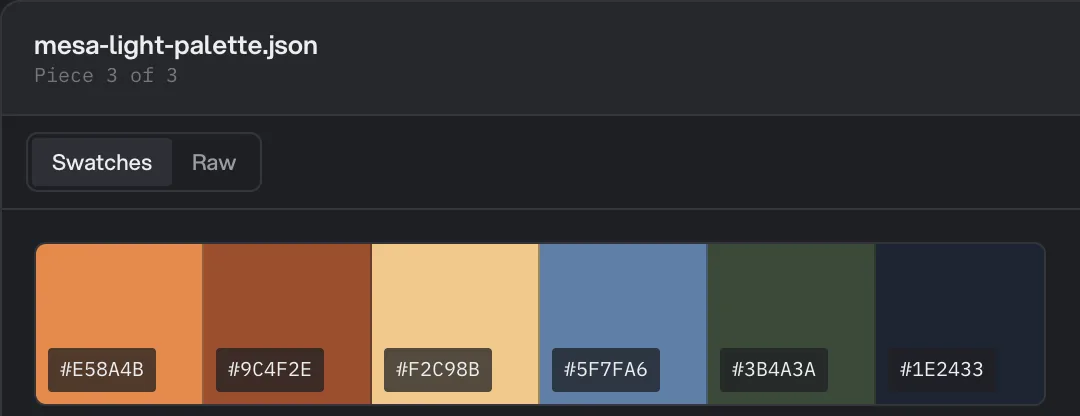
- Swatches or raw text
- Hex value
Merged, joined and archived outputs
Tools that turn many files into one show a single hero card in the results panel instead of a per-file list. Its line says what the file was merged from, joined from or combined from, and a View button opens the result. Merge PDF opens the new document page by page, with "PDF · page 1 / 5" in the header and the same single page and all pages icons as other PDFs. Join videos and Merge audio open in a player.
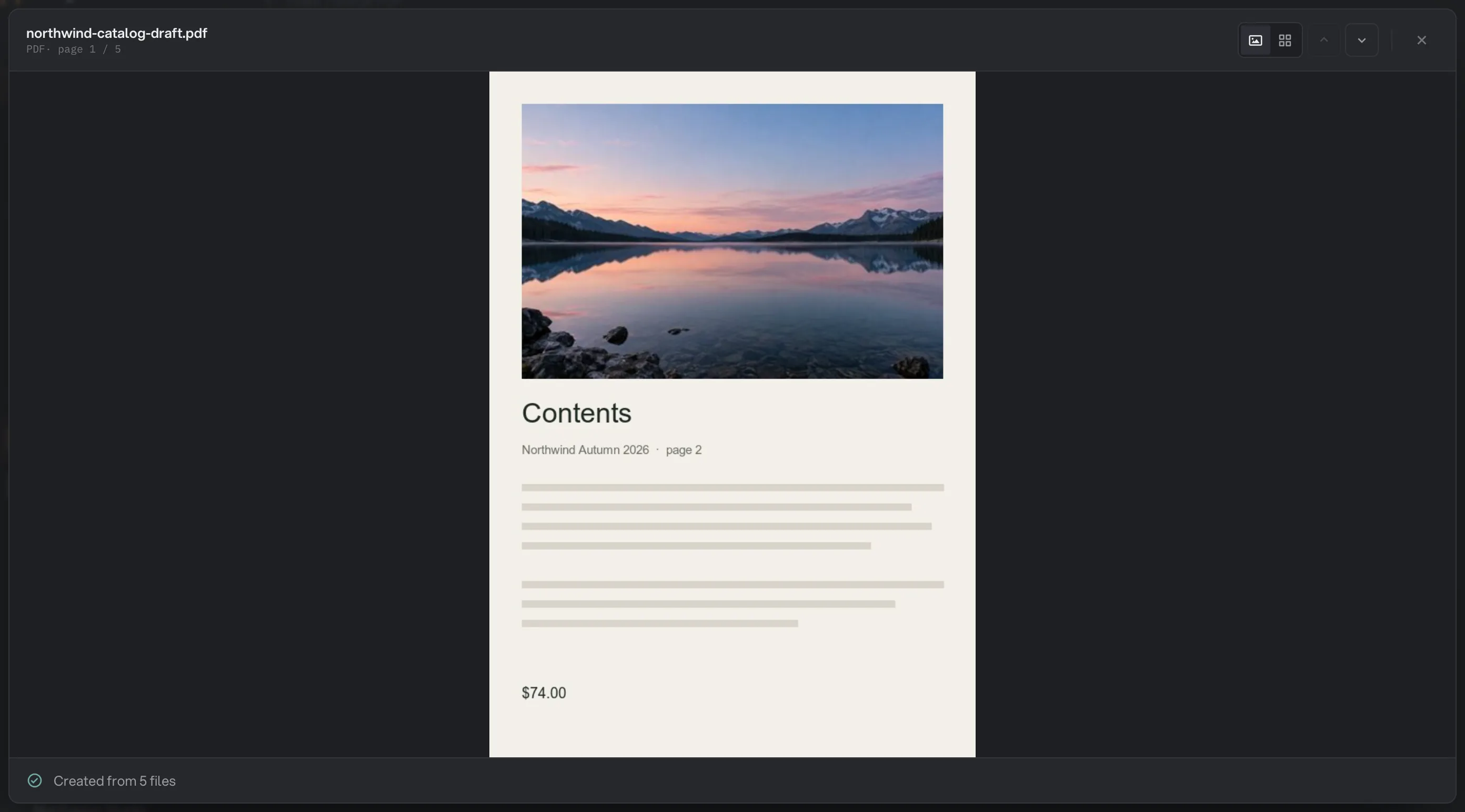
- Page count
- Single page or all pages
- Created from 5 files
Create archive uses the same card but has no View button, because a ZIP has nothing to show on screen. Use Open folder to reach it. The files that Extract archive unpacks cannot be chained directly, so run the next tool on them from the output folder.
If a merged file cannot be displayed in the app, the viewer says so and reminds you that the file is still in the output folder.
The Studio export receipt
Full-screen Studios have no results panel at the side. When you export, a receipt card appears in the corner of the window and stays until you dismiss it: what was exported, a thumbnail, the size, how long it took and an Open folder link.
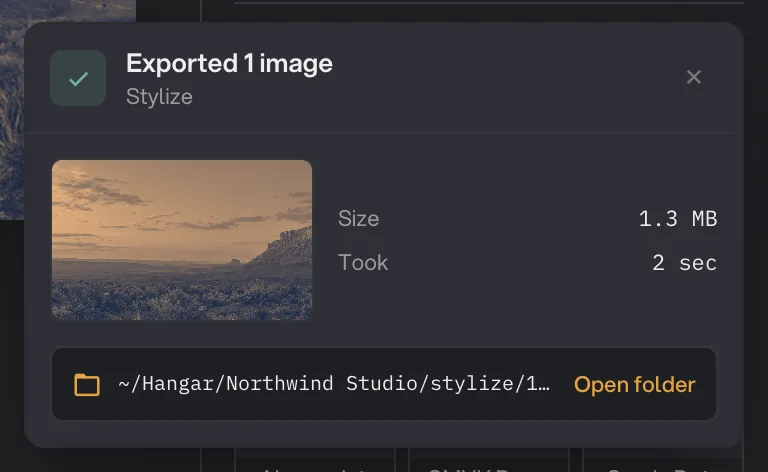
- What was exported
- Size and time
- Open folder
- Dismiss
Device mockup, Beautify shot, Stylize and most other export Studios use this card; a few, such as QR code and Gradients, confirm an export their own way. Studios: export your work lists which is which.
Find results later
Closing the tool does not lose anything. Every run is recorded on the Runs page in the sidebar, grouped by day, with the tool name, how many files it processed, how long it took and the size change, such as "58 MB → 21 MB". Click a row to reopen the run with its results and previews exactly as they were. The files themselves stay in the output folder, in a folder named after the tool and the date unless you picked another folder.
Read Run history: reopen past results for the details, and Read a chain run, step by step if the run was a chain rather than a single tool.
Common questions
Does Hangar change my original files?
No. A run writes new files to your output folder and leaves the originals where they are; if a name is already taken, Hangar adds (2), (3) and so on instead of overwriting. The exceptions are Batch rename, when you choose Rename originals, and Organize, which moves the originals unless you choose Make copies instead.
Why is there no Swipe button on my comparison?
Swipe needs both images to line up. Crop, Rotate, PDF Crop and PDF Organize results always open side by side, and so does any result whose aspect ratio differs from the original. Choosing 100% also switches to Side by side, so you can judge real pixels.
Why is there no slider for my video?
Video and audio results use an Original / Output switch above a built-in player instead of a slider. Switching sides starts the player again, so scrub to the same moment in each to compare them.
What does "% larger" or "Same file size" mean in the footer?
The footer compares the output file to the original. Converting to a format with less compression, or adding a watermark or captions, can make a file bigger. That is expected and nothing went wrong.
The preview says my video cannot play in-app. Is the file broken?
No. Some formats cannot be played by the built-in player, but the file itself is fine. Click Open folder in the results panel and open it in your usual player.
Still stuck?
One person reads every message, usually with a reply within a day.