 Agencies and studios
 Photographers
 Podcasters
 Video and social creators
 Marketers and content teams
What does Compress PDF do?
Compress PDF makes a PDF smaller on your own computer, so it fits under an email or upload limit. It takes PDF files and gives back PDF files, one for each file you add. In the app the tool is called PDF Compress.
Most of the weight in a large PDF is its pictures: photos, scans, screenshots and slide artwork. Compress PDF re-encodes those pictures and lowers their resolution when they are sharper than they need to be. It also stores the rest of the file more compactly, which changes nothing you can see. Text, fonts and drawings are never touched.
Step 1: Add your PDFs
Click Tools in the sidebar, open the PDF tab and click PDF Compress. You can also type "compress pdf" in the search box at the top.
Drop your PDFs on the queue, or click it to pick files. Add as many as you like: every file is compressed with the same settings, one after another. To add more later, use Add more. Folders are not accepted, so select the files inside a folder instead.
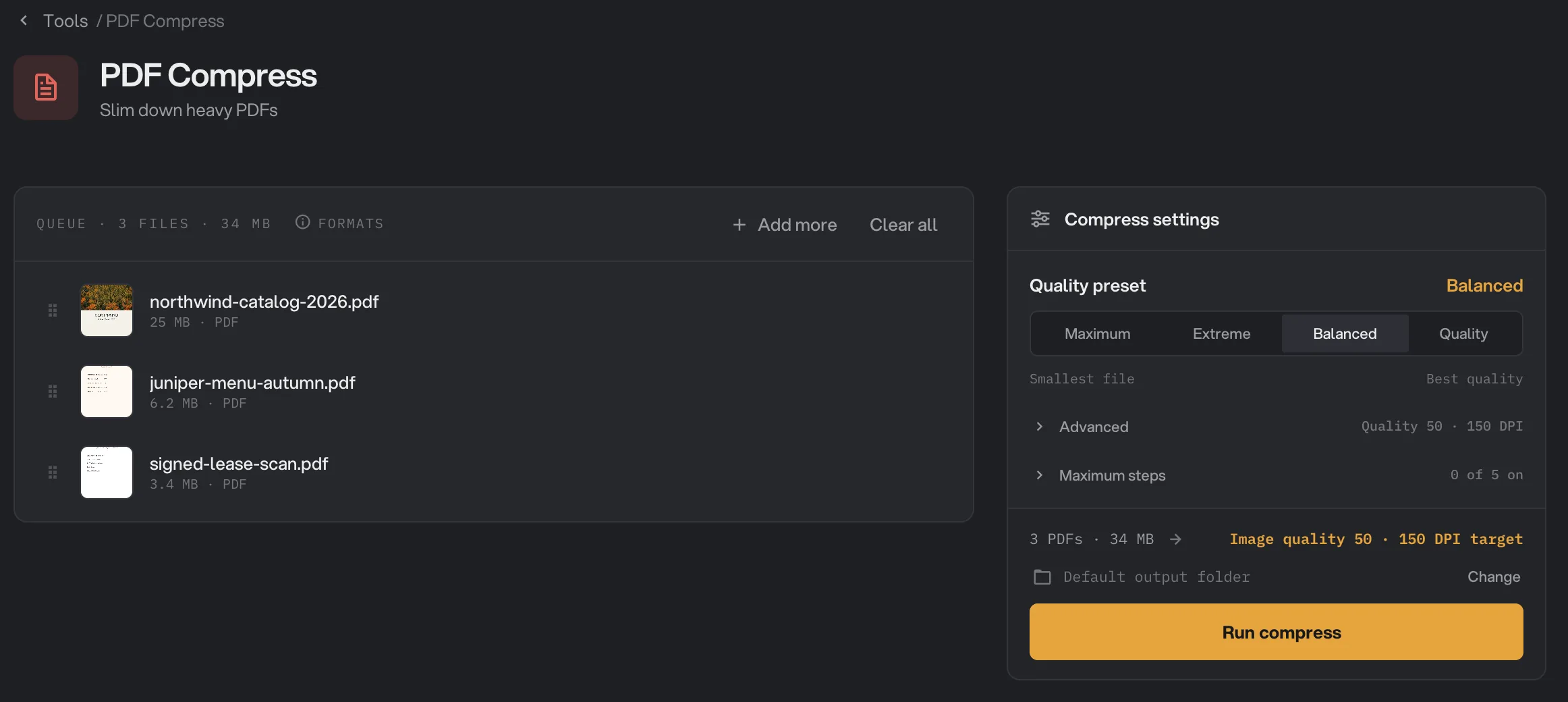
- Add more
- Quality preset
- Advanced
- Output folder
- Run compress
Step 2: Choose a preset
The Quality preset row has four choices, from the smallest file on the left to the best quality on the right. Each preset sets every option under Advanced in one click. Balanced is selected when you open the tool.
- Maximum: the smallest possible file, for reading on screen only. It goes further than Extreme, and changes the document in ways Extreme never does: see Maximum and its steps below.
- Extreme: a very small file that is still the same document. Pictures are reduced to screen resolution, and document details and attachments are removed. Best for files that only need to be read on screen.
- Balanced: the right choice for most files. Pictures stay comfortable to read on screen and on an office printer.
- Quality: keeps pictures sharper and keeps the document details, such as the author and title. Use it for portfolios, brochures and anything headed to print.
When you pick Extreme, Hangar explains under the row that it tests several versions and keeps the smallest. It builds a version with its own settings, versions with the Balanced and Quality picture settings, and one that leaves the pictures alone, then saves whichever file is smallest. That takes longer, but it is never bigger than the other presets would make.
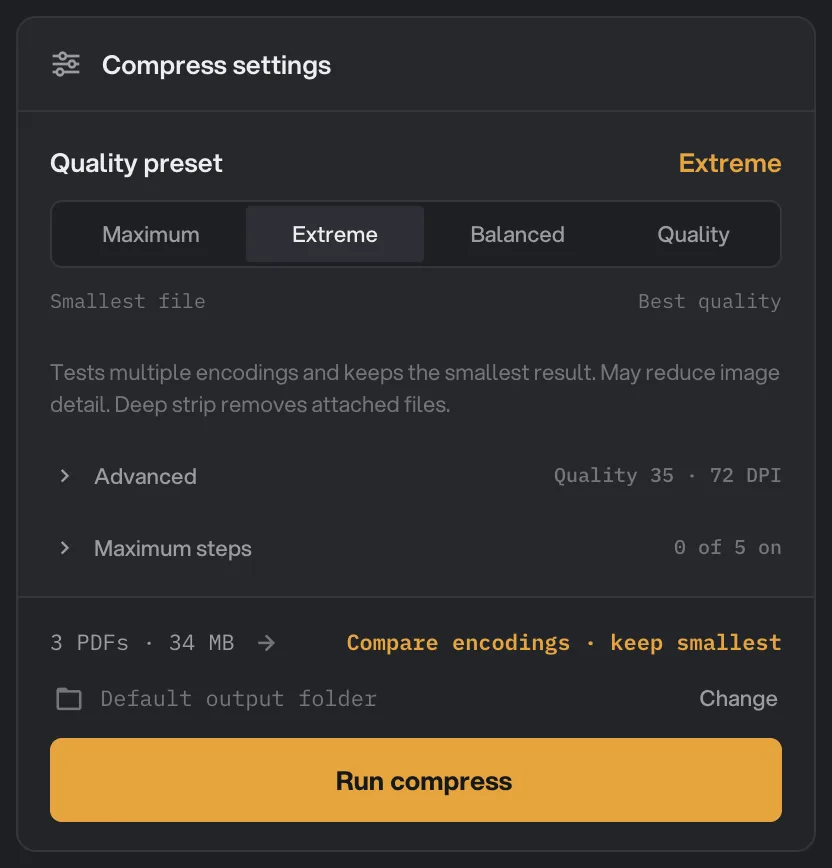
- Extreme
- What Extreme does
- Summary of the work
Maximum and its steps
Pick Maximum and the note under the row reads "Smallest possible file, for reading on screen". Maximum lowers picture quality to 25 at 72 DPI, removes document details and attachments like Extreme, and also tries the Extreme, Balanced and Quality picture settings, so it never makes a bigger file than Extreme. On top of that it runs five extra steps, listed under Maximum steps:
- Print colours to screen colours: print-ready (CMYK) pictures become the screen colors a viewer shows.
- Lighter colour detail: photos keep their sharpness but store their color at half the resolution, which the eye rarely notices.
- Drop colour profiles: pictures use plain RGB and gray instead of a color profile.
- Text scans to black and white: scanned pages of text become crisp black-and-white pages, still readable at 200 DPI.
- Remove tags and bookmarks: removes accessibility tags, bookmarks, page labels and scripts. Links stay.
Click Maximum steps to see them; the row says how many are on, such as "5 of 5 on". Turn off any step you don't want, for example Remove tags and bookmarks for a long report that people navigate by its bookmarks. The other presets leave every step off.
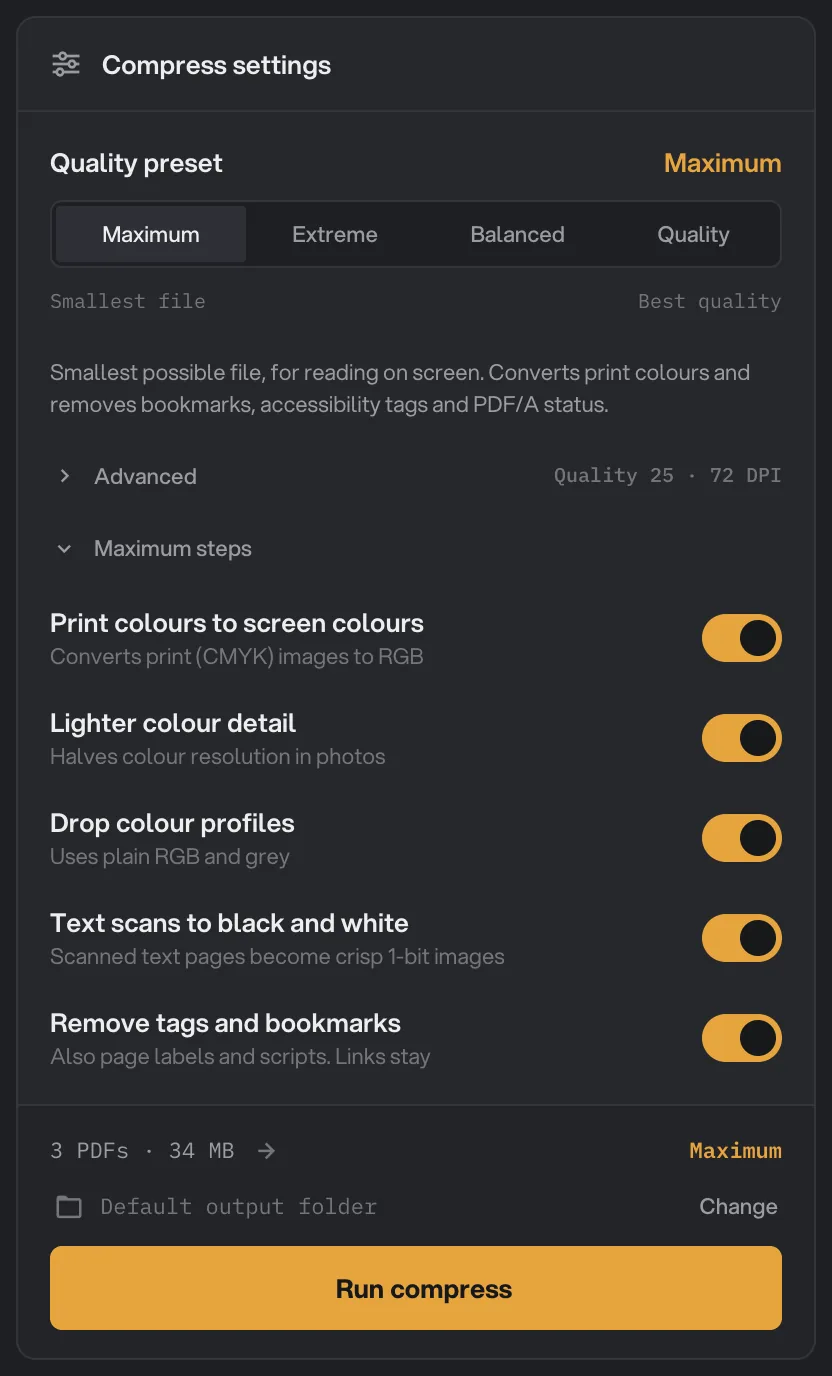
- Maximum
- What Maximum does
- Maximum steps
- Text scans to black and white
Step 3: Fine-tune in Advanced (optional)
Click Advanced to see every option. Change any of them and the preset name changes to Custom. Click a preset again to go back to its settings. The line above Run compress sums up what will happen, for example "Image quality 50 · 150 DPI target".
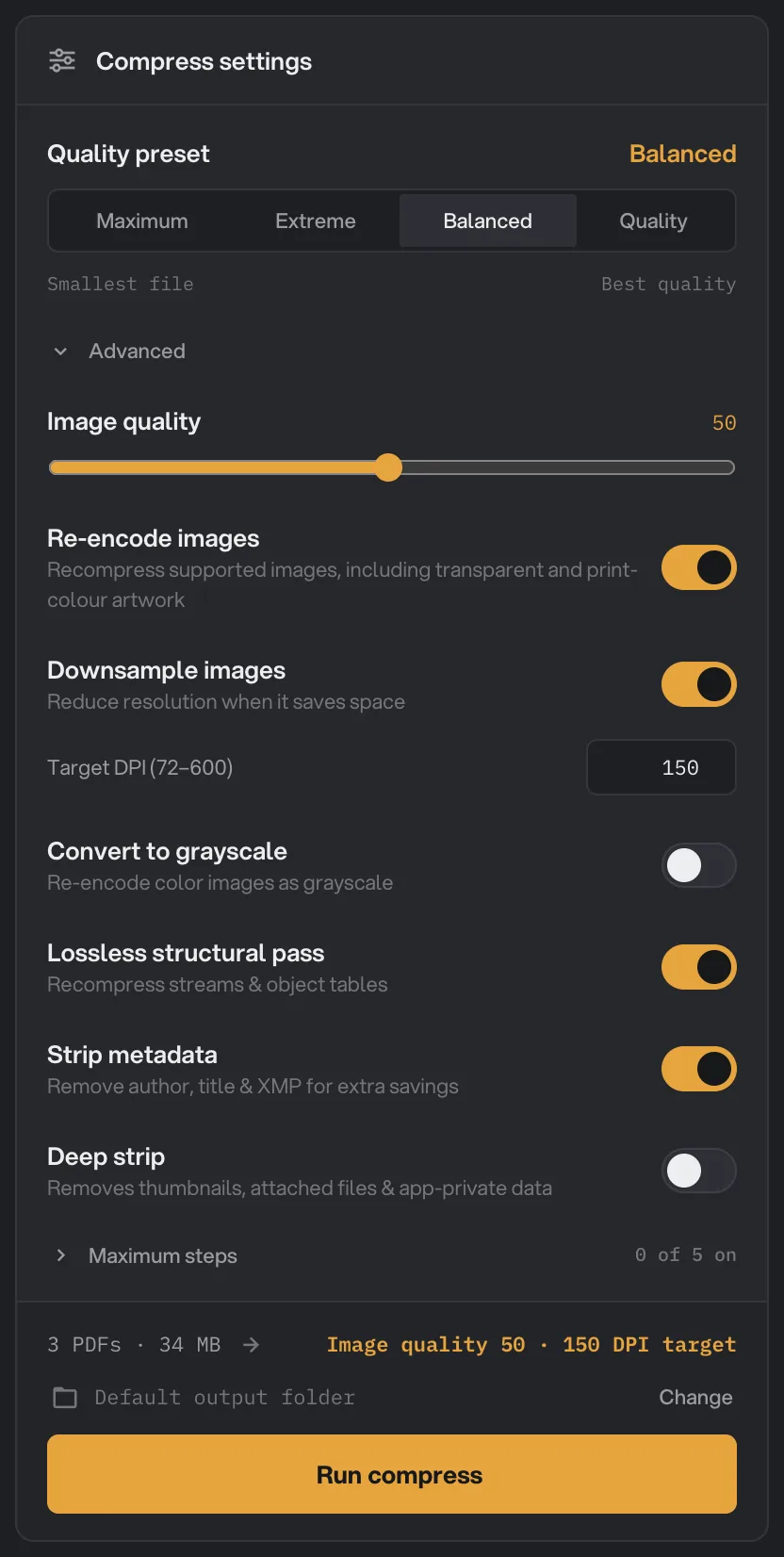
- Image quality
- Re-encode images
- Target DPI
- Convert to grayscale
- Deep strip
Step 4: Run, then check the result
Check where the files will go: Default output folder saves them in your workspace's output folder, in a compress folder with a subfolder for today's date, such as 10-15. Click Change to pick another folder for this run. Then click Run compress.
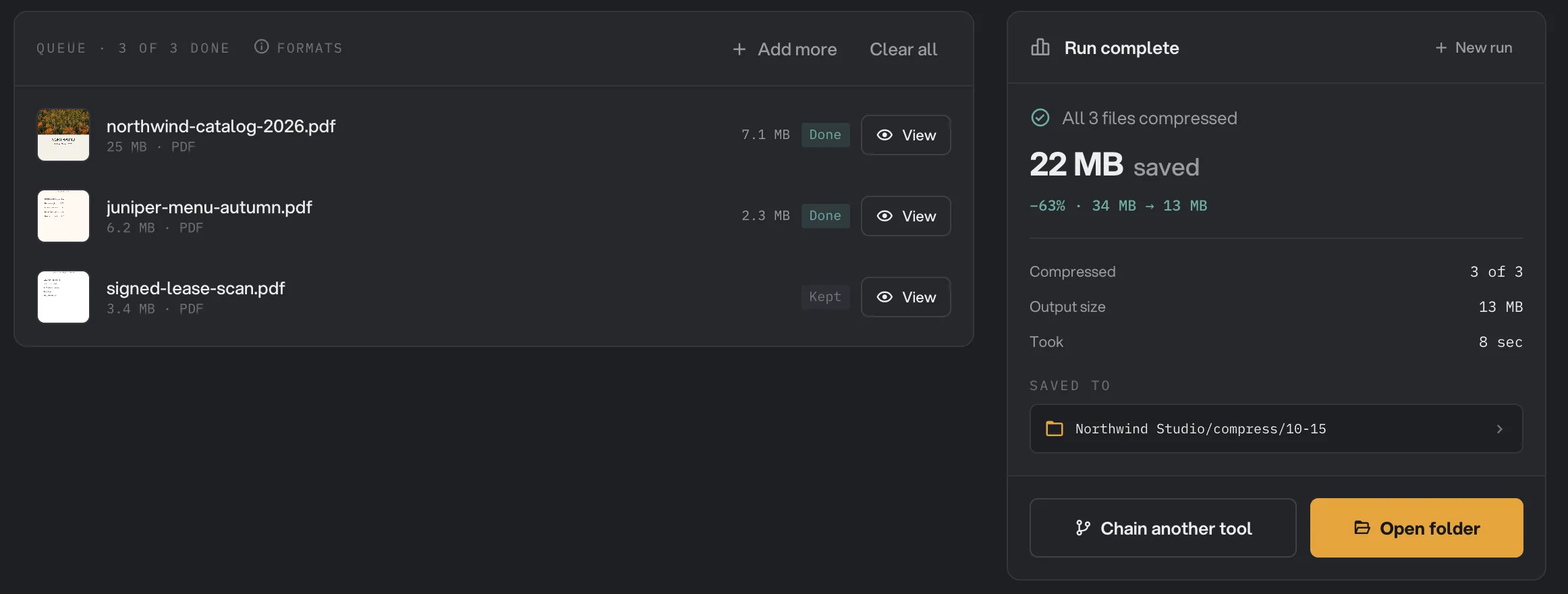
When the run ends, each file shows its new size and Done, and the panel on the right shows how much space you saved in total. Click View on a file to page through it and check the pictures still look right. Open folder takes you to the compressed files.
- View
- Kept
- Space saved
- Where the files are
- Open folder
Here the photo-heavy catalog shrank by more than two thirds. The scanned lease could not get smaller, so it is marked Kept: see what Kept means. For more on reading results, see See and compare your results.
Every setting, and when to change it
The first eight sit under Advanced, the last five under Maximum steps. Each row shows what the four presets set it to.
- Image quality
How much detail re-encoded pictures keep. Lower means a smaller file and softer pictures.
- Range1 to 100
- Maximum25
- Extreme35
- Balanced50
- Quality70
- Re-encode images
Compresses the pictures inside the PDF again. Turn it off to keep every picture exactly as it is.
- MaximumOn
- ExtremeOn
- BalancedOn
- QualityOn
- Downsample images
Lowers the resolution of pictures that are sharper than the Target DPI. A picture is only reduced when that makes the file smaller.
- MaximumOn
- ExtremeOn
- BalancedOn
- QualityOn
- Target DPI
The resolution Downsample images aims for, measured at the size the picture appears on the page.
- Range72 to 600
- Maximum72
- Extreme72
- Balanced150
- Quality220
- Convert to grayscale
Saves color pictures in shades of gray. Text and drawings keep their color.
- MaximumOff
- ExtremeOff
- BalancedOff
- QualityOff
- Lossless structural pass
Stores the internal parts of the document more compactly. Nothing on the page changes.
- MaximumOn
- ExtremeOn
- BalancedOn
- QualityOn
- Strip metadata
Removes document details such as the author and title.
- MaximumOn
- ExtremeOn
- BalancedOn
- QualityOff
- Deep strip
Also removes page thumbnails, attached files and data left behind by the app that made the PDF.
- MaximumOn
- ExtremeOn
- BalancedOff
- QualityOff
- Print colours to screen colours
Turns print-ready (CMYK) pictures into the RGB colors a screen shows. Needs Re-encode images.
- MaximumOn
- ExtremeOff
- BalancedOff
- QualityOff
- Lighter colour detail
Stores the color of photos at half resolution. Needs Re-encode images.
- MaximumOn
- ExtremeOff
- BalancedOff
- QualityOff
- Drop colour profiles
Uses plain RGB and gray instead of color profiles.
- MaximumOn
- ExtremeOff
- BalancedOff
- QualityOff
- Text scans to black and white
Turns scanned text pages into crisp black-and-white pages. Needs Re-encode images.
- MaximumOn
- ExtremeOff
- BalancedOff
- QualityOff
- Remove tags and bookmarks
Removes accessibility tags, bookmarks, page labels and scripts. Links stay.
- MaximumOn
- ExtremeOff
- BalancedOff
- QualityOff
A few rules of thumb for the resolution: 72 DPI is enough for reading on a screen, 150 DPI for an office printer, and 300 DPI for professional printing. Turn off Downsample images when the pictures must keep every pixel, for example a photo portfolio.
How do I get the smallest possible file?
- If the file only needs to be read on screen, pick Maximum. Otherwise start with Extreme. Both try several versions and keep the smallest.
- If the file is still too big, open Advanced and lower Image quality, for example to 25. Check the pictures with View afterwards.
- If color does not matter, turn on Convert to grayscale. This helps most with color photos and color scans.
- Compare the result with the original size in the results panel. If it barely moved, the next section explains why.
To keep pictures sharp but still save space, use Balanced and leave the rest alone. Most of the saving on a typical file comes from the pictures, and Balanced keeps them clear on screen and on paper.
Why did my PDF barely shrink?
If every preset gives you about the same small saving, the size of your PDF is not in pictures that Compress PDF can re-encode today. The usual reasons are:
- The PDF is mostly text and drawings. Reports, contracts and invoices exported from Word, Pages or a design app are already compact. Text and fonts are never changed, so only the storage tidy-up applies, and that saving is the same at every preset.
- It is a black-and-white scan. Many scanners and copiers save pages in special black-and-white formats that are already very small. Compress PDF leaves those pages as they are. Gray or color scans of text are different: Maximum turns them into black and white, which often makes them much smaller.
- The file was already compressed. A PDF that went through another compressor, or was saved with a "smallest file size" option, has little left to remove.
Fonts are another hidden weight that Compress PDF does not reduce. A short document can still be a few megabytes when it carries several complete fonts. Exporting it again from the app that made it, with an option to embed only the characters used, often helps more.
What does Kept mean?
Kept means Hangar could not make that file any smaller, so it saved an exact copy of your original in the output folder instead. You never get back a file that is bigger than the one you started with, and the file still appears in the output folder with the rest of the batch.
The run summary still counts a Kept file as processed. Look at each row to see which files were really reduced: they show their new size and Done. If most of your files come back as Kept, read why a PDF barely shrinks.
There is one exception. If a PDF was slightly damaged, Hangar repairs it while compressing, and saves the repaired copy even when it is not smaller, because the original may not open everywhere.
Limits
- Compress PDF accepts PDF files only. To shrink photos, use Compress images, and for videos, Compress video.
- Password-protected PDFs, including ones that open freely but block printing or editing, stop with a message that the file is password-protected. Remove the password with Unlock PDF first.
- Text, fonts and drawings are never changed, so they are never reduced either.
- Maximum and Extreme take longer than the other presets, because they build several versions of each file.
- Maximum removes accessibility tags and bookmarks and turns print colors into screen colors, and a PDF/A file loses its archive status. Use it for copies people read on screen.
- Everything runs on your computer, so very large files take as long as your computer needs. Nothing is uploaded.
If a file fails, its row shows the reason. A file failed: what to check lists the common causes and fixes.
Use Compress PDF in a chain
Compress is available as a step in chains, under the PDF steps, with the same presets and Advanced options as the tool. A common chain adds page numbers, compresses each PDF and then protects it with a password, so every file is ready to send. A Kept file passes to the next step unchanged.
Put Compress after any step that adds images or pages, and before Encrypt, which has to come last because a locked PDF cannot be compressed. To run the same chain on new files each week, see Run a chain on many files.
Common questions
Why do Extreme, Balanced and Quality give the same result?
Those three presets only differ in how they treat the pictures inside a PDF. If your file is mostly text and drawings, or its pages are black-and-white scans that are already compact, every preset can only tidy up how the file is stored, so they all land on about the same size. Maximum can still help with scans: it turns gray or color scans of text into crisp black and white.
When should I use Maximum?
When the file only needs to be read on a screen and the smallest size matters more than anything else, for example to fit an upload limit. Maximum removes bookmarks and accessibility tags, turns print colors into screen colors and turns scanned text pages into black and white. Keep a copy of the original for printing or archiving.
Does compressing make the text blurry?
No. Text, fonts and drawings are kept exactly as they are at every setting. Only the pictures inside the PDF are re-encoded, and only when Re-encode images is on.
Which preset should I use for a document that will be printed?
Use Quality. For professional printing, open Advanced and either raise Target DPI to 300 or turn off Downsample images, so the pictures keep their full resolution.
Can I compress a password-protected PDF?
Not directly. Hangar stops with a message that the file is password-protected. Remove the password with Unlock PDF first, then compress the unlocked copy.
Is my original PDF replaced?
No. Hangar saves the compressed copy in your output folder and leaves the original where it was, untouched.
Still stuck?
One person reads every message, usually with a reply within a day.