 Agencies and studios
 Photographers
 Podcasters
 Video and social creators
 Marketers and content teams
Every tool in Hangar works the same way, so once you have run one you can run them all. This guide follows Northwind Studio shrinking three heavy PDFs with Compress PDF, but the five steps are identical for converting images, trimming a video or extracting audio.
Step 1: Open a tool
Click Tools in the sidebar, then type what you want to do in the search box, for example compress.
Hangar shows every matching tool, grouped by file type, so pick the one for your format. Here that is PDF Compress, under PDF. The tabs along the top filter the whole catalog by type: Image, Video, Audio, PDF, Web & Ebook, Any file and Create.
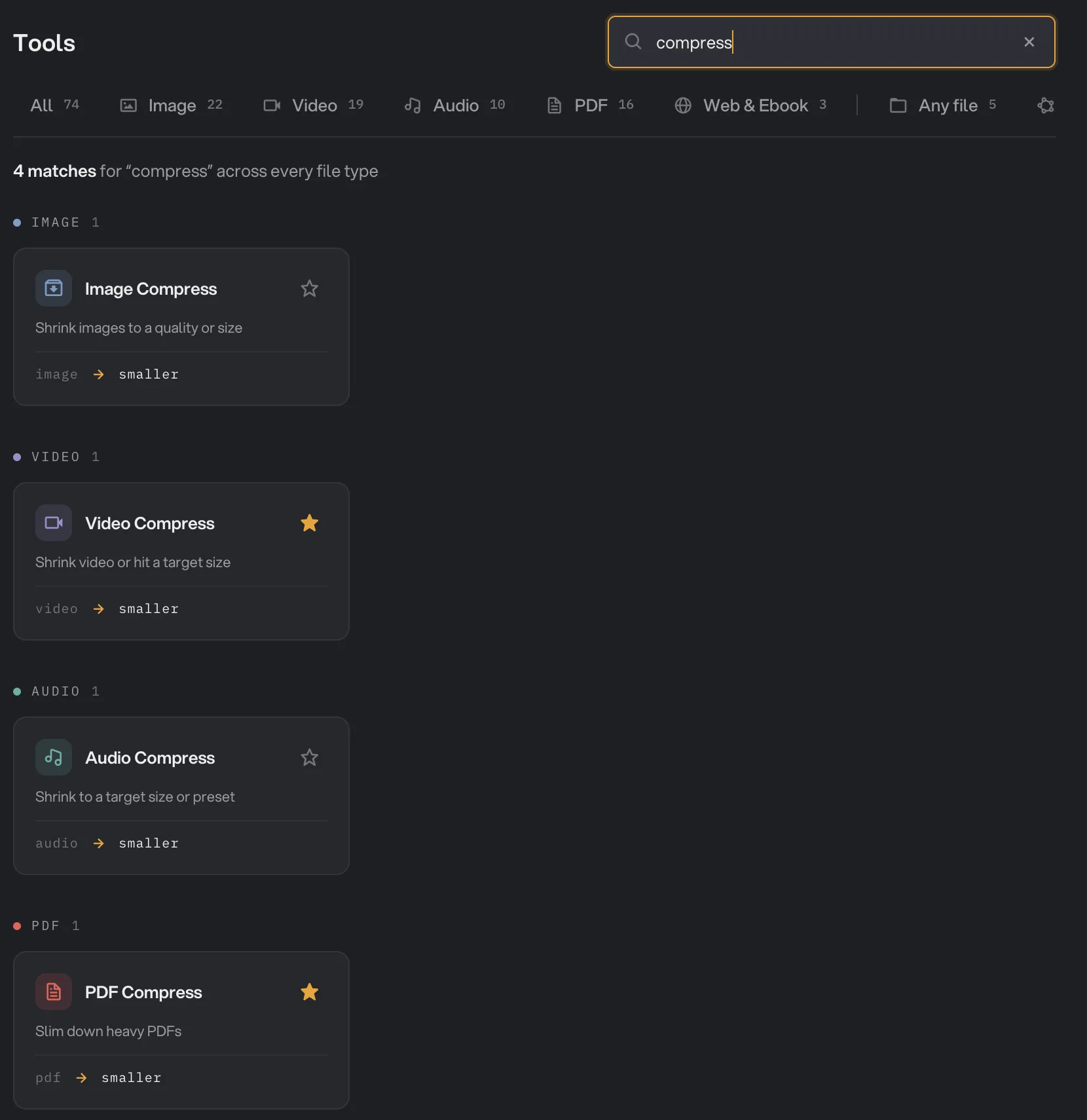
- Search tools, formats or tasks
- File-type tabs
- PDF Compress card
- Add to favorites
You can also skip the search: drop files on the Tools page and Hangar opens the tab for that file type, with an amber dot on every tab that accepts them. Click the star on a card to keep a tool in your favorites.
For a quick job on a few files, you don't need this window at all. Click the Hangar icon in the menu bar (the system tray on Windows), drop the files and pick a tool. It runs with the settings you used last. See Use Hangar from the menu bar.
Step 2: Add your files
Drop your files onto the queue on the left, or click Add more to pick them. The queue header counts them up: Queue · 3 files · 32 MB.
Add one file or hundreds, in any order. Drag the handle at the left of a row to reorder files, which matters for tools such as Merge PDF that keep your order. Folders are not accepted: open the folder and select the files inside it instead.
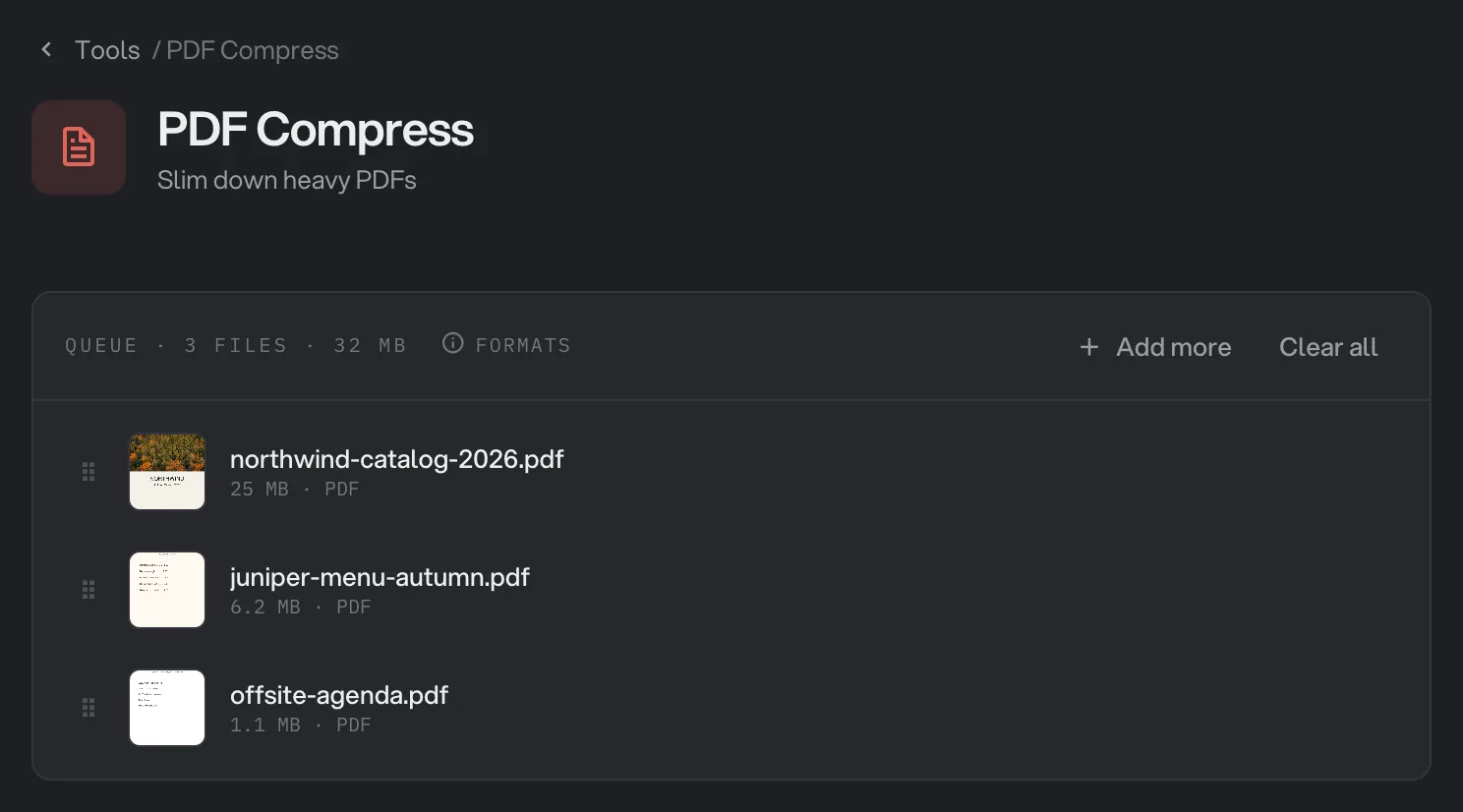
- Add more
- Formats
- Drag to reorder
- Clear all
Not sure what a tool accepts? Formats in the queue header lists every type it takes. If you add a file the tool can't use, Hangar tells you so in an amber message and, where it can, offers to open the right converter first.
Working with a large batch? Process many files at once covers mixed file types, progress and what happens when some files fail.
Step 3: Adjust the settings
The panel on the right is named after the tool's action, here Compress settings. Pick what you need. For Compress PDF that is a Quality preset: Maximum or Extreme for the smallest file, Balanced in the middle, Quality for the best-looking pages.
Advanced opens the finer controls. The line above the run button sums up the plan before you commit: 3 PDFs, 32 MB, and the exact settings that will be applied.
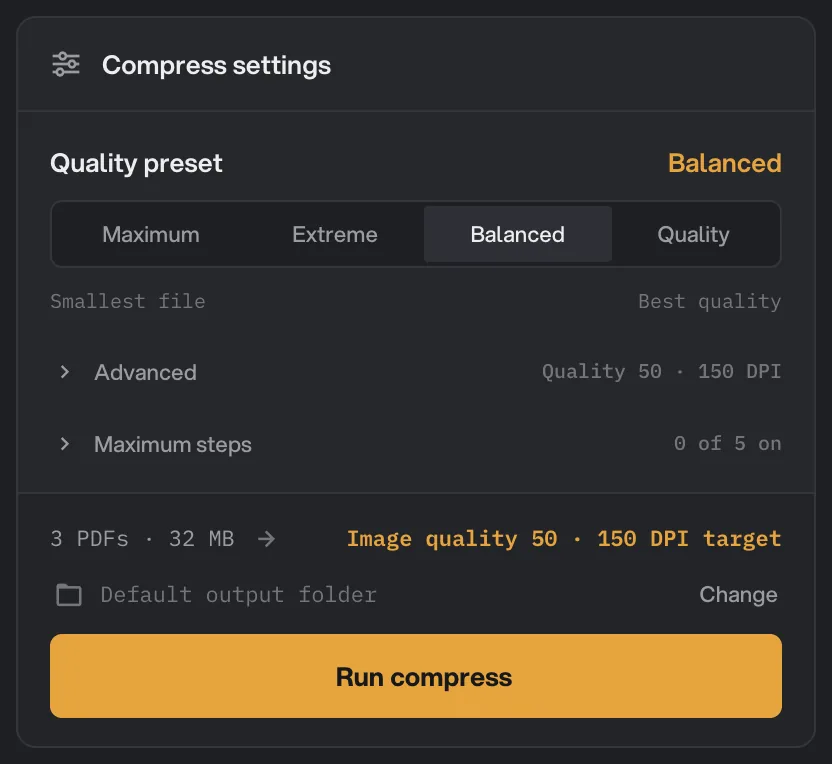
- Quality preset
- Advanced
- What will happen
Some tools, such as Resize images, Trim video and Watermark, add an Adjust button on each file in the queue, and a Studio button in the settings panel. Adjust opens that one file in a hands-on editor, and the row shows Custom once the file has its own settings. Studios explains these editors.
Step 4: Choose where results go
Under the settings, the destination row reads Default output folder. Leave it as it is and Hangar saves into your workspace's output folder, inside a subfolder named after the tool and today's date, such as Northwind Studio/compress/10-13.
To save somewhere else for this run, click Change and pick a folder in the Choose destination folder window. Your files then go straight into that folder, with no tool or date subfolders. Hangar keeps using that folder for your other tools until you quit the app or click the × next to it to go back to the default.
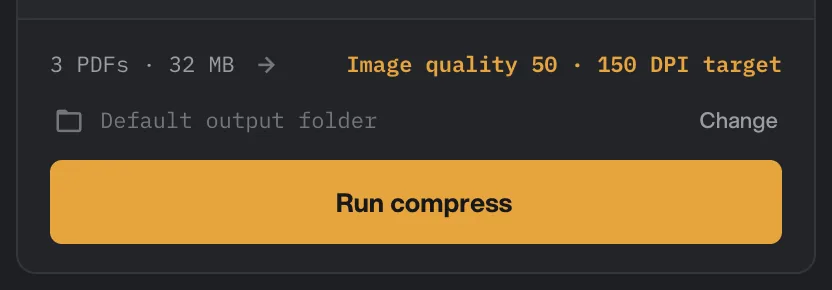
- Default output folder
- Change
Step 5: Run and open your results
Click the amber button. It usually reads Run followed by the tool's action, here Run compress.
While Hangar works, the panel shows Running, how many files are done, and the current file's progress. Hangar processes files one after another, and the queue header counts them: Queue · 2 of 3 done. Press Cancel or Esc to stop.
When the last file finishes, the panel changes to Run complete. Northwind's three PDFs went from 32 MB to 10 MB in 6 seconds; the 25 MB catalog alone came down to 7.1 MB.
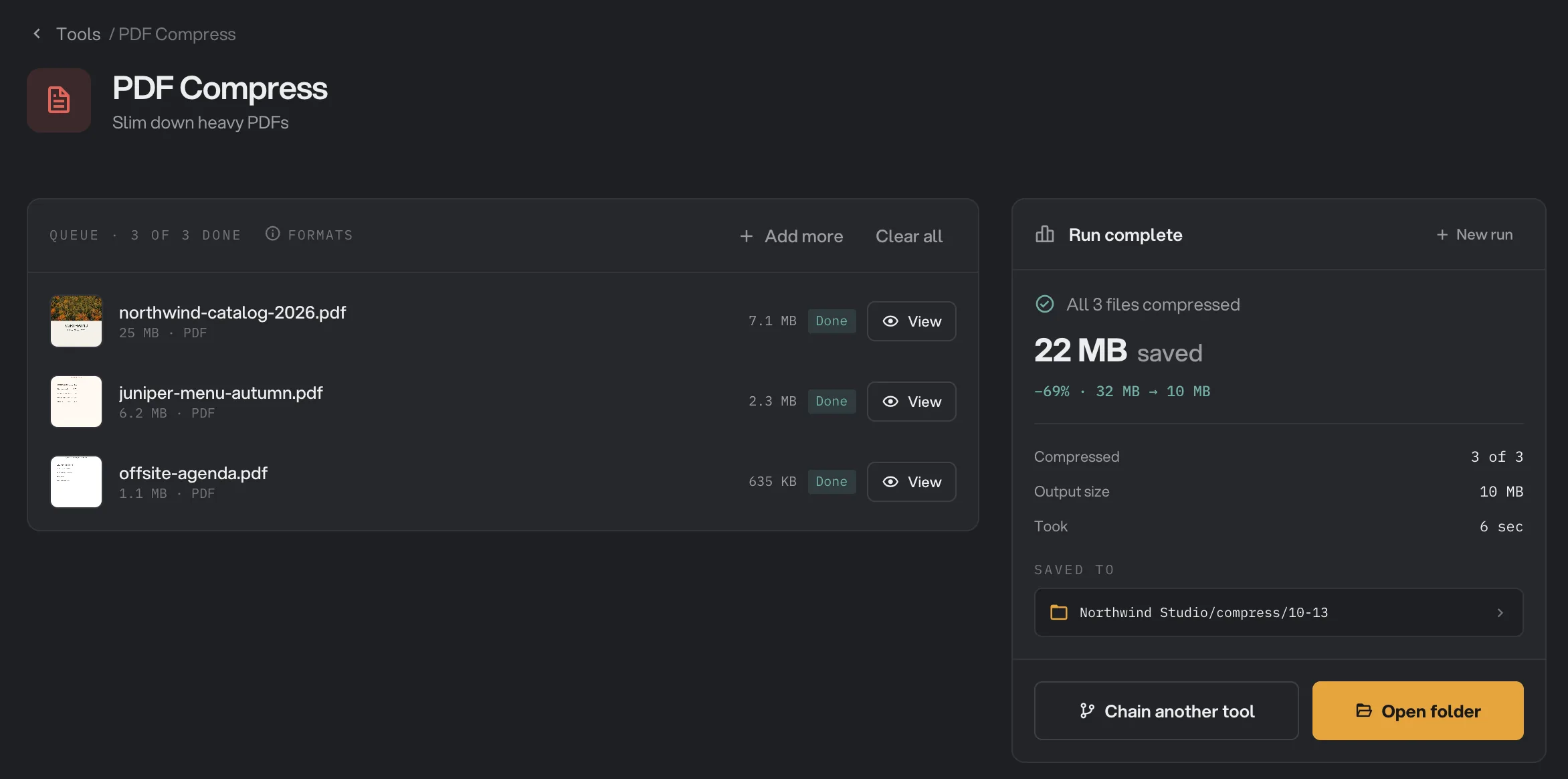
- Size saved
- View a result
- Saved to
- Open folder
- Chain another tool
From here you can:
- Click View on any row to check that file before you share it. PDFs and images open in a before and after view labeled Original and Output, video and audio get players for both versions, and text results show the text so you can copy it.
- Click Open folder to reveal the files on your computer. The Saved to path shows exactly where they went.
- Click Chain another tool to hand these results straight to a second tool without finding the files again.
- Click New run to clear the results, so you can change the settings or the files and run again.
What a finished run shows depends on the tool. Compression shows the size saved, tools that combine many files into one show a card for the new file with a View button, and Studio exports show a small summary card with Open folder. See and compare your results walks through every result style. Every run is also kept on the Runs page, so you can reopen past results at any time.
Common questions
Does Hangar change my original files?
No. Every run writes new files to the output folder and leaves the originals where they are. The new file keeps the original name, sometimes with a suffix such as -signed, and if that name is already taken Hangar adds (2), (3) and so on rather than overwriting anything. The only tools that can touch originals are Batch Rename, when you choose Rename originals, and Organize, which moves the originals unless you choose Make copies instead. Both offer an undo.
How do I cancel a run?
Click Cancel in the run panel or press Esc. Hangar stops before the next file starts and the header changes to Run cancelled. Files that were already done stay in the output folder, and you can reopen the run later from the Runs page.
What happens if one file fails?
The run keeps going with the other files. The file that failed shows Failed with the reason in its row, the summary reads something like 2 done · 1 failed, and a What failed list repeats the reasons. A run is only marked Failed when every file in it failed.
Why is the Run button not available?
The hint under the button tells you why. Most often the queue is empty, the tool needs a one-time model download, or a setting is still missing, such as the password when you encrypt a PDF or the signature when you sign one. Fix that one thing and the button comes back.
Can I run a tool on hundreds of files at once?
Yes. Add as many files as you like to the queue and run once. Hangar works through them one after another, shows each file’s progress, and keeps going if one of them fails.
Still stuck?
One person reads every message, usually with a reply within a day.