 Agencies and studios
 Photographers
 Podcasters
 Video and social creators
 Marketers and content teams
To redact a PDF, the text under the black box has to be deleted. Covering it is not enough. Drawing a black rectangle in most PDF editors only adds a shape on top: the words are still in the file, and anyone can copy and paste them out. Use a real redaction tool, then check the result by searching for what you removed.
We tested both on a sample contract with made-up names: the failure first, then the fix.
Why doesn’t a black box hide the text?
A PDF page is built in layers. The text is one layer; anything you draw, like a highlight, a comment or a black rectangle, is another layer on top. Covering a name with a box changes what you see, not what’s stored.
Here’s our sample contract. We blacked out the contractor’s name, bank details and National Insurance number by drawing boxes over them. Then we selected the page and copied it:
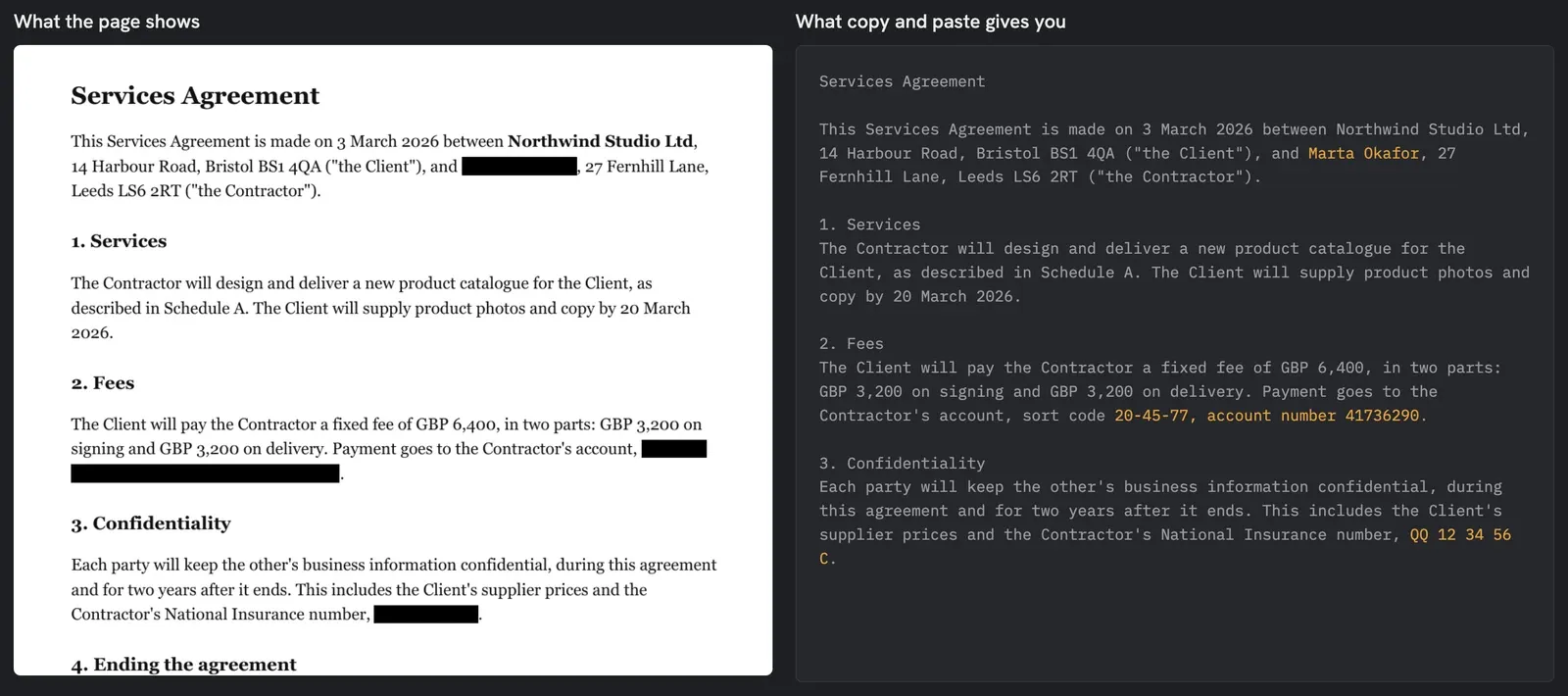
Everything we “removed” came straight back. Search finds it too, and so does any tool that reads the text of a PDF.
It happens to professionals too. In January 2019, Paul Manafort’s lawyers filed a court document whose black boxes came off with copy and paste, revealing what they’d meant to hide (Columbia Journalism Review). The American Bar Association keeps a list of similar failures.
How do you redact a PDF properly?
Use a tool that deletes the content under the box, then strips anything else that could give it away. In Hangar’s Redact PDF, called Redact in the app:
- Open Redact and add your file.
- Under Search terms, type each word or number that must go and click Add: names, account numbers, ID numbers. Every place each one appears gets removed. Add list takes a TXT or CSV file if you have many.
- Leave Whole values only on, so a short number doesn’t get cut out of a longer one.
- Leave Strip document metadata on.
- For anything you can’t type, like a signature or a photo, go to Draw areas manually and click Open the Redact Studio to draw boxes by hand.
- Click Run redact. Hangar saves a copy with “-redacted” added to the name and leaves your original as it was.
The Redact PDF guide explains every setting and how to draw boxes in the Redact Studio.
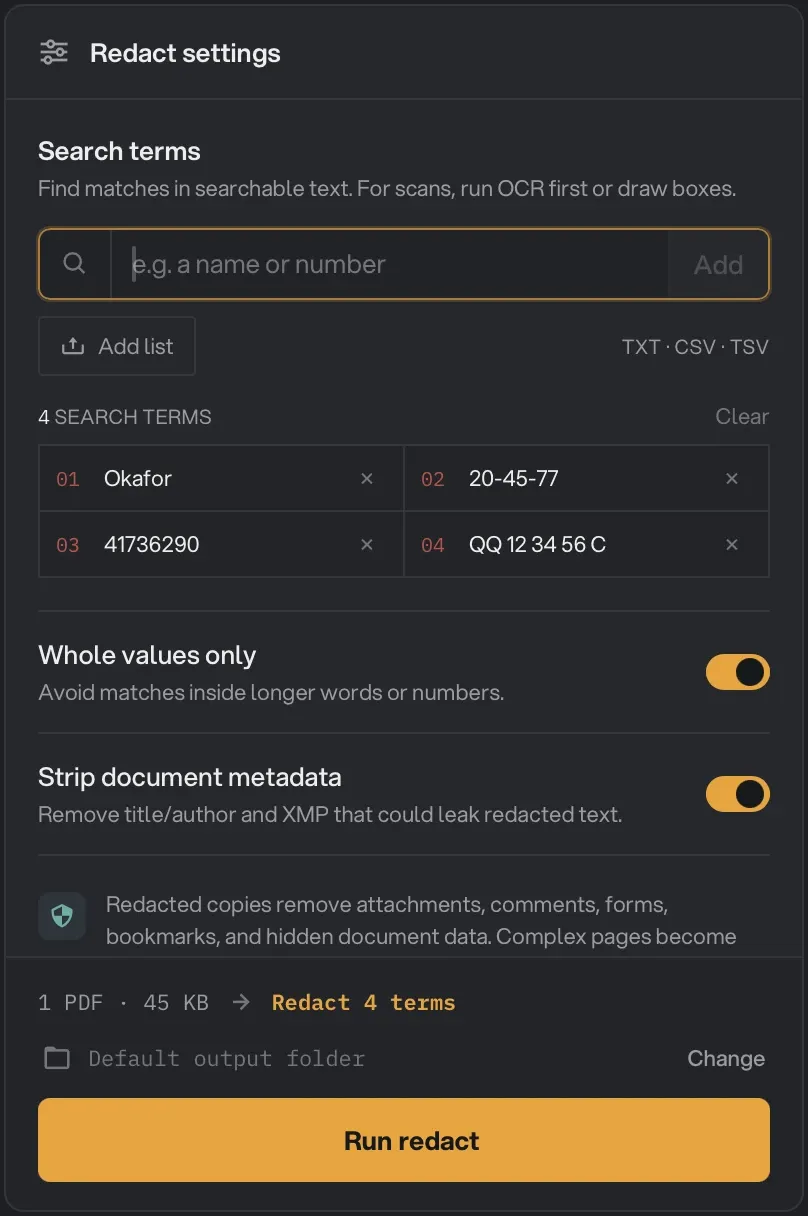
List every part of a name you want gone. We listed only the surname, Okafor, so it vanished everywhere, including from the email address, but the first name “Marta” stayed on the page. To hide who someone is, add the first name too.
On our contract, Redact turned the page into an image, so nothing under the boxes could be pulled back out. That also means the page can’t be searched any more. To get searchable text back, run the redacted copy through OCR PDF afterwards. The redacted words don’t return, because they’re no longer on the page to be read.
Hangar runs on your computer, so the document you’re redacting is never uploaded anywhere. That matters more here than for any other PDF job.
How do you check that the redaction worked?
Do the same test that caught the black boxes:
- Open the redacted copy.
- Search (Cmd+F or Ctrl+F) for each thing you removed. You should get no results.
- Select all the text on the page, copy it and paste it into a plain text editor. Read through it for anything that should be gone.
- Check the document’s properties (File > Properties, or Tools > Show Inspector in Preview on a Mac).
Here’s our contract after Redact and then OCR PDF, through the same copy and paste:
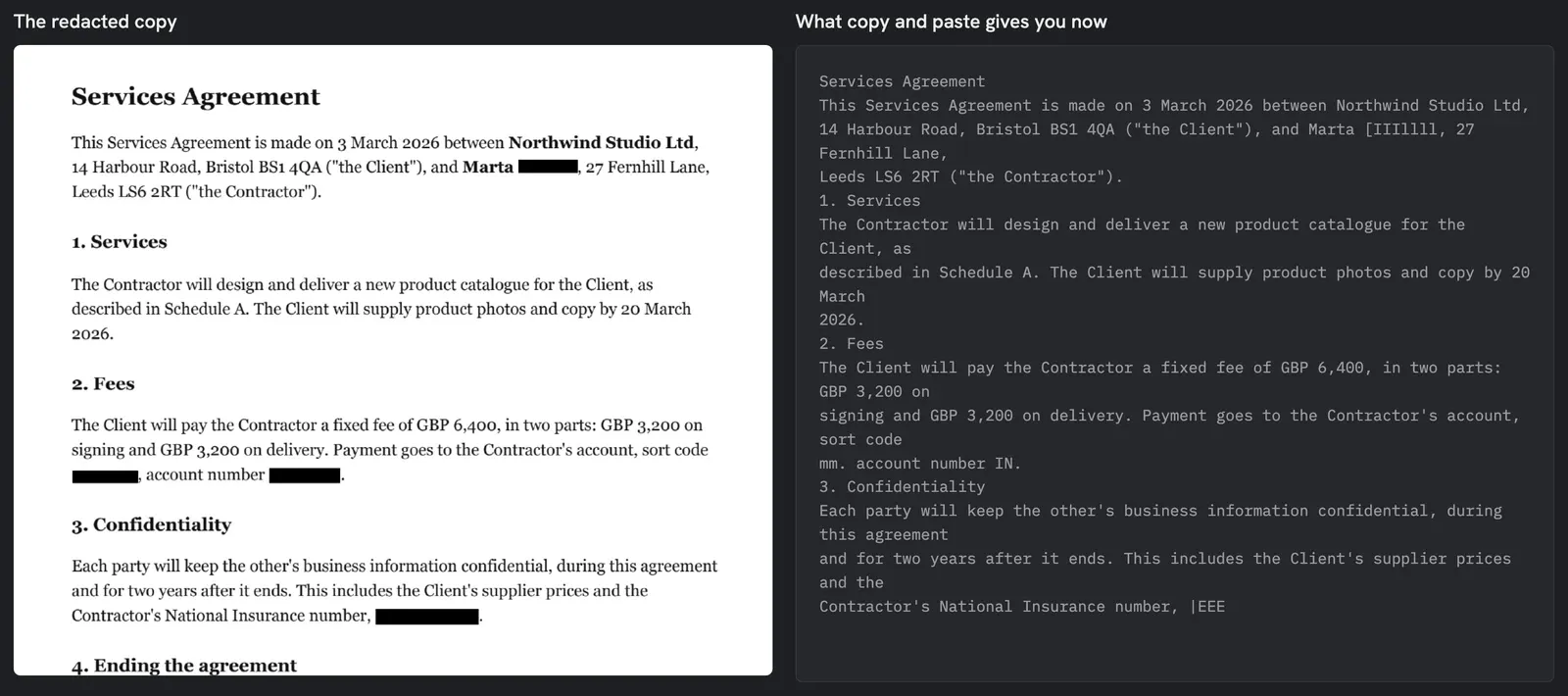
The black bars come back as a few stray characters, not the words that were there. A search for each of the four terms found nothing.
Don’t forget the hidden parts
The visible page isn’t the only place a name can hide:
- Metadata. The title, author and subject fields travel with the file. Our sample contract’s title was “Services Agreement - Marta Okafor”, and its subject field included the sort code. Strip document metadata removes these: our redacted copy came out with no title, author or subject at all.
- Other places in the document. Names appear in headers, footers, signature blocks and contact lists. Search terms catch every one; boxes only catch the ones you notice. Our contract named the contractor three times and had her surname in an email address; we’d blacked out one of the four.
- Scanned pages. On a scan, the words are pixels, so a search term can’t find them. Run OCR PDF first so they can be found, or draw boxes by hand.
- Attachments and comments. A PDF can carry attached files and comments that you never see on the page. Hangar’s redacted copies drop attachments, comments, form fields and bookmarks.
What about other tools?
- Adobe Acrobat Pro has a proper Redact tool that removes the content, on a paid plan. Its basic drawing tools and Acrobat Reader don’t redact.
- Preview on a Mac: its rectangle shape, like any drawn box, doesn’t redact. If you use a redaction tool in Preview, run the copy-and-paste test below on the result.
- Online redaction tools work, but you’re uploading the very text you want to remove. For anything sensitive, that defeats the point. We wrote about when uploading documents is fine and when it isn’t.
- Printing and scanning the page with black marker on it works, but you lose searchable text everywhere else, and marker can show through on a strong scan.
Whatever you use, finish with the copy-and-paste test. It takes a minute and it’s the only way to know.