 Agencies and studios
 Photographers
 Podcasters
 Video and social creators
 Marketers and content teams
Select the files, then use the rename option your computer already has: right-click and Rename in the Mac Finder, or press F2 in Windows File Explorer. Both handle simple jobs, like giving a batch one name with a number on the end. For anything more, like naming photos by the date each one was taken, cleaning up messy names, or checking the result before anything changes, you need a batch rename tool.
We tested each method on a folder of 180 camera files named IMG_4121.JPG to IMG_4300.JPG, taken over five months, with a few strays like “IMG_4125 copy.JPG” mixed in.
How do you rename multiple files on a Mac?
Finder can rename a whole selection in one go:
- Select the files (Cmd+A for the whole folder).
- Right-click and choose Rename (it shows how many items you’ve selected).
- Pick one of the three modes:
- Replace Text swaps one piece of text for another in every name, like “IMG_” for “Lisbon_”.
- Add Text puts text before or after each name.
- Format gives every file a new name plus a number (Name and Index, Name and Counter) or a date (Name and Date).
- Check the example at the bottom of the window, then click Rename.
Finder’s limits: one mode at a time, no preview of the full list, and numbering follows Finder’s current sort order, so sort by name or date before you number. Undo (Cmd+Z) works straight after.
How do you rename multiple files on Windows?
File Explorer has one built-in way:
- Select the files.
- Press F2, type a name, and press Enter.
Every file gets that name with a number in brackets: “Lisbon (1).jpg”, “Lisbon (2).jpg” and so on. That’s all it does. You can’t keep part of the old name, replace text or add a date.
Microsoft’s free PowerToys adds PowerRename, which does find and replace with a preview. If you’re on Windows and only need find and replace, it’s a good free choice.
When do built-in tools fall short?
When the new name needs something from each file, or more than one change at a time. Common jobs:
- Name by date, so files sort in the order they happened:
2026-05-01_001.JPGinstead ofIMG_4121.JPG. - Clean up spaces and “copy” or “(1)” leftovers.
- Several changes at once: replace a word, add a prefix and renumber, in one pass.
- See every new name before committing, and catch two files ending up with the same name.
How do you rename files by date in Hangar?
Hangar’s Batch rename builds each new name from parts you choose, and shows the old and new name for every file before it changes anything.
- Open Batch Rename and click Folder, or Files to pick files by hand. Files are numbered in the order they appear in the queue, so add them in the order you want.
- Clear the New name box, which starts as
{name}(the current name). - Click Date, leave Which on Date modified and the format on 2024-01-15, then click Insert.
- Type an underscore, then click Counter and pick 001, 002, 003. The box now reads
{modified:%Y-%m-%d}_{n:3}. - Read down the queue: each file shows its new name under the old one.
- Under Output, leave Save copies selected. Your originals stay as they are while you check the result. Choose Rename originals once you trust the pattern.
- Click Rename 180 files (the button shows your own file count).
Other patterns, like find and replace or changing case, are in the Batch Rename guide.
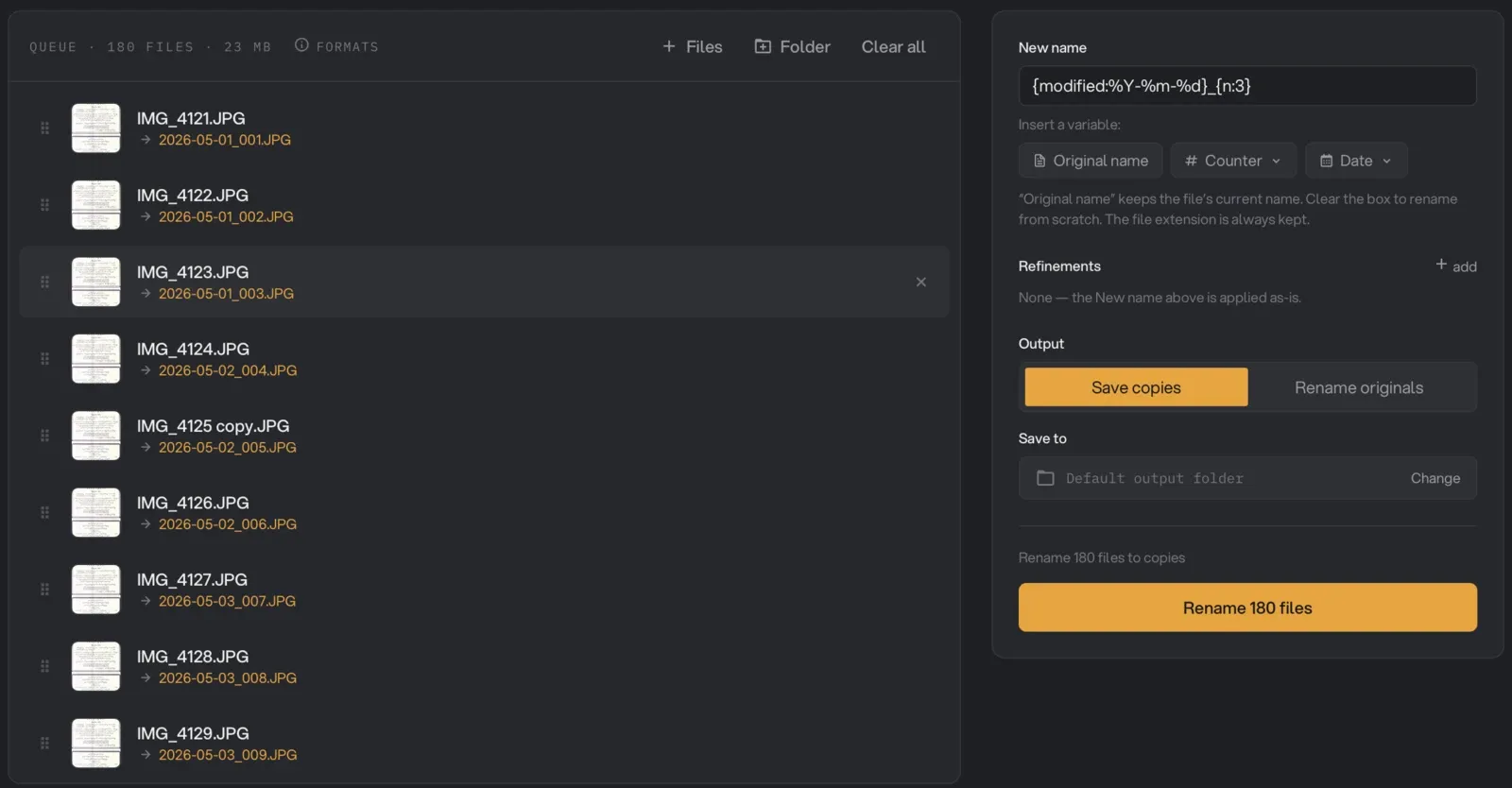
Our 180 files became 2026-05-01_001.JPG to 2026-09-12_180.JPG, in shooting order. The strays didn’t need special handling: “IMG_4125 copy.JPG” and “IMG_4199 (1).JPG” got a normal date and number like the rest, because the new name is built from scratch.
Two things we learned on the way:
- The date alone isn’t enough. Before we added the counter, Hangar flagged 178 name clashes, since many photos share a day, and wouldn’t run until we fixed them. The counter makes every name unique.
- The extension is kept as it is. One stray, “img_4170.jpeg”, came out as 2026-06-05_050.jpeg while the rest stayed .JPG. If mixed extensions bother you, convert them first.
A naming rule worth keeping
Whatever tool you use, a few habits make names that sort and search well for years:
- Date first, as YYYY-MM-DD. 2026-05-01 sorts correctly; 01-05-2026 doesn’t.
- Pad numbers to the same length: 001 to 180, not 1 to 180.
- Short words, no spaces. Hyphens or underscores between words work everywhere, including web uploads and older systems.
- No “final”. Use dates or version numbers (v2, v3) instead.
Rename your files in one pass with Hangar, with a preview before anything changes.