 Agencies and studios
 Photographers
 Podcasters
 Video and social creators
 Marketers and content teams
Hangar is one window: a sidebar on the left and a work area on the right. The sidebar has four places, Studios, Tools, Chains and Runs, plus your favorite tools and your workspaces. Search and Settings live in the title bar, one keystroke away from any screen.
The window at a glance
This is the Tools home, the screen Hangar shows when you want to process files. The five areas marked below each have a section on this page and a deeper guide of their own.
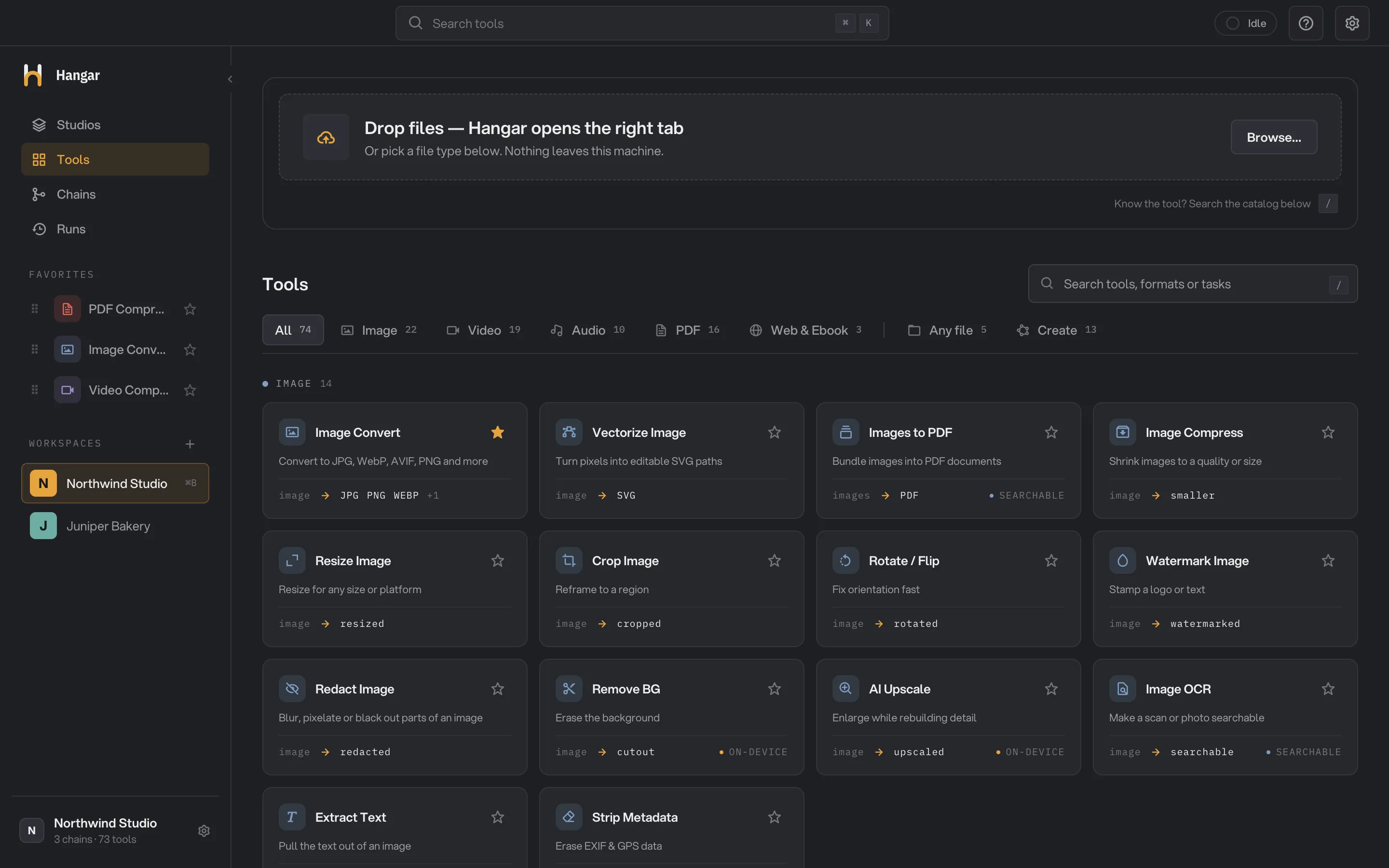
- Sidebar: Studios, Tools, Chains and Runs
- Workspace switcher
- Search tools (⌘K)
- Drop zone
- Tool cards
Tools: drop files, pick a tool
Most work starts here. Drop files onto the zone at the top and Hangar opens the tab that matches them. Below it the line reads Or pick a file type below. Nothing leaves this machine., and a Browse… button opens a file picker instead.
Under the drop zone sits the catalog, headed Tools, with a search box that reads Search tools, formats or tasks. Press / to jump into it and Esc to clear it. Type a tool name, a format such as “heic”, or a task such as “compress”.
The tabs sort the catalog by file type: All, Image, Video, Audio, PDF, Web & Ebook, then Any file and Create. Each tab shows how many tools it holds. Once you have dropped files, the tabs that can take them get an amber dot.
Every tool card shows the tool's name, a one-line description, and what goes in and what comes out, for example image to JPG PNG WEBP on Image Convert. The star adds the tool to Favorites in the sidebar. A Soon badge means the tool is not available yet; after you drop files, tools that cannot take them are marked Not for these files.
Click a card to open the tool screen. Its breadcrumb reads Tools / and the tool's name, with your file queue on the left and the settings and the run button on the right. Running a tool takes five short steps, and the same screen handles hundreds of files at once. Popular starting points are Compress PDF, Convert images and Compress video.
Studios: an editor for one file
A Studio is a full-screen editor for a single file, for work you do by hand rather than in a batch. The Studios home reads Open a file, or pick up where you left off. Drop a file onto Drop a file to open it, or click Open file (⌘O, Ctrl+O on Windows).
PDF Studio is where you read, annotate, redact and arrange pages; click Open on its tile. The other Studio tiles are marked Soon. Below the tiles, Recent files lists what you worked on, in a Grid or a List. Many tools open a Studio of their own too, for trimming a clip or framing a screenshot in a device mockup; the Studios guide walks through four of them.
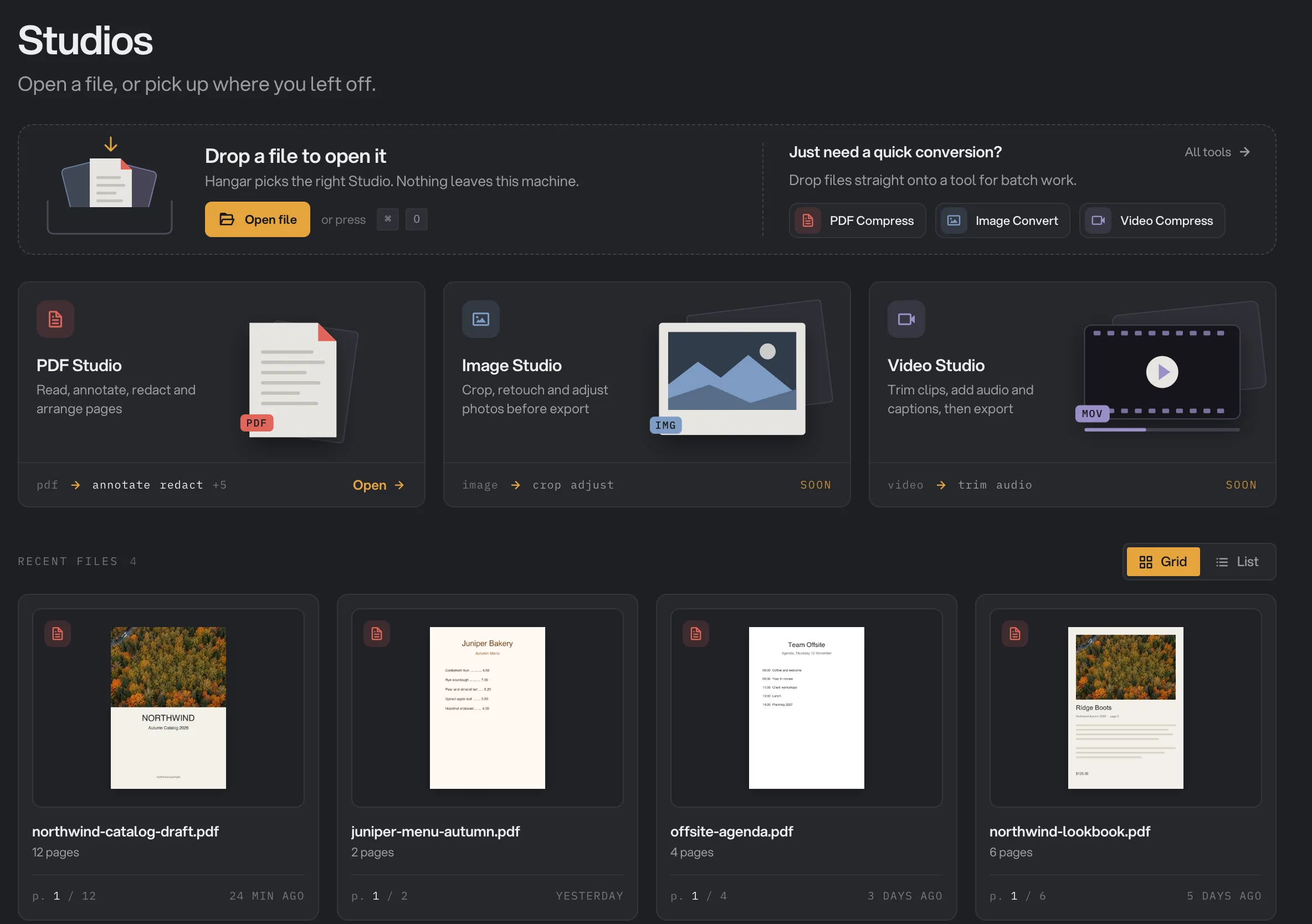
- Open file
- Open PDF Studio
- Recent files
Chains: several tools in a row
A chain is a set of steps you set up once and run on any batch of files: resize, then convert, then compress, for example. The Chains page lists your chains, each with its steps, its last run or Not run yet, and a Run button. Find a chain searches the list, and New chain starts a blank one.
If you would rather not start from nothing, Start from a template offers ready-made chains such as Web-ready photos, Social export and Straighten & shrink. Read Build your first chain to make one, then run it on many files.
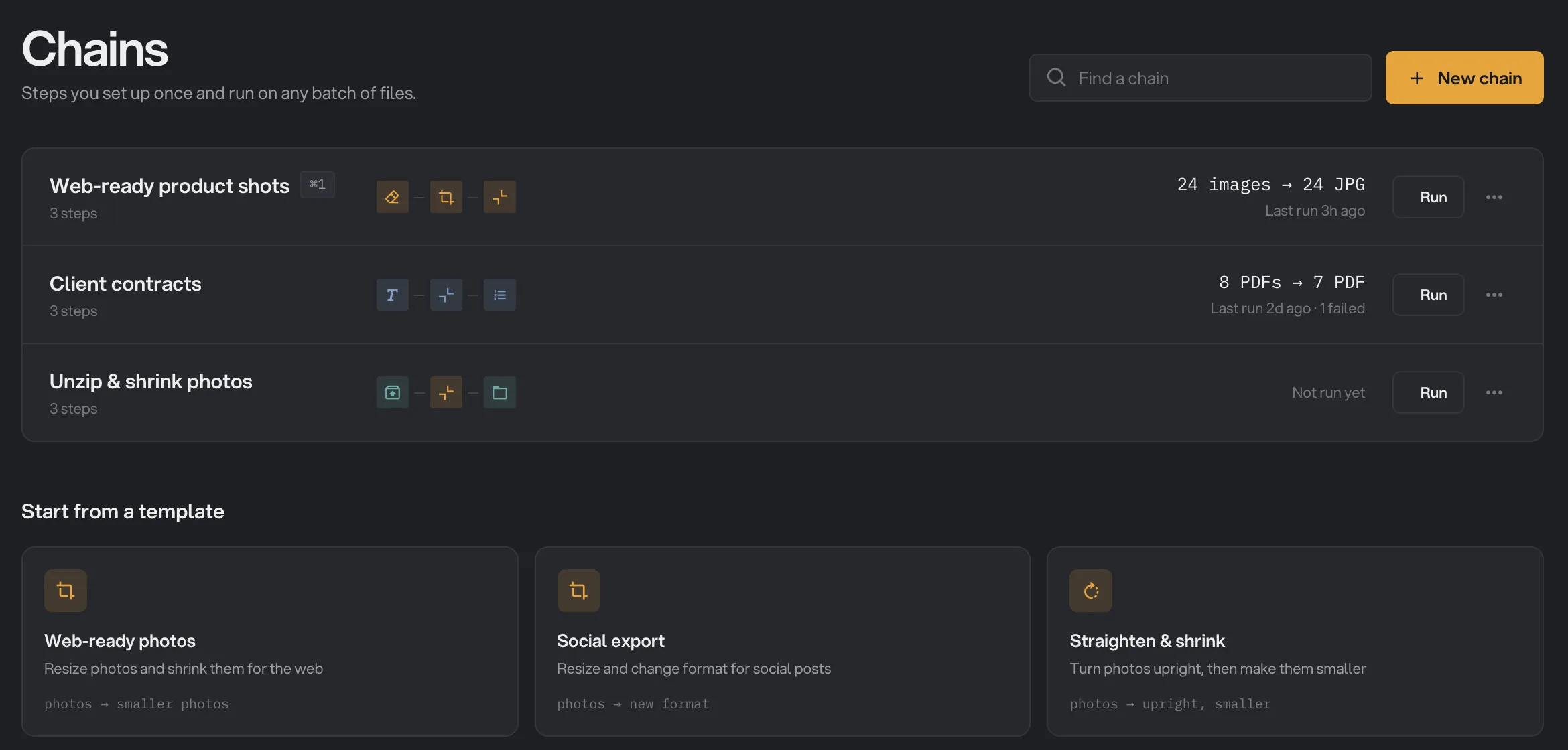
- New chain
- Run this chain
- Start from a template
Runs: everything you have processed
Runs keeps a record of every run in the current workspace, grouped by day. Filter it with All, Complete, Failed, Cancelled or Stopped; a filter only appears once a run has that status. Each row shows the tool, how many files it took and how long it ran, a size change such as 32 MB to 10 MB or a format change such as HEIC to WEBP, how long ago it ran, and its status.
Click a row to reopen the run with its results and previews. The run history guide covers filters and failed runs; See and compare your results explains every result view.
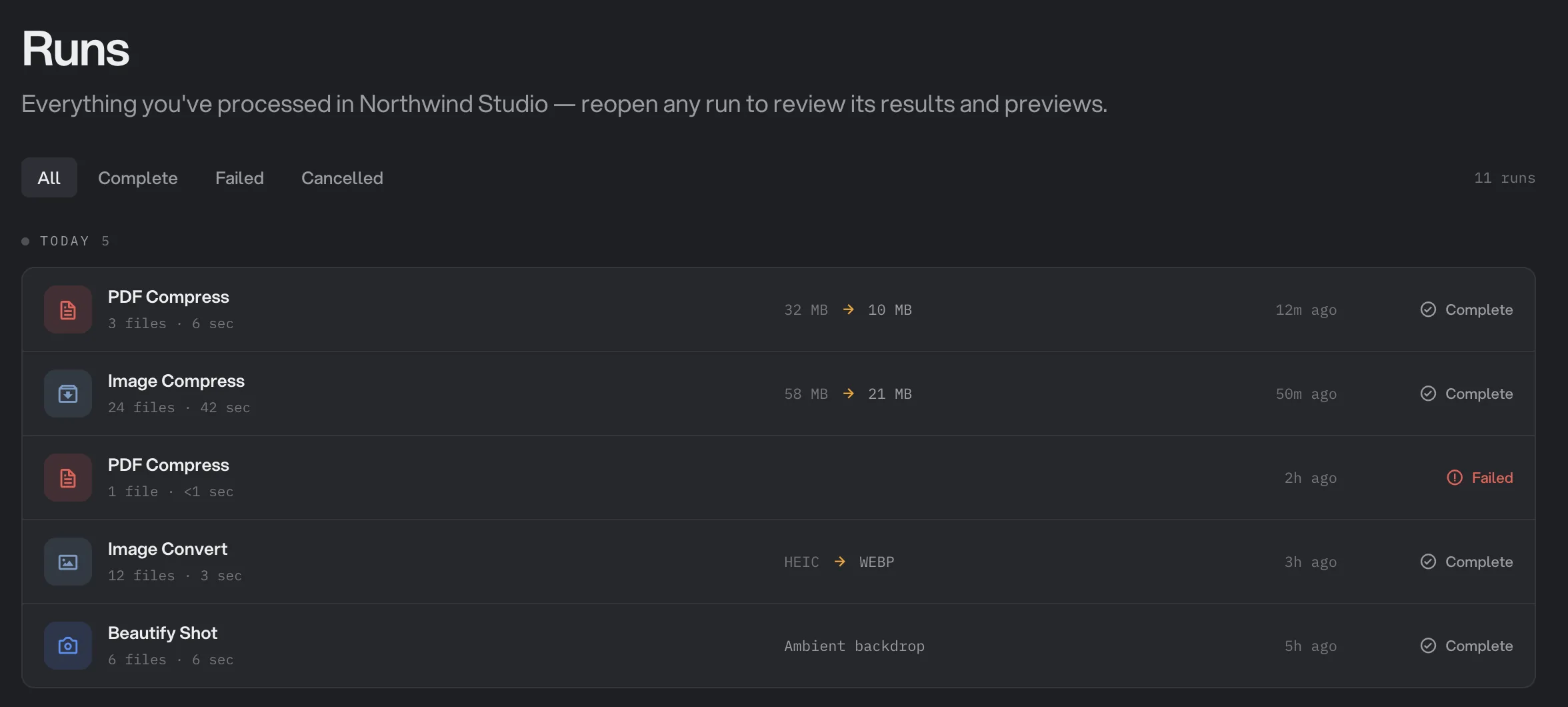
- Filter by status
- What changed
- Run status
Workspaces: one per client or project
The Workspaces section of the sidebar lists your workspaces. Each one is a client or a project with its own brand, output folder and run history. Click a row to switch, or click the + next to the heading to create one. The sidebar footer names the current workspace, with its number of chains and the number of tools in Hangar.
Press ⌘B (Ctrl+B on Windows) to open Workspace defaults, where you set the Logo, Brand colors, Signature and Default output folder that tools in this workspace use. The workspaces guide explains which tools use each default, and Where Hangar saves your files covers the output folder in detail.
Above the workspaces sits Favorites: the tools you starred, ready to open in one click. To reorder them with the keyboard, focus a favorite's drag handle, press Space and move it with the arrow keys.
Search from anywhere with ⌘K
The Search tools box in the title bar works from every screen. Press ⌘K (Ctrl+K on Windows) to open it. Its placeholder reads Search tools, or describe what you want to do, and it means it: type “make this pdf smaller” and the first result is PDF Compress.
Move with ↑ and ↓, open with ↵, close with Esc. Understanding plain-language requests in 50+ languages needs Smart search, a one-time 127 MB download that then runs entirely on your computer. Until you download it, the box matches tool names and keywords. Find any tool with smart search has examples and the download steps.
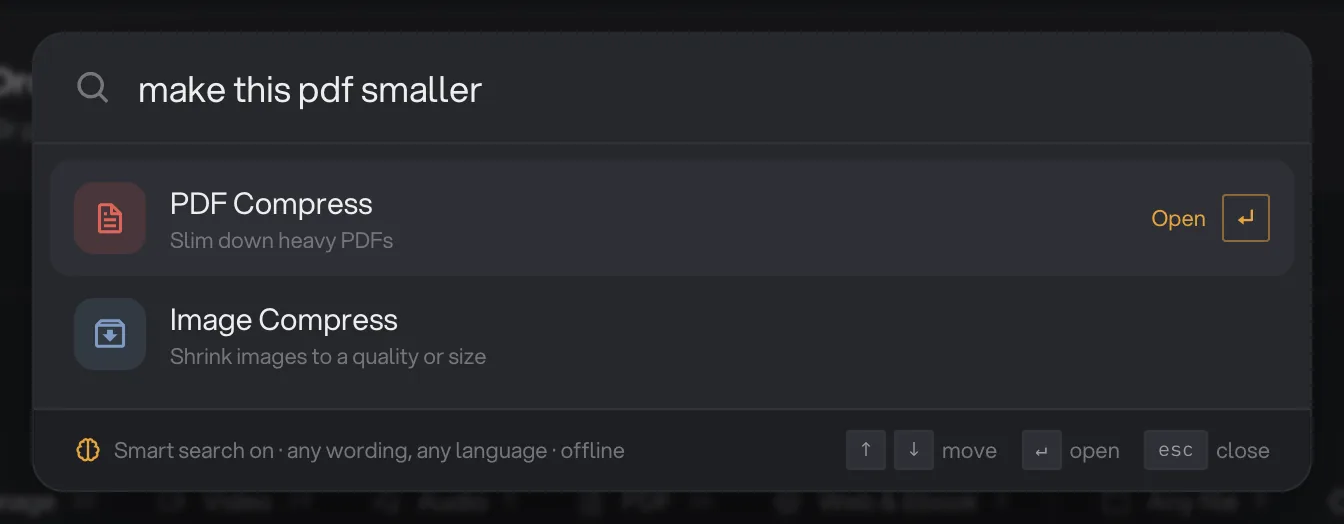
- Describe the task
- Open the top result
- Smart search status
Settings and the title bar
The gear at the right end of the title bar opens Settings, or press ⌘, (Ctrl+, on Windows). It has seven sections: General, Appearance, Menu bar (System tray on Windows), Updates, Privacy, License and About, which is where you find your Hangar version. The settings guide covers the theme, updates and privacy choices.
Hangar also puts an icon in your Mac's menu bar, or the system tray on Windows. Click it to run a quick job on a few files or download a video without opening this window. See use Hangar from the menu bar.
During the free trial, a card at the bottom of the sidebar shows how many days are left and an Activate link. When you are ready, activate your license there or in Settings under License.
Common questions
What is the difference between a tool, a Studio and a chain?
A tool does one job on a batch of files, such as compressing 40 PDFs. A Studio is a full-screen editor for one file, where you work by hand. A chain runs several tools in a row on every file you give it.
How do I find the tool I need?
Open Tools and type a name, a format or a task into the search box, or press ⌘K (Ctrl+K on Windows) anywhere in the app and describe what you want to do in your own words.
Does Hangar accept folders?
Not when you drop them: Hangar reads files, not folders. Open the folder and select the files inside it. The exceptions are Batch Rename, whose Folder button adds the top-level files of a folder, and Organize, which lets you choose a folder on its own screen.
Does Hangar send my files anywhere?
No. Every tool runs on your computer and your files stay where they are. The only downloads are app updates, the optional AI models and Smart search, which you fetch once and then use offline, and the videos you choose to save with the Video Downloader.
Where did my finished files go?
Into your workspace output folder, in a subfolder named after the tool and the date, unless you picked another folder before the run. The Run complete panel has an Open folder button that takes you there.
Still stuck?
One person reads every message, usually with a reply within a day.