 Agencies and studios
 Photographers
 Podcasters
 Video and social creators
 Marketers and content teams
If you work for more than one client, or on more than one project, workspaces keep them apart. Each one carries its own run history, brand kit and output folder, and switching takes one click. This page shows you how to create a workspace, move between them, set the brand defaults that tools pick up on their own, and what happens when you delete one.
What is a workspace?
A workspace is one client or one project inside Hangar. Northwind Studio, a design agency, keeps a workspace for itself and one for its client Juniper Bakery. Each workspace has:
- Its own run history. The Runs page shows what you processed in this workspace, so Juniper's jobs never mix with Northwind's. See Run history: reopen past results.
- Its own brand kit. A logo, brand colors and a signature that Stamp, Sign and Contact Sheet pick up without being asked.
- Its own output folder. Every tool saves there by default, so each client's deliverables land in that client's folder.
Settings such as the theme, updates and your license are app-wide, not part of a workspace. Chains are shared too: the Chains page lists the chains from every workspace, whichever one you are in.
Create a workspace
Hangar asks you to name your first workspace the first time it opens. The form is the same whenever you add another one.
- In the sidebar, click the + next to the Workspaces heading. Its tooltip reads Create workspace.
- In the Create a workspace dialog, type a Workspace name, such as the client's name.
- Pick an Accent color. It colors the workspace's badge in the sidebar, so you can tell workspaces apart at a glance. Once you add a logo to the workspace's brand kit, the badge shows the logo instead of the first letter of the name.
- Under Default output folder, click Choose… and pick the folder where this workspace's finished files should go. You can leave it empty and set it later; until then, pick a folder for each run with Change in the run panel.
- Click Create workspace. The new workspace appears in the sidebar list.
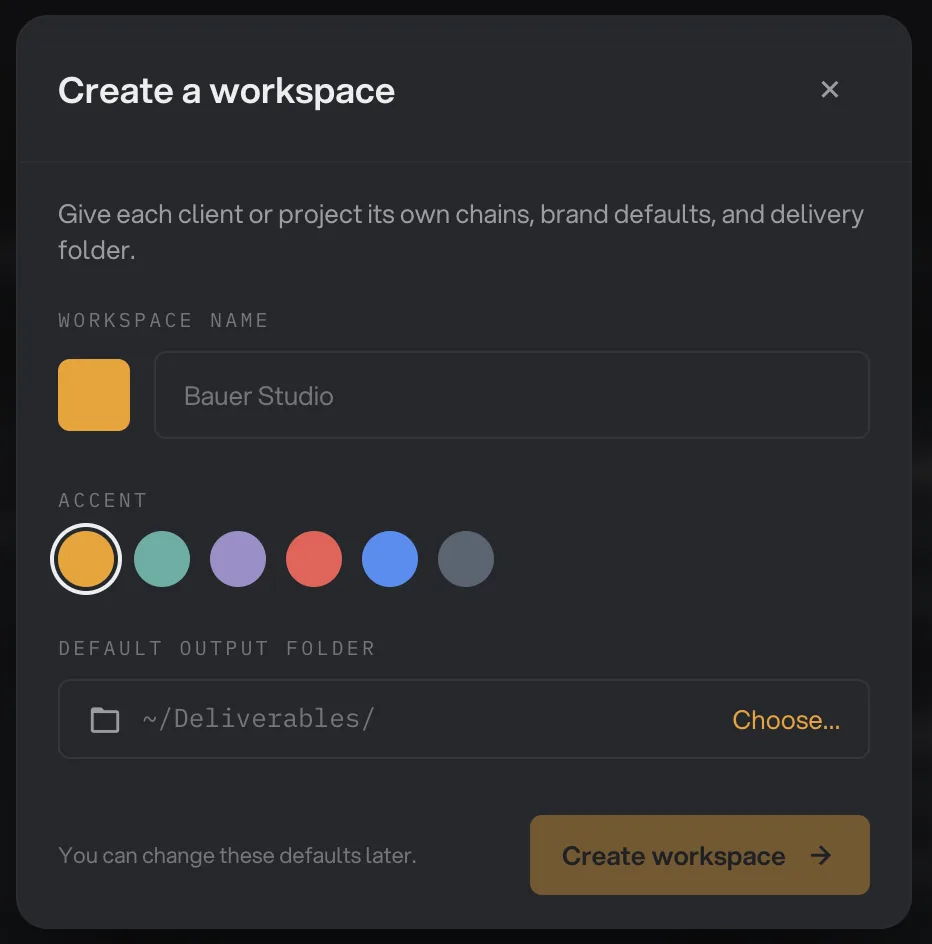
- Workspace name
- Accent
- Choose a default output folder
- Create workspace
As the dialog says, you can change these defaults later. The first-run version of this form also asks for your name, which Hangar uses as the author of PDF annotations.
Switch between workspaces
Your workspaces are listed under Workspaces in the sidebar. Click a row to switch. The row you are in is highlighted and shows a ⌘B hint, and the sidebar footer names the current workspace with a count of the chains made in it and of Hangar's tools, for example 3 chains and 73 tools.
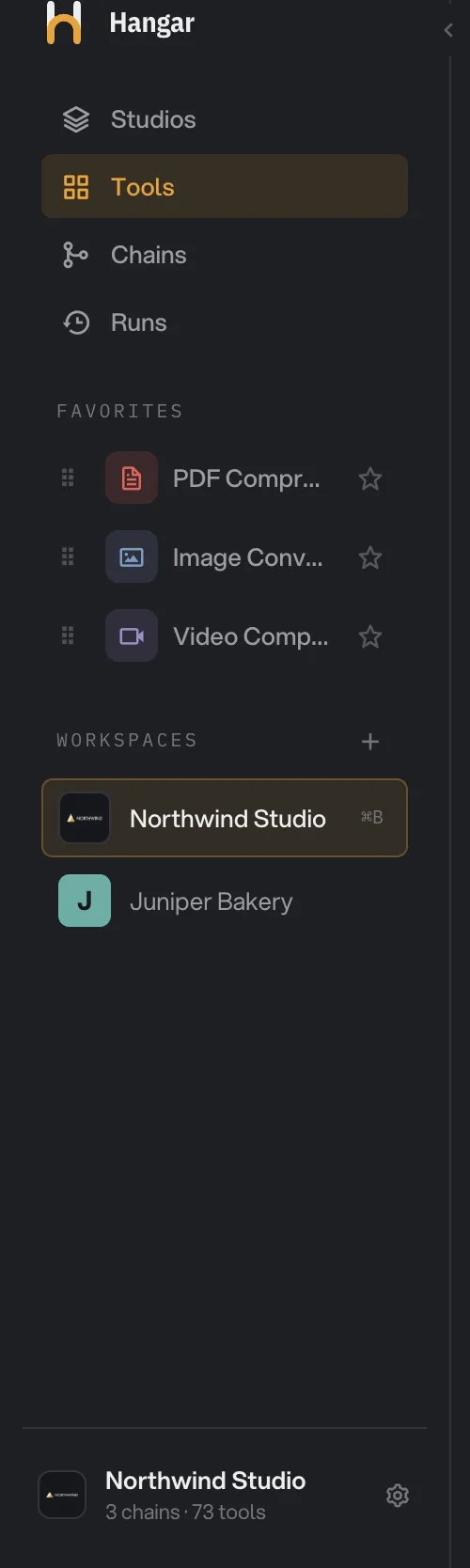
- Create workspace
- Current workspace
- Click to switch
- Workspace settings
Switching changes what the Runs page shows and which brand kit and output folder the tools use. It does not touch any files. Switch before you start a job, and the results go to the right client's folder with the right branding.
Set brand defaults with ⌘B
Press ⌘B (Ctrl+B on Windows) to open Workspace defaults for the current workspace. You can also click the gear in the sidebar footer, whose tooltip reads Workspace settings. The window has four rows, each with a note on which tools use it.
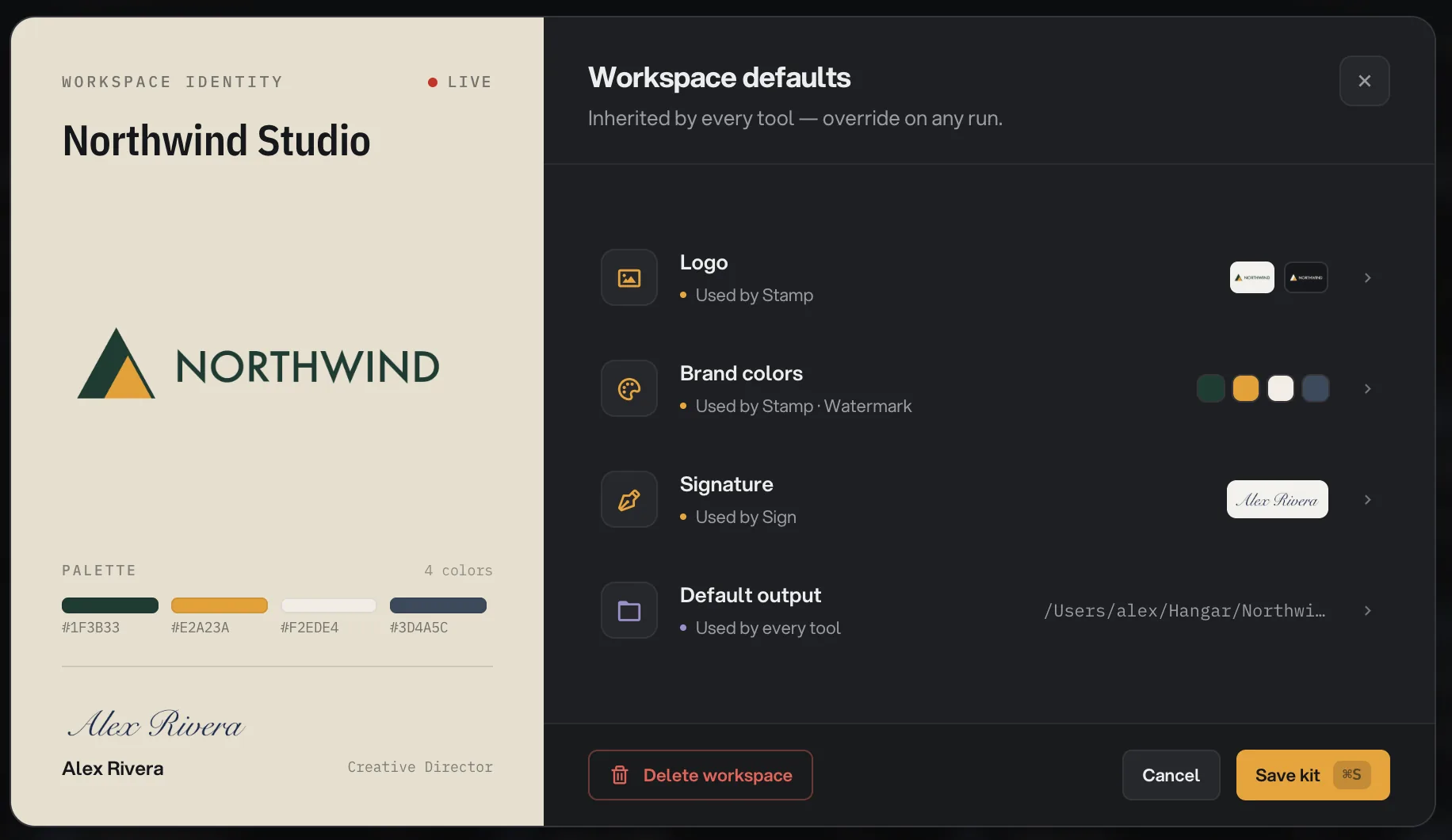
- Logo
- Brand colors
- Signature
- Default output
- Save kit
- Open Logo, add your logo files and click Save logo. The row is marked Used by Stamp, and the workspace's badge in the sidebar now shows your logo, in its light or dark version to match the app theme.
- Open Brand colors, add your colors and click Save palette. Northwind keeps four. Give one of them the Accent role to choose the color Stamp uses. The row is marked Used by Stamp · Watermark.
- Open Signature, draw or type the signature you sign PDFs with and click Save signature. The row is marked Used by Sign.
- Open Default output, click Change, pick a folder and click Save destination. The row is marked Used by every tool.
- Click Save kit or press ⌘S (Ctrl+S on Windows). The panel on the left previews the kit as you build it.
Each default is optional. Fill in only what this client needs; a workspace with just an output folder works fine.
Which tools use the workspace defaults?
The defaults are picked up when you run these tools in the workspace, so you do not have to find the logo or redraw a signature for every batch:
- Stamp fills in your Logo and its color the first time you open the Stamp Studio after starting Hangar. The color is the brand color with the Accent role, or the second color in the list if none has it. A run from the panel alone keeps the stamp settings you see there.
- Sign (Sign PDF on this site) uses the Signature, so signing a contract is a matter of placing it.
- Contact Sheet places the Logo on the sheet, in its light or dark version to suit the background.
- Every tool, and every chain, saves to the Default output folder unless you pick another folder for that run.
Defaults are a starting point, not a lock. Once the kit is set, the window sums it up: defaults are inherited by every tool and can be overridden on any run. Change the color or the destination in the tool and that run uses your choice.
Delete a workspace
When a project is finished, you can remove its workspace. Switch to it, press ⌘B (Ctrl+B on Windows), and click Delete workspace at the bottom left of Workspace defaults. Hangar asks you to confirm before anything happens, and it will not delete a workspace while a run is going. If it is your last workspace, Hangar returns to the setup screen afterwards.
Deleting removes the workspace, the chains made in it and its run history from Hangar. Because every workspace sees the same Chains page, a chain made in this workspace also disappears when you are working in another one. It does not delete the files the workspace produced: the output folder and everything in it stay on your disk exactly as they were. If you want those files gone too, delete the folder yourself.
For the app-wide settings that are not tied to a workspace, such as the theme and updates, see Settings, updates and privacy. For a map of where workspaces sit in the window, see A tour of the Hangar window.
Common questions
Do I need more than one workspace?
No. One workspace is fine if all your work goes to the same place with the same branding. Add a second one when a client or project needs its own logo, signature, run history or delivery folder, so you never have to swap settings by hand.
What changes when I switch workspaces?
The Runs page, the brand kit and the output folder. Switching to Juniper Bakery shows only Juniper Bakery's run history and saves to its folder. The Chains page stays the same, since it lists the chains from every workspace.
Can I change a workspace's brand defaults later?
Yes, at any time. Press ⌘B (Ctrl+B on Windows) while that workspace is selected, change the Logo, Brand colors, Signature or Default output, and save. Files you made earlier are not changed; the new defaults apply from the next run.
If I delete a workspace, what happens to the files it made?
Nothing. Deleting a workspace removes the chains made in it and its run history from Hangar, and every file it produced stays in your output folder. Delete the folder yourself if you no longer need the files.
Why does a run in my new workspace say no output folder is set?
The output folder is optional when you create a workspace, but a run needs somewhere to save. Press ⌘B (Ctrl+B on Windows), open Default output, choose a folder and save. Or click Change in the run panel to pick a folder for that run only.
Still stuck?
One person reads every message, usually with a reply within a day.