 Agencies and studios
 Photographers
 Podcasters
 Video and social creators
 Marketers and content teams
Most Hangar tools run on a queue of files with the same settings. Some jobs need your hands on the file itself: where a clip starts, where a screenshot sits on a laptop screen, which word gets redacted. For those, the tool opens a Studio.
What is a Studio?
A Studio is a full-screen editor for one file. You see the file large, change it directly, and export when it looks right. Nothing is uploaded: a Studio runs on your computer like every other Hangar tool.
Studios appear in two places. The Studios item at the top of the sidebar opens the Studios home, where PDF Studio lives. Many tools in the Tools section also open one, from a Studio button in their settings panel or from a file's Adjust button, so you never have to go looking for them.
Which tools open a Studio?
Some tools are a Studio from the start. Open one and the editor fills the window, with an export button at the top (for Organize, the button names the job, such as Sort 12 files in place, Move 12 files or Copy 12 files): Device mockup, Caption video (Video Captions in the app), Beautify shot, Icon pack, Image Comparison, Contact sheet, Stylize, Vectorize image, Redact image, Audiogram, Carousel, Gradients, Shaders, QR code and Organize.
Other tools keep the normal queue and settings panel, and open a per-file editor on top of it. Press the Studio button in the settings panel (for Trim video it reads Edit per clip in the Studio), or Adjust on one file in the queue, to open it. These are Trim video, Trim audio, Split video, Crop video, Crop image, Resize images, Watermark, Watermark video, Add audio, Join videos, Merge audio, Video to GIF, Redact PDF, Stamp, Sign PDF, Organize pages, Extract pages, Crop PDF, PDF to Markdown, HTML to Image and HTML to PDF.
The difference matters at the end. A full-screen Studio exports from its own button. A per-file editor saves your changes as that file's own settings, and the tool runs them when you press the run button, exactly as in How to run a tool. HTML to Image and PDF to Markdown are the exceptions: their editors save the file directly. HTML to Image works on a Mac only; on Windows it shows as unavailable.
The Studios home
Click Studios in the sidebar. The header reads Open a file, or pick up where you left off. Drop a PDF anywhere on the page, or press Open file (⌘O, Ctrl+O on Windows), and Hangar opens it in PDF Studio.
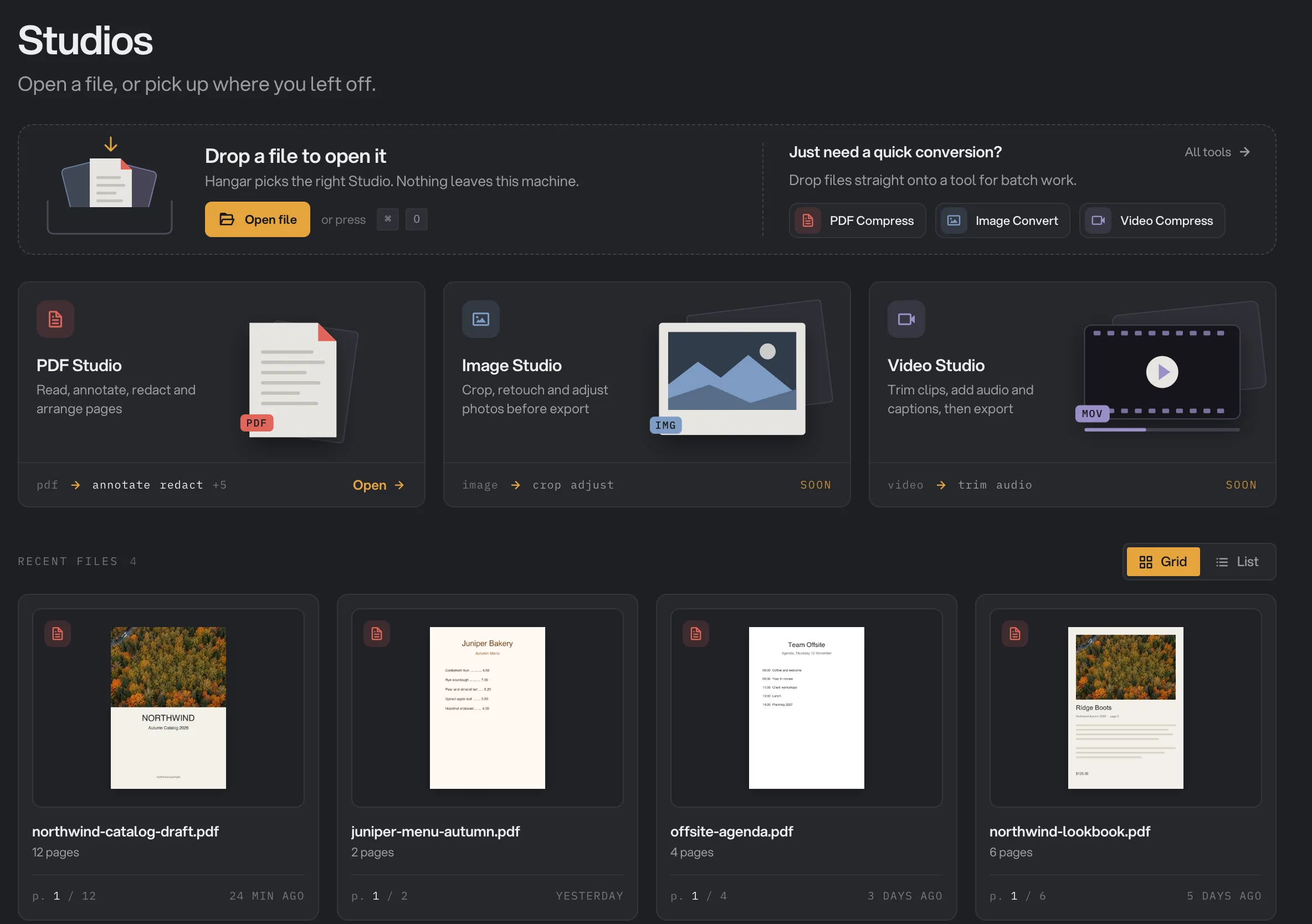
- Open file (⌘O)
- PDF Studio: Open
- Tiles marked Soon
- Grid / List
- Recent files
Only the PDF Studio tile is available today. The two other tiles are marked Soon, and dropping an image or a video on the Studios home offers to add it to Tools instead.
Recent files lists the PDFs you have opened, grouped into Today, This week and Earlier, in a Grid or a List. Each card shows the page you were on, and Open reopens the PDF at that page; the PDF you have open right now shows Continue instead. A card labeled Moved or missing offers Reconnect so you can point Hangar at the file's new location.
Example 1: trim a clip
Northwind Studio has filming-tips-take-3.mp4, 48 seconds long, with a slow start and a long tail.
- Open Tools, open Trim video and add the clip to the queue.
- Press Edit per clip in the Studio in the settings panel, or Adjust on the clip. The editor opens with the clip large and a timeline of frames and waveform underneath.
- Drag the handle at each end of the timeline to where the video should start and stop. In the example the handles cut 2.4 seconds from the start and 3.0 seconds from the end of the 48-second clip.
- Switch between Result and Source above the picture to check the cut against the original.
- While you edit, the editor header shows a custom trim badge, and Reset custom changes undoes your edits. Close the editor: the trim is kept as that file's own settings, and the file's Adjust button in the queue shows a star.
- Run the tool. The trimmed copy is saved with
-trimadded to its name, and the original is untouched.
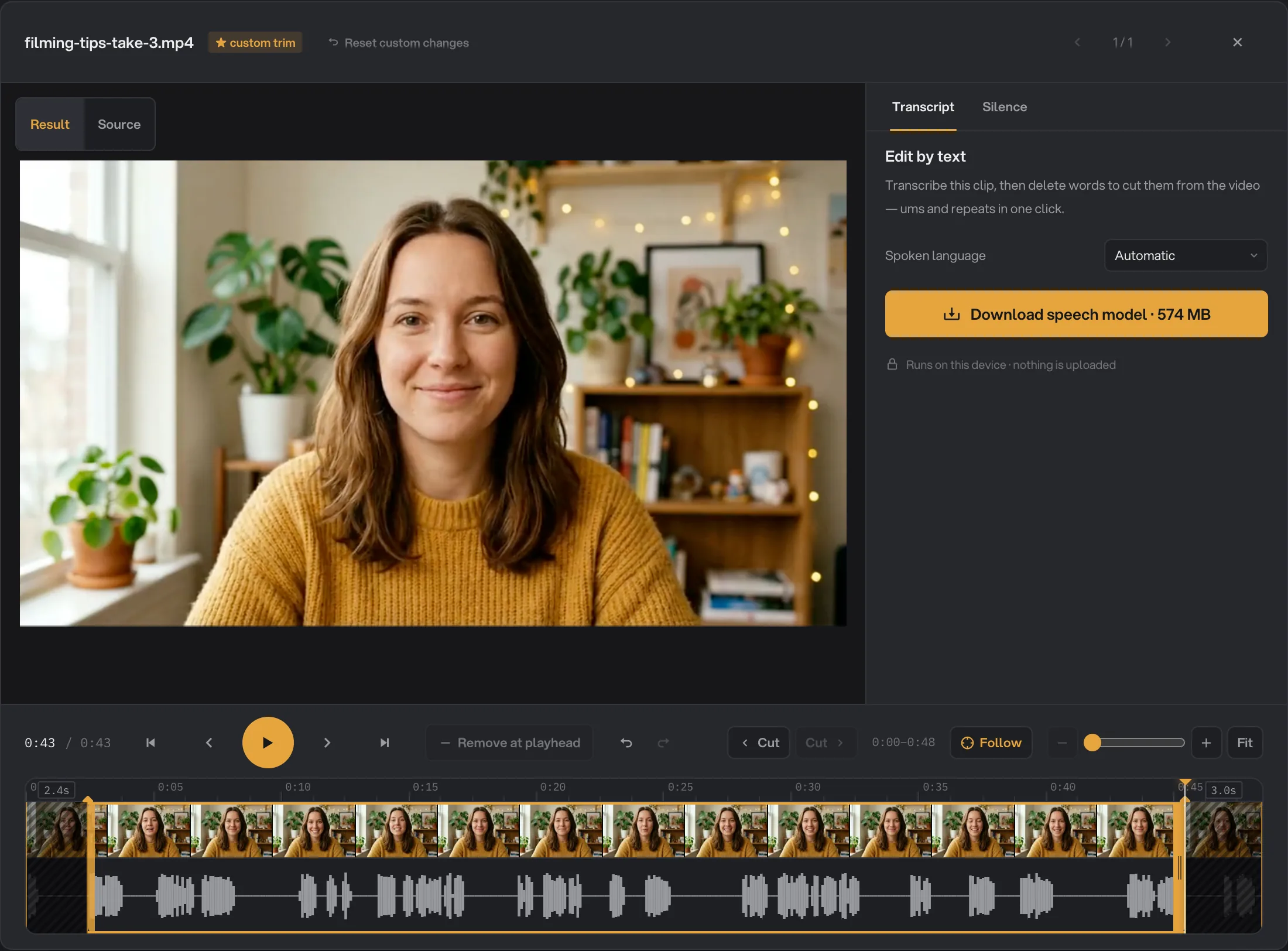
- Result / Source
- Trim handles
- custom trim badge
- Transcript / Silence tabs
- Close the editor
The Transcript tab adds a second way to cut: transcribe the clip, then delete words to remove them from the video, ums and repeats included. It needs a one-time 574 MB speech model that runs on this device, so nothing is uploaded. AI models: what downloads and when explains what to expect.
Example 2: frame a screenshot in a device mockup
A 3840 × 2144 screenshot of an app window, hangar-window.png, needs to look like a product photo for a launch post.
- Open Device mockup from the Create tab. The Studio fills the window.
- Add the screenshot. It appears in the strip at the bottom, with a + to add more.
- In the Device tab, under Scene, press Browse all scenes and pick one. The example uses Sunlit oak, a MacBook Pro 16 in Silver on a wooden desk, and the Current scene header then shows it. The Device, Screen and Backgrounds tabs change each part of the picture.
- Press Edit screen framing to adjust the image inside the display, so the right part of the window shows.
- Press Export. An export receipt confirms the file, its size and where it went (see Export your work).
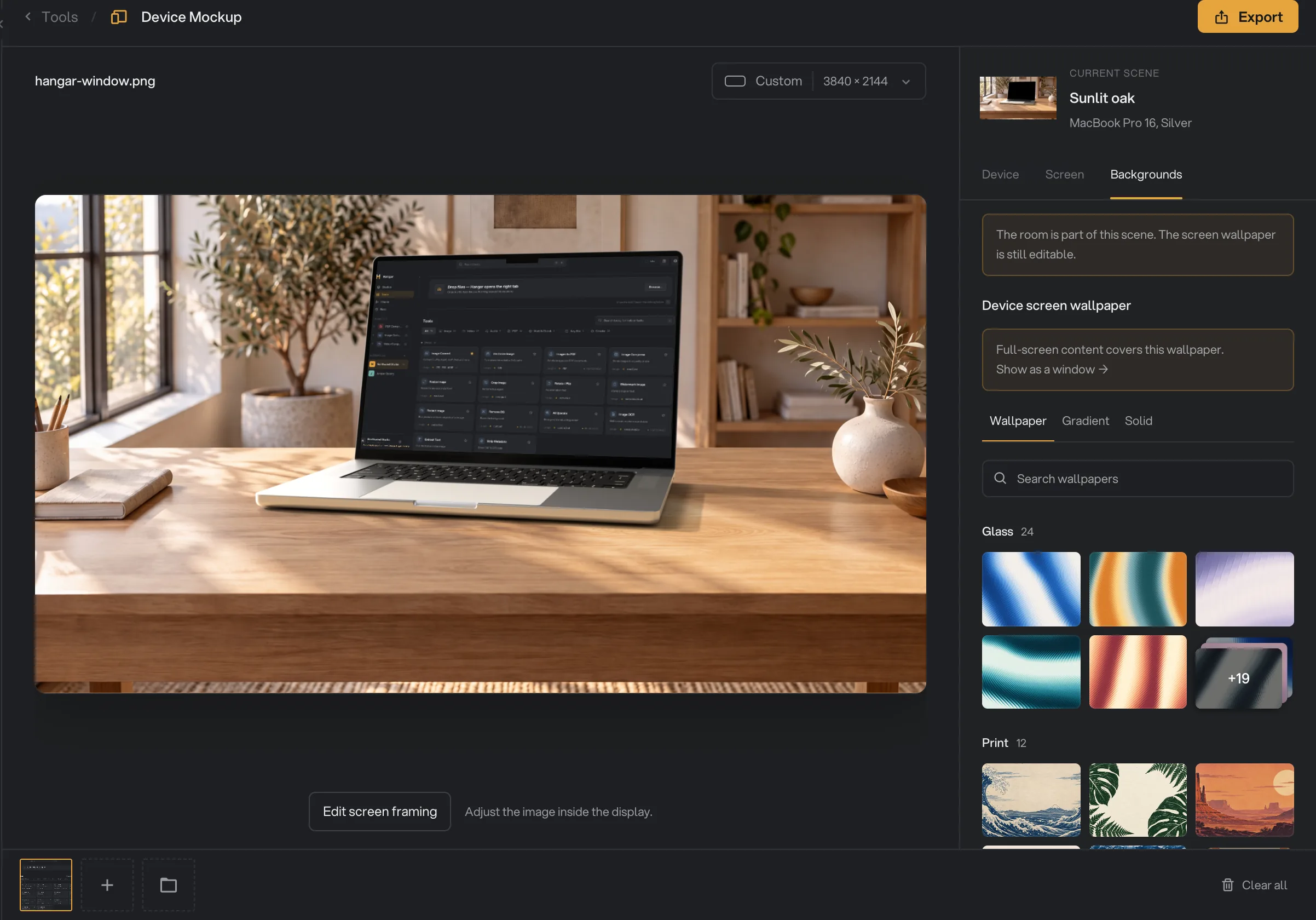
- Added screenshot
- Current scene
- Device / Screen / Backgrounds
- Edit screen framing
- Export
The exported image is named after your screenshot with -mockup added.
Example 3: make a branded QR code
The Northwind lookbook needs a QR code on the back cover that points to northwind.example/lookbook and matches the brand.
- Open QR code from the Create tab.
- Under Content, keep Link and type the address in the URL field. The other content types are Text, Wi-Fi, Email, SMS and Contact.
- Pick a look. Styles (Fog, Aurora, Midnight, Kraft and eight more) set the pattern, eye shapes and colors and place the code on a designed background in one click. Cards put it on a printable layout, such as a WiFi card, table tent or business card. Or choose your own Pattern, eye shapes and Color.
- Press Add a logo to drop your mark in the middle, and pick a Frame if you want a border or a label around the code.
- Press Export PNG and choose a folder. Hangar saves
qr-code.pngthere (or a name after the style or card you picked) and shows a QR saved toast. An olderqr-code.pngin that folder is replaced, so rename the first one if you make several codes.
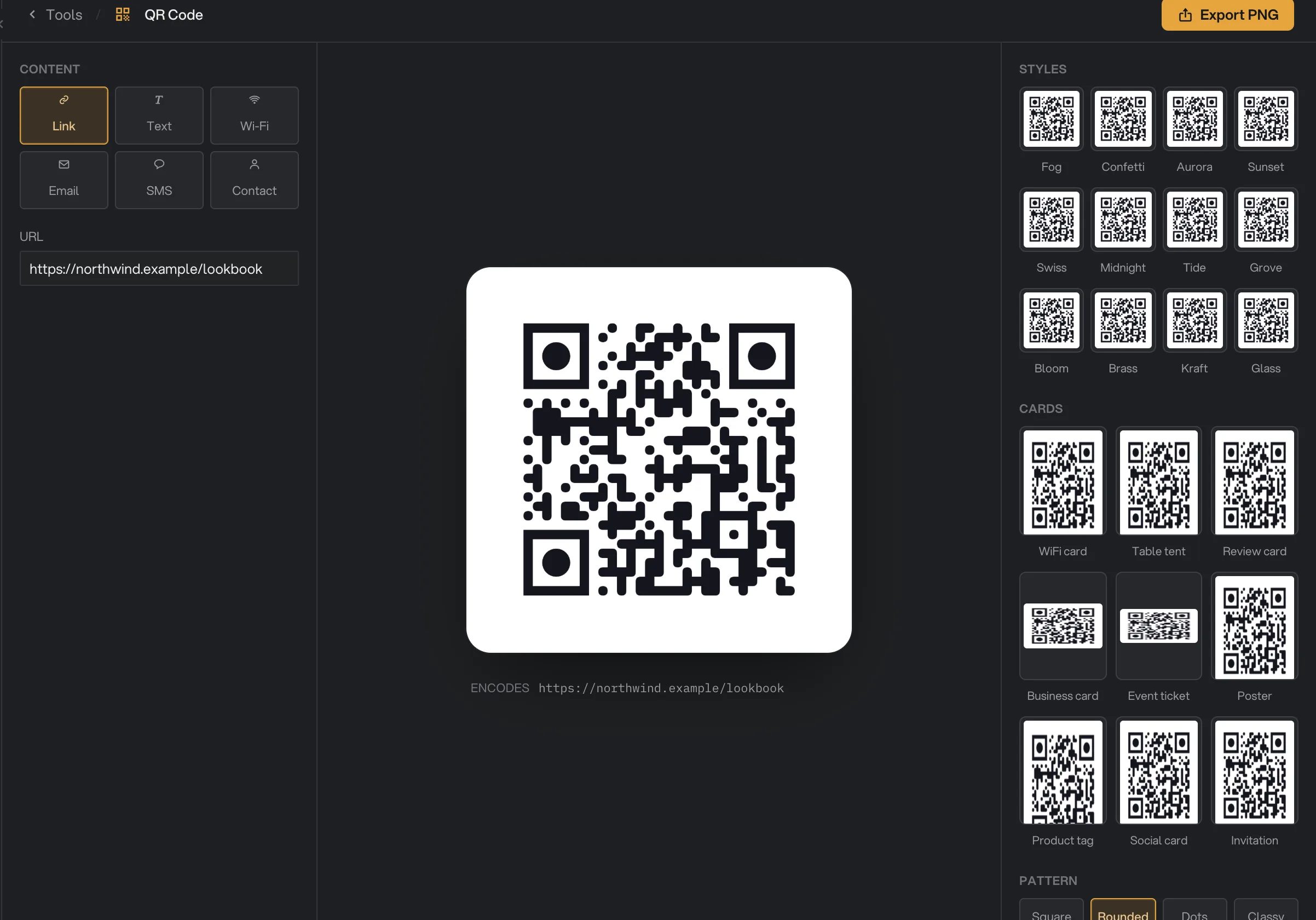
- Content type
- URL
- Styles
- Cards
- Export PNG
Example 4: mark up a PDF in PDF Studio
A 12-page catalog draft, northwind-catalog-draft.pdf, needs review notes before it goes to print.
- Click Studios in the sidebar, then drop the PDF on the page or press Open file and choose it.
- Choose a mode in the tab row: Read, Edit, Annotate, Redact, Organize pages, Sign, Watermark or Forms. For notes, pick Annotate.
- Use the toolbar under the page: Highlight, Comment, Text, Draw or Shapes. The example draws a rectangle around the cover title with the note "Swap this photo for the green field jacket".
- Move between pages with the Pages sidebar, which also has Contents, Bookmarks and Search.
- Open Review to see every annotation in one list, with the page and the reviewer's name.
- Press Save edited copy (it reads Save a copy until you change something) and choose where to save. Hangar edits a working copy, so the original stays as it was unless you save over it.
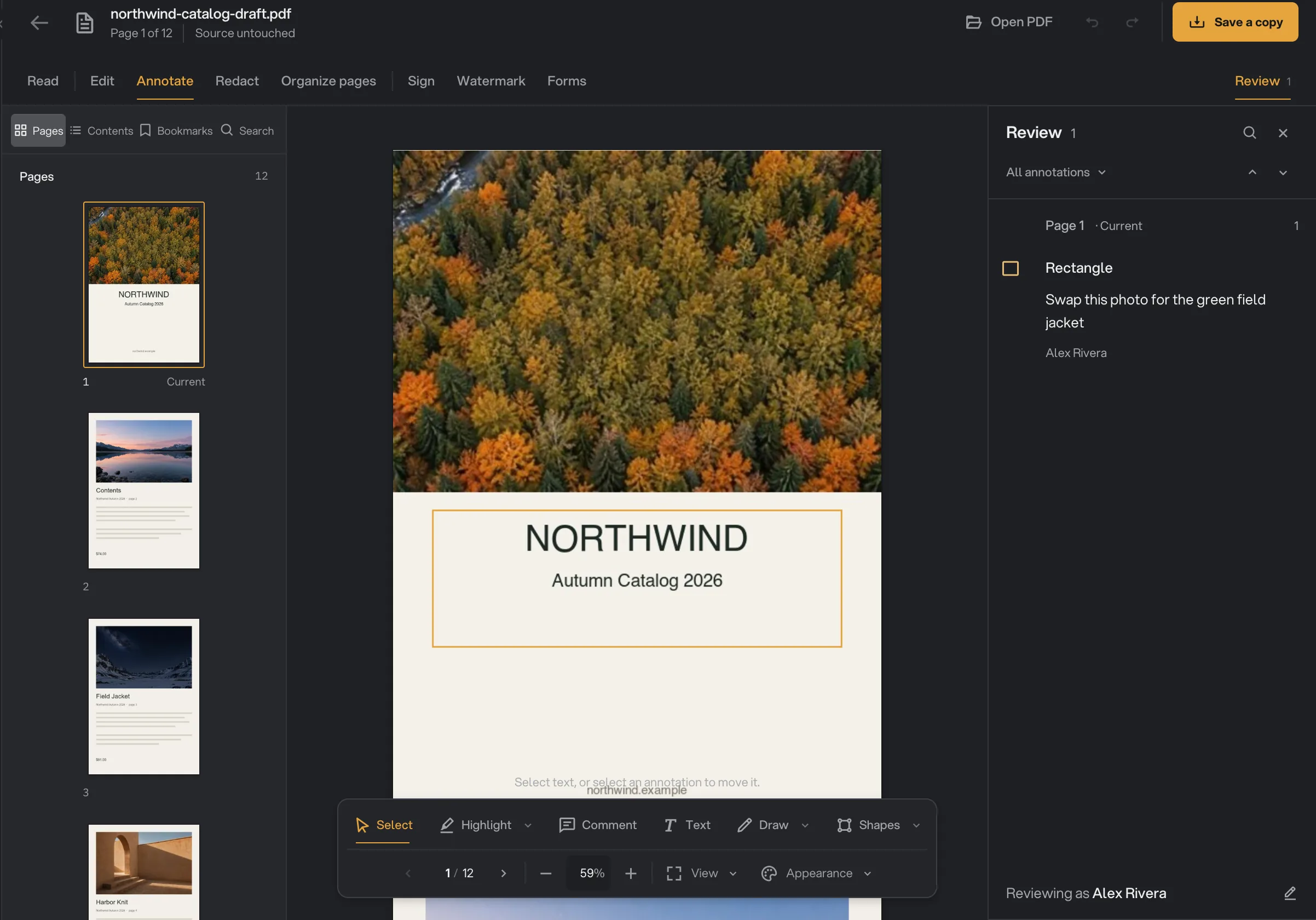
- Mode tabs
- Pages sidebar
- Annotation toolbar
- Review panel
- Save a copy
When you leave, the file joins Recent files on the Studios home with the page you stopped on, so Open brings you straight back to it. Making a scanned PDF searchable from inside PDF Studio uses a one-time local OCR model, downloaded once, and the document's pixels never leave the device. Every mode, from editing text to fillable forms, is covered step by step in PDF Studio: read, edit, sign and redact a PDF.
Export your work
Full-screen Studios export from the button at the top right. Device mockup, Beautify shot, Stylize, Vectorize image, Caption video, Audiogram, HTML to Image, PDF to Markdown and Redact Image then show an export receipt: a card in the corner of the window that stays until you dismiss it.
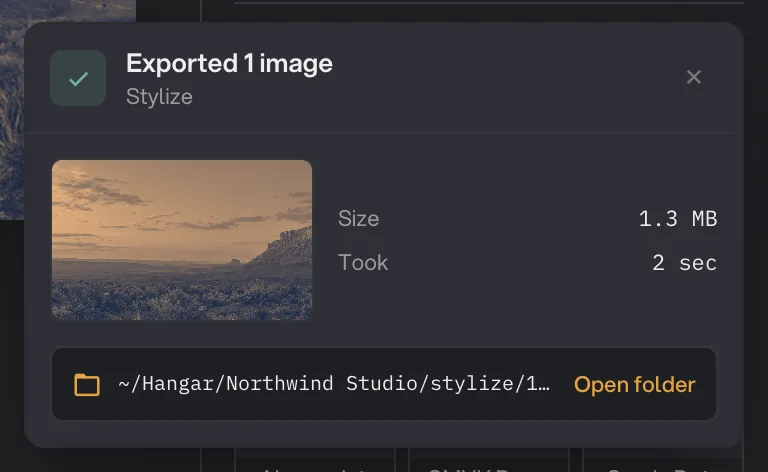
- What was exported
- Size and Took
- Open folder
- Dismiss
The receipt reads Exported 1 image (or so many videos or files), names the tool, and shows a thumbnail of the result when it can. Below it are Size, Took and the folder path, with an Open folder button that reveals the file. If something went wrong, the card reads Export failed instead and shows a Failed line.
A few Studios confirm differently. Gradients and Shaders ask where to save with a folder picker, then toast Exported with the file name. QR code toasts QR saved. In Icon pack, Image Comparison and Contact sheet, the export button turns into Open folder when the files are written. Carousel asks for a folder with Export carousel to…, then toasts how many slides it exported. You cannot cancel a Carousel export once it starts.
Per-file editors such as Trim, Sign and Stamp have no export of their own. Close the editor and run the tool: the results arrive in the run panel with Run complete, a View button on each file and Open folder, as described in See and compare your results.
Common questions
Does a Studio change my original file?
No. Studios save a new file and leave the original where it is. PDF Studio edits a working copy and asks where to save it, so the original only changes if you choose to save over it. Organize is the one exception: it moves the original files by default, so choose Make copies instead if you want them left where they are.
Can I use a Studio on many files at once?
Often, yes. Device mockup, Beautify shot, Stylize and Caption video take several files and export them all at once. With per-file editors such as Trim video, add all the files to the queue, adjust the ones that need their own settings, and run them together.
Why does the Trim editor ask me to download a speech model?
The Transcript tab lets you edit a clip by deleting words from a transcript. That needs a one-time 574 MB speech model that runs on your computer. You can ignore it and trim with the handles instead.
Where did my export go?
Look at the export receipt: it shows the folder path, and Open folder reveals it. Unless you picked another destination, Hangar saves to a folder named after the tool and the date inside your workspace output folder. QR code, Gradients, Shaders, Carousel and PDF Studio ask you where to save instead.
Can I open an image or a video from the Studios home?
Not yet. The Studios home opens PDFs in PDF Studio; the two other tiles are marked Soon. Image and video editors live in the Tools section, for example Trim video, Device mockup and Beautify shot.
Still stuck?
One person reads every message, usually with a reply within a day.