 Agencies and studios
 Photographers
 Podcasters
 Video and social creators
 Marketers and content teams
Download free
macOS and Windows. Your files stay on your computer.
macOS and Windows. Your files stay on your computer.
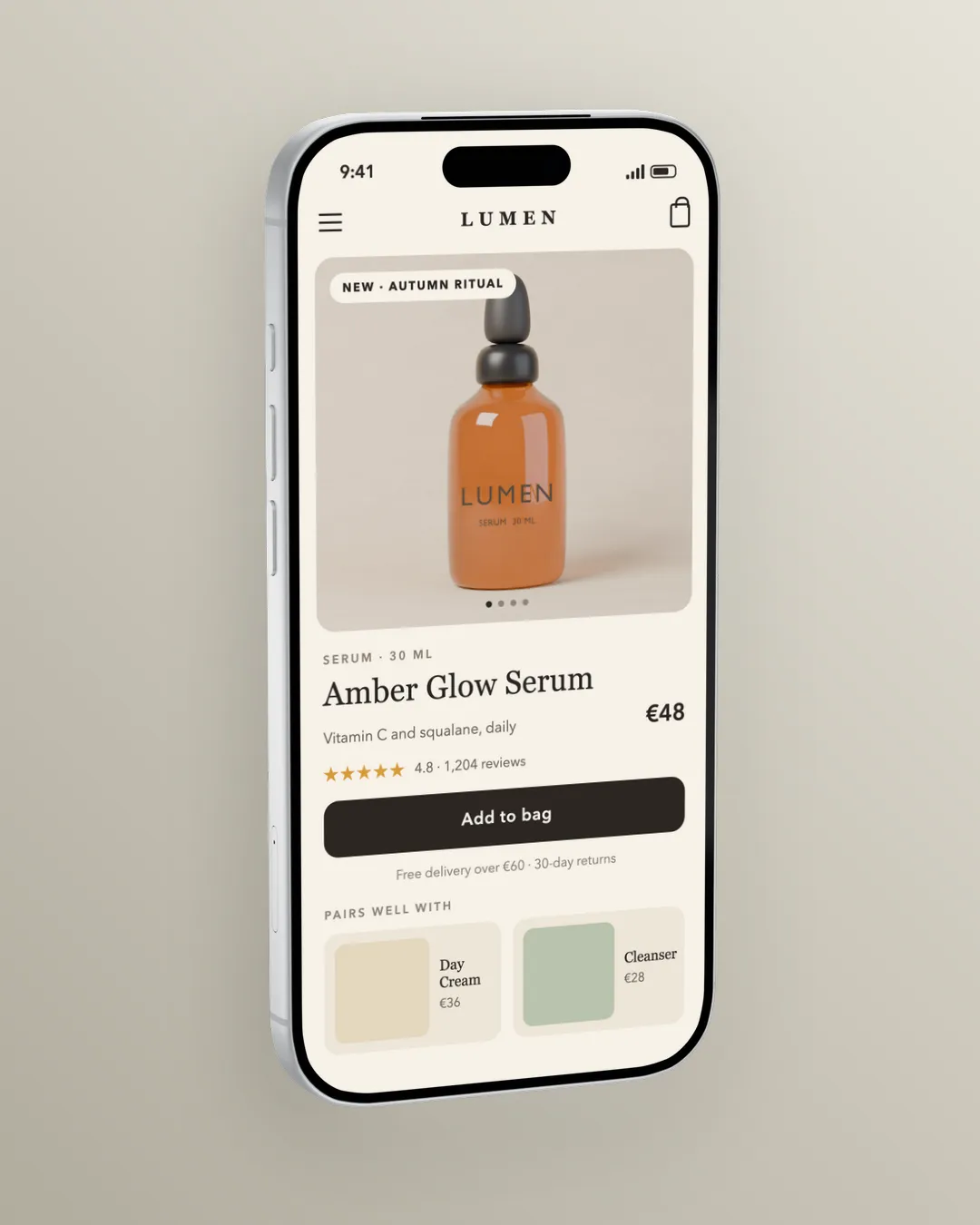
Put a screenshot or a screen recording inside a clean iPhone, iPad, MacBook or Android frame, sized for the App Store, Google Play or your feed. Frame one shot or a whole set in the studio. Your screens never leave your computer.
Intel Mac or need help installing? All downloads
Hangar runs on Mac and Windows. Open this page there to download.
The file from the run in the recording
How it works
1 Start from
Add one screen or a whole set. Each file can keep its own settings in the studio.
2 Set it
iPhone, iPad, MacBook, iMac, Apple Watch, a Safari window, Pixel or Galaxy, on an App Store, Google Play, Instagram or custom canvas.
3 Export
Transparent, a solid color, a gradient or your own image, with a soft shadow. Stills save as PNG or JPEG, recordings as MP4.
New to Hangar? How to run a tool, step by step
Choose the device
The frame sets the story. A phone says app, a laptop says product, a browser window says website. Every frame is drawn fresh, so there is no licensed artwork to track.
Your app, the way people hold it.
Best for App Store screenshots and launch posts.
A desktop app or dashboard on a laptop screen.
Best for landing pages and product updates.
A website in a clean browser frame.
Best for portfolio pieces and site launches.
Every setting, explained in the Device mockup guide Device · Scene · Background · Canvas · Composition, size, position
Who uses it
Frame every screen at the App Store or Google Play size while the app is still under wraps.
Put the latest screens on a device and a brand backdrop without waiting on a designer.
Hangar for marketers and content teamsDrop a short recording, frame it on a phone, and post the MP4 the same afternoon.
One app, one payment
The same app makes mockups, carousels, QR codes and backgrounds, and handles your PDFs, images, video and audio too. One payment covers every tool.
Save it as a chain
Frame your store screenshots, shrink the exports, then give every file a clean, numbered name for upload.
How chains workThe alternative
Online mockup tools have bigger libraries, with photo scenes and angled views. If you need a hand holding the phone, they win. For clean store and launch shots, here is the difference.
Every tool is free for 3 days, with no account and no card. After that, Hangar is a one-time payment from $45, with updates for the version you buy. There is no subscription.
No. The frames are drawn by Hangar, not taken from licensed artwork, so there is nothing extra to license.
Yes. Choose Transparent as the background and export a PNG to place the device on any design.
MacBook Air 13 and 15 inch, MacBook Pro 16 inch, iPad Pro 11 and 13 inch, and iPhone 17 Pro and Pro Max. Android phones, watches, and browser windows are not included.
Yes. Drop in a video and it frames the recording in the device, the same way it frames a screenshot. Trim it, pick a cover frame, and export an MP4 with the original sound or a WebM with a transparent background.
Yes. Pick a canvas preset for the App Store, Google Play, Instagram, or a social card, or set a custom size.
No. Your files are processed on your computer and never sent anywhere. Hangar sends anonymous usage counts to improve the app, never file names or contents, and you can turn that off in Settings.
Yes. A license works on any mix of Mac and Windows computers. Solo covers 1 computer, Crew 3 and Fleet 10.
Then pay once, from $45, for every tool and the updates for your version. No subscription. 30-day refund.See plans
Intel Mac or need help installing? All downloads
Hangar runs on Mac and Windows. Open this page there to download.