 Agencies and studios
 Photographers
 Podcasters
 Video and social creators
 Marketers and content teams
What does Redact PDF do?
Redact PDF permanently removes names, numbers and anything else you mark from your PDFs, on your own computer. You mark content in two ways: search terms that are found on every page of every file, and boxes you draw by hand. In the app the tool is called Redact.
Unlike drawing a black shape in a PDF editor, Redact PDF takes away what is underneath, so it cannot be copied, searched or recovered from the copy. It also removes attachments, comments, forms, bookmarks and other hidden data. You get one redacted copy of each PDF, and your originals stay unchanged.
Step 1: Add your PDFs
Click Tools in the sidebar, open the PDF tab and click Redact in the Protect section. You can also type "redact pdf" in the search box at the top.
Drop your PDFs on the queue, or click it to pick files. Search terms apply to every file in the queue, and boxes are drawn per file, so you can redact a whole batch in one run. Password-protected PDFs need to be unlocked first with Unlock PDF.
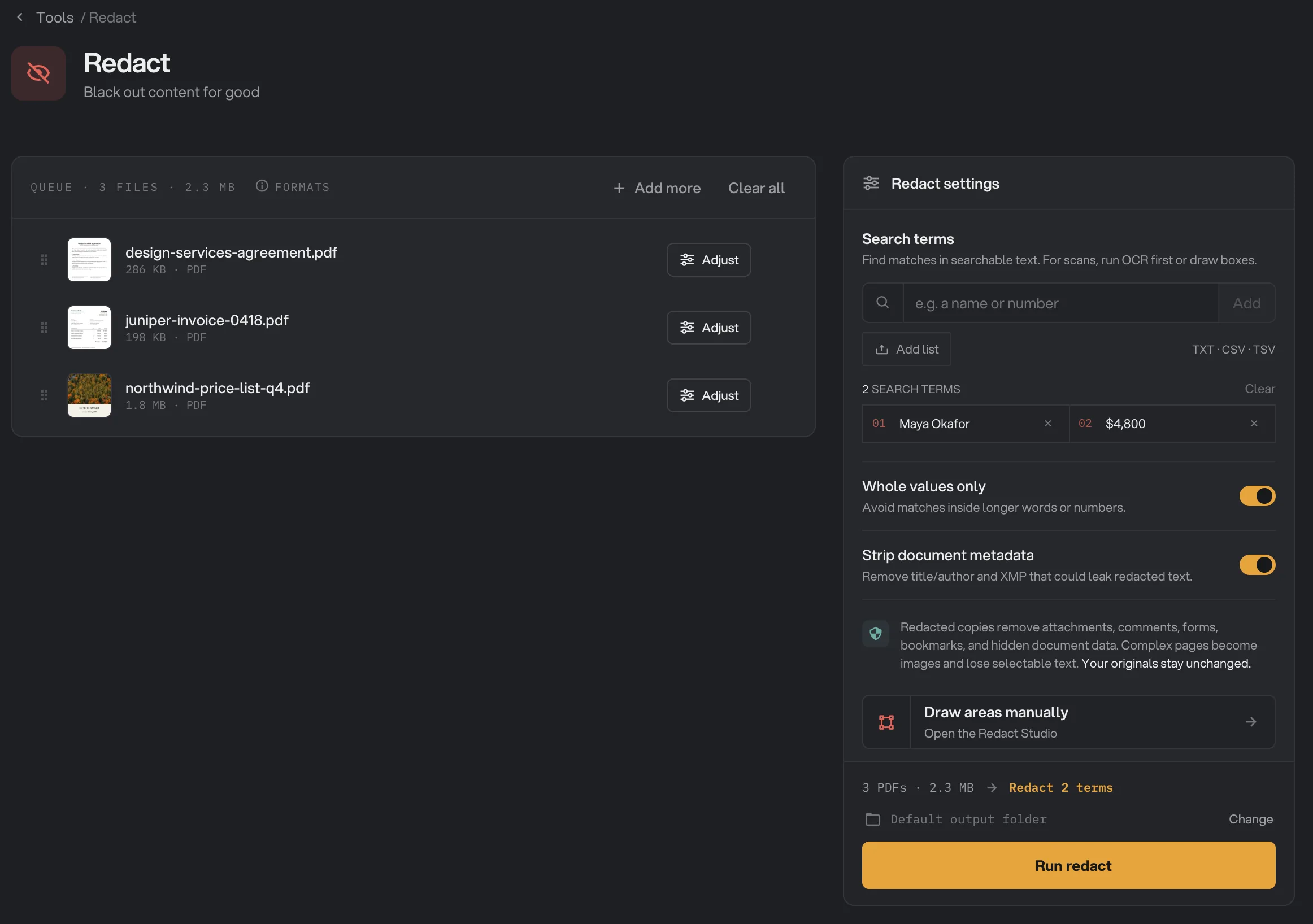
- Search term
- Add list
- Whole values only
- Strip document metadata
- Draw areas manually
- Run redact
Step 2: Add search terms
Under Search terms, type a name, number or phrase and click Add, or press Return. Hangar finds it everywhere it appears in your PDFs' text and removes it. Capital letters don't matter: "maya okafor" also finds "Maya Okafor".
For a long list, click Add list. Paste one item per line, or click Import .txt, .csv or .tsv to load a file, then tick the Columns to redact. The dialog shows how many items are ready and skips blanks and duplicates. Click the button at the bottom, for example Add 12 terms, to add them all.
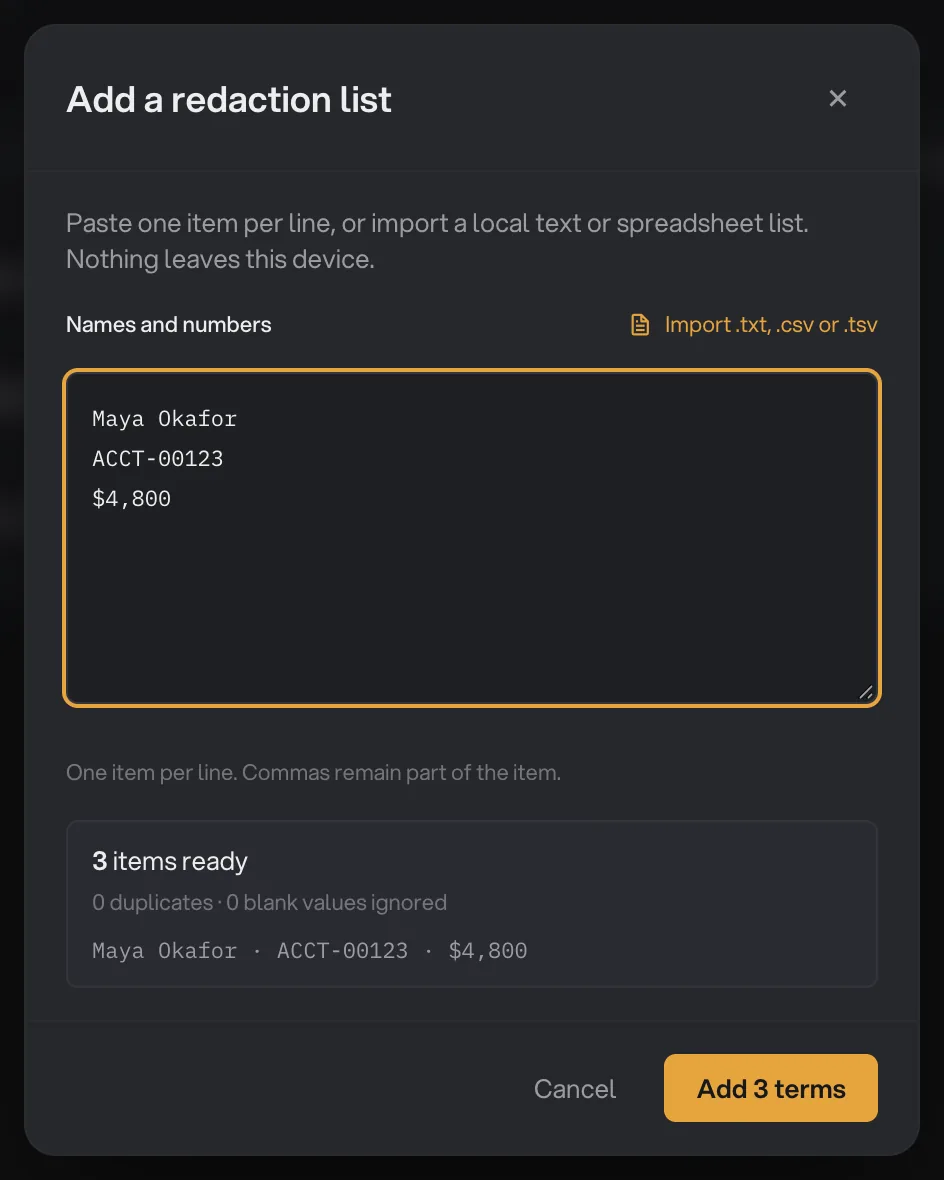
- One term per line
- Import .txt, .csv or .tsv
- 3 items ready
- Add 3 terms
Leave Whole values only on in most cases. It stops a term from matching inside a longer word or number, so "123" does not remove part of "41234", and "Ann" does not remove part of "Annual".
Step 3: Draw boxes and check matches in the Redact Studio
Click Draw areas manually to open the Redact Studio, or click Adjust on one file in the queue. Use the Studio for anything a search cannot find, such as a signature, a photo, a logo or a scanned page, and to see what your search terms will remove.
- Draw a box: drag on the page. Drag a box to move it, drag its corners to resize it, and click its × to delete it.
- See search matches: every match of your search terms on the current page shows as a dashed box. If a name you expect is not dashed, the search will not remove it, so draw a box over it.
- Move around: use the arrows next to Page to change page, and the arrows on the right to switch file. Zoom with the zoom buttons, or hold Ctrl or Cmd and scroll.
- Use different terms for one file: click Customize for this file to give it its own list. Use global terms switches it back.
Click Done when you are finished. Files with boxes or their own terms show a star on their Adjust button.
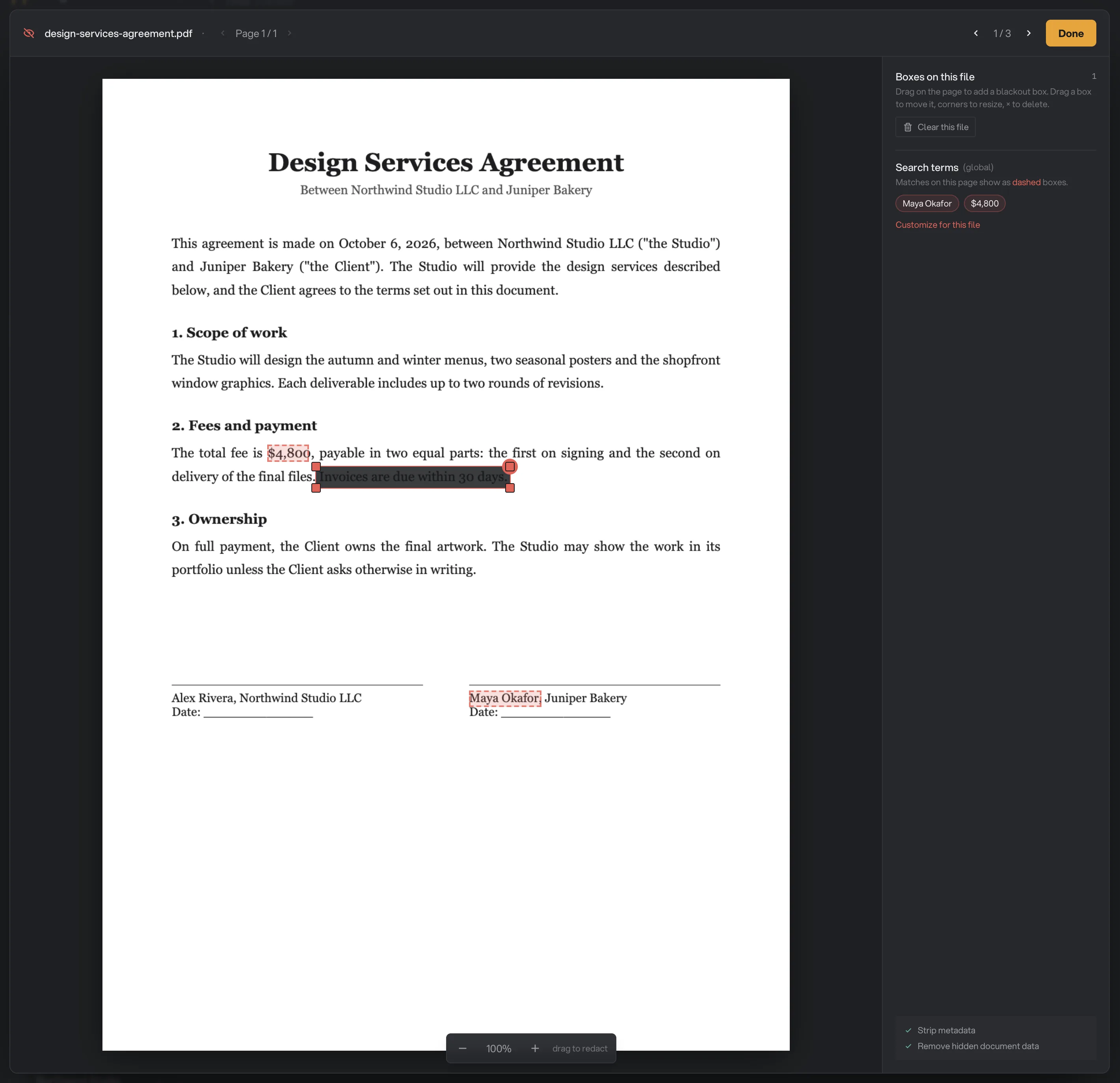
- A box to black out
- Delete a box
- Boxes on this file
- Customize for this file
- Done
Step 4: Run, then check every copy
Check where the files will go: Default output folder saves them in your workspace's output folder, in a redact folder with a subfolder for today's date, such as 10-15. Click Change to pick another folder for this run. Then click Run redact.
Each copy ends in -redacted. When the run ends, redacted files show Done. A file marked Kept had nothing to remove, so it is an unchanged copy of the original, even though its name also ends in -redacted. The run summary counts Kept files as redacted, so read each row.
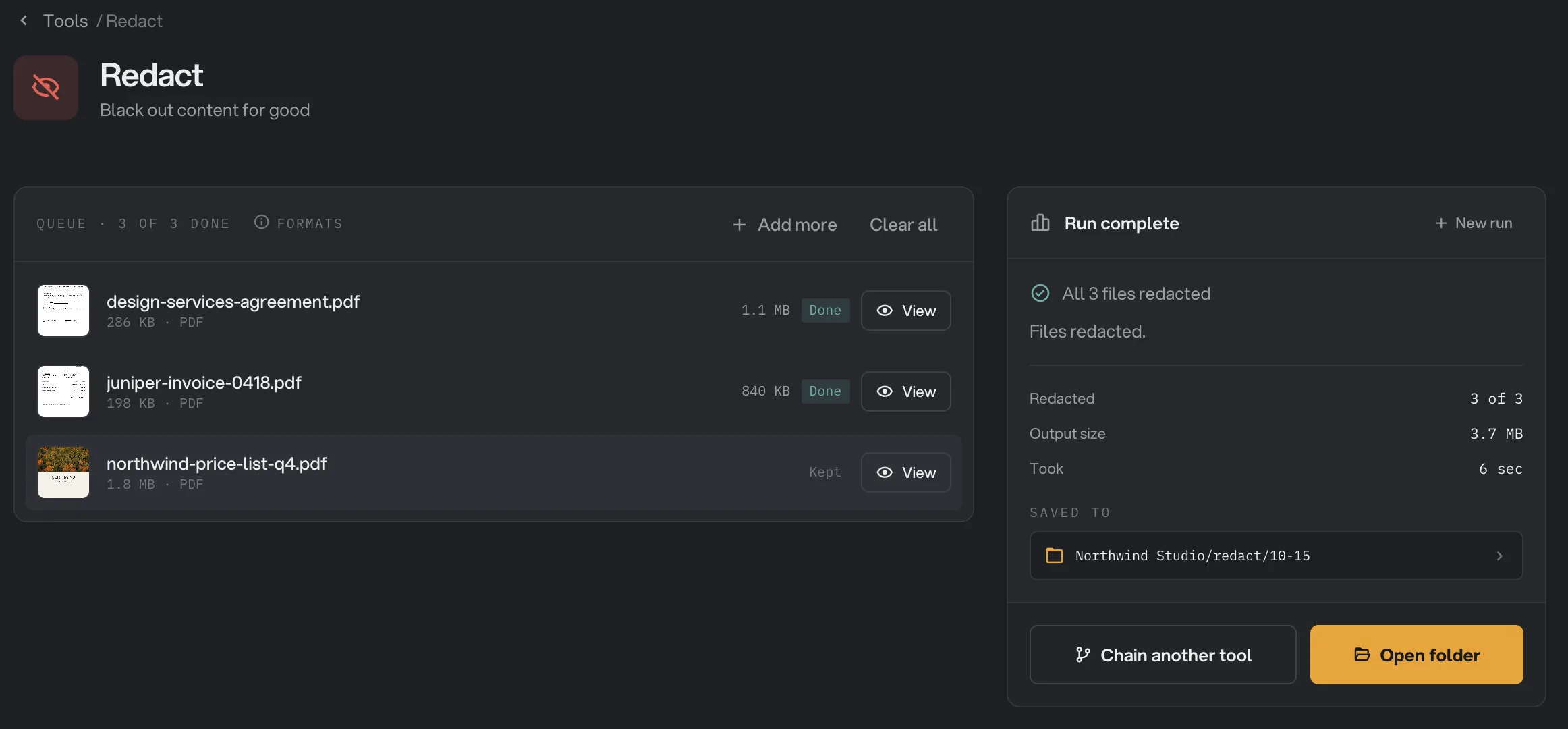
- Done
- Kept
- View
- Saved to
- Open folder
Click View on a file to page through the redacted copy, then follow how to check a redacted copy before you share it.
Every setting
The first four are in the Redact settings panel and apply to every file. The last two are in the Redact Studio.
- Search terms
Words, names or numbers removed wherever they appear in the text of every file. Capital letters do not matter.
- RangeUp to 256 characters each
- DefaultNone
- Add list
Adds many search terms at once. Pick which columns to use, and whether the first row is a heading.
- RangePasted lines, or a .txt, .csv or .tsv file
- Whole values only
Skips matches inside longer words or numbers.
- DefaultOn
- Strip document metadata
Removes the title, author and other document details, which can repeat a name you redacted.
- DefaultOn
- Boxes on this file
Boxes you draw on a page in the Redact Studio. Everything under a box is removed: text, pictures and drawings.
- DefaultNone
- Customize for this file
Gives one file its own list of search terms instead of the list in the panel.
- DefaultOff (uses the global terms)
What happens to the content under a box?
Hangar looks at each page of a file you marked and handles it one of two ways:
- Plain text pages stay text. On a simple page that contains only basic text, Hangar deletes the letters under each box and draws a black box in their place. The rest of the page keeps its selectable text.
- Every other page becomes an image. If a page has pictures, drawings, embedded fonts, comments or form fields, Hangar replaces it with a sharp image of the page, with the black boxes painted into the picture. Nothing from the original page is kept behind it.
Most PDFs, including those exported from Word, Pages, Google Docs or a design app, use embedded fonts, so expect every page of the copy to become an image, including pages you did not mark. That is what makes the result safe, but it has side effects: text can no longer be selected, copied or searched, links stop working, and the file is often larger than the original.
Before a copy is saved, Hangar reads it back and checks that no text remains inside any box. If that check fails, the file is marked Failed and no copy is saved.
Scanned documents
A scanned page is a picture, so there is no text for a search term to find. You have two options:
- Draw boxes over the parts to remove in the Redact Studio. The box is painted into the page image, and the original scan underneath is discarded.
- Make the scan searchable first with OCR PDF, then redact the OCR copy with search terms. Check the dashed matches in the Studio: OCR can misread a letter, and a misread name will not match.
Either way, the redacted page becomes an image without a text layer.
How to check a redacted copy
Redaction is only as good as what you marked. Before you share a copy:
- Open it in your usual PDF reader and search for each name or number you redacted. Nothing should be found.
- Look at every page, not just the ones you marked. A name can appear in a header, a footer, a table or a caption with different spelling, such as "M. Okafor".
- Check for files marked Kept: nothing was removed from them.
- Send the
-redactedcopy, never the original.
Troubleshooting
- A term was not found. Search matches the text exactly, apart from capital letters. Different spacing, punctuation, accents or a name split over two lines can stop a match. Add each variant as its own term, or draw a box. On scans, see Scanned documents.
- A term removed too much. Turn on Whole values only, or use a longer term, such as a full name instead of a first name.
- Run redact stays grayed out. Add at least one search term or draw at least one box. The panel says "Draw a blackout box or add a search term first."
- "This file is password-protected": remove the password with Unlock PDF, then redact the unlocked copy.
- "A redaction search match has unreliable bounds": Hangar found the term but could not tell exactly where it sits on the page. Draw a box over it in the Studio instead.
- "Redaction verification failed on page": Hangar could not confirm that a box is empty, so it did not save the copy. Try drawing the box a little larger, and contact support if it keeps happening.
A file failed: what to check lists more causes and fixes.
Limits
- Redact PDF accepts PDF files only, and not password-protected ones.
- Search terms only find text inside the PDF, not text that is part of a picture or scan.
- Capital letters are ignored for plain English letters. For accented letters, such as É and é, add each spelling.
- A list can hold up to 2,000 search terms of up to 256 characters each.
- Most pages become images, so the copy loses selectable text, links, comments, form fields and bookmarks, and is often larger.
- Redact is not available as a step in chains.
- Everything runs on your computer. Your files and search terms are not uploaded.
Common questions
Is the text really removed, or just covered with a black box?
It is removed. Hangar deletes what is under each box, or rebuilds the page as an image with the black boxes part of the picture. Before saving, it checks that no text is left inside any box. If it cannot confirm that, the file fails instead of being saved.
Why can I no longer select or search the text in my redacted copy?
Most pages are rebuilt as an image of the page, so nothing hidden can survive. That includes pages you did not mark. Run OCR PDF on the redacted copy if you need searchable text again.
Can I redact a scanned document?
Yes, by drawing boxes in the Redact Studio. Search terms only find text the PDF already contains, so for a scan without a text layer, run OCR PDF first or draw the boxes by hand.
Why is one of my files marked Kept?
Nothing was marked on it: no box, and none of your search terms was found. Hangar saved an unchanged copy of the original, with nothing removed. Check the spelling of your terms, or draw a box.
Does Hangar save my list of names?
No. Your run history records only how many search terms you used, not the terms themselves. Boxes and terms stay in the app until you close it, and everything happens on your computer.
Still stuck?
One person reads every message, usually with a reply within a day.