 Agencies and studios
 Photographers
 Podcasters
 Video and social creators
 Marketers and content teams
What does Batch Rename do?
Batch Rename gives a whole set of files new names in one go, on your own computer. Turn camera names such as IMG_4183.jpg into Juniper-Autumn-01.jpg, add a date or a project name, swap one word for another, or tidy up messy names you downloaded. It works on any kind of file.
Before anything changes, every file in the queue shows its new name, and Hangar refuses to run while two files would end up with the same name. By default it saves renamed copies and leaves your originals alone.
Step 1: Add your files
Click Tools in the sidebar, open the Any file tab and click Batch Rename in the Organize section. You can also type "rename" in the search box at the top.
Click Folder (or Choose folder while the queue is empty) to add every file inside a folder. Only the files directly in that folder are added: files in its subfolders and hidden files are left out, and the files arrive sorted by name. Use Files to pick single files, or drop files on the queue.
The order of the queue is the numbering order. To change it, drag a file by the handle at the left of its row.
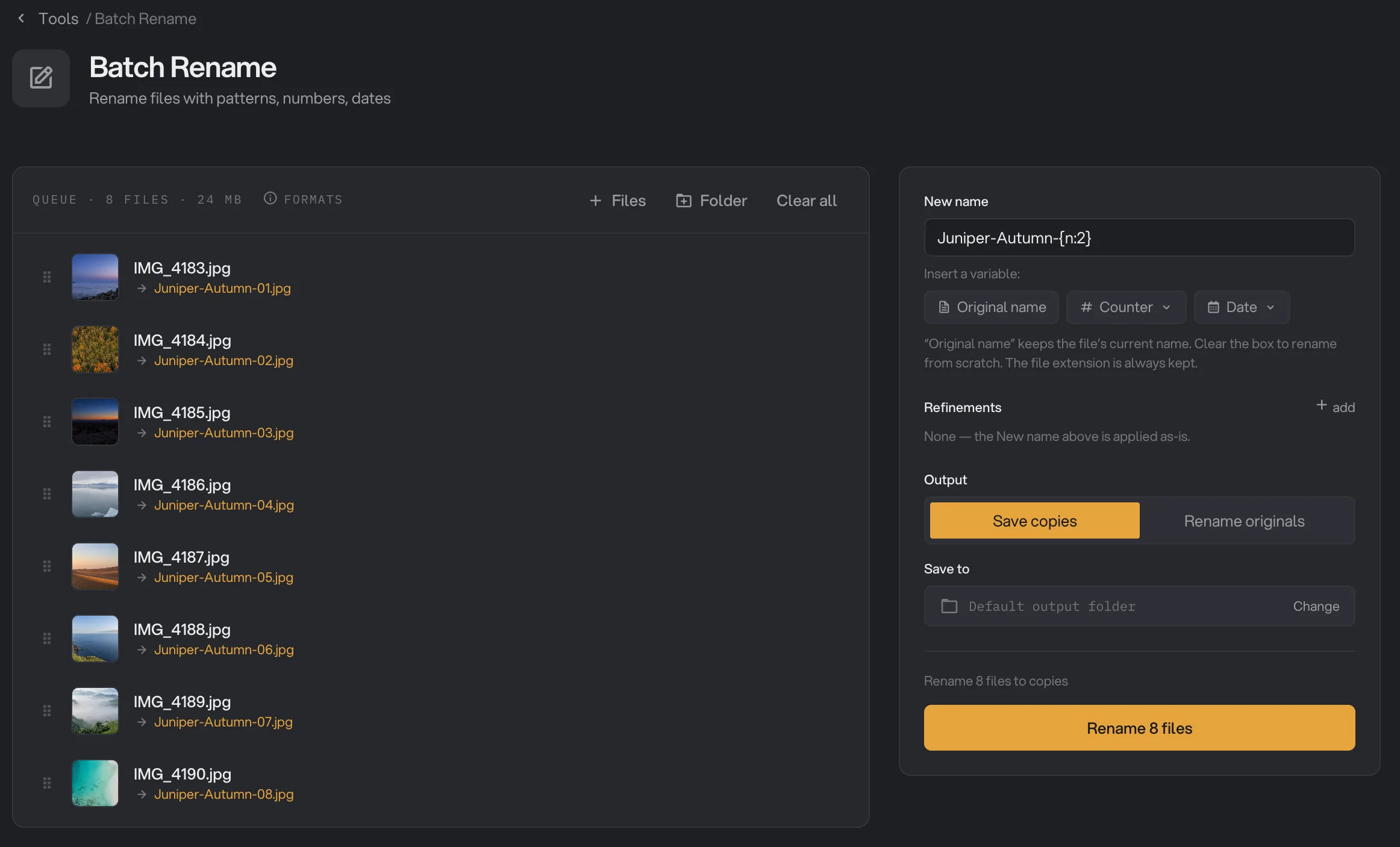
- Folder
- New name
- Counter
- New name preview
- Save copies
- Rename 8 files
Step 2: Type the new name
The New name box holds the name every file gets, without the extension. It starts as {name}, which stands for each file's current name. Under the box, Insert a variable adds pieces that change from file to file. Each one is added at the end of the box:
- Original name adds
{name}, the file's current name. - Counter adds a number that counts up through the queue. Pick a style: 1, 2, 3 or 01, 02, 03 or 001, 002, 003. Use two or three digits when you have ten files or more, so the files sort in the right order everywhere.
- Date adds a date. Under Which, choose Date modified, Date created or Today's date, pick a Format such as 2024-01-15, then click Insert.
Type your own text around them. For example, Juniper-Autumn-{n:2} renames eight photos to Juniper-Autumn-01.jpg through Juniper-Autumn-08.jpg, and {name}-final adds "-final" after each current name.
To replace the old names completely, delete {name} from the box and type the new text. Leaving the box empty does not do this: an empty box keeps the current names.
Step 3: Add refinements if you need them
Refinements change the name further, after the New name box. Click add next to Refinements and pick one:
- Find & Replace: swap text in the name, for example "IMG_" for "Juniper-Autumn-". Tick all to replace every match (it starts ticked) and case-sensitive to match capital letters exactly. regex is for patterns, if you know regular expressions.
- Sequence: a number with your own start, step and digits, placed At the start or At the end of the name.
- Change case: lowercase, UPPERCASE, Title Case or Sentence case.
- Insert date: a date modified, date created or today's date, at the start or the end.
- Clean up: trim spaces at the ends, collapse spaces so double spaces become one, remove accented letters and other special characters with ASCII only, and turn spaces into dashes or underscores.
Refinements run from top to bottom, each on the result of the one above. Use the arrows on a card to move it up or down, and the cross to remove it.
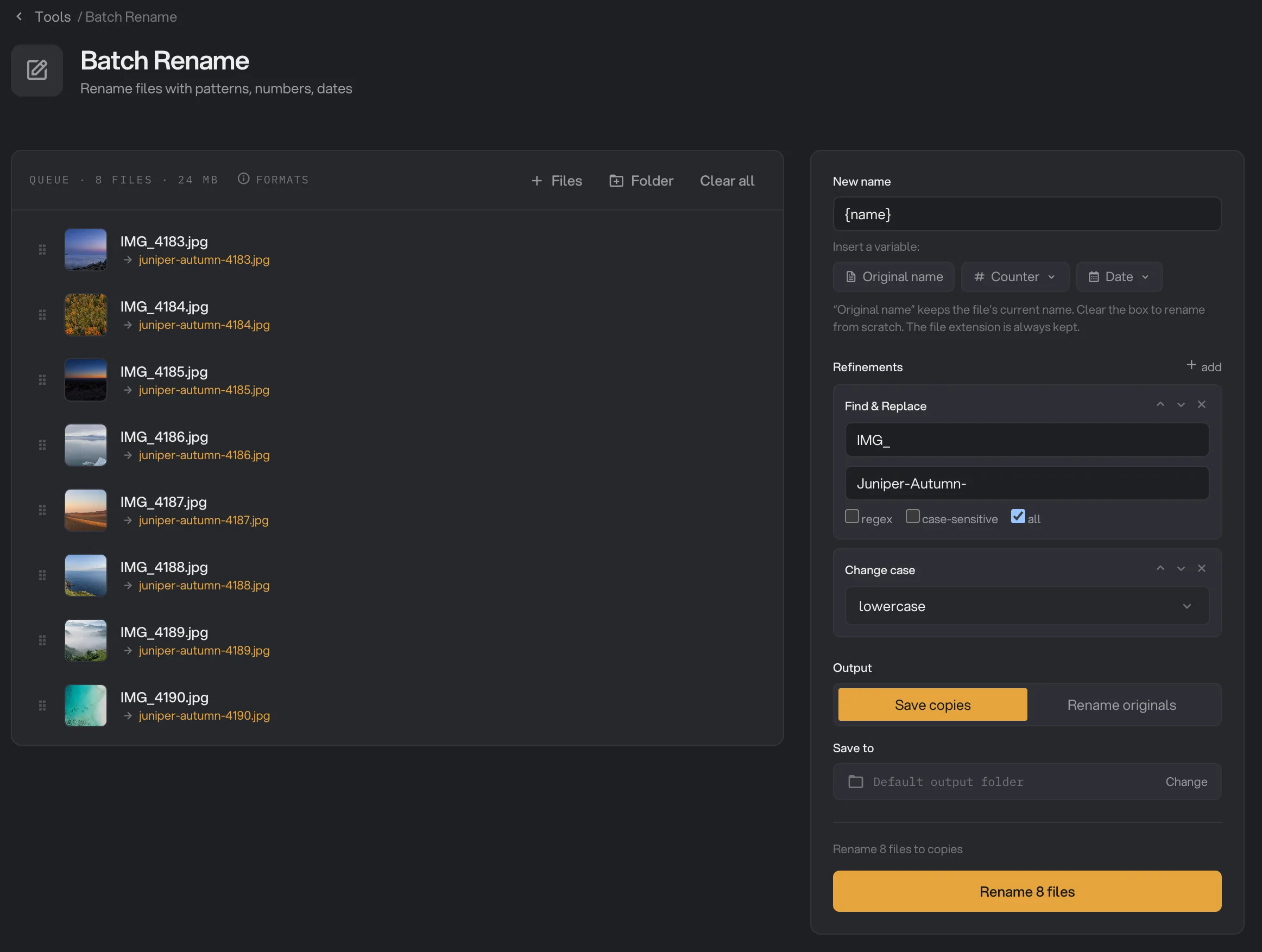
- add
- Find & Replace
- Change case
- Move up
- New name preview
Step 4: Check the new names
Each file in the queue shows an arrow and its new name, updated as you type:
- An orange name will change.
- A gray name stays the same.
- A red name can't be used. Either two or more files would get the same name, or the name isn't allowed.
While any name is red, the line above the button counts the name clashes and Rename is grayed out. Names that differ only in capital letters, such as Photo.jpg and photo.jpg, count as the same name. With Rename originals, a name already used by another file in that folder also clashes.
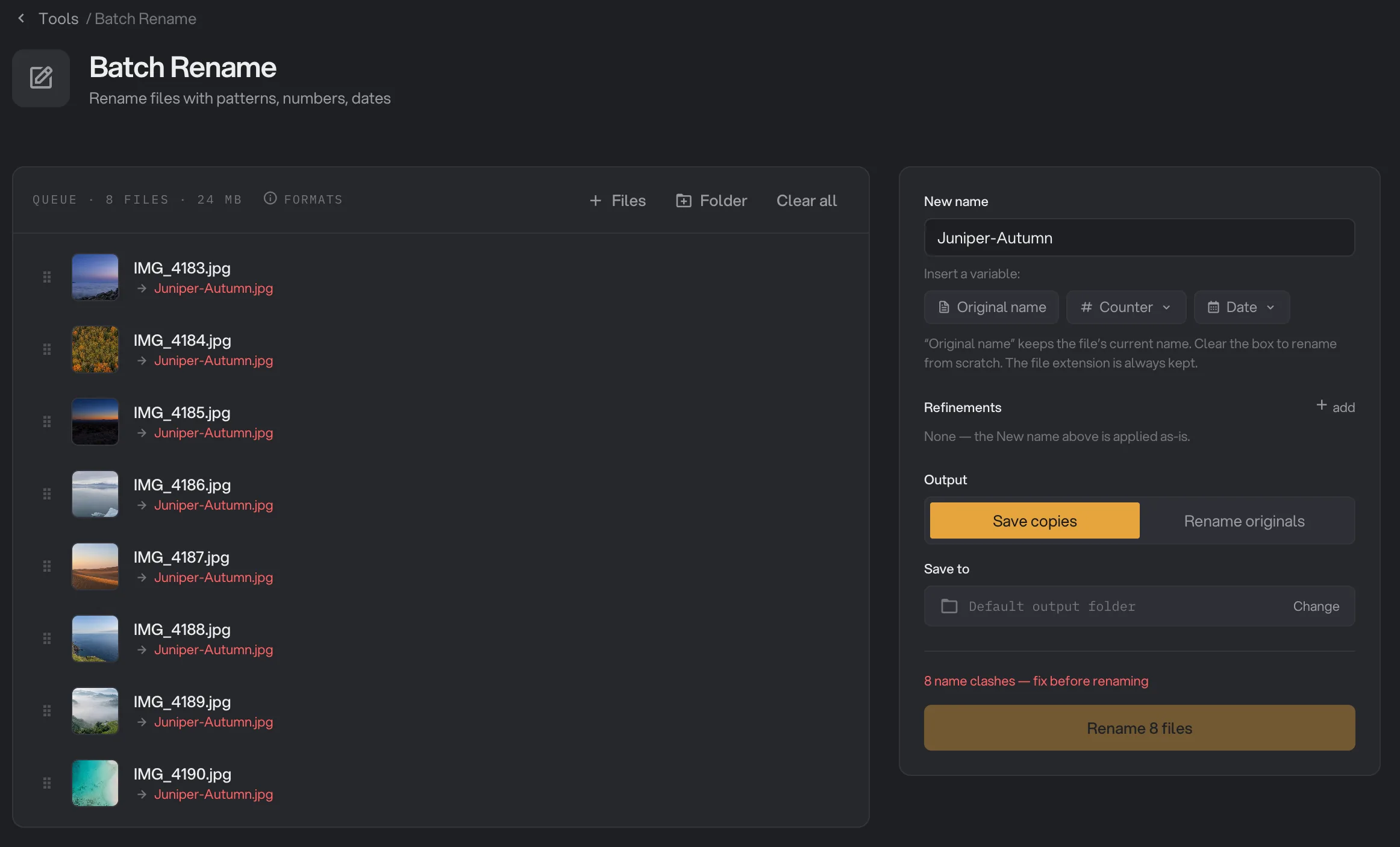
- Clashing name
- Name clash count
- Rename 8 files
The usual fix is to add a Counter or the Original name, so every file gets its own name. A name isn't allowed if it is empty, starts with a space, ends with a space or a period, is longer than 255 characters, or uses one of these characters: < > : " / \ | ? *. A few names reserved by Windows, such as CON, PRN, AUX, NUL, COM1 or LPT1, are refused too, on Mac as well, so your files keep working on any computer.
Step 5: Choose copies or originals
Under Output, pick one:
- Save copies (the default) copies each file under its new name into one folder and leaves the originals untouched. Save to shows where: Default output folder means your workspace's output folder, in a
renamefolder with a subfolder for today's date, such as10-15. Click Change to pick another folder: the copies go straight into it. Hangar keeps that folder, for other tools too, until you click the cross next to it or quit. - Rename originals renames the files where they are. Nothing is copied, and you can undo it afterwards.
With Save copies, files from different folders all land in the same folder, so they need different names even if they came from different places.
Step 6: Rename, then check the result
The line above the button sums up the job, for example "Rename 8 files to copies" or "Rename 8 files in place". Click Rename 8 files (the number matches your queue).
When it finishes, the queue reads "8 of 8 done". Each renamed file is marked Merged, which here simply means it was renamed. With Rename originals, a file whose name would not change is marked Kept. The queue keeps showing the old names, so open the folder in Finder or File Explorer to see the new ones.
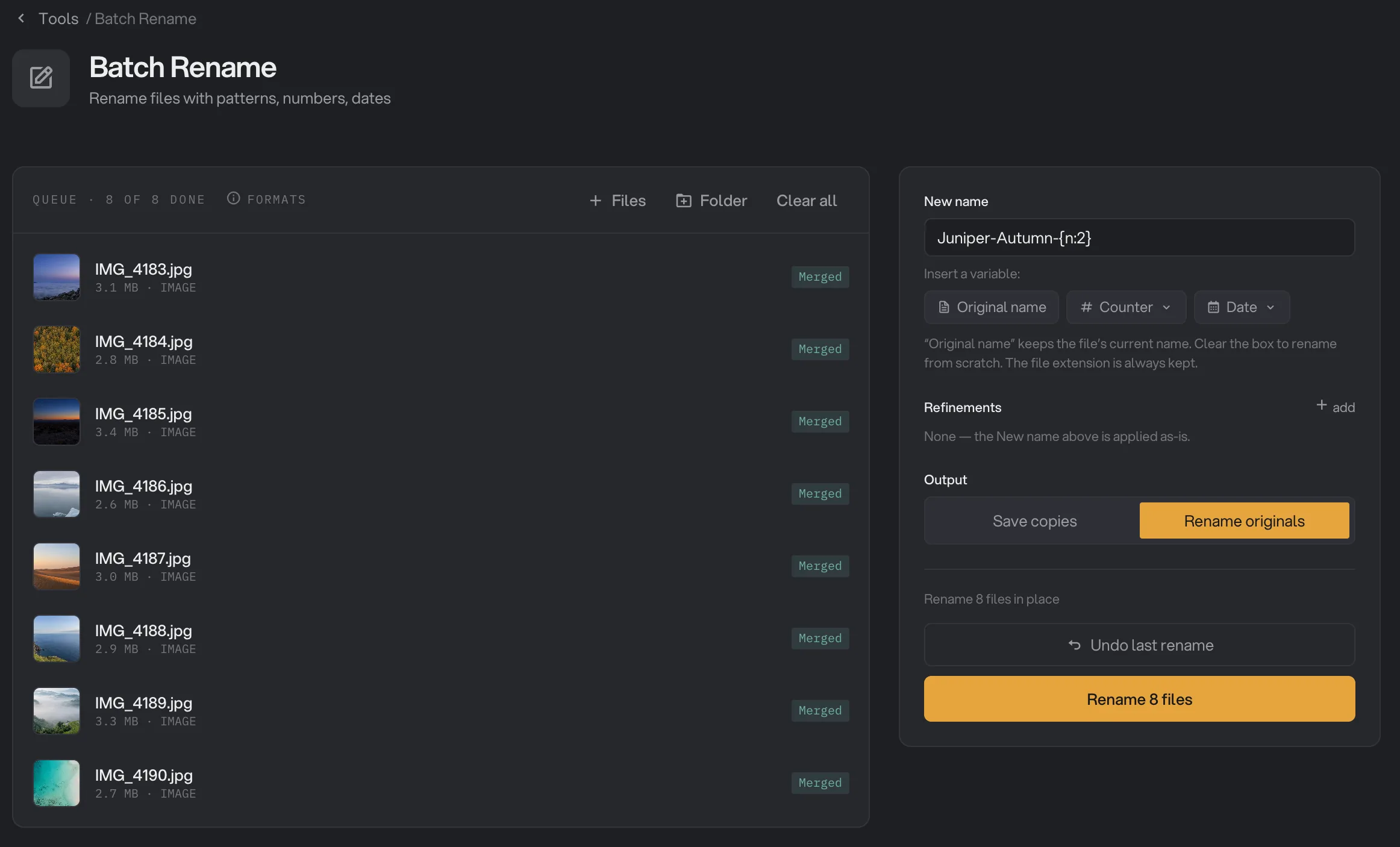
- Files done
- Merged
- Rename originals
- Undo last rename
To rename another set, or the same files again, click Clear all and add the files again. After Rename originals, the queue still points to the old names.
How do I undo a rename?
After a Rename originals run, Undo last rename appears above the Rename button. Click it and every file gets its old name back; the button then disappears.
- Only the most recent Rename originals run can be undone. Renaming originals again replaces it. A Save copies run does not.
- The undo is kept when you quit Hangar, and it belongs to the workspace you renamed in.
- Undo right away, before you move, rename or delete those files or add new files with the old names. If a renamed file has moved or been renamed since, the undo does nothing and the button stays.
- Save copies runs have no undo, because your originals were never changed. Delete the copies if you don't need them.
Every setting
- New name
The name every file gets, without the extension. An empty box keeps the current names.
- RangeYour text with Original name, Counter and Date
- Default{name} (the current name)
- Counter
A number that counts up through the queue, from the top, starting at 1.
- Range1, 2, 3 or 01, 02, 03 or 001, 002, 003
- Date
Adds the file’s date, or today’s, to the name.
- RangeDate modified, Date created, Today’s date, in 14 formats
- DefaultDate modified, 2024-01-15
- Find & Replace
Swaps text in the name. Without case-sensitive, capital letters are ignored when matching.
- RangeFind, Replace with, regex, case-sensitive, all
- Defaultall on, the rest off
- Sequence
A number with your own start and step, padded with zeros to the number of digits.
- Rangestart, step, digits, At the start or At the end
- Default1, 1, 3, At the end
- Change case
Changes capital letters in the name. The extension is not changed.
- Rangelowercase, UPPERCASE, Title Case, Sentence case
- Defaultlowercase
- Insert date
Adds a date to the name with no separator.
- RangeWhich date, format, At the start or At the end
- DefaultDate modified, 2024-01-15, At the end
- Clean up
Tidies spaces and characters in the name.
- Rangetrim, collapse spaces, ASCII only, Keep spaces or spaces to dashes or underscores
- Defaulttrim and collapse spaces on, Keep spaces
- Output
Write renamed copies to one folder, or rename the files where they are.
- RangeSave copies, Rename originals
- DefaultSave copies
- Save to
With Save copies only: where the renamed copies go.
- RangeDefault output folder, or a folder you pick
- DefaultDefault output folder
Recipes for common jobs
- Number a photo shoot: put the photos in order, then set New name to
Juniper-Autumn-{n:2}. - Put the date first: clear the box, click Date with Date modified and 2024-01-15, then type
_and click Original name. You get names such as 2026-10-09_IMG_4183.jpg, which sort by date. - Add a client or project name: type it before
{name}, for exampleNorthwind-{name}. - Make names web-friendly: add Clean up with Spaces → underscores or dashes, then Change case set to lowercase.
- Replace a word everywhere: add Find & Replace, for example "draft" with "final". Leave case-sensitive off to catch Draft and DRAFT too.
Why are the names not what I expected?
- A date is one day off. Dates are written in world time (UTC), not your computer's clock, so a file saved late in the evening (or early in the morning, depending on where you live) can get the neighboring day.
- Accented letters disappeared. ASCII only removes letters such as é, ü or ñ instead of turning them into e, u or n. Turn it off, or fix those names with Find & Replace first.
- Title Case left a word lowercase. Title Case starts a new word only after a space. In a name like summer_menu, only the first letter becomes a capital.
- The numbers are in the wrong order. Numbering follows the queue. Drag the files into order, then check the new names again.
- A Find & Replace with regex does nothing. If the pattern has a mistake, Hangar leaves the names as they are. Check the pattern, or untick regex to match plain text.
- The preview stopped updating. A number box in Sequence is empty or below zero. Type a number in each box. Until you do, Hangar refuses to rename.
- Hangar says the rename has name conflicts, but no name is red. This happens when only a date makes the names different. Add the Counter or Original name to the new name.
- A file failed with "copy failed". The output folder already has a file with that name, often from an earlier run the same day. Hangar never overwrites a file. Pick another folder with Change, or move the old copies away.
For other errors, see A file failed: what to check.
Limits
- Batch Rename changes names only. It does not change the extension or the file's contents. Renamed originals keep their dates, but copies are new files, so their date modified is the time of the copy.
- The Folder button adds only the files directly inside a folder, not its subfolders or hidden files.
- With Save copies, all copies go into one folder. The folders the files came from are not recreated.
- Only the latest Rename originals run can be undone.
- Names follow the stricter Windows rules on every computer, so a few characters and names are refused on Mac too.
- Everything runs on your computer. Nothing is uploaded.
Use Batch Rename in a chain
Batch Rename can be the last step of a chain, for example to resize and compress product photos and then name them Juniper-Autumn-001.jpg and up. Pick it under Files when you add a step. It has to be the last step: once it is at the end, no step can be added after it. A chain can also be just Batch Rename on its own.
The step has the New name box with Original name, Counter (001, 002, 003) and Date modified, and the same refinements as the tool. It always saves renamed copies to the chain's output folder and never renames your originals.
- The rename runs once, after the other steps, so the counter numbers the whole batch. Files that failed an earlier step are not numbered.
- Original name is the name the earlier steps gave the file, and Date modified is when the chain made it.
- A chain shows no preview of the names. Include the Counter or Original name so every file gets its own name: if two files would end up with the same name, the rename step fails for the whole batch.
Common questions
Does Batch Rename change my original files?
Only if you choose Rename originals. The default, Save copies, writes a renamed copy of every file to your output folder and leaves the originals exactly as they were. Renaming never changes what is inside a file.
Can I undo a rename?
Yes, if you used Rename originals. Click Undo last rename and every file gets its old name back. Only the most recent Rename originals run can be undone, and it is kept even if you quit Hangar. Copies have no undo: delete them if you don’t want them.
Can I change the file extension, for example .jpeg to .jpg?
No. Batch Rename always keeps the extension exactly as it is. To get a different file type, convert the file with a convert tool instead.
How do I number files in a specific order?
The counter follows the order of the queue, from top to bottom. Drag files by the handle at the left of each row to put them in order before you run. Files added with the Folder button arrive sorted by name.
Can the counter start at another number?
Not the Counter in the New name box: it always starts at 1 and counts up by 1. To start at another number or count in steps, add the Sequence refinement and set start and step.
Can I rename files in subfolders?
Not in one go. The Folder button adds only the files directly inside the folder you pick. Run Batch Rename once for each subfolder, or add those files with Files.
Still stuck?
One person reads every message, usually with a reply within a day.