 Agencies and studios
 Photographers
 Podcasters
 Video and social creators
 Marketers and content teams
A PDF is large because of what’s inside it, and almost always that means images: scanned pages, photos, or screenshots pasted in at full size. Text takes almost no space. A 10-page report is usually a few hundred KB; the same 10 pages as a scan can be 15 MB.
We took three real files and looked at what made each one big, then fixed them: a 24-page magazine scan (38 MB), an 8-slide deck with images pasted in (45 MB) and a 10-page text report (159 KB).
How do you tell what’s making your PDF big?
Divide the file size by the number of pages. It’s rough, but it points you to the cause in a few seconds:
- Under 100 KB a page: mostly text. The file isn’t really big, or something hidden is inside it (see the last section).
- 0.5 to 2 MB a page: each page is an image. Usually a scan or a phone photo of a document.
- Several MB a page: large photos or screenshots, often more than one per page.
Our three files fit the pattern exactly: the report was 16 KB a page, the scan 1.6 MB a page and the deck 5.6 MB a slide.
Cause 1: scanned pages saved at a high resolution
A scanner turns each page into a photo. Most save at 300 DPI (dots per inch) or more, in colour, and some go much higher. Our magazine scan was saved at about 500 DPI, so each page was a 1.6 MB picture.
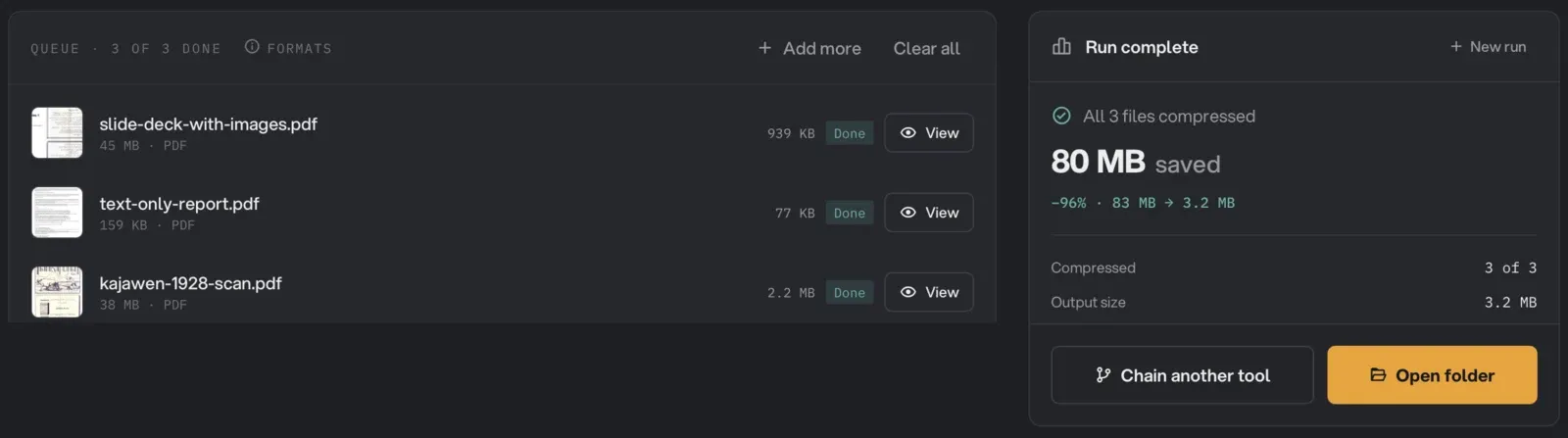
For reading on screen or printing on an office printer, 150 DPI is plenty. Bringing the images down to that, and compressing them at medium quality, took our scan from 38 MB to 2.2 MB with the small print still sharp.
Fix: compress the images. In Hangar’s PDF Compress, the Balanced preset does exactly that (Image quality 50, Target DPI 150). For black-and-white documents, also turn on Convert to grayscale. Next time, set your scanner or scanning app to 150 or 200 DPI before you scan.
Cause 2: photos or screenshots pasted in at full size
When you drop a photo into Word, PowerPoint or Keynote, the full original usually goes into the file, even if it’s shown as a small thumbnail. Screenshots are often PNG, which keeps every pixel exactly and compresses poorly for photos. Export to PDF and all of it comes along.
Our deck had one image per slide, each about 2,300 pixels wide and stored as PNG: 45 MB for 8 slides. With the same Balanced preset, it came out at 939 KB, about 2% of its old size.
Fix: compress the PDF the same way, or shrink the images before you insert them. PowerPoint and Word also have a Compress Pictures option that does this inside the document.
We ran all three files through PDF Compress in one go. Each row shows the size before (under the name) and after (on the right):
Cause 3: the file was never cleaned up
Some apps write PDFs quickly rather than compactly: fonts and page data stored with little or no compression, duplicate objects, leftover structure. None of it shows on the page.
Our text report is an example. It came from a browser’s “Save as PDF” and was 159 KB. Hangar’s Lossless structural pass, which recompresses that internal data without touching what you see, cut it to 77 KB, half the size, with every word still selectable.
Fix: run the file through a compressor once. A lossless pass is safe on any PDF because it changes nothing visible.
Cause 4: fonts embedded in full
A PDF carries its fonts so it looks the same everywhere. Good PDF makers include only the letters you used. Some include the whole font, and a font with many languages or weights can add hundreds of KB, more if several are embedded. It’s rarely the reason a file is 20 MB, but it’s often why a one-page letter is 1 MB.
Fix: re-export from the original app with font subsetting on (Word’s “Embed only characters used in the document” option, for example), or leave it: a few hundred KB won’t stop an email.
Cause 5: things you can’t see
The rarer causes, all invisible on the page:
- Attached files. A PDF can carry other files inside it, like spreadsheets or the original images.
- Saved edits. Some editors add each change to the end of the file instead of rewriting it, so a much-edited PDF keeps old versions of its pages.
- Page thumbnails and private app data, written by some editors and never shown.
Fix: in PDF Compress, Deep strip removes thumbnails, attached files and app-private data. Check you don’t need the attachments first. The Compress PDF guide lists what each setting keeps and removes.
Does OCR make a PDF smaller?
No. You’ll see this claim online, but OCR (text recognition) adds an invisible text layer on top of the page images; it doesn’t replace them. In our test, running OCR on a one-page scanned contract took it from 535 KB to 549 KB: slightly bigger, because the text layer is new data. OCR makes a scan searchable, not smaller. Compress it as well if size matters.
How to keep PDFs small next time
- Scan documents at 150 to 200 DPI, and in grayscale when there’s no colour worth keeping.
- Resize photos before you put them in a document. 2,000 pixels wide is plenty for a full page.
- Paste photos as JPEG, not PNG. Keep PNG for screenshots of text and diagrams.
- Compress once, at the end, rather than after every edit.
If you need the PDF under an email limit, our guide to making a PDF small enough to email has the target size for each provider. To fix the file you have now, compress the PDF on your computer with Hangar.