 Agencies and studios
 Photographers
 Podcasters
 Video and social creators
 Marketers and content teams
Hangar has more than 70 tools, and you do not need to know any of their names. Describe the job in your own words, such as “make this pdf smaller” or “remove a background”, and Hangar shows you the tools that do it. It is also the quickest way to discover what Hangar can do: type a task, see what comes back.
Step 1: Open search
Press ⌘K (Ctrl+K on Windows) from anywhere in Hangar. The search box opens on top of whatever you are doing.
Prefer the mouse? Click Search tools in the title bar. It shows the ⌘K hint next to it. Pressing ⌘K again, or esc, closes the box.
Step 2: Describe what you want to do
Type the task the way you would say it to a colleague. The box reads Search tools, or describe what you want to do, and both work: a tool name, a file format, or a whole sentence.
Take Northwind Studio's 25 MB catalog PDF that will not go through email. Typing “make this pdf smaller” puts PDF Compress first, with its subtitle “Slim down heavy PDFs”, and Image Compress second in case the heavy part is the pictures.
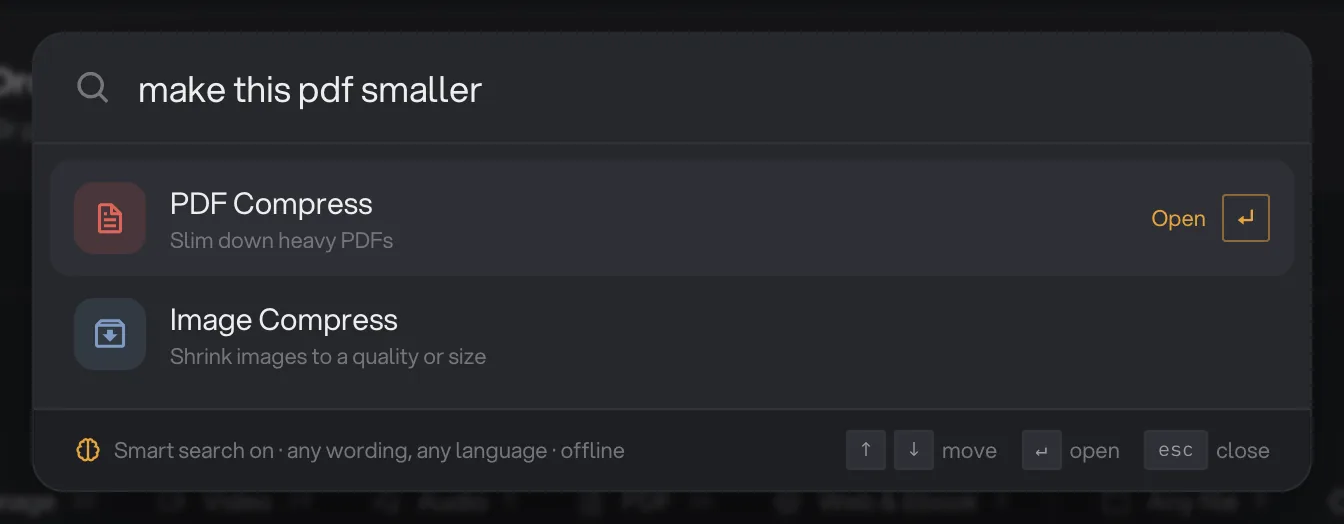
- Type a task in plain words
- Best match, highlighted
- Open
- Smart search on, runs offline
Three more examples, in the words people actually use:
- “shrink a pdf” leads to Compress PDF, the same tool as above, found from a different wording.
- “add subtitles to a video” leads to Caption video, which turns the speech in a clip into burned-in captions.
- “remove a background” leads to Remove background, which cuts the subject out of a photo.
Those three are the suggestions Hangar itself shows when nothing matches, under “Try describing the result you want”. If you see that message, reword the task around the result you are after rather than a feature name.
Step 3: Open the tool
The best match is already highlighted. Press ↵ to open it, or click Open on its row.
Use ↑ and ↓ to move through the other results, and esc to close the box. Once a tool is open, add your files and press Run as described in how to run a tool.
What does search look through?
Search covers every tool on this computer and your saved chains. Before you type, the box suggests tools under one heading, plus up to three of your Chains. Once you type, tools and chains appear in one list, best match first.
The suggestion heading depends on where you are: For your … lists tools that accept the files you have added, otherwise you see Recent, Favorites or Start with. A chain row ends in Run chain instead of Open. A tool that Hangar has announced but not shipped yet shows Coming soon.
Smart search or keyword search?
Hangar ships with keyword search: it matches the words you type against the tool catalog. That already covers queries such as “compress” or “jpg”.
Smart search goes further. It understands the meaning of a sentence, so “make this pdf smaller” and “shrink a pdf” find the same tool, and so does the same request in any of 50 or more languages. It is a one-time download of 127 MB.
Until you download it, the footer of the search box offers it: Get Smart search (127 MB). With keyword search only, the same request still puts PDF Compress first but also lists the other Compress tools and AI Upscale, so you pick the right one.
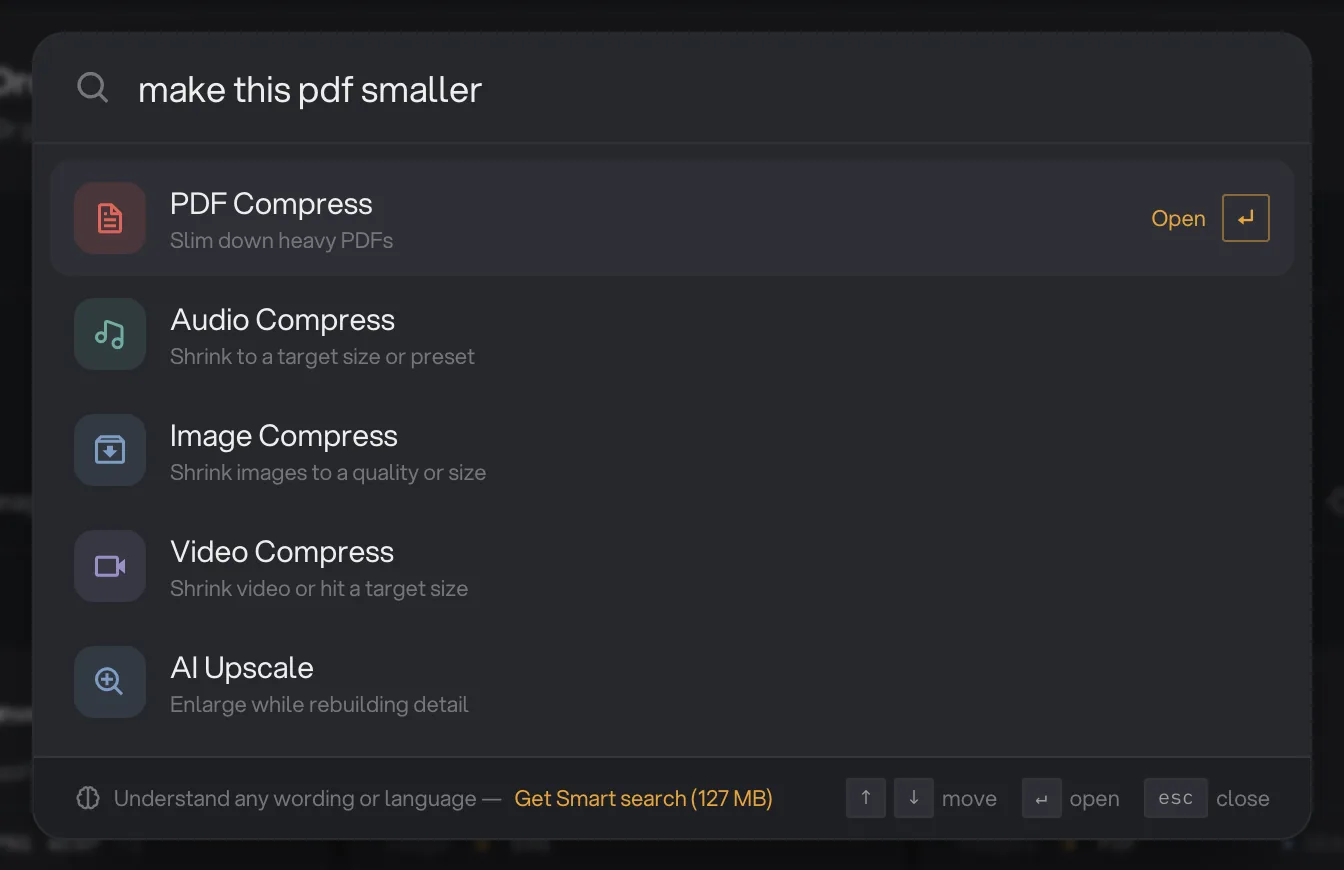
- Get Smart search (127 MB)
Click the offer and the footer shows the progress, with a Cancel button while it downloads. If the download fails, the footer says so and offers Try again. When it is done, the footer reads Smart search on, and it stays on.
Does smart search work offline?
Yes. The search runs entirely on your computer, and what you type never leaves it. The 127 MB download is the only time Hangar goes online for search, and afterwards it works with no connection at all.
The model is stored with Hangar's other on-device models in the app's data folder. For what else downloads and when, see AI models: what downloads and when.
Other ways to find a tool
On the Tools page, the search box at the top reads Search tools, formats or tasks. Press / to jump to it and esc to clear it. It filters the tool cards in place, and the tabs above them let you browse by file type.
You can also let the files choose. Drop files onto the Tools page and Hangar opens the tab for that file type. The tour of the Hangar window shows where each of these lives.
Common questions
Do I have to download anything before I can search?
No. Keyword search works the moment you install Hangar. Smart search is an optional, one-time 127 MB download that understands more ways of asking, in more languages.
Does smart search send what I type anywhere?
No. Smart search runs entirely on your computer and works offline. The only time Hangar goes online for it is the one-time model download.
Can I search in a language other than English?
Yes. Once Smart search is downloaded you can describe a task in any of 50 or more languages, and Hangar still finds the right tool.
Why is Smart search unavailable on my PC?
On some older Windows computers Smart search cannot run. Keyword search still works there: type a tool name, a file format or a short task word such as compress.
Can I find my chains this way too?
Yes. Before you type, up to three saved chains appear under Chains. Once you type, matching chains appear in the same list as tools, with a Run chain action instead of Open.
Still stuck?
One person reads every message, usually with a reply within a day.