 Agencies and studios
 Photographers
 Podcasters
 Video and social creators
 Marketers and content teams
Most of Hangar's tools need nothing extra. A few do their work with an AI model that Hangar fetches the first time you choose a quality or mode that needs it. This page lists those tools, how big each download is, what you see while it happens and how to take a model off your computer again.
Which tools use an AI model?
Every model below runs on your own computer. Where a tool offers several levels, you download only the one you pick, so a tool with four quality tiers does not cost you four downloads.
| Tool | What you choose | Download |
|---|---|---|
| Remove background (Remove BG in the app) | Fast | Built in, nothing to download |
| Medium | About 170 MB | |
| High (Recommended) | About 223 MB | |
| Ultra | About 930 MB | |
| AI Upscale | Preserve photo | 4.6 MB |
| Restore damaged photo | 4.6 MB | |
| Artwork & text | 17 MB | |
| Auto (uses all three models) | 26 MB | |
| Transcribe | English · Quick | 190 MB |
| Best overall, 99 languages (Recommended) | 574 MB | |
| English · Long-form | 663 MB | |
| European languages, 25 languages | 670 MB | |
| Caption video (Video Captions in the app) | The same four speech modes as Transcribe | 190 to 670 MB, shared with Transcribe |
| The Transcript tab in Trim video's editor | Download speech model | 574 MB, the same file as Transcribe's Best overall |
| OCR PDF and the other text-recognition tools | English | Built in, nothing to download |
| Any of the 36 other languages | About 3 to 15 MB per language | |
| Accurate OCR (early access) in PDF Studio, then Recognize text | One-time local model | Shown on its Download button |
| Vectorize image | AI Regions switched on | About 40 MB |
| Smart search (⌘K, Ctrl+K on Windows) | Optional: understands any wording, in 50+ languages | 127 MB |
Tools not listed here, from Compress PDF to Convert video, need no model at all. That includes Audiogram: to show the spoken words, make an SRT file with Transcribe and add it to the audiogram as captions.
When are you asked to download?
Never at install and never at launch. Hangar asks the moment you pick a quality or mode that needs a model, inside that tool's settings panel. If you stay on a built-in level, such as Remove BG's Fast tier or OCR in English, you are not asked at all.
Say Northwind Studio drops 40 product photos into Remove background and clicks High. The panel now reads "This tier needs a ~223 MB model (one-time download)." with a Download model button. Until the download finishes, the run button stays off and the hint under it says "Download the High-quality model to run."
Step 1: Pick the quality or mode you want
Open the tool, add your files and choose a level in the settings panel. The panel tells you the size before anything downloads, so you can decide with the number in front of you.
In Remove BG, High is marked Recommended. In Transcribe, Best overall is. In AI Upscale, each mode shows Enable with its size and a Download button.
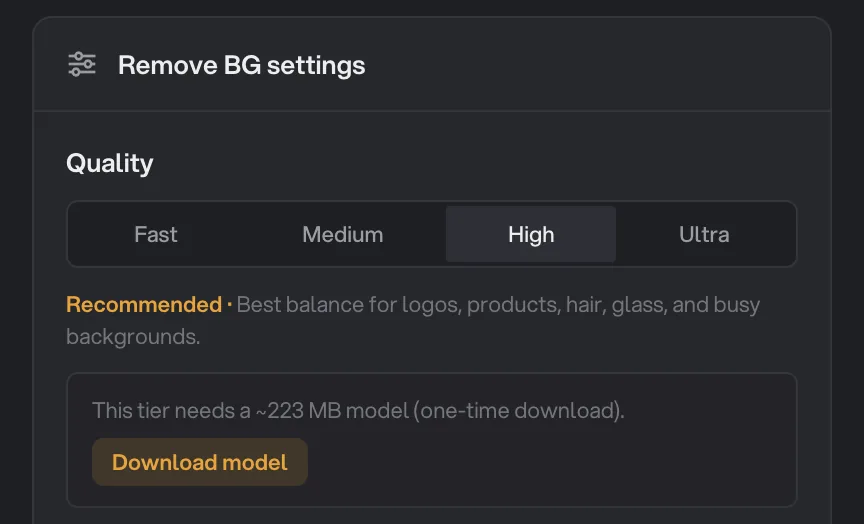
- Quality tier (High, Recommended)
- Model size, shown before you download
- Download model
Step 2: Click Download model and wait
Click Download model. A progress bar reads "Downloading model… 43%" and climbs; Cancel stops it if you change your mind. When the file is in, Hangar shows "Verifying model…" for a moment while it checks the file.
In Transcribe, the button reads Set up Best overall (or the mode you chose), then "Preparing Best overall… 43%" and "Finishing setup…"; if it fails, it says "Setup didn't finish" with Try again. In Remove BG a failed download offers Try again, and in AI Upscale Retry. Check your connection and start it again.
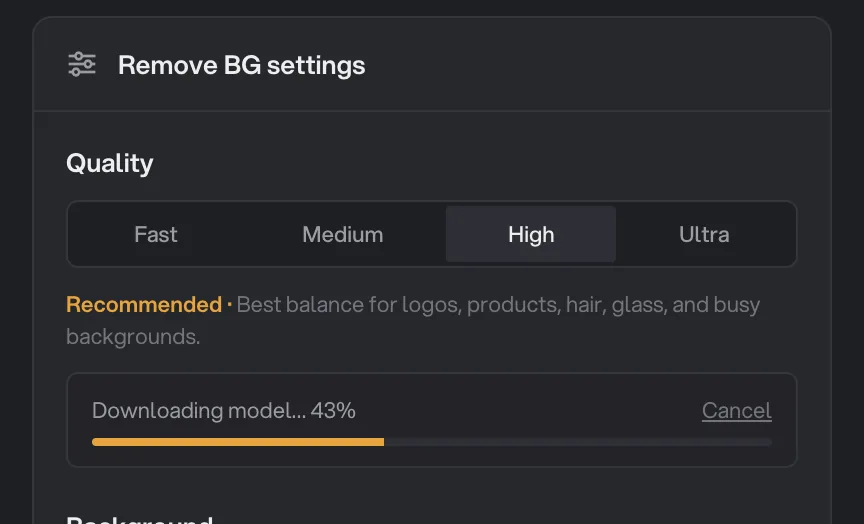
- Download progress
- Cancel
Step 3: Run the tool, now and offline from here on
The panel changes to "Model ready · ~223 MB" and the run button comes alive. Press it as you would for any tool; see How to run a tool in Hangar if this is your first run.
That was the only time this tool needs the internet. Next week, on a train with no signal, the same quality tier works exactly the same way.
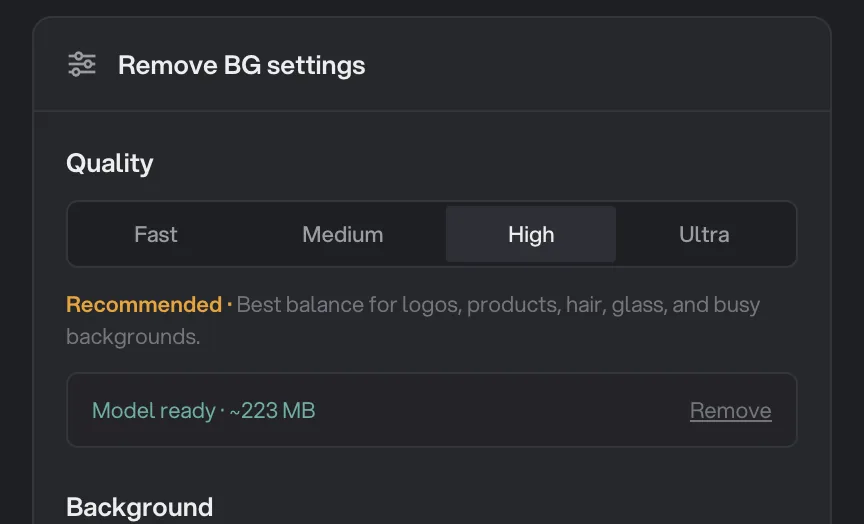
- Model ready
- Remove
Where is the model stored?
Hangar keeps every downloaded model in its own application data folder on your computer, in a folder named models. It is not placed in your output folder or next to your files, so it never shows up among your results.
A model stays there until you remove it, so you are asked once per quality or mode, not once per run. If you download several, their sizes add up: Remove BG High plus Transcribe Best overall is roughly 800 MB of disk.
Does it work offline?
Yes. The download is the one moment a model needs a connection. From then on the model runs entirely on your computer, which is why Transcribe says "After that, this mode works fully offline." and the OCR language picker says recognition runs fully on this machine.
Your files travel in neither direction. A background removal, an upscale or a transcript is computed locally, and the result lands in your output folder like any other run; see Where Hangar saves your files.
How do I remove a model?
Inside the tool that downloaded it. There is no central model manager in Settings, and three tools have a remove control next to their ready status:
- Remove BG: pick the tier, then click Remove next to "Model ready".
- Transcribe: open the mode, then click Free space next to "Ready for offline use".
- Vectorize image: click Remove next to "Model ready · ~40 MB".
The other models (AI Upscale, Caption video, OCR languages, PDF Studio OCR and Smart search) have no remove control yet. Removing a model does not touch the results you already made. The tool simply goes back to offering the download, and one click brings the model back.
Smart search works without its model
Press ⌘K and type what you want to do. Out of the box, search matches keywords, so "compress" finds the compress tools on its own. The 127 MB Smart search model is optional: with it, Hangar also understands "make this pdf smaller" or the same request in 50+ languages, still offline.
The offer sits at the bottom of the search panel as Get Smart search (127 MB), and the footer reads "Smart search on · any wording, any language · offline" once it is installed. On some older Windows computers Smart search is not available, and keyword search keeps working. Read more in Find any tool with smart search.
If a run will not start
A missing model is one of the common reasons a run or chain refuses to begin. Look under the run button: a hint such as "Download the High-quality model to run." names exactly what is needed, and the download is one click away in the same panel. For the other causes, from a password-protected PDF to a workspace with no output folder, see A file failed: what to check.
Common questions
Does Hangar need the internet to use its AI tools?
Only for the one-time download of a model. After that the model lives on your computer and the tool runs with no connection at all. Your files are processed on your machine at every step.
How much disk space do the models take?
It depends on what you download: AI Upscale's photo modes are under 5 MB, Remove background High is about 223 MB and Remove background Ultra is about 930 MB. You only store the models you actually downloaded, and Remove background, Transcribe and Vectorize let you remove theirs again.
Can I download every model at once, or see them all in one place?
No. There is no central model list in Settings. Each tool downloads its own model when you pick a quality or mode that needs it. Remove background, Transcribe and Vectorize have a control to remove theirs; the other models have no remove control yet.
Are my photos or recordings sent anywhere when the model runs?
No. The download brings the model to your computer; your files never go the other way. Background removal, upscaling, transcription and OCR all run locally, even for the languages you add.
The download failed. What should I do?
Check your internet connection and free disk space, then use the Try again or Retry control in the same panel. You can also Cancel a download at any point and start it again later.
Still stuck?
One person reads every message, usually with a reply within a day.