 Agencies and studios
 Photographers
 Podcasters
 Video and social creators
 Marketers and content teams
What does Device mockup do?
Device mockup puts your screenshots and screen recordings on the screen of a laptop, tablet or phone, ready for a website, an app store page or a social post. In the app the tool is called Device Mockup. You can show the device on its own, on a background you choose, or in one of 21 styled rooms called scenes. Everything happens on your own computer.
Device Mockup opens as a Studio: a live preview in the middle, settings on the right and a strip of your files at the bottom. You can set one look for every file and export them all at once. Click Undo at the top to take back a change.
Step 1: Open the Studio and add your files
Click Tools in the sidebar, open the Create tab and click Device Mockup in the From your media section. You can also type "mockup" in the search box at the top.
Click Choose files or drop your files anywhere on the window. Screenshots in PNG, JPG, WebP and other common image formats work, and so do screen recordings in MP4, MOV, WebM and other common video formats. The strip at the bottom shows every file; click one to preview it. To add more, use Add files or Add a folder at the end of the strip. Hover a thumbnail and click its small x to remove it, or click Clear all to start over.
A Mac window screenshot is trimmed to the window automatically, so its shadow does not show inside the device.
Step 2: Choose a scene or a device
Open the Device tab. You have two ways to show your shot:
- A scene: a styled room, such as a desk in morning light or a café table, with the device already placed and lit. Use the arrows beside Browse all scenes to try the next one, or click Browse all scenes to see your shot in every room. Filter by Laptop, Tablet or Phone, and click a room to use it. In a scene, the room and the device stay fixed; only your screen changes.
- A standalone device: under Standalone device, pick Laptops, Tablets or Phones and a model. Then choose its Finish (color) and its View, for example Front, Left or Right.
For a standalone device, Composition offers quick layouts: Centered, Compact, Left, Right, Raised and Close-up. Under Placement, set Device size, pick a spot in the grid, or fine-tune Horizontal position and Vertical position. You can also drag the device in the preview.
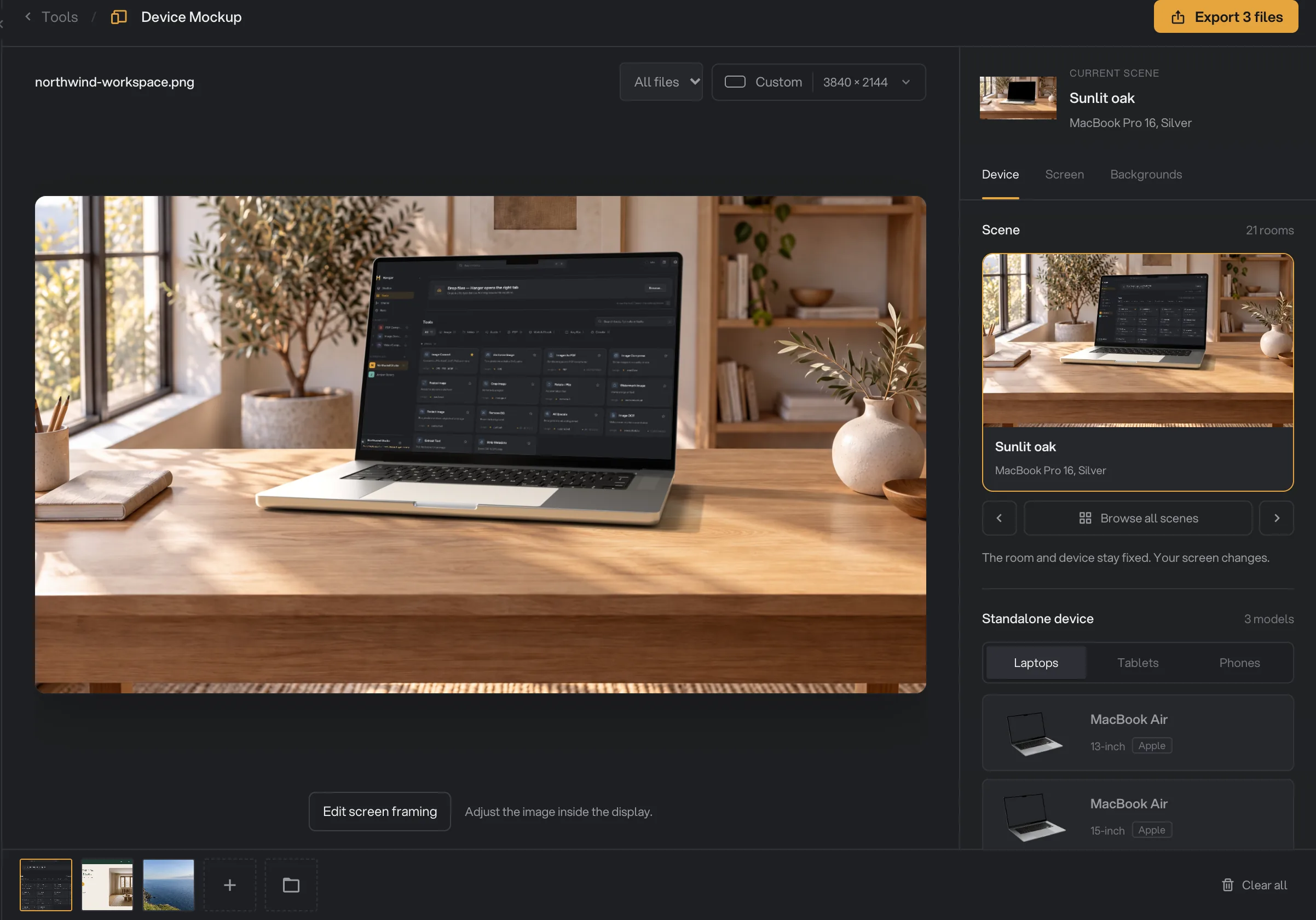
- Canvas format
- Device tab
- Browse all scenes
- Standalone device
- All files
- Export 3 files
- Your files
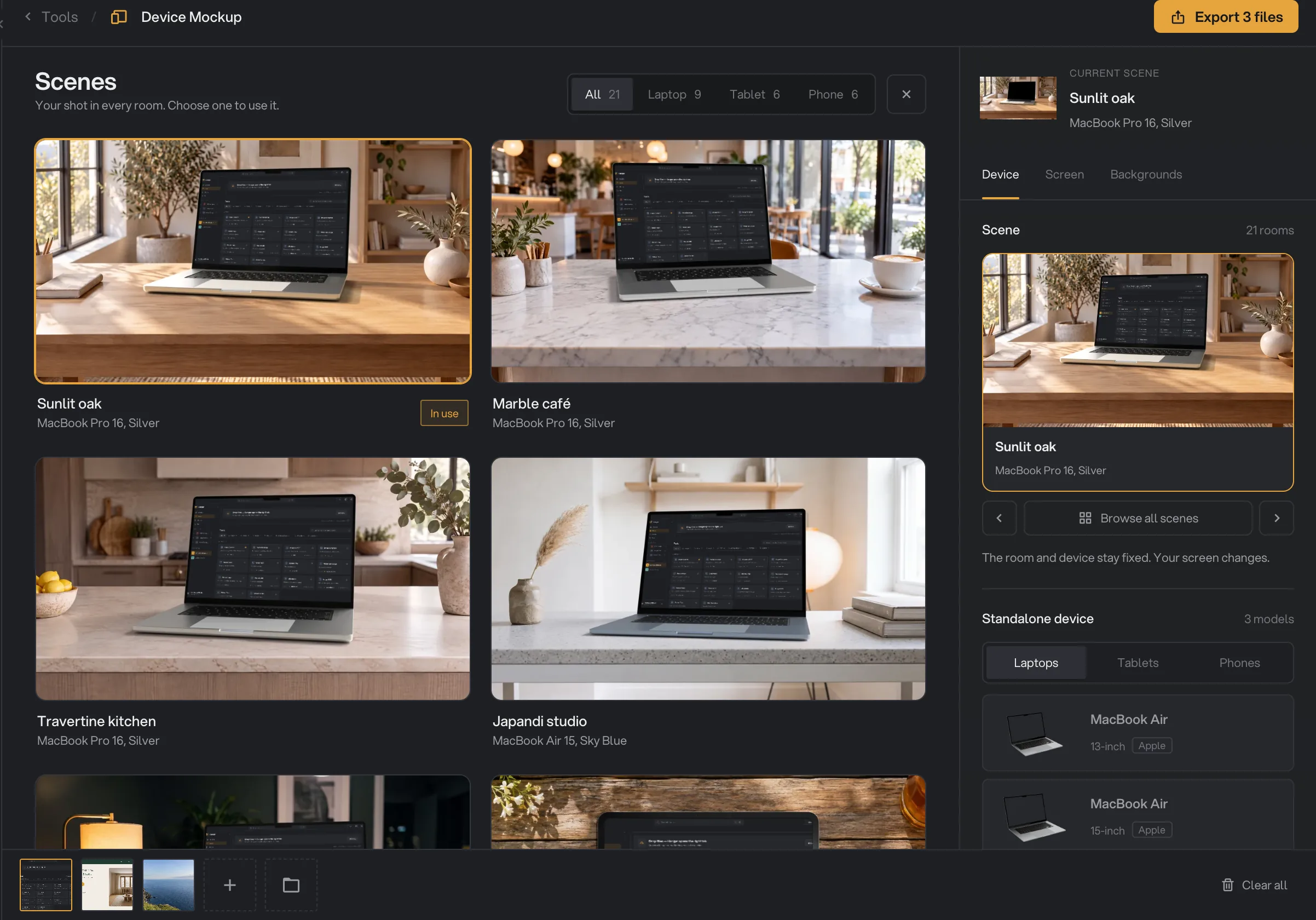
- Device type
- In use
- Close
Step 3: Pick the image size
Click the size button at the top right of the preview (it reads Presentation at first) to open Canvas format and choose the size of the finished image. Ready-made sizes are grouped under General (such as Presentation, 1600 × 1200, the default), App Store, Google Play and Social (such as Instagram, Story / Reel, Link preview and Product Hunt). Fit to device sizes the image around the device. Under Custom dimensions, type a Width and Height from 16 to 8192 pixels and click Apply.
Choosing a scene sets the size to the room photo.
Step 4: Fit your shot on the screen
Open the Screen tab. On a laptop, choose the Content:
- Window (the default for a standalone laptop): your shot sits as a window on the laptop’s desktop wallpaper. Set Window size, and turn on Add window controls for a Mac-style title bar with its three colored buttons. Under Window details, set Corner radius and Window shadow.
- Full screen: your shot fills the display. Choose Fill screen to cover the whole display, or Fit entire image to show all of it without stretching.
On phones and tablets, your shot always fills the display. Under Framing, use Content zoom and the grid to keep the important part in view, or click Edit screen framing to drag the shot inside a straight-on view of the screen. Click Done framing when it looks right. The line under it shows your shot’s own size, which helps you spot a shot that is too small for the screen.
Step 5: Choose a background
Open the Backgrounds tab (the Studio opens on it). For a standalone laptop, pick what to change first: Scene background (around the device) or Device screen wallpaper (inside the display, behind a window). Then choose a kind:
- Wallpaper: browse the built-in collections, such as Glass, Architecture, Landscapes and Materials, or type in Search wallpapers. Click Import your image to use your own PNG, JPG, WebP or BMP. It stays under Your images for next time.
- Gradient: pick one of the ready-made gradients, then open Adjust colors to change its colors.
- Solid: pick a swatch, or any color with Custom color.
- None (scene background only): click Use transparent scene to leave the area around the device transparent.
Under Device shadow, turn Show shadow on or off and set its Softness and Opacity. Scenes have their own room and lighting, so these settings do not appear there.
Step 6: Trim a video and pick its cover
When a video is selected, a bar under the preview lets you play it (or press Space). Drag the handles at each end to trim the start and the end. The line next to it shows how much you keep and roughly how long the export will take.
Move the playhead to a good moment and click Set cover frame. That frame becomes the thumbnail of the MP4 file. Without it, the first frame you keep is used. WebM files have no cover frame. Trim and cover are set for each video separately.
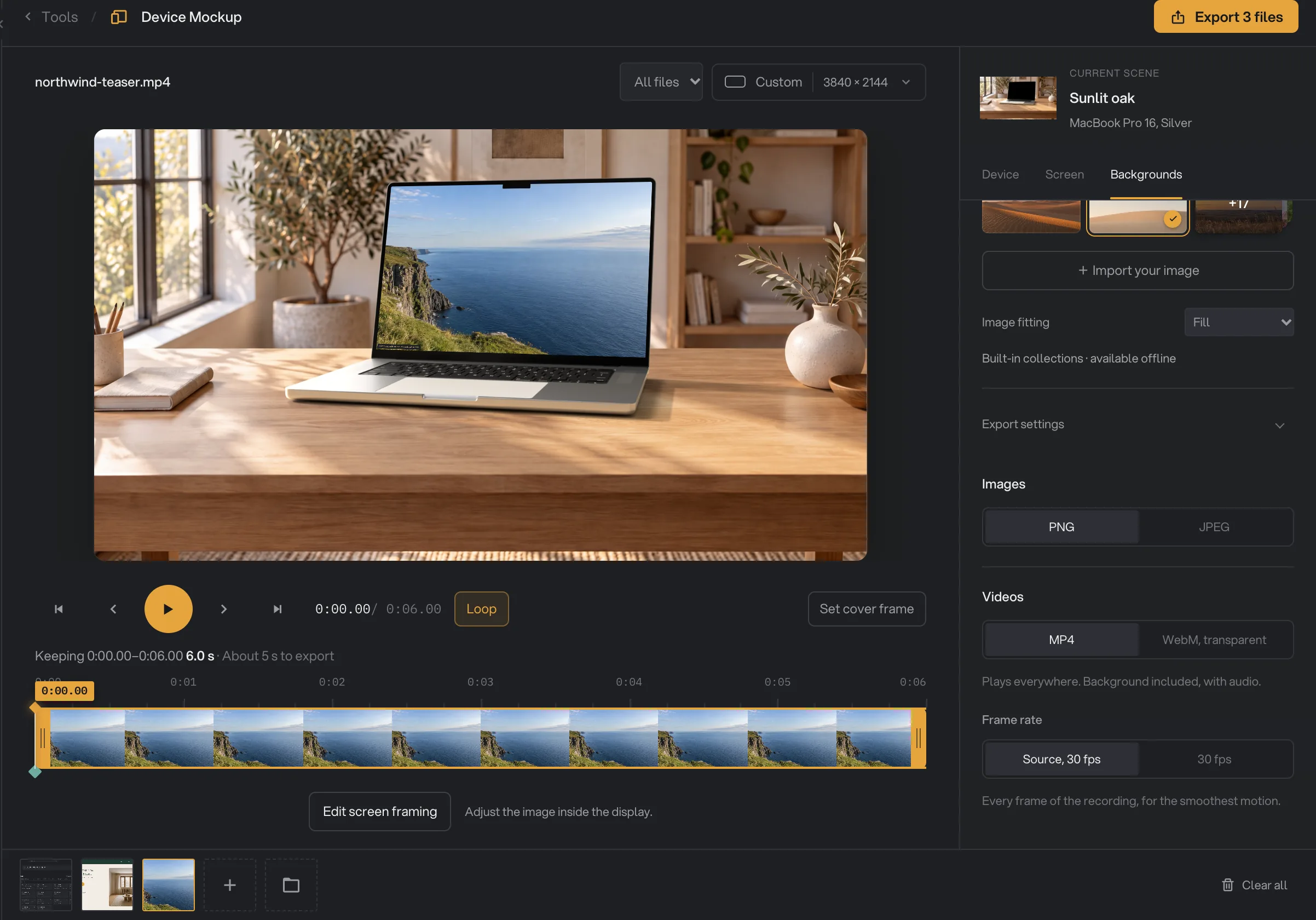
- Trim start
- Set cover frame
- Kept length
- WebM, transparent
- Frame rate
Step 7: Export, then check the result
At the bottom of the Backgrounds tab, open Export settings. For images, choose PNG or JPEG. For videos, choose MP4 (plays everywhere, with the original sound) or WebM, transparent (keeps a transparent background, for web pages and video editors), and a Frame rate.
Then click Export at the top right. With several files it reads, for example, Export 3 files, and shows its progress while it works.
When the export ends, a card shows how many files were exported, a thumbnail, the total Size and how long it Took. Click Open folder to see them. They are saved in your workspace’s output folder, in a device_mockup folder with a subfolder for today’s date, such as 10-15. Each file has -mockup added to its name, for example northwind-workspace-mockup.png. See Where your files are saved.
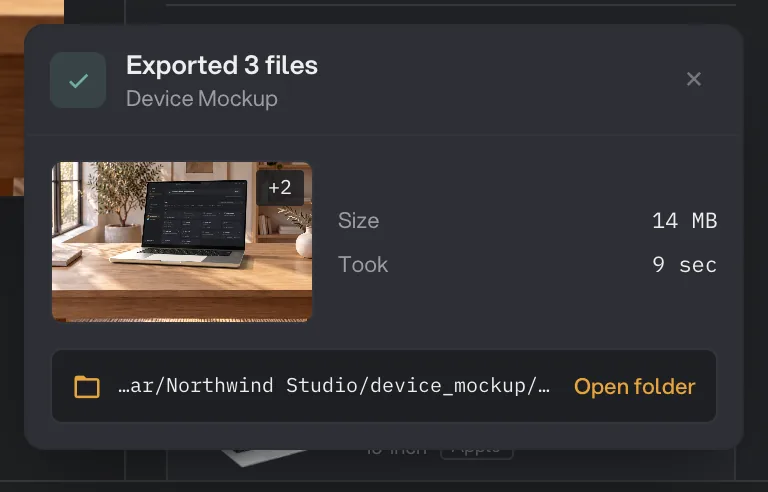
- Exported 3 files
- Took
- Open folder
- Dismiss
Every setting, and when to change it
Some settings only appear when they apply: Finish, View, Composition, Placement and Device shadow are hidden in scenes, and Content, Screen fit and the window settings are for laptops only.
- Scene
Shows your shot in a styled room with the device already placed. The room and device stay fixed.
- Range21 rooms
- DefaultNone
- Standalone device
The device model, shown on its own on your background.
- RangeLaptops, Tablets, Phones
- DefaultMacBook Pro 16-inch
- Finish
The color of the device.
- RangeDepends on the model
- DefaultSilver
- View
The angle the device is seen from.
- RangeFront, Left, Right and more, depending on the model
- DefaultLeft
- Composition
Quick layouts for the size and position of the device.
- RangeCentered, Compact, Left, Right, Raised, Close-up
- DefaultCentered
- Device size
How big the device is on the canvas.
- Range30% to 250%
- Default100%
- Horizontal position, Vertical position
Where the device sits on the canvas. The grid sets both at once.
- Range0% to 100%
- Default50%
- Canvas format
The size of the finished image or video.
- RangeReady-made sizes, Fit to device, or 16 to 8192 px per side
- DefaultPresentation (1600 × 1200)
- Content
On a laptop, whether your shot fills the display or sits as a window on a wallpaper.
- RangeFull screen, Window
- DefaultWindow
- Screen fit
Whether your shot covers its area, losing some edges, or shows in full without stretching.
- RangeFill screen, Fit entire image
- DefaultFit entire image
- Window size
How much of the display the window takes.
- Range12% to 94%
- Default78%
- Keep below the camera
Keeps your shot below the camera notch at the top of the laptop’s screen.
- DefaultOff
- Add window controls
Adds a Mac title bar with its three buttons to the top of the window.
- DefaultOff
- Keep image proportions
Keeps the window the shape of your shot. Turn it off to set Window height yourself.
- DefaultOn
- Window shadow
A soft shadow under the window.
- DefaultOn
- Corner radius
How round the window’s corners are.
- Range0% to 12%
- Default2%
- Content zoom
Zooms into your shot when it fills the screen. Use the grid to choose which part stays in view.
- Range100% to 400%
- Default100%
- Scene background
What is around the device. None, then Use transparent scene, makes it transparent.
- RangeWallpaper, Gradient, Solid, None
- DefaultA warm sand gradient
- Device screen wallpaper
What shows on a laptop’s display around a window.
- RangeWallpaper, Gradient, Solid
- DefaultDune Quiet wallpaper
- Image fitting
Whether a wallpaper or your own image covers the area or shows in full.
- RangeFill, Fit entire image
- DefaultFill
- Show shadow
A shadow under the device.
- DefaultOn
- Softness
How blurred the device shadow is.
- Range0 to 120 px
- Default48 px
- Opacity
How dark the device shadow is.
- Range0% to 100%
- Default35%
- Images
The format for images (the heading reads Export when all your files are images). PNG keeps transparency. JPEG makes smaller files with a white background where it would be transparent.
- RangePNG, JPEG
- DefaultPNG
- JPEG quality
Higher keeps more detail; lower makes smaller files.
- Range50% to 100%
- Default95%
- Videos
The format for videos (the heading reads Export when all your files are videos). MP4 plays everywhere and keeps the sound. WebM, transparent keeps a transparent background and the sound.
- RangeMP4, WebM, transparent
- DefaultMP4
- Frame rate
Match source (shown with the video’s own rate, such as Source, 60 fps) keeps every frame. 30 fps exports faster and makes a smaller file for high frame rate recordings.
- RangeMatch source, 30 fps
- DefaultMatch source
How do I get the best results?
- Use a sharp, full-size shot. A screenshot at your screen’s full resolution looks crisp on a large device. A small or resized shot looks soft once it is stretched to fill the screen.
- Match the shot to the device. A phone screenshot fits a phone, a desktop screenshot fits a laptop. If the shapes differ, use Fit entire image or a Window on a laptop, or reframe with Content zoom.
- Pick the canvas for where you post. Use the App Store, Google Play or Social sizes so the image needs no cropping later.
- Try scenes for a lifestyle look. Browse all scenes shows your own shot in every room, so you can compare before you choose.
- Give each file its own look when needed. Switch the menu above the preview to This file before you change a file that needs a different device or background.
- For a website or video editor, keep it transparent. Choose None, click Use transparent scene, and export PNG or WebM, transparent.
Why a result disappoints
- Part of my shot is cut off. Fill screen covers the whole display, so a shot of a different shape loses its edges. On a laptop, switch to Fit entire image. On phones and tablets, the shot always fills the screen, so move the important part into view with the grid or Edit screen framing.
- The background turned white. JPEG and MP4 cannot be transparent. Export PNG for images or WebM, transparent for videos.
- I can’t move or resize the device. In a scene, the device is fixed in the room. Pick a Standalone device to place it yourself.
- The device shadow settings are missing. Scenes have their own lighting, so Device shadow only appears for standalone devices.
- The screen wallpaper I chose does not show. Full-screen content covers it. Click Show as a window to put your shot in a window over the wallpaper.
- My animated GIF does not move. Animated GIF and WebP files are used as a single still frame. Use a video file to get motion.
- The shot looks blurry. The shot is smaller than the device screen. Use a larger screenshot, or a smaller device size or canvas.
- The video export takes a long time. Every frame is drawn into the device. Trim the video to the part you need, or choose 30 fps for high frame rate recordings.
For other errors, see A file failed: what to check.
Limits
- Devices: MacBook Air 13-inch and 15-inch, MacBook Pro 16-inch, iPad Pro 11-inch and 13-inch, iPhone 17 Pro and iPhone 17 Pro Max, plus 21 scenes.
- The canvas can be 16 to 8192 pixels on each side.
- Each file gets one device. To show several devices together, export them separately and combine them in another app.
- Animated GIF and WebP files are used as one still frame.
- Settings stay while Hangar is open and reset when you quit.
- Everything runs on your computer. Nothing is uploaded.
Common questions
Which devices can I use?
MacBook Air 13-inch and 15-inch, MacBook Pro 16-inch, iPad Pro 11-inch and 13-inch, iPhone 17 Pro and iPhone 17 Pro Max, each in several finishes and views. There are also 21 scenes: styled rooms with a laptop, tablet or phone already in place.
Can I put a screen recording in the device?
Yes. Add a video and Device Mockup plays it on the device screen. You can trim the start and end, pick the frame used as the MP4 file’s thumbnail, and export an MP4 with the original sound or a transparent WebM.
Can I export with a transparent background?
Yes, with a standalone device. On the Backgrounds tab, click None under Scene background, then Use transparent scene. Export a PNG for images or WebM, transparent for videos. JPEG and MP4 cannot be transparent, so the background turns white.
Can each file have a different device or background?
Yes. With more than one file, switch the menu above the preview from All files to This file. Changes then apply only to the file you are looking at. A change you make later with All files still reaches that setting on every file, so give each file its own look last.
Are my settings saved for next time?
They stay while Hangar is open, so you can come back and export more. They reset when you quit Hangar.
Is my original file changed?
No. Hangar saves a new file with -mockup added to the name and leaves the original where it was.
Still stuck?
One person reads every message, usually with a reply within a day.