 Agencies and studios
 Photographers
 Podcasters
 Video and social creators
 Marketers and content teams
Why does a computer need approval?
A plan covers a fixed number of computers. When someone enters your key on a new computer while every seat is in use, or a computer you removed earlier asks to come back, Hangar holds it until the license owner says yes.
That keeps the decision with you: a colleague's new laptop gets in, a stranger who found the key does not. The owner can answer from the email or from Hangar itself.
Step 1: Open the approval email
The purchase email receives a message titled Approve Design MacBook Pro for Hangar Crew, with the computer's name and your plan. Open it on any device and click Review this computer.
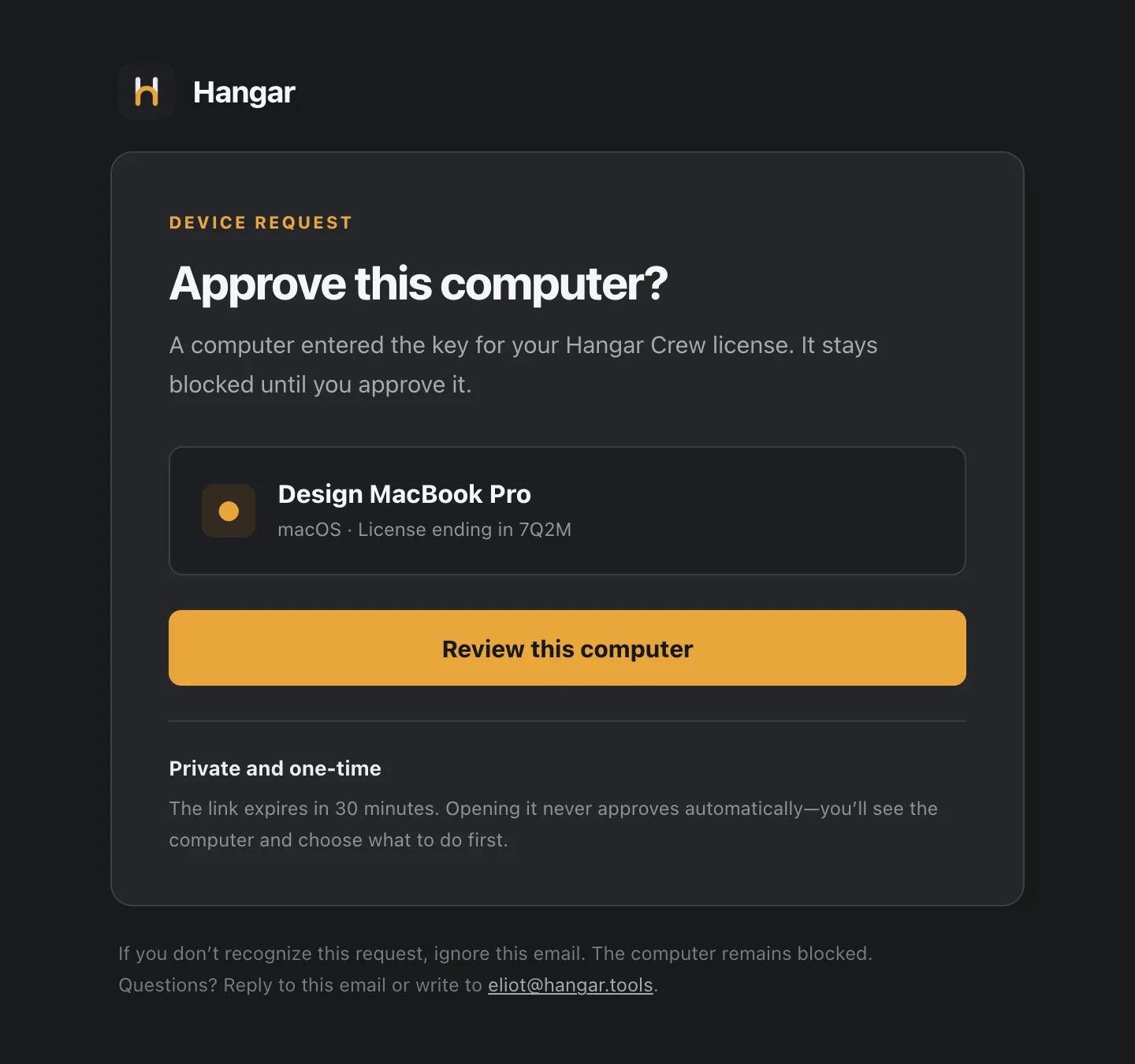
- Requesting computer
- Review this computer
The link works once and expires after 30 minutes. Opening it never approves anything by itself.
Step 2: Choose the computer it replaces
The review page names the computer and, because the plan is full, lists the computers already on it. Pick the one you are retiring and click Approve computer.
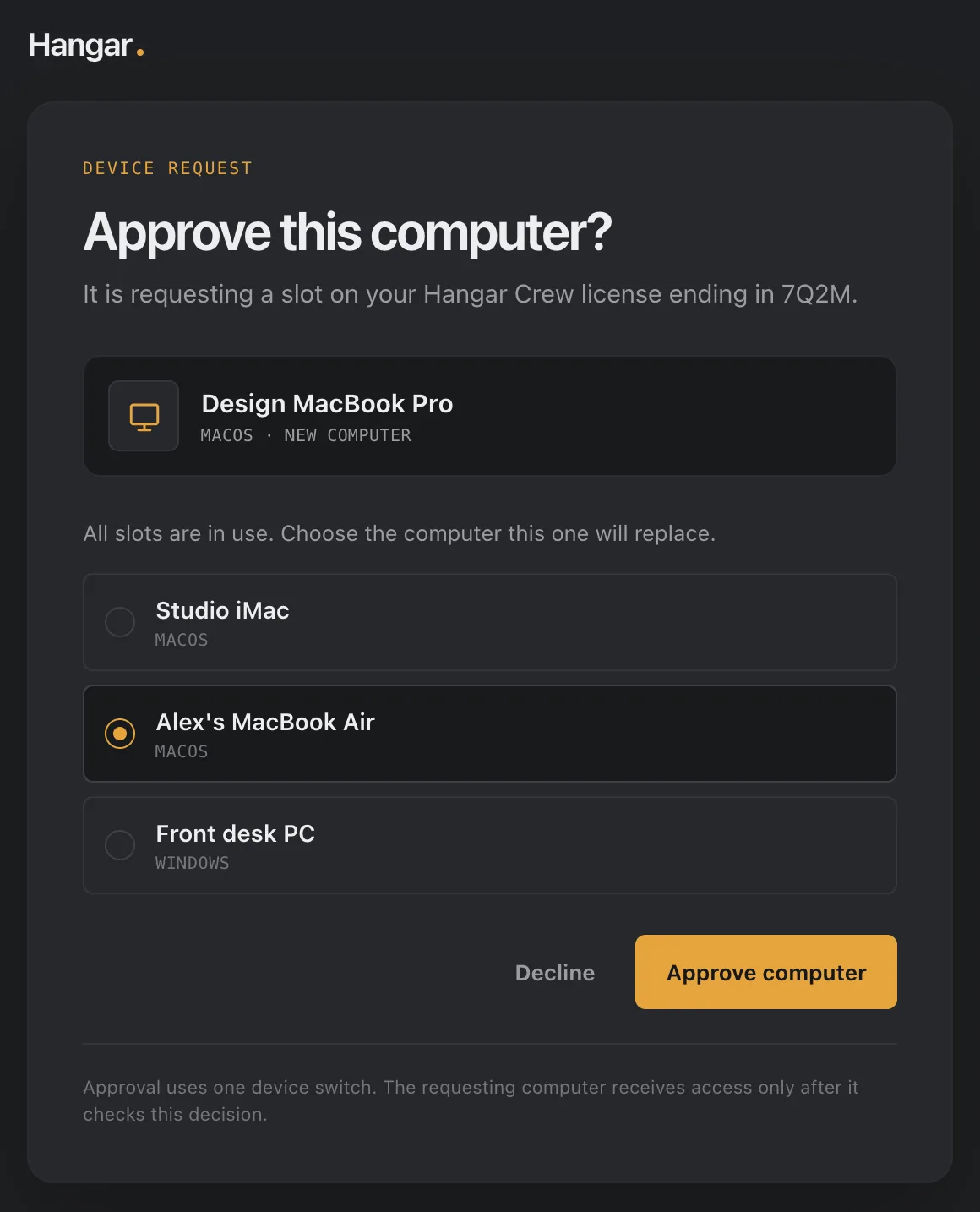
- New computer
- Computer it replaces
- Approve computer
The page changes to Computer approved. A computer you removed earlier gets the same email, and the page asks Let this computer rejoin? instead.
Approve from inside Hangar
If you have confirmed your purchase email in Settings → License on one of your computers, requests also show up there. A Computer requesting access message appears with Review request, and the gear in the title bar opens License directly.
A Device approval card names the computer, whether it runs macOS or Windows, and when it asked. Click Approve to add it or Decline to refuse it.
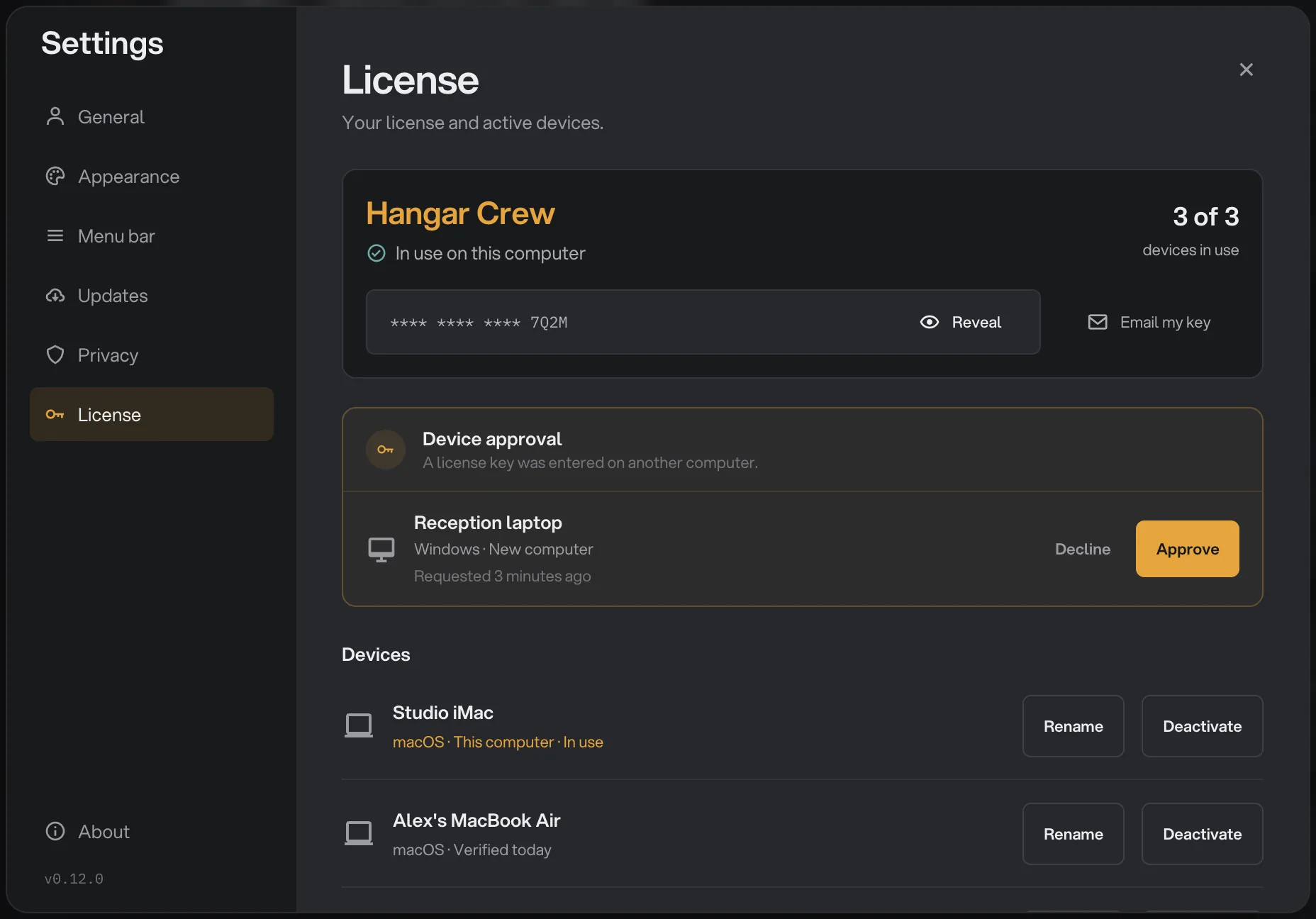
- Device approval request
- Decline
- Approve
When every seat is in use, Approve opens a choice: pick the computer the new one replaces, then click Approve computer.
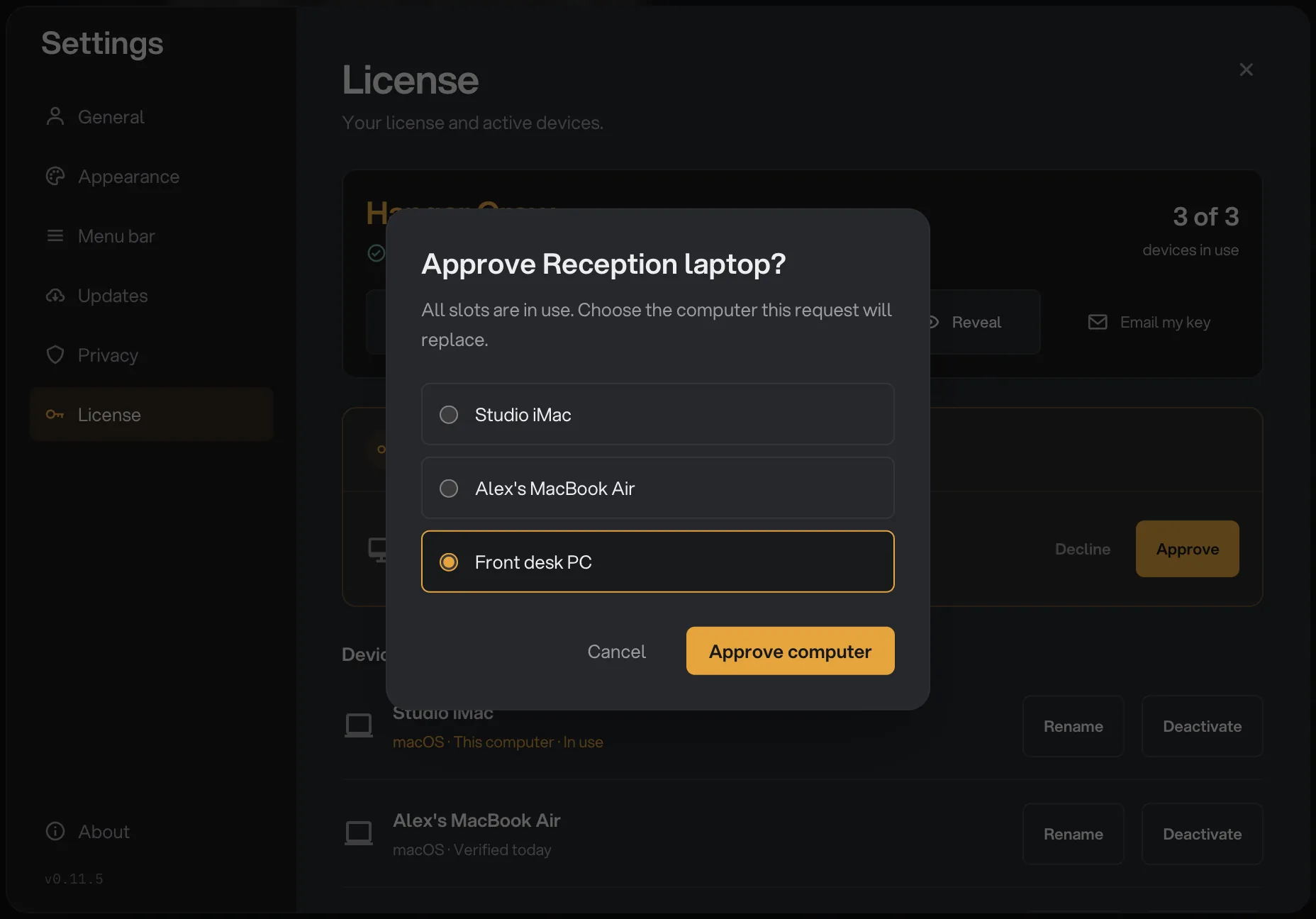
- Computer it replaces
- Approve computer
Decline a computer you do not recognize
Click Decline on the review page or the Device approval card, or simply ignore the email. Either way the computer stays blocked and sees The license owner declined this computer.
If you did not expect the request, someone else has your key. Keep it private from then on: sharing a key to get around the device limit is against the license terms.
What the new computer sees
While it waits, the new computer's activation window shows Waiting for the license owner and the time the request expires. Leave it open: it checks every few seconds and activates on its own once you approve. Check now asks straight away.
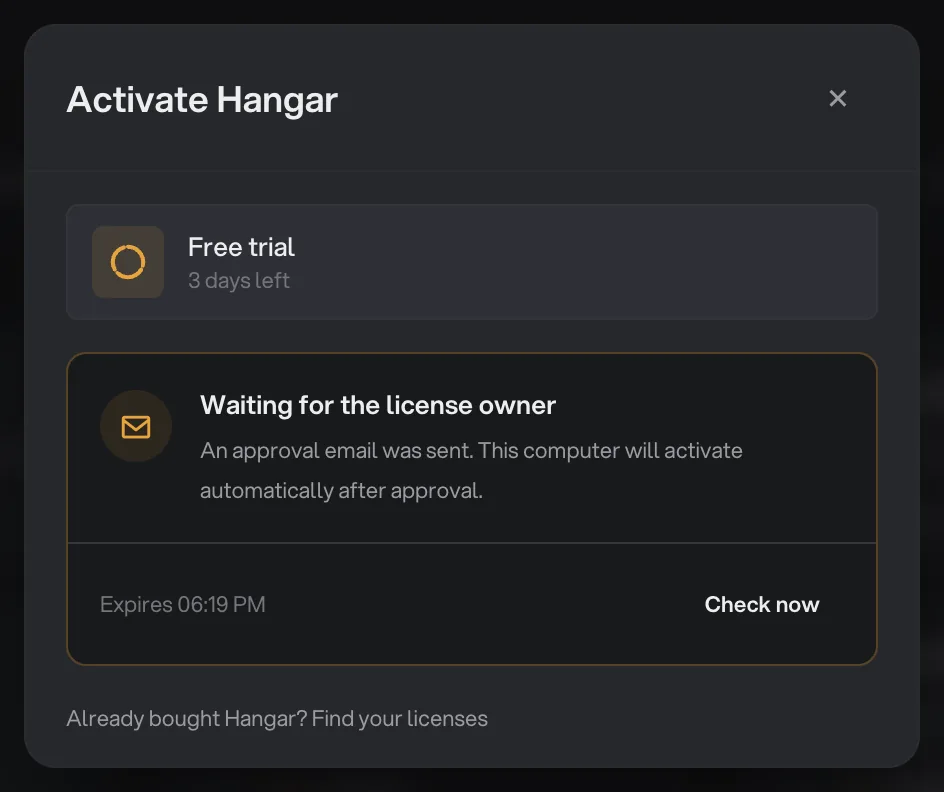
- Waiting for approval
- Request expires
- Check now
Common questions
I got an approval email for a computer I do not recognize. What should I do?
Ignore the email or click Decline on the review page, and the computer stays blocked. Opening the link never approves anything on its own. Keep your key private from then on: only the computers in your plan should have it.
Who receives the approval email?
The email address used to buy the license. If a colleague bought Hangar for your team, the request goes to them, so ask them to approve it.
Does approving cost anything?
No. Approval only reassigns a seat you already own. It does use one device switch, and each plan has a limited number every 48 hours.
Still stuck?
One person reads every message, usually with a reply within a day.