 Agencies and studios
 Photographers
 Podcasters
 Video and social creators
 Marketers and content teams
When the old computer is still at hand, the cleanest switch takes three steps: copy your key, free the old computer's seat, then activate the new one. Nothing on the old computer is deleted along the way.
If the old computer is already gone, or you entered the key on the new one before freeing a seat, skip to every seat taken.
Step 1: Copy your key from the old computer
On the computer you are leaving, press ⌘, (Ctrl+, on Windows), choose License and confirm your purchase email with the code Hangar sends; opening your license shows each screen. Click Reveal to show the full key, then the copy button next to it.
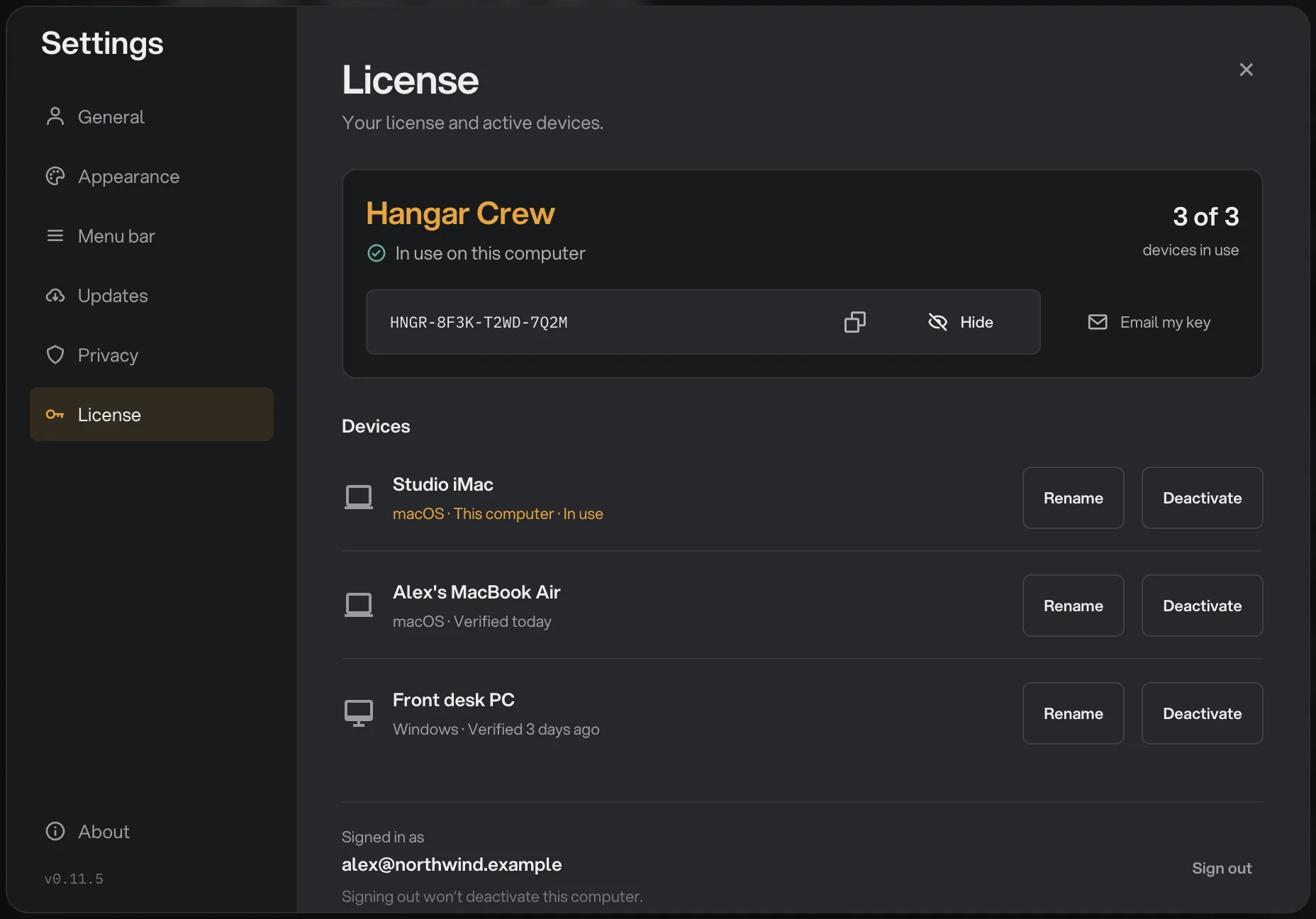
- Your full key
- Copy key
- Email my key
Email my key is often easier: it sends the key to your purchase email, so you can open the message on the new computer and paste from there.
Step 2: Deactivate the old computer
In the Devices list, click Deactivate on the computer you are retiring. Hangar asks Deactivate device?; click Deactivate again to confirm.
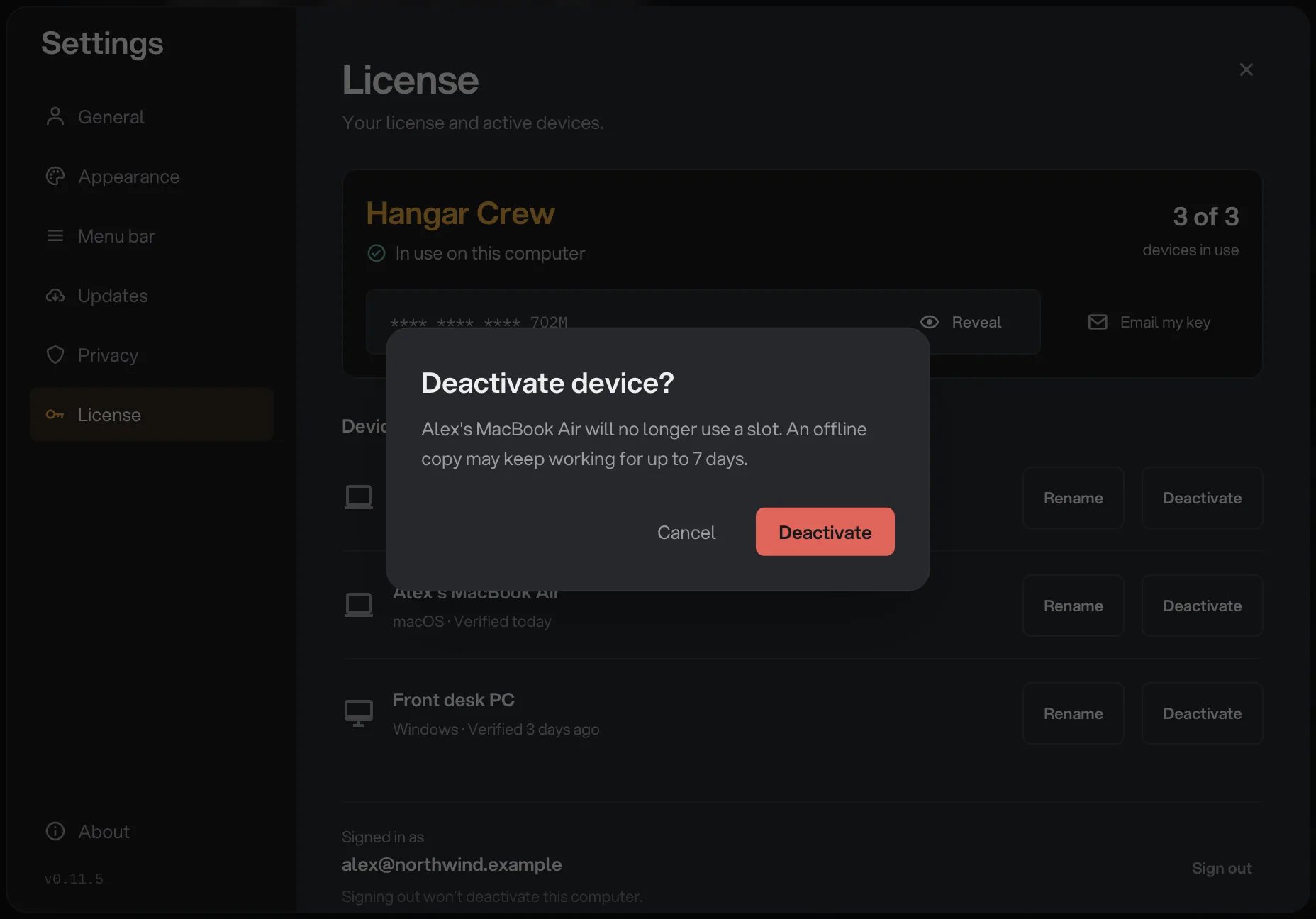
- Which computer
- Deactivate
The row disappears and the counter drops by one. The retired copy may keep working for up to 7 days if it stays offline, then it locks; its workspaces, run history and exported files all stay where they are.
Step 3: Activate the new computer
Install Hangar on the new computer and open it. Click the Free trial card at the bottom of the sidebar, paste your key into License key and click Activate.
The window changes to Your license with your plan and Active on this device. The full walkthrough is in activating your license.
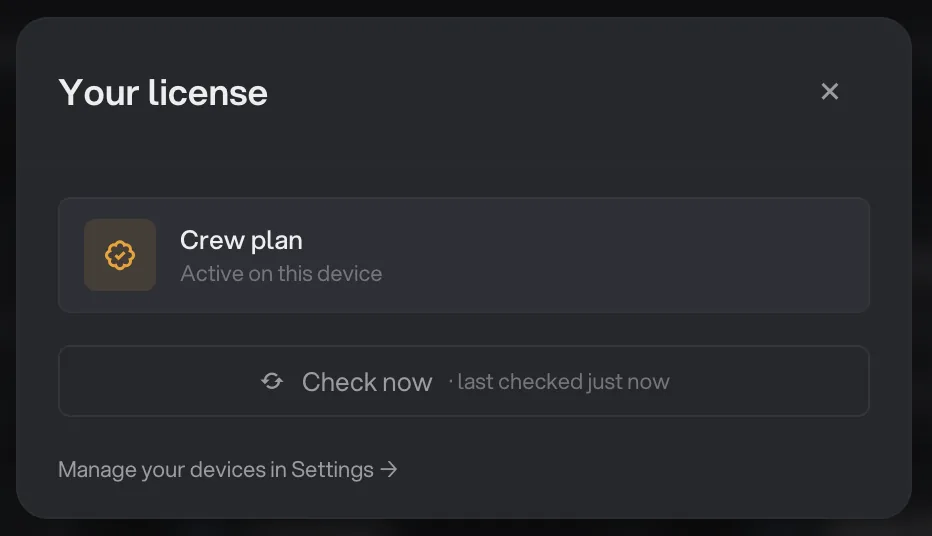
- Plan and status
What if every seat is still taken?
If you enter your key on the new computer while every seat is in use, Hangar does not simply refuse. The activation window shows Waiting for the license owner, and an approval email goes to the purchase email.
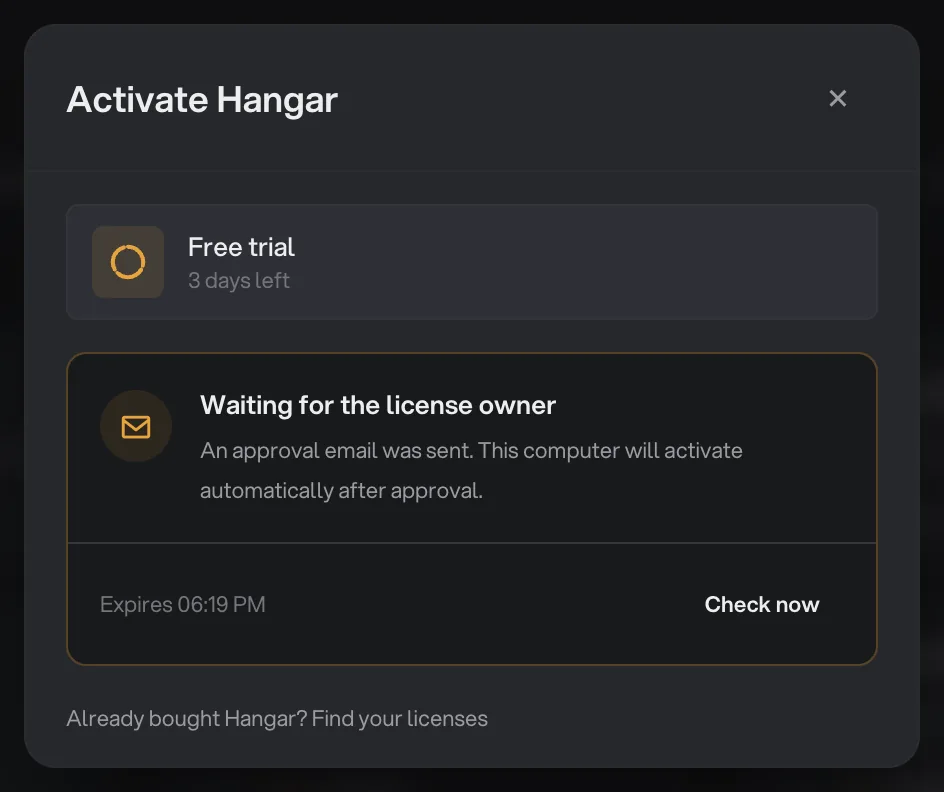
- Waiting for approval
- Request expires
- Check now
Open the email, click Review this computer, choose the old computer as the one to replace and click Approve computer. Leave the new computer open: it activates on its own a few seconds later. Approving a computer shows the email and the review page step by step.
Move the license from the new computer itself
You can also do the whole switch from the new computer, without the email. Open Settings → License there and confirm your purchase email. When the plan is full, the card says All device slots are in use and offers Move to this computer.
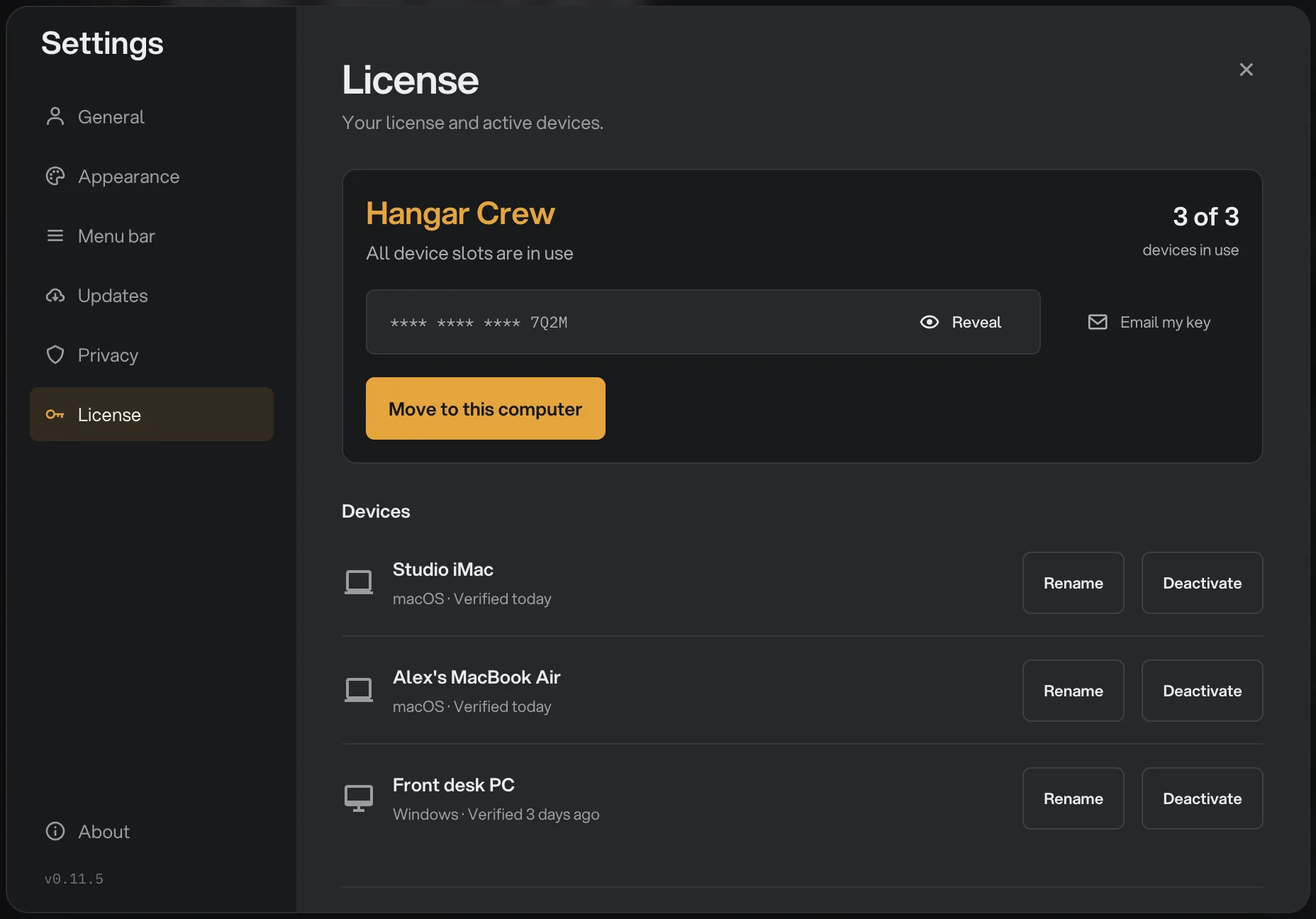
- All slots in use
- Move to this computer
Click it. Hangar asks Move license to this computer?; choose the device to deactivate and click Move license.
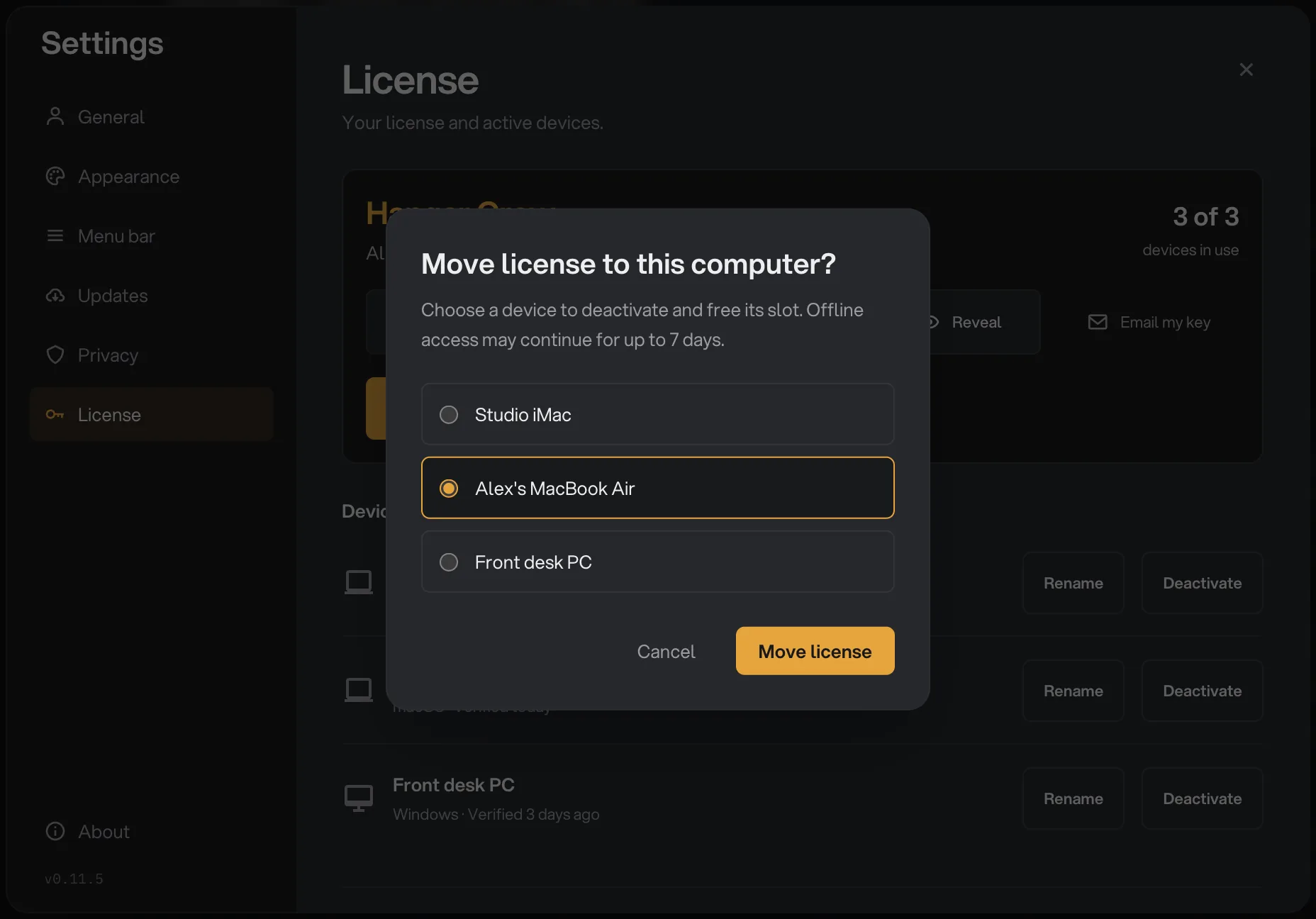
- Device to deactivate
- Move license
The new computer joins the list as This computer · In use and every tool unlocks straight away. If a seat is free, the button reads Activate on this computer and no device has to go.
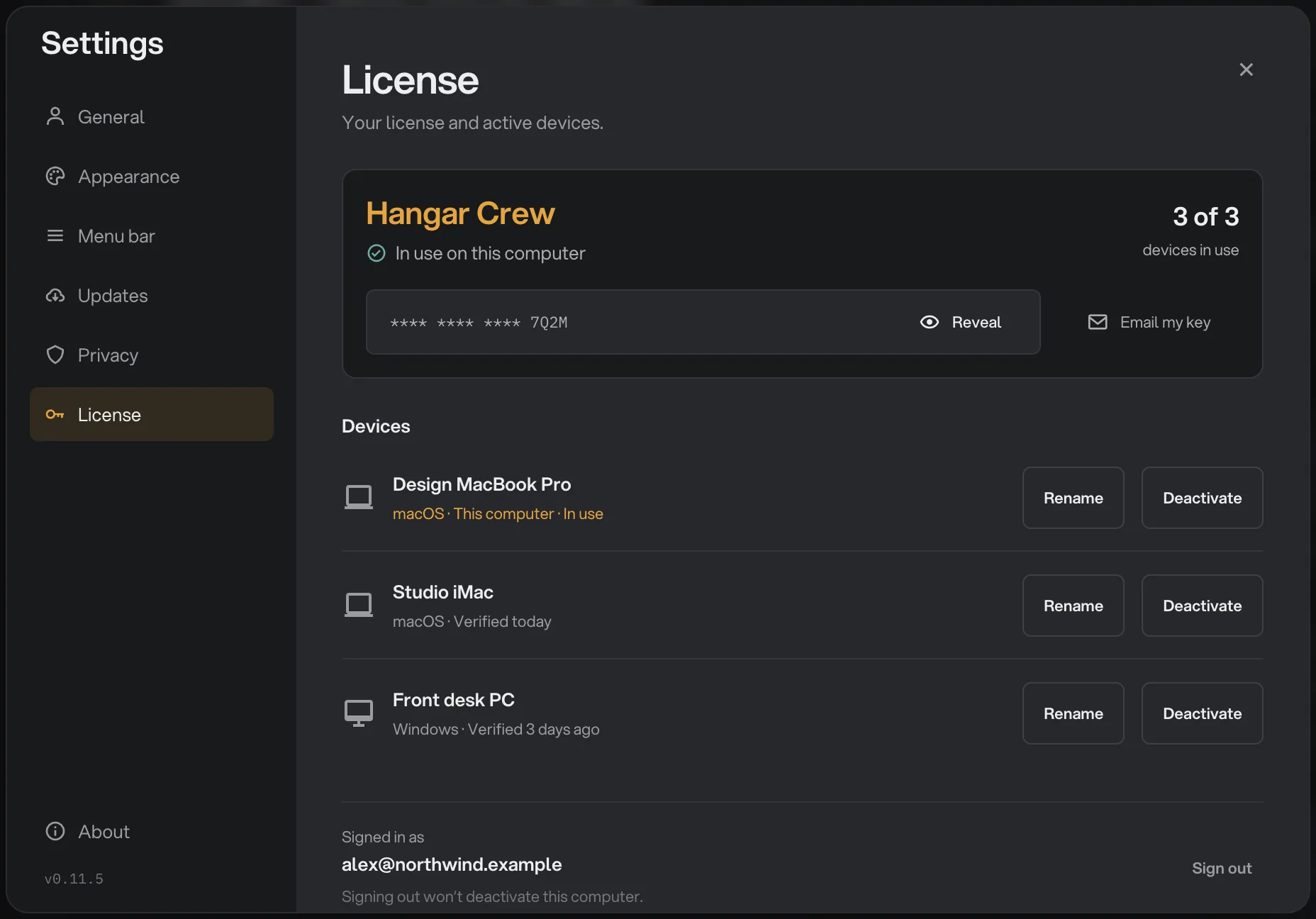
- The new computer
What if the old computer is lost, broken or already wiped?
You do not need the old computer to free its seat. Approving the new computer by email or moving the license from the new computer both deactivate it for you, as shown above.
You can also remove it from any other activated computer on the same key, in Settings → License, or from your licenses on hangar.tools in any browser. Deactivating a computer covers both.
Is there a limit on switching computers?
Yes, but ordinary moves never come close to it. Once each of your plan's computers has been activated once, every further activation uses a device switch. That covers activating a new computer after freeing a seat, approving one by email, Move to this computer and reactivating a computer you deactivated. Deactivating a computer never uses one.
Each plan allows a fixed number of switches in any 48 hours:
- Solo (1 computer): 3 switches
- Crew (3 computers): 5 switches
- Fleet (10 computers): 15 switches
The window rolls: each switch stops counting 48 hours after it was made. On Solo, for example, you can move your seat 3 times in 48 hours, and the next move opens up 48 hours after the first.
If you reach the limit, Settings → License shows Next device switch with a date, and your active computers keep working meanwhile. Support can help sooner.
Common questions
Do I have to deactivate Hangar before I wipe or sell a computer?
It is the tidiest option, but not the only one. You can remove the computer later from Settings on any other activated computer, from your licenses page on hangar.tools, or by approving a new computer in its place. A deactivated copy may keep working for up to 7 days, then it locks.
Can I move Hangar from a Mac to a Windows PC?
Yes. A license covers any mix of Macs and Windows PCs, and the same key works on both. Follow the same steps on the new computer.
Do I need to uninstall Hangar from the old computer?
No. Deactivating is what frees the seat; uninstall whenever you like. Files Hangar made are ordinary files in your own folders, so they stay either way.
Still stuck?
One person reads every message, usually with a reply within a day.