 Agencies and studios
 Photographers
 Podcasters
 Video and social creators
 Marketers and content teams
Every Hangar tool is a batch tool. The queue on the left of a tool screen takes one file or hundreds, the settings on the right apply to all of them, and one click on Run processes the lot on your own computer, with nothing uploaded. If you have never run a tool before, read how to run a tool in Hangar first; this guide covers what changes when the queue gets long.
Step 1: Add all your files at once
Open the tool, then drag your files onto the queue or click Add more and pick them. To grab everything in a folder, open that folder in Finder or File Explorer, press ⌘A (Ctrl+A on Windows) to select every file, and drag the selection across.
The queue header counts what you added, for example Queue · 26 files · 77 MB. A file you add twice is only queued once, and you can drag any row to change the order the files are processed in.
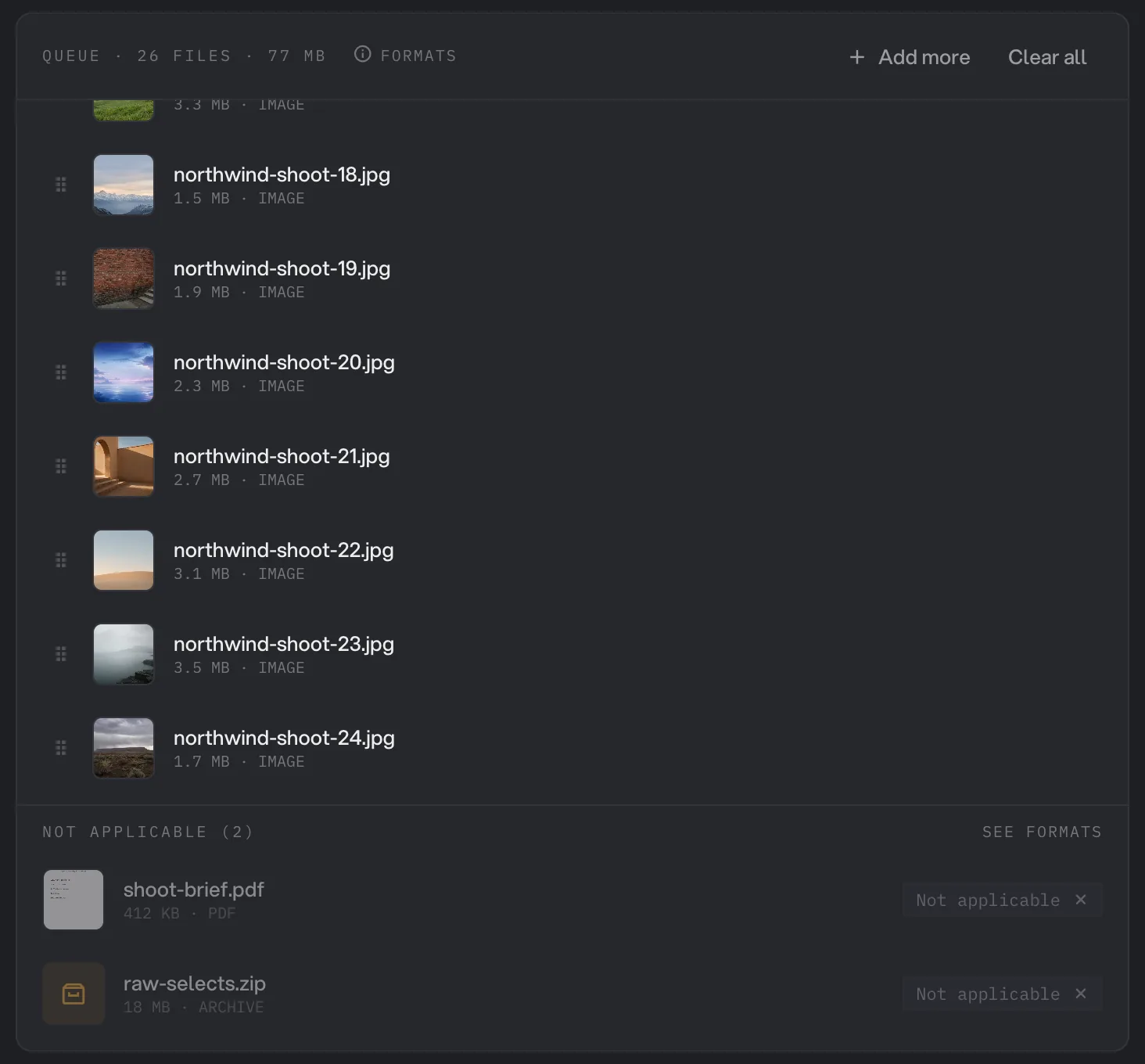
- File count and total size
- Add more
- Drag to reorder
- Not applicable files
- See formats
What if my files are different types?
Hangar sorts it out for you. If you drop a mix of types on the Tools home, the tool list gains a section called Works on all N files that only shows tools which accept every file you dropped.
Inside a tool, files it cannot handle are not an error. They are grouped at the bottom of the queue under Not applicable, with a See formats link that lists what the tool accepts, and the run goes ahead with the files that fit. In the screenshot above, a PDF brief and a ZIP of RAW selects sit out of an Image Compress run while the 24 photos go through.
When you add a file the tool cannot use, a short message says so, and where a converter exists it offers to open it. Run the file through Convert images or another converter first, then add the result to the queue.
Step 2: Run and watch the progress
Check the settings once, choose where the results go, then click the run button, for example Run compress. The same settings apply to every file in the queue.
While the run is going, the panel on the right shows Running, an overall bar, a counter such as 9 of 24, and the file being worked on with its own percentage. Each row in the queue turns to Done with its new size and a View button as soon as that file finishes, so you can inspect the first results while the rest are still going.
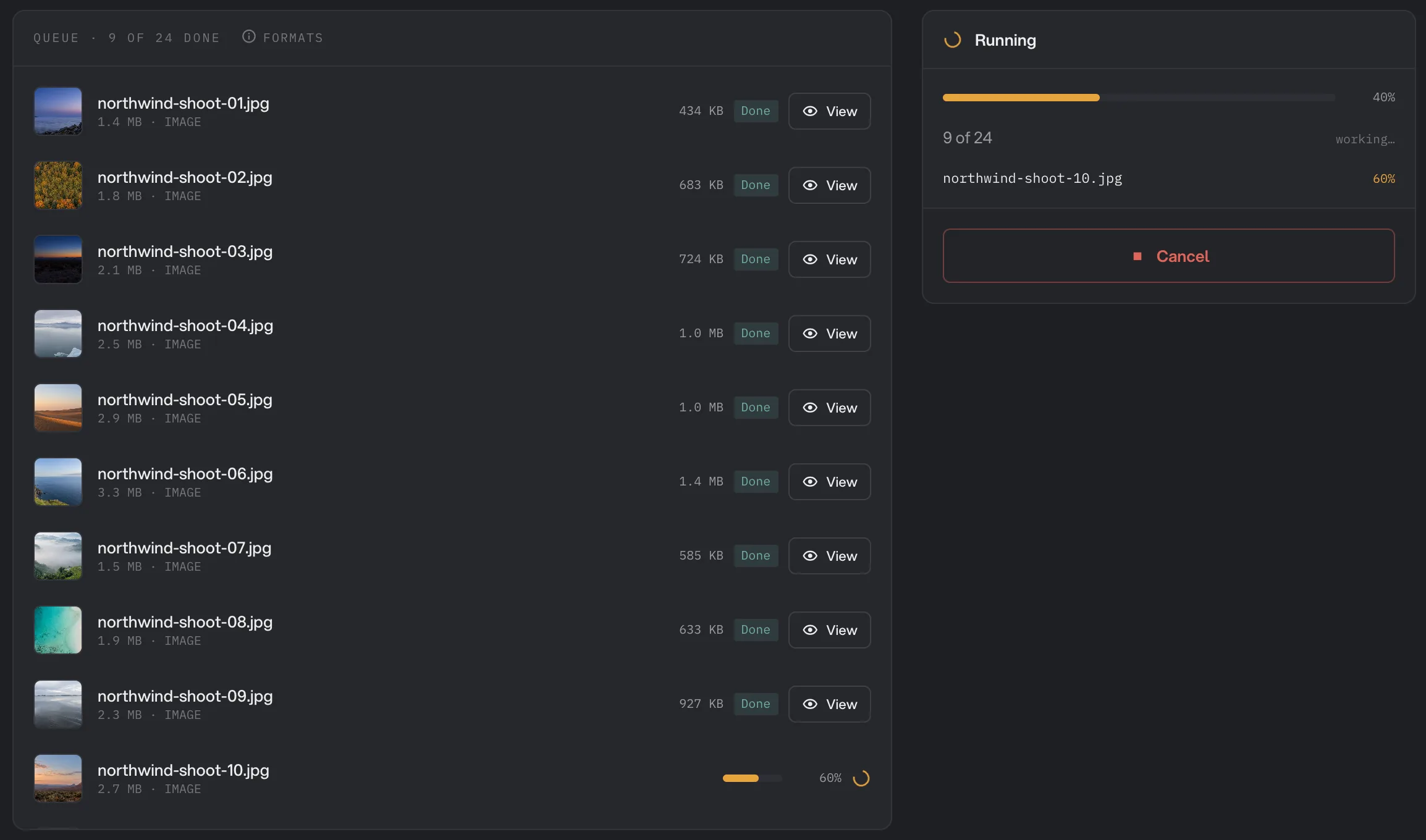
- Queue · 9 of 24 done
- Finished file, new size
- Overall progress
- File being worked on
- Cancel
To stop early, click Cancel or press Esc. Hangar stops before the next file starts and keeps the files already done.
What happens when some files fail?
A single bad file never stops a batch. Hangar records why that file failed, moves on to the next one, and keeps going to the end of the queue. The run is only marked as failed when every file in it failed.
When the run ends, the header reads Run complete with a count such as 2 done · 1 failed. The failed row shows Failed with the reason underneath, and the same files are listed in the What failed box on the right. Everything that succeeded is already in the output folder: click Open folder to see it.
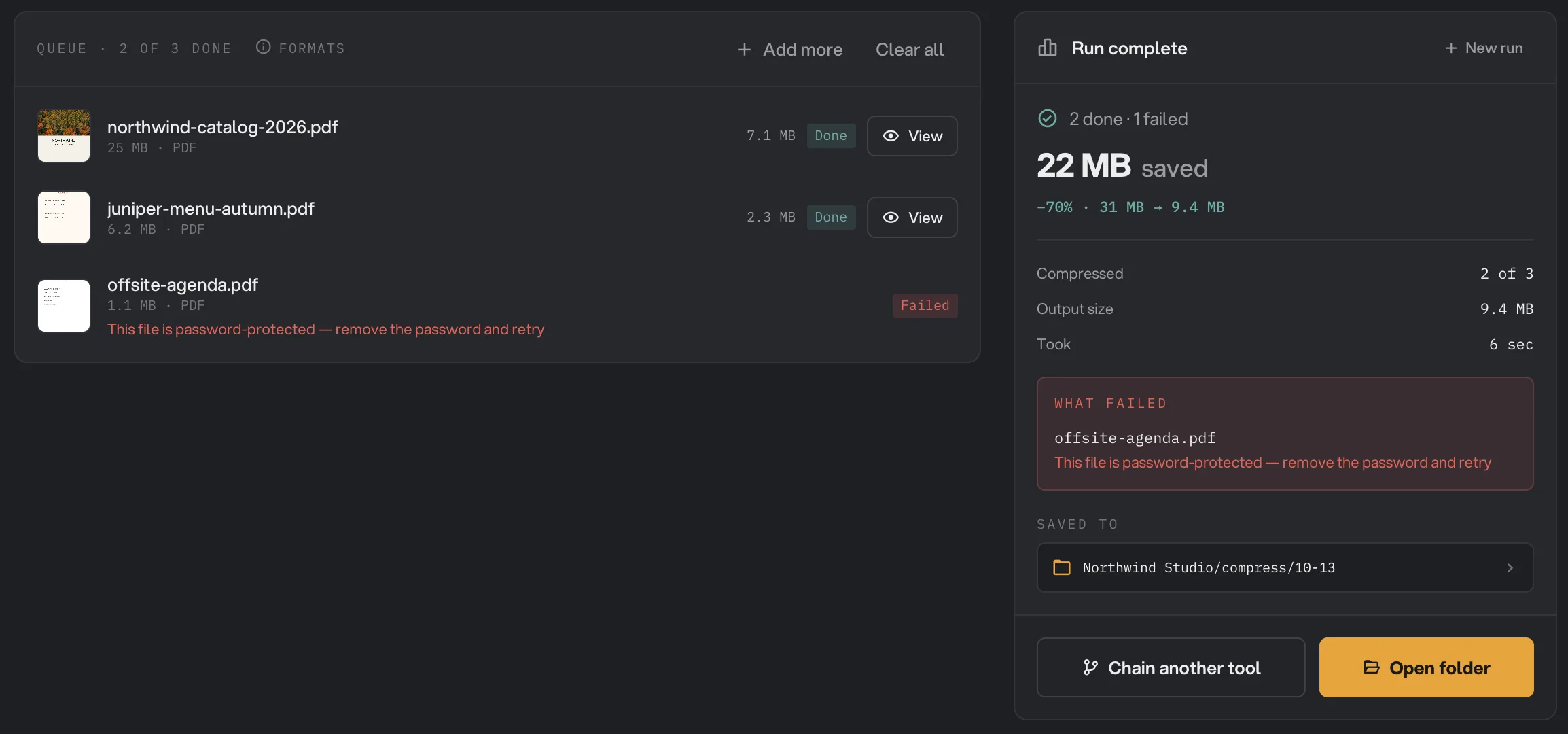
- 2 done · 1 failed
- Failed file and reason
- What failed
- Open folder
Fix the cause, then click New run, remove the files that worked (or Clear all and add only the failed ones) and run again. For the common reasons and their fixes, from a password-protected PDF to a workspace without an output folder, see a file failed: what to check.
A real batch: 24 photos for a client site
Northwind Studio has 24 JPEGs from a location shoot, each a few megabytes, that need to be light enough for a web gallery. The designer opens Image Compress, selects all 24 files in the shoot folder, and drags them in. The brief PDF and the ZIP of RAW files come along by accident, and Hangar parks them under Not applicable.
The designer leaves the settings at their defaults and clicks Run compress. The first rows soon read Done: northwind-shoot-01.jpg goes from 1.4 MB to 434 KB, and northwind-shoot-02.jpg from 1.8 MB to 683 KB. They click View on the first one and drag the comparison slider to confirm the photo still looks right, while the remaining files keep going.
When the run completes, all 24 compressed photos are in the workspace output folder, under a subfolder for the tool and the date. The originals in the shoot folder are untouched. To see how Hangar names and places every result, read where Hangar saves your files.
Common batch jobs
These tools get the longest queues. Each page explains the settings and shows a real run.
- Convert a batch of images: HEIC, PNG or RAW into JPG or WebP, every file in one run.
- Compress a batch of images: shrink a shoot or a screenshot folder with the sharpness kept.
- Compress many PDFs: slim down a stack of catalogs, proposals or scans.
- Compress several videos: bring a set of clips under a size limit before sending.
- Batch rename: rename the files of a folder by a pattern, with an undo.
If a batch needs more than one tool, for example resize, then convert, then strip metadata, build a chain. A chain applies every step to every file and processes several files at the same time, which a single tool does not.
Common questions
Can I add a folder instead of picking the files?
Not for most tools: a dropped folder is skipped. Open the folder, select the files inside it and drop those. There are two exceptions: the Folder button in Batch Rename adds the top-level files of a folder and leaves subfolders untouched, and Organize lets you choose a folder on its own screen.
Is there a limit on how many files I can process at once?
Hangar sets no fixed limit on the number of files in a run. Add as many as you need; the run simply takes longer, and you can watch each file finish in the queue.
Does one failed file stop the whole batch?
No. Hangar records the failure, moves on to the next file and lists the failed files under What failed when the run ends. A run is only marked as failed when every file failed.
Can I add more files while a run is going?
Yes. They wait in a group labeled Added, marked as running next. When this run ends, click New run and run again. Remove the files you already processed first, or they are processed a second time.
Does Hangar process several files at the same time?
A single tool works through its queue one file at a time. A chain runs several files in parallel, so for large batches that need more than one step, build a chain.
Still stuck?
One person reads every message, usually with a reply within a day.