 Agencies and studios
 Photographers
 Podcasters
 Video and social creators
 Marketers and content teams
A failed file is not a crash. Hangar skips it, finishes the other files in the queue, and writes the reason next to the file so you can fix it and run again. Below: where that reason appears, the causes behind almost every failure, and the fix for each. If you are new to Hangar, how to run a tool explains the screen you are looking at.
Where does Hangar show the error?
In the queue on the left, the file's row turns to Failed and the reason appears in red directly under the file name. In the panel on the right, the summary line counts what happened, for example 2 done · 1 failed, and a What failed list repeats every failed file with its reason.
Here Northwind Studio compressed three PDFs. Two came through, and offsite-agenda.pdf failed because it is password-protected. The finished files are already in the output folder behind Open folder.
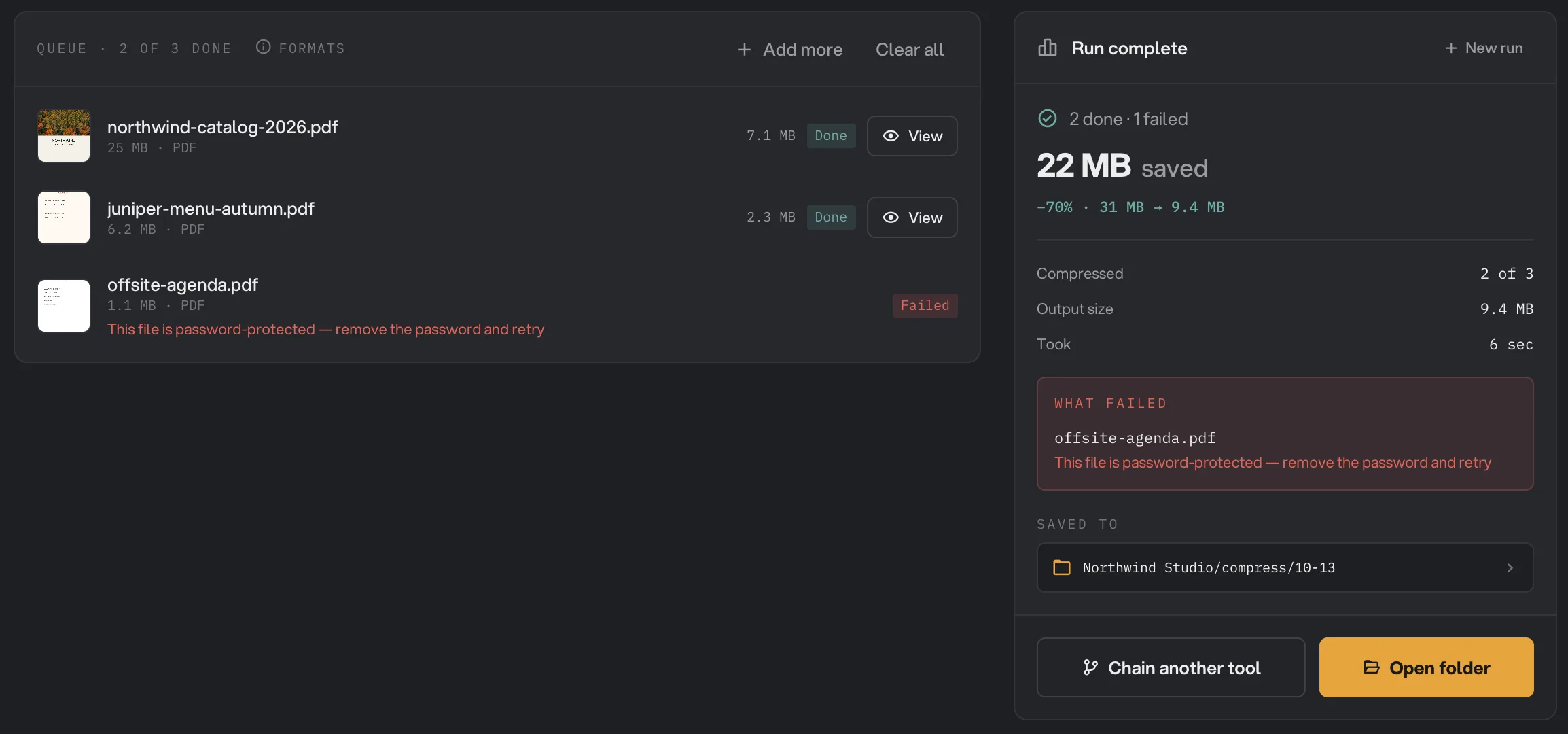
- Failed
- The reason, under the file
- 2 done · 1 failed
- What failed
- Open folder
The header only reads Run failed when every file failed. Studio tools such as Beautify or Captions report in a corner card instead, which reads Export failed when something went wrong. Every run is also kept on the Runs page, so you can read the reason again later.
“… files aren't accepted here”
The tool does not work on that kind of file. The message names the type, so Pdf files aren't accepted here means a PDF was sent to a tool made for images, video or audio. Hangar usually catches this before you run: an amber message says the file isn't supported and, where a converter exists, offers to open it. Such files sit at the bottom of the queue under Not applicable, and Formats in the queue header lists every type the tool takes.
To fix it, pick the tool made for that type, or convert the file first. Convert images (Image Convert in the app) turns HEIC, AVIF, RAW and other formats into JPG or PNG, and the video and audio converters do the same for media. Then add the result to the queue and run again.
The file is damaged or will not open
If the reason says the file could not be read or decoded, the file itself is usually the problem. A download that stopped halfway, a copy from a failing drive, or a file with the wrong extension can all look fine in a folder and still be unreadable.
Open the file in the app that normally handles it, such as Preview, Acrobat, Photos or a video player. If that app complains too, re-export it from wherever it was made, or ask the sender for a fresh copy. If it opens elsewhere but still fails in Hangar, run it through a converter first: saving a copy in a standard format often repairs a quirky file on the way.
A quick check first: on the Tools page, click a dropped file's tile to preview it. Some file types never get a preview, but if a photo or PDF reads Preview unavailable, open it in its own app before it joins a long batch.
“This file is password-protected”
The PDF is locked, so the tool cannot read its pages. The row asks you to remove the password and retry, and the file is skipped while the rest of the queue goes through.
Use Unlock PDF (Unlock in the app) to remove a password you know. Open the tool, add the locked PDF, enter its password, and run. Hangar saves an open copy with -unlocked added to the name and leaves the locked original as it was. Add the unlocked copy to the tool you wanted in the first place and run again.
If you do not know the password, Hangar cannot help. Ask the person who sent the file for the password or for an unlocked copy. Unlock PDF only removes a password you already own.
The run button says to download a model
Some tools run an AI model on your computer, and that model is a one-time download: Remove BG at Medium, High or Ultra quality, Upscale, Transcribe, Captions, OCR in languages other than English, and AI regions in Vectorize. Until it is there, the run button is not available and the hint under it names the model; in Remove BG at High quality, for example, it reads Download the High-quality model to run.
The download lives in the tool's own settings. In Remove BG, the panel reads This tier needs a ~223 MB model (one-time download) with a Download model button. Click it, wait for Model ready, and the run button comes back. Upscale and the others use the same pattern with their own labels.
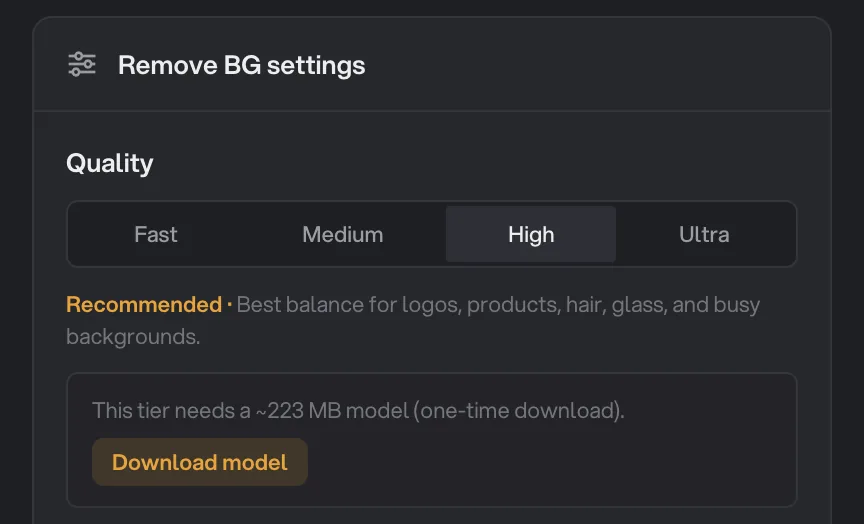
- Model size
- Download model
Downloads need an internet connection. If the panel reads Download failed, check that you are online and click Try again or Retry. Once the model is on your computer the tool runs fully offline, and your files never leave the machine. AI models: what downloads and when lists every model with its size. To skip the download, use Fast quality in Remove BG or English in OCR, which are both built in.
Could not start the run: no output folder set
Hangar saves results into the workspace's output folder. When the workspace has none and you have not picked a folder for the run, nothing starts: a message reads Could not start the run, with the detail that this workspace has no output folder set. The folder is optional when you create a workspace, so this is most common on a new one.
To set it:
- Press ⌘B (Ctrl+B on Windows) to open Workspace defaults.
- Click Default output, then Change, pick a folder on your computer and click Save destination.
- Click Save kit or press ⌘S (Ctrl+S on Windows).
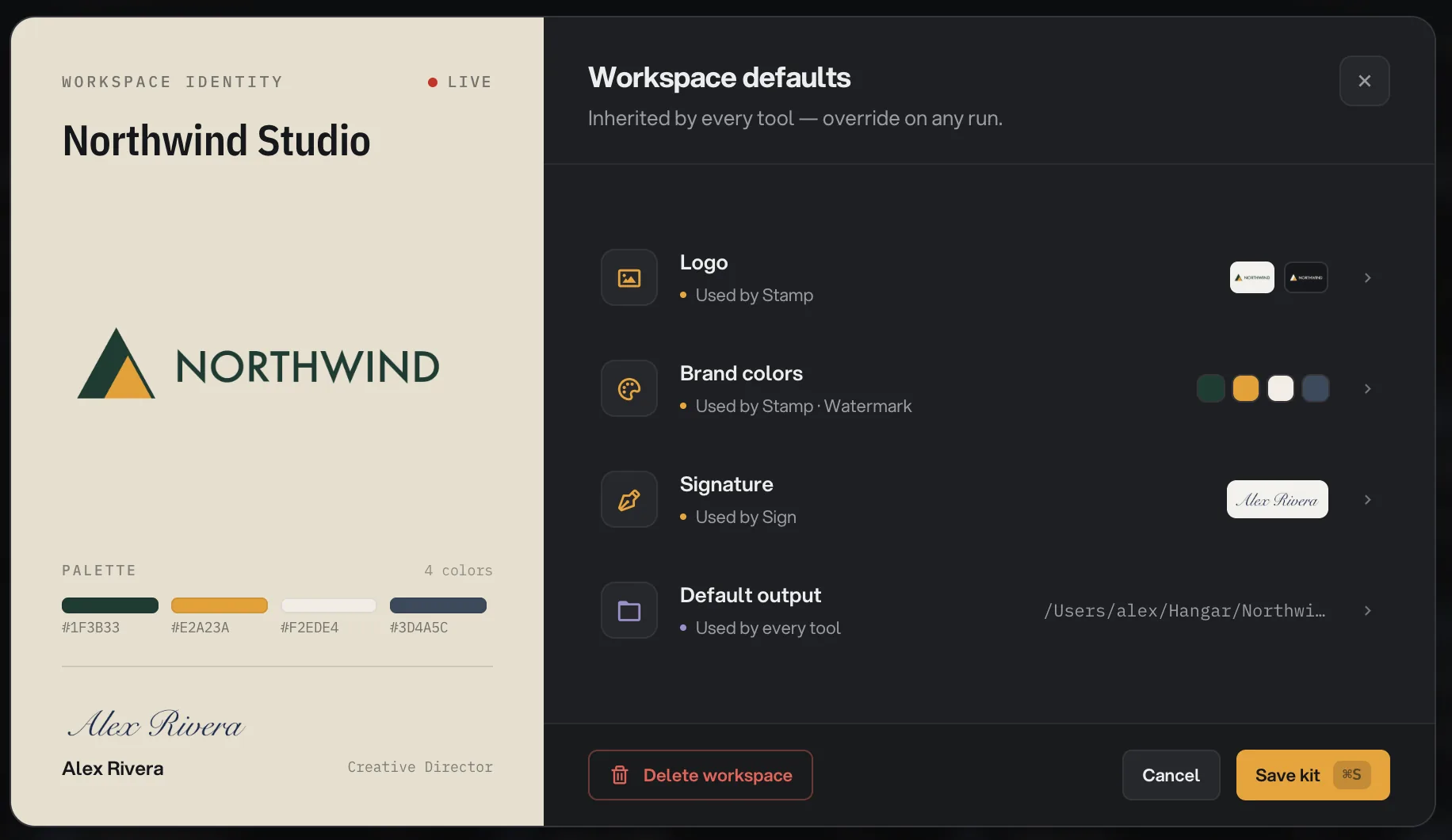
- Default output
- Open to change the folder
- Save kit
Each workspace has its own output folder, so check again after switching from Northwind Studio to Juniper Bakery. For a single run you can also click Change in the destination row above the run button and pick any folder. Where Hangar saves your files explains folders and file names, and workspaces and brand defaults covers the rest of the ⌘B window.
The trial ended or the license is offline
Hangar's free trial lasts 3 days. When it is over, or when a license has gone too long without checking in, runs are blocked and the toast reads Could not start the run. The reason is on the license card at the bottom of the sidebar.
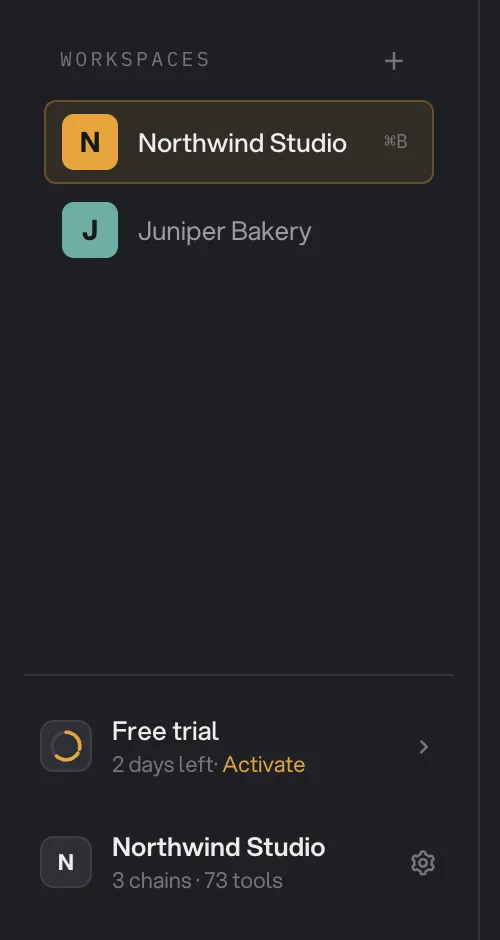
- License card
- Activate
- Trial ended: click Activate, paste your key (it looks like
HNGR-XXXX-XXXX-XXXX) and click Activate. No key yet? Buy a license, then follow how to activate Hangar. - License check due: Hangar keeps working for 7 days without a connection and warns you after 3. Connect to the internet, open the license card and click Check now. After 7 days the card reads License check needed and runs wait for that check; the steps are in using Hangar offline.
- All device slots are in use when you activate: your plan is already active on its full number of computers. Open Settings → License and deactivate one you no longer use. Managing your license and devices explains how devices are counted.
The disk is full
Every run writes new files, so Hangar needs free space on the output folder's drive. A batch of videos or RAW photos can need several gigabytes. On a nearly full disk, files can fail partway through a batch with a reason that starts with I/O error.
Free up space, or click Change in the destination row, pick a folder on another drive and run again. AI models take space too, from a few megabytes to about 930 MB each. Remove one you no longer use from inside its tool: Remove under the model in Remove BG, or Free space in Transcribe.
What to send support
If none of the above fits, or a file fails with a reason you cannot act on, write to support. Two things make the answer fast.
The run. Click Runs in the sidebar and click the run to reopen it. A run where only some files failed is under Complete; Failed holds runs where every file failed. Copy the tool name, the exact reason under the file, and the file's type and size. If you can share the file, attach it, or a similar one that fails the same way.
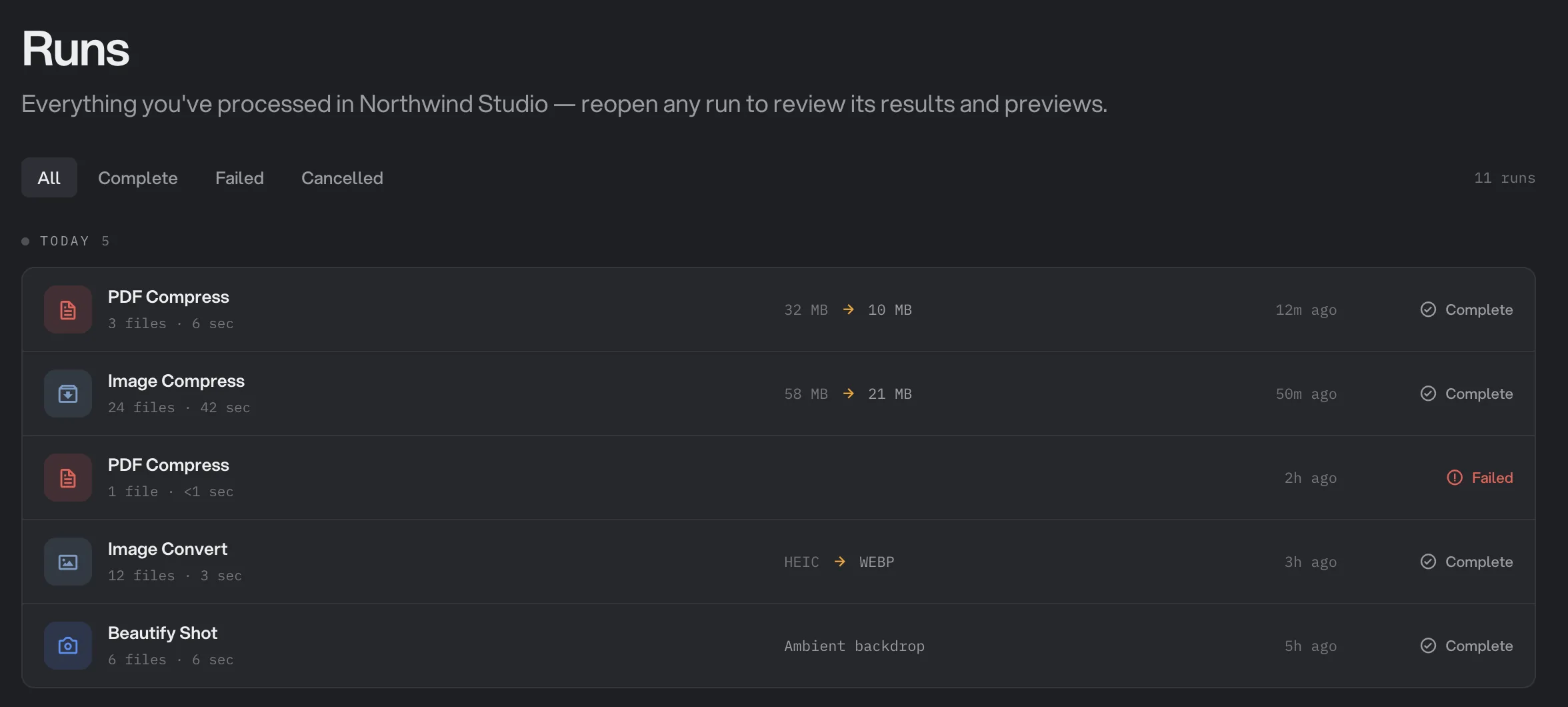
- Failed filter
- The failed run
- Status
Your Hangar version. Press ⌘, (Ctrl+, on Windows) to open Settings and click About. The version is under the Hangar name, and the Support link there starts an email. Say whether you are on Mac or Windows.
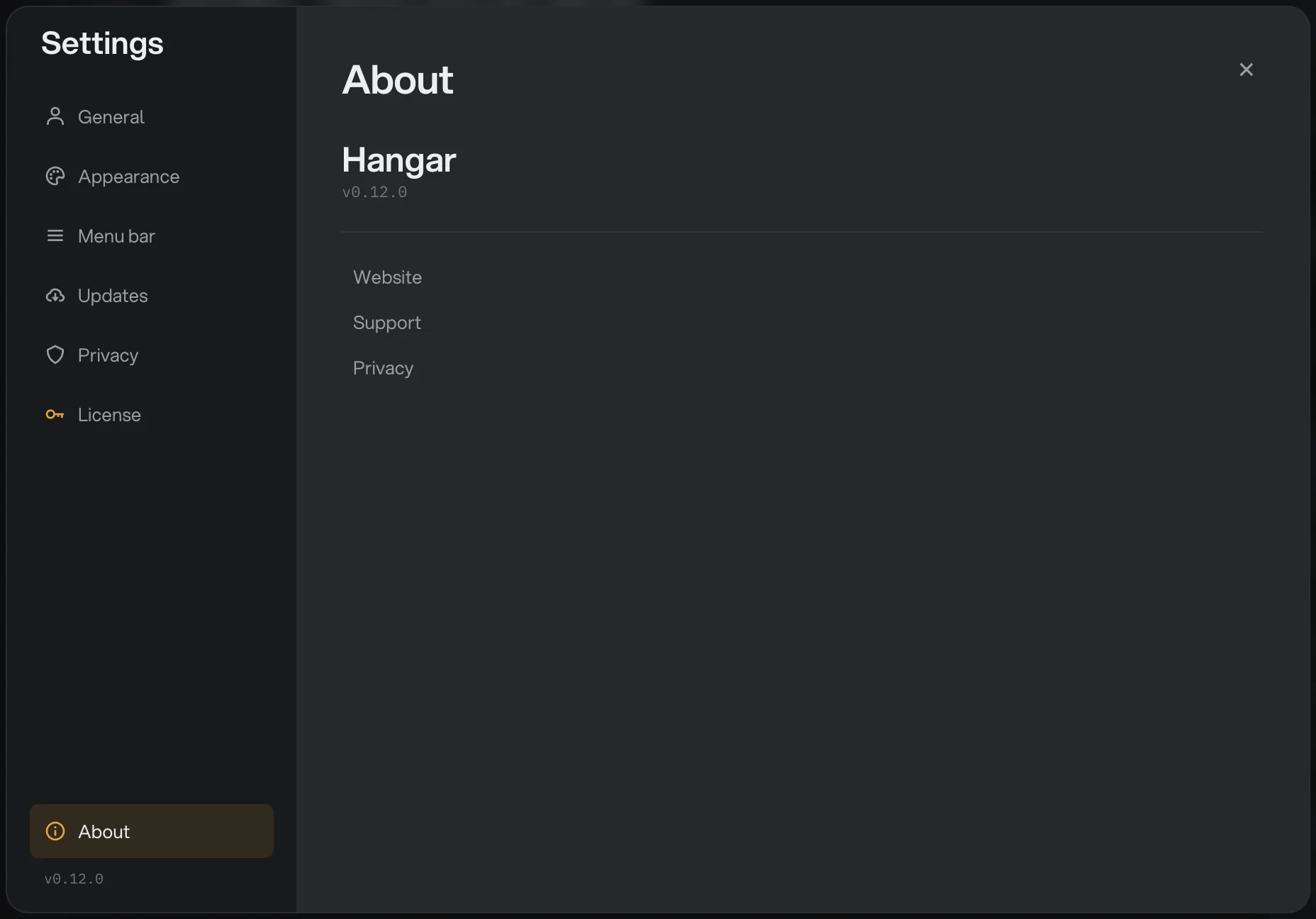
- About
- Version
- Links, including Support
Before you write, try Settings → Updates and Check now. Many failures are fixed in a newer version, and one click on Install and restart does the rest. Settings, updates and privacy shows where each of these lives.
Common questions
Does one failed file stop the rest of the run?
No. Hangar records the failure, moves on to the next file and finishes the batch. The files that worked are in the output folder as usual, and the run is only marked Failed when every file in it failed.
How do I retry just the file that failed?
Fix the cause first, for example unlock the PDF or download the model. Then click New run in the results panel, add only that file and run again. The files that already succeeded do not need to be processed twice.
Was my original file changed or deleted when it failed?
No. Hangar writes new files and never touches the originals, whether a run succeeds or fails. The file that failed is exactly where you left it.
What does the message Could not start the run mean?
It means Hangar could not begin at all, so no file was processed. Check the license card at the bottom of the sidebar first: a trial that has ended or a license that has been offline too long blocks every run. Then check that the workspace has an output folder.
Can I see the error again later?
Yes. Open Runs in the sidebar and click the run. A run where only some files failed is listed under Complete; the Failed filter holds runs where every file failed. The run reopens with the same queue, the same Failed labels and the same reasons.
Still stuck?
One person reads every message, usually with a reply within a day.