 Agencies and studios
 Photographers
 Podcasters
 Video and social creators
 Marketers and content teams
Every Hangar run writes new files. Where they land depends on two things: the default output folder of your workspace, and whether you picked a different folder for that run. This page covers both, plus how the files are named and how to get to them afterwards.
Set a default output folder first
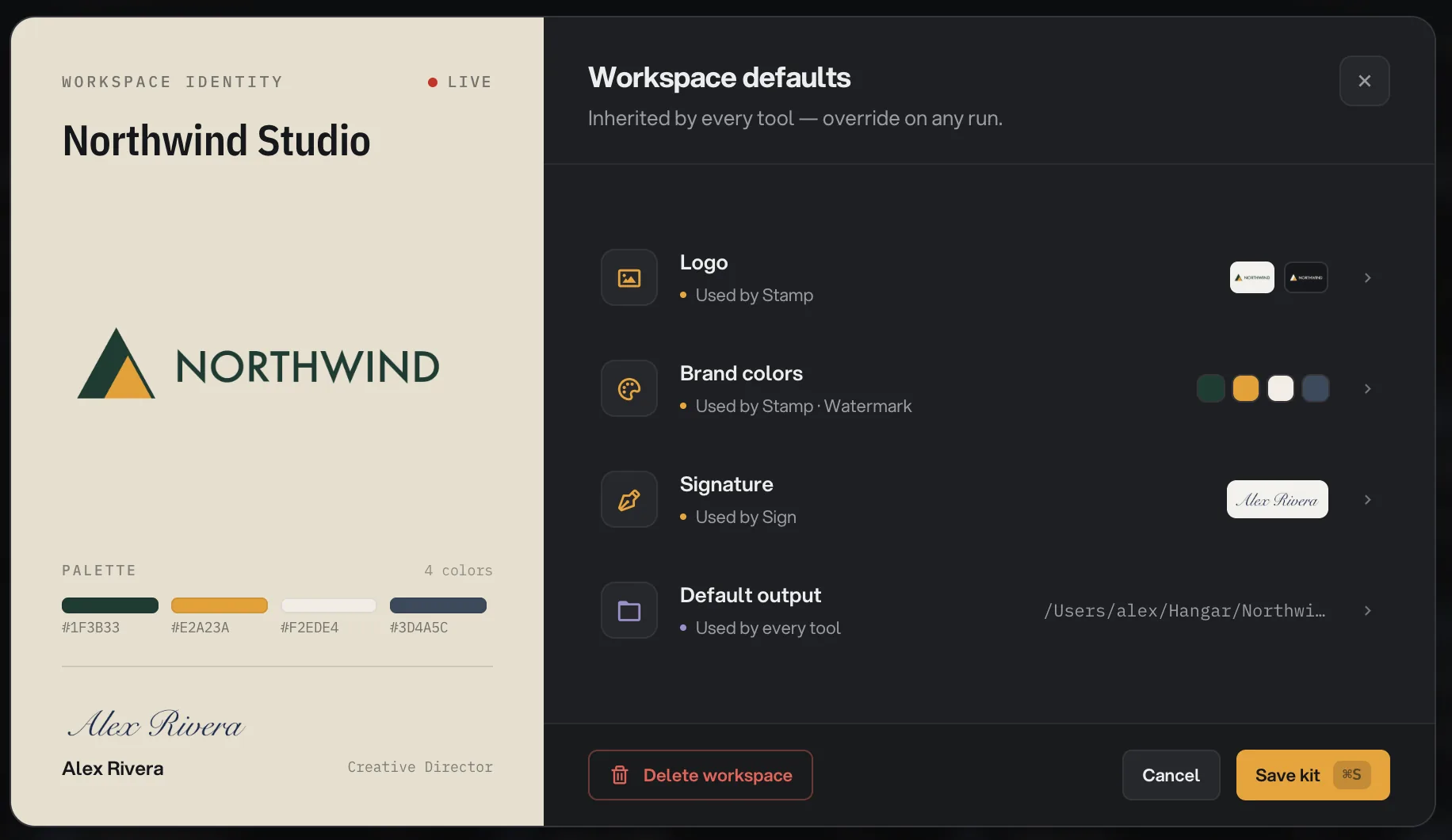
Each workspace has one default output folder, and every tool saves there unless a run picks another folder. Without one, a run that uses the default folder does not start: you see Could not start the run with "this workspace has no output folder set". A run where you picked a folder with Change still works. So if you skipped the folder when you created the workspace, set it now.
- Press ⌘B (Ctrl+B on Windows) to open Workspace defaults.
- Open Default output, the row marked Used by every tool.
- Click Change, pick a folder on your computer, then click Save destination.
- Default output
- Current output folder
A good default is a folder you already deliver from, such as a client folder on your Desktop or a Deliverables folder. Each workspace keeps its own, so Northwind Studio and your next client never share one. See Workspaces and brand defaults for the other defaults on this screen.
Where are my files saved?
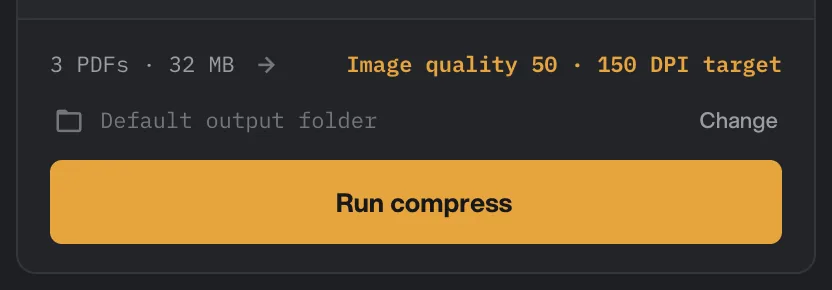
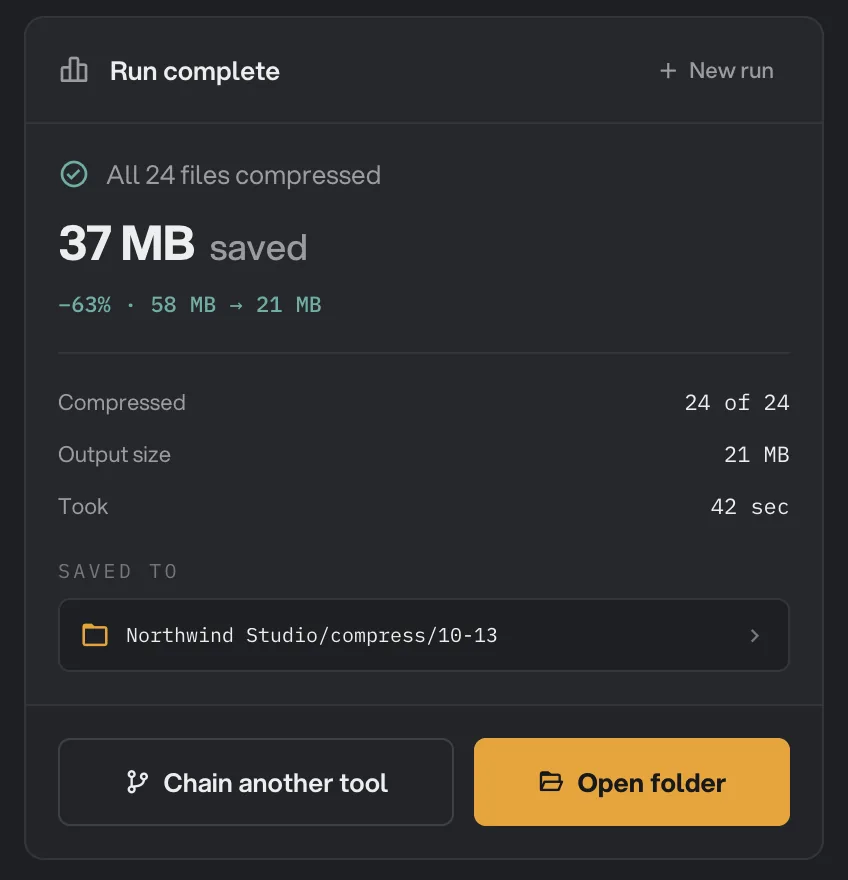
When you leave the run panel on Default output folder, Hangar saves results inside your workspace output folder, in a subfolder for the tool, then a subfolder for the date (month-day). A Compress PDF run on 13 October lands in:
Northwind Studio/compress/10-13/The tool folder uses the tool's short name (compress, convert, resize and so on), and the date folder keeps each day's work apart. Running the same tool again on the same day adds to that day's folder; it never replaces what is already there.
- Default output folder
- Change
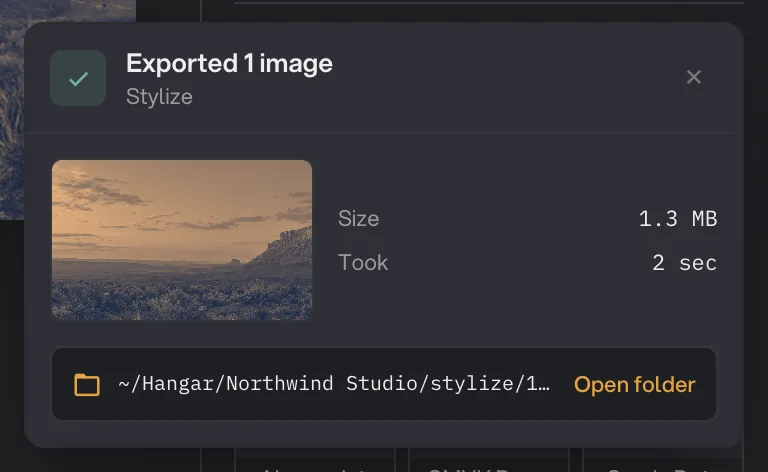
Chain runs follow the same idea with a chain folder instead of a tool name, for example Northwind Studio/chain/10-13. Studio exports that finish with an export card, such as Stylize, use the tool's folder too; a few Studios, such as Gradients, ask you for a folder when you export. See Run a chain on many files and Studios.
Change the folder for one run
You can send any run somewhere else without touching the workspace default. This is the way to go when a client wants the files in a shared folder, or you want them next to the originals.
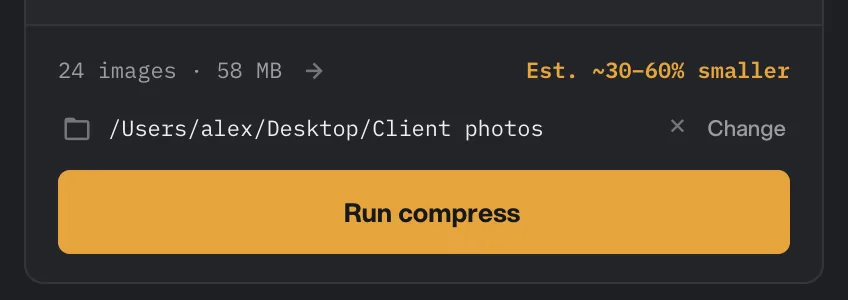
- In the run panel, above the Run button, click Change.
- In the Choose destination folder window, pick a folder and confirm.
- Run the tool. The results go straight into that folder, with no tool or date subfolders.
- Chosen folder
- Use the default folder
- Change
Hangar keeps using that folder for your next runs in this session, even when you switch to another tool. To go back to the workspace default, click the × next to the path (its tooltip reads Use the default folder).
How output files are named
Output files keep the original file name. Most converters and compressors change nothing but the folder, and sometimes the extension: compress northwind-catalog-2026.pdf and you get northwind-catalog-2026.pdf in the compress folder; convert IMG_0421.heic to JPG and you get IMG_0421.jpg.
Tools that change what a file is add a short suffix before the extension, so you can tell the result from the original at a glance. Some examples:
-signed,-stamped,-protected,-unlockedand-ocrfor PDFs-nobgfor a removed background,-upscaledfor an upscaled image,-palettefor extracted colors-trimfor a trimmed clip,-captionedfor a captioned video,-audiogramfor an audiogram-mockupfor a device mockup,-shotfor an HTML shot or a beautified screenshot
So signing the catalog gives you northwind-catalog-2026-signed.pdf, and the unsigned PDF is still where it was.
What happens when a name is already taken?
A run never overwrites a file that is already there. If a result would get a name that already exists in the destination, or that another file in the same run already took, Hangar adds a number: northwind-catalog-2026 (2).pdf, then (3), and so on.
That is why saving results next to the originals is safe, and why running a batch twice into the same folder gives you two full sets rather than one. If you want a clean set, pick an empty folder with Change, or delete the earlier set yourself.
One export works differently: QR code saves as qr-code.png, or named after the style or card such as qr-table-tent.png, in the folder you pick, and replaces an older file with that name there, so rename the first code before you make another.
Your originals are never changed
Every tool reads your files and writes new ones. With every tool except the two below, the file you dropped in is not edited, moved, renamed or deleted. If you are unhappy with a result, delete it and run again from the untouched original.
Two tools are different by design, because their whole job is to change files on disk:
- Batch rename saves renamed copies by default (Output set to Save copies). Switch it to Rename originals and it renames the files in place. Undo last rename puts the names back.
- Organize (Sort & route on this site) moves the original files into subfolders by default (Move originals), after asking you to confirm. Click Make copies instead and it copies them, leaving the originals where they are. Undo last sort reverses the latest sort.
Open the folder after a run
When a run finishes, the results panel shows the last part of the path under Saved to. Click the path to reveal the folder, or click Open folder to open it on your computer, ready to drag the files into an email or a shared drive.
- Saved to
- Open folder
Studio tools show the folder path and an Open folder button on the export card that appears when an export finishes.
Closed the tool already? Open Runs in the sidebar and click the run: it reopens in its tool with the results and previews. See Run history: reopen past results. For what the results panel itself tells you, see See and compare your results.
Common questions
Can I save results next to my original files?
Yes. Click Change in the run panel and pick the folder your originals are in. If a result would get the same name as a file already there, Hangar adds " (2)" to the new file, so the original stays as it was.
Why does my run say "this workspace has no output folder set"?
The run did not start because the workspace has no default output folder yet. Press ⌘B (Ctrl+B on Windows), open Default output and click Save destination, or click Change in the run panel to pick a folder for this run. Then run again.
Does Hangar ever delete or replace my original files?
Only two tools touch them. Batch rename changes originals only when you choose Rename originals instead of saving copies. Organize moves the original files into folders by default, unless you choose Make copies instead. Both offer an undo. Every other tool writes new files and leaves the originals alone.
Where do chain results go?
A chain run saves into a chain folder inside your workspace output folder, in a subfolder named after the date, for example Northwind Studio/chain/10-13.
If I delete a workspace, do its files disappear?
No. Deleting a workspace removes the chains made in it and its run history from Hangar, but every file it produced stays on your disk.
Still stuck?
One person reads every message, usually with a reply within a day.