 Agencies and studios
 Photographers
 Podcasters
 Video and social creators
 Marketers and content teams
Every tool run and chain run in a workspace is recorded on the Runs page. It is the place to find a job you did last week, check what it changed, open the files it made, or see why a file failed.
Where is my run history in Hangar?
Click Runs in the sidebar. It is the last of the four sidebar items, after Studios, Tools and Chains.
The page lists everything you have processed in the current workspace, newest first, with a count such as 11 runs at the top right. Runs are grouped by day: Today, Yesterday, then the weekday name, then the date for older runs.
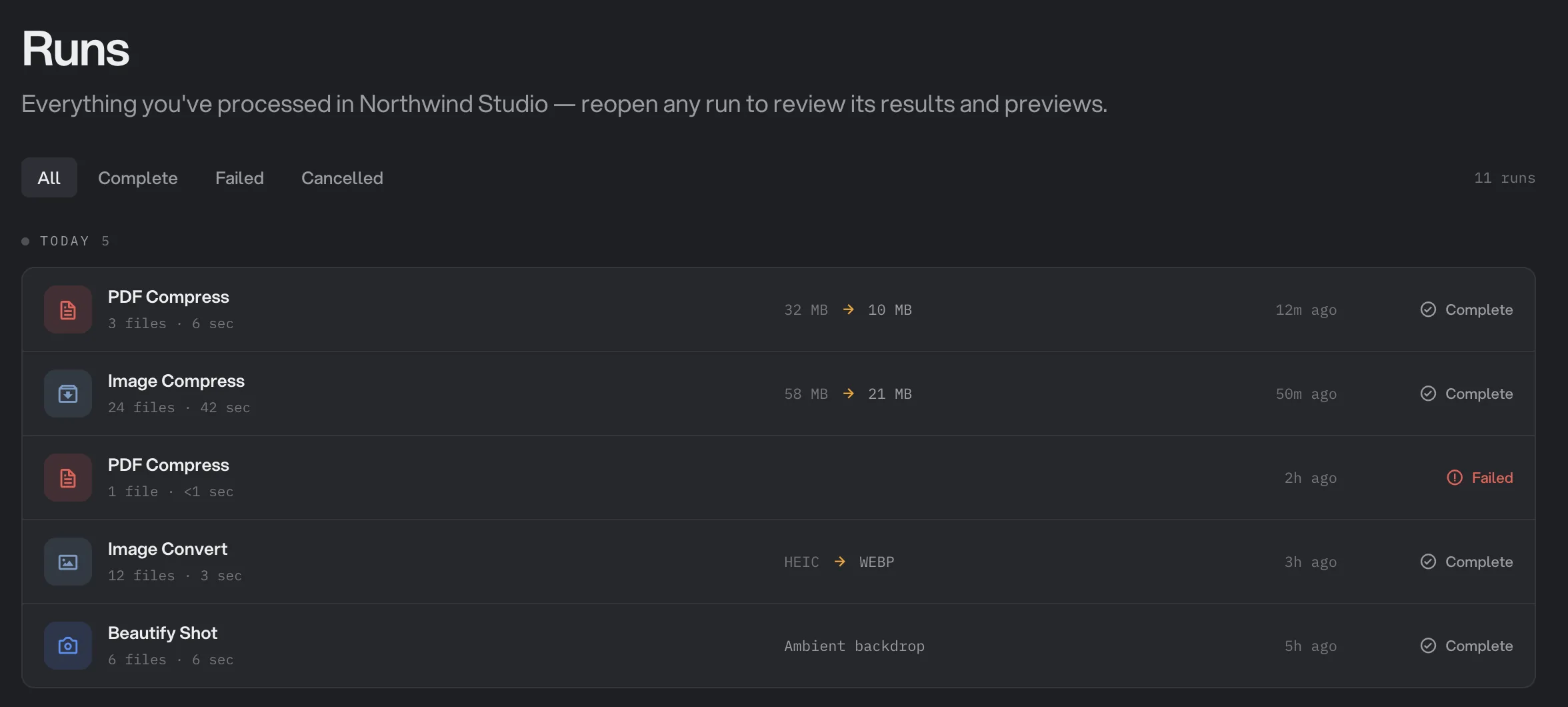
- Filter by status
- Run count
- Day group
- What changed
- Status
If you have not run anything yet, the page reads No runs yet. Run any tool and its record lands here. How to run a tool walks through a first run.
Filter runs by status
The tabs above the list filter by outcome. All shows every run. Next to it you only see the statuses that actually occurred in this workspace, so a workspace where nothing has failed has no Failed tab.
- Complete: the run finished and made its files. A run with some failed files still counts as complete, as long as at least one file got through.
- Failed: every file in the run failed, so nothing was made.
- Cancelled: you pressed Cancel (or Esc) during a tool run, or pressed Stop twice during a chain run. Files finished before that are kept.
- Stopped: you stopped a chain run early and kept what had finished.
Pick Failed after a long batch session to see at a glance which runs need a second look.
What a run row shows
Each row is a one-line summary of the run, so you can usually find what you want without opening anything.
- Tool name
- Files and duration
- Size or format change
- When it ran
- Status
- Tool name, such as PDF Compress or Image Convert, with the tool's icon.
- Files and duration: how many files went in and how long the run took, for example 24 files in 42 seconds.
- What changed. For a complete run of a tool that makes files smaller, this is the size change, such as 58 MB to 21 MB. For a conversion it is the format change, such as HEIC to WEBP. For other tools it is the setting you used, such as the Ambient backdrop in Beautify Shot.
- When it ran, as a relative time: 12m ago, 2h ago.
- Status: Complete, Failed, Cancelled or Stopped. Failed runs are shown in red.
Failed and cancelled runs show no size or format change, because there is nothing to compare.
Reopen a run to see its results
Click any row. Hangar reopens the run in its tool, or in the chain view for a chain run, with its results and previews: the queue with every file, its status and a View button, and the results panel on the right. Runs from a full-screen Studio, such as Beautify Shot, reopen that Studio instead.
Say you reopen the Image Compress run from the screenshot above. The panel reads Run complete and All 24 files compressed, shows the 37 MB saved, and lists Output size, Took and Saved to.
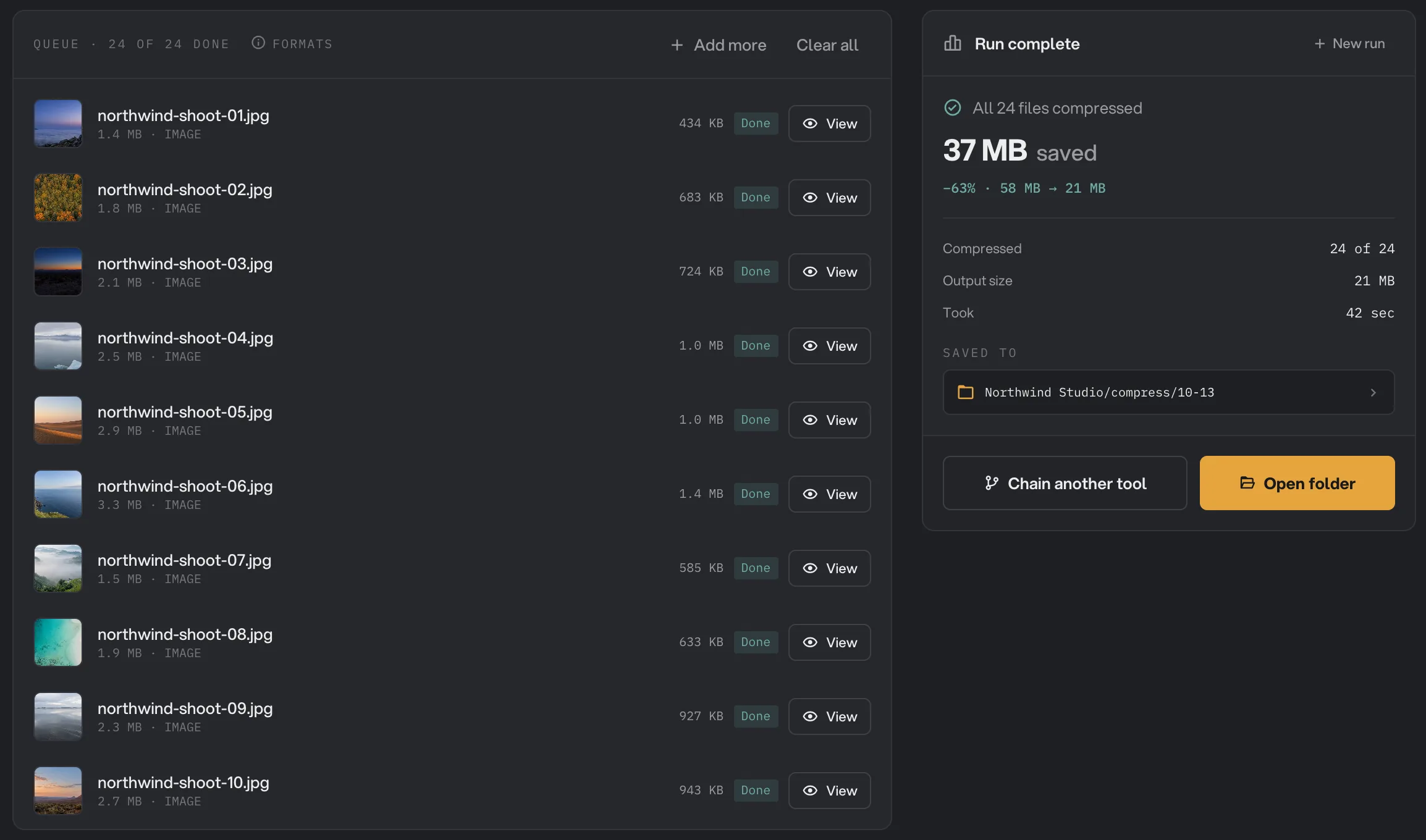
- Run complete
- View
- Saved to
- Open folder
- New run
From here you can do everything you could right after the run:
- Press View on a file to open its preview and compare the original with the output. See and compare your results explains each preview style.
- Press Open folder to reveal the output files on your computer. Where Hangar saves your files explains the folder layout.
- Press Chain another tool to send these outputs into another tool, when a compatible one exists.
- Press New run to start a fresh run of the same tool.
If a run cannot be reopened, Hangar shows a Could not open run message.
Find out why a run or a file failed
A run is marked Failed only when every file in it failed. When some files failed and others got through, the run is Complete, so the failures are easy to miss in the list. Reopen the run to see them.
In the reopened run, the panel's first line gives the split, for example 2 done · 1 failed, and a What failed box lists each failed file with its reason. The same reason is shown in red under the file in the queue.
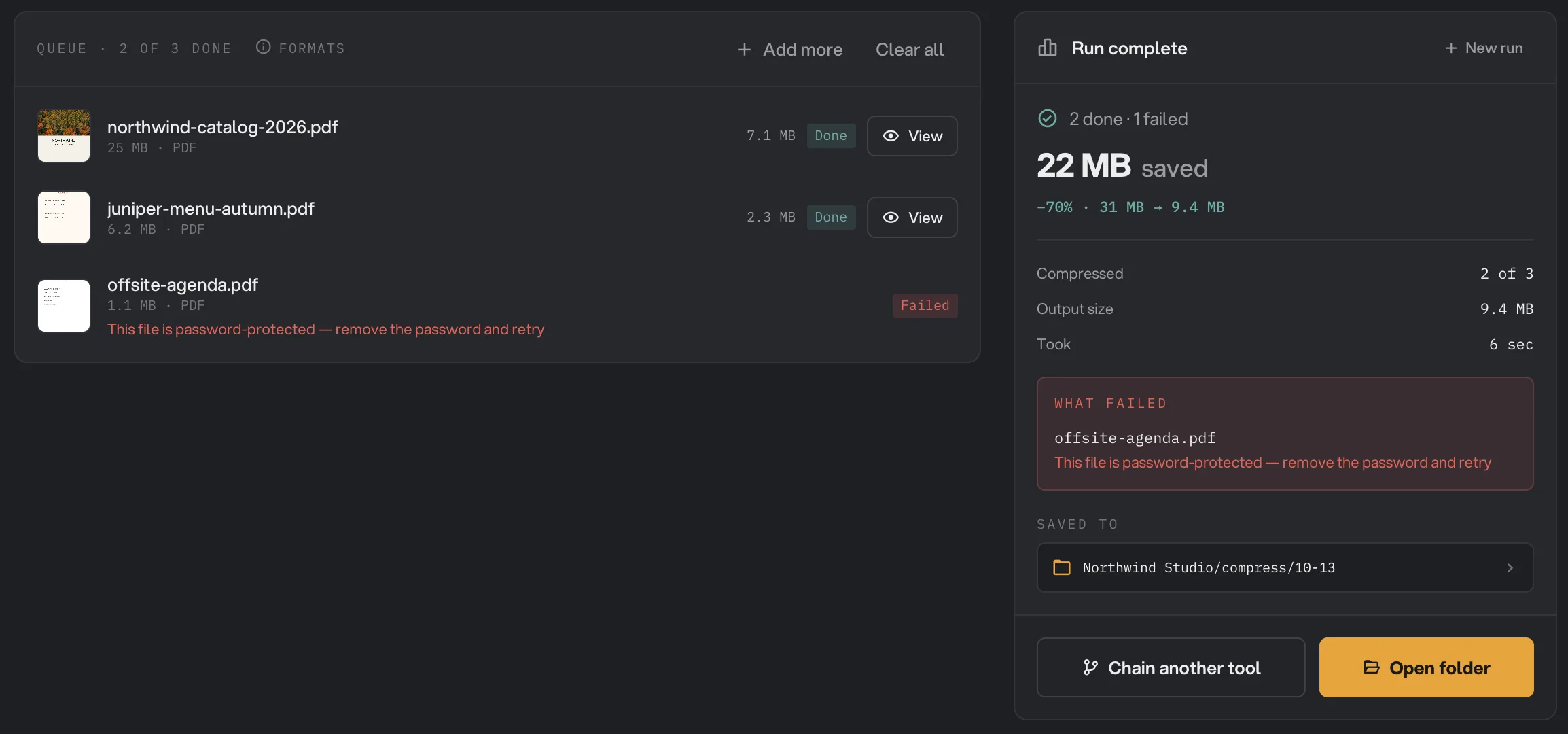
- 2 done · 1 failed
- Failed file
- The reason
- What failed
In this example, two PDFs from Northwind Studio compressed fine and one did not, because it was password-protected. The fix is to unlock that file and run it again. A file failed: what to check covers the common reasons and their fixes.
For a chain run, reopening shows the chain run view with its Final inspection grid, which tracks every file through every step. Read a chain run, step by step explains how to read it.
Runs belong to a workspace
Each workspace keeps its own run history, along with its own brand defaults and output folder. The Runs page shows the workspace currently selected in the sidebar, and its name appears in the line under the heading.
If you keep one workspace per client, this means a client's history stays together: every run for Northwind Studio is listed under Northwind Studio and nowhere else. To see another client's runs, switch workspaces from the sidebar. Workspaces and brand defaults explains how.
A shortcut: Jump back in
You do not always need the Runs page. The Tools home shows a Jump back in row with up to three of your most recent runs, one per tool, so a job you repeat often, like Compress PDF on this week's proofs or Convert images from HEIC, is one click away.
For anything older, or to filter by status, Runs has the full list.
Common questions
Does reopening a run process my files again?
No. Reopening shows the record of that run: its files, what changed and the previews. To process the same files again, press New run in the reopened tool and add them to the queue.
Can I delete a run from the Runs page?
Not at the moment. Runs stay in the history of the workspace they were made in. Deleting a workspace removes its run records, but never the files the runs produced.
Why does the Runs page not show a run I made yesterday?
Runs belong to a workspace, and the page lists the workspace currently selected in the sidebar. Switch to the workspace you were working in from the sidebar and the run will be there.
What if I moved the output files after the run?
The run record stays in Runs, but previews need the files where Hangar saved them. Reopen the run and use Saved to to see where that was, and move the files back if you want the previews.
Can I turn a past run into a chain?
Not from the Runs page. Open Chains, create a new chain and add the same tool as a step. Build your first chain explains how.
Still stuck?
One person reads every message, usually with a reply within a day.