 Agencies and studios
 Photographers
 Podcasters
 Video and social creators
 Marketers and content teams
A chain is a set of steps you set up once and run on any batch of files. Running one is the same every time: open the chain, add the files, check the run forecast and click Run chain. This guide follows Northwind Studio pushing six photos from a shoot through Web-ready product shots, a three-step chain that strips metadata, resizes and compresses. To create a chain first, read build your first chain.
Step 1: Open the chain
Click Chains in the sidebar. The Chains page lists every chain you have saved, with its steps, when it last ran and how it went, or Not run yet.
Click Run on the chain you want. If the list is long, type a name into Find a chain first.
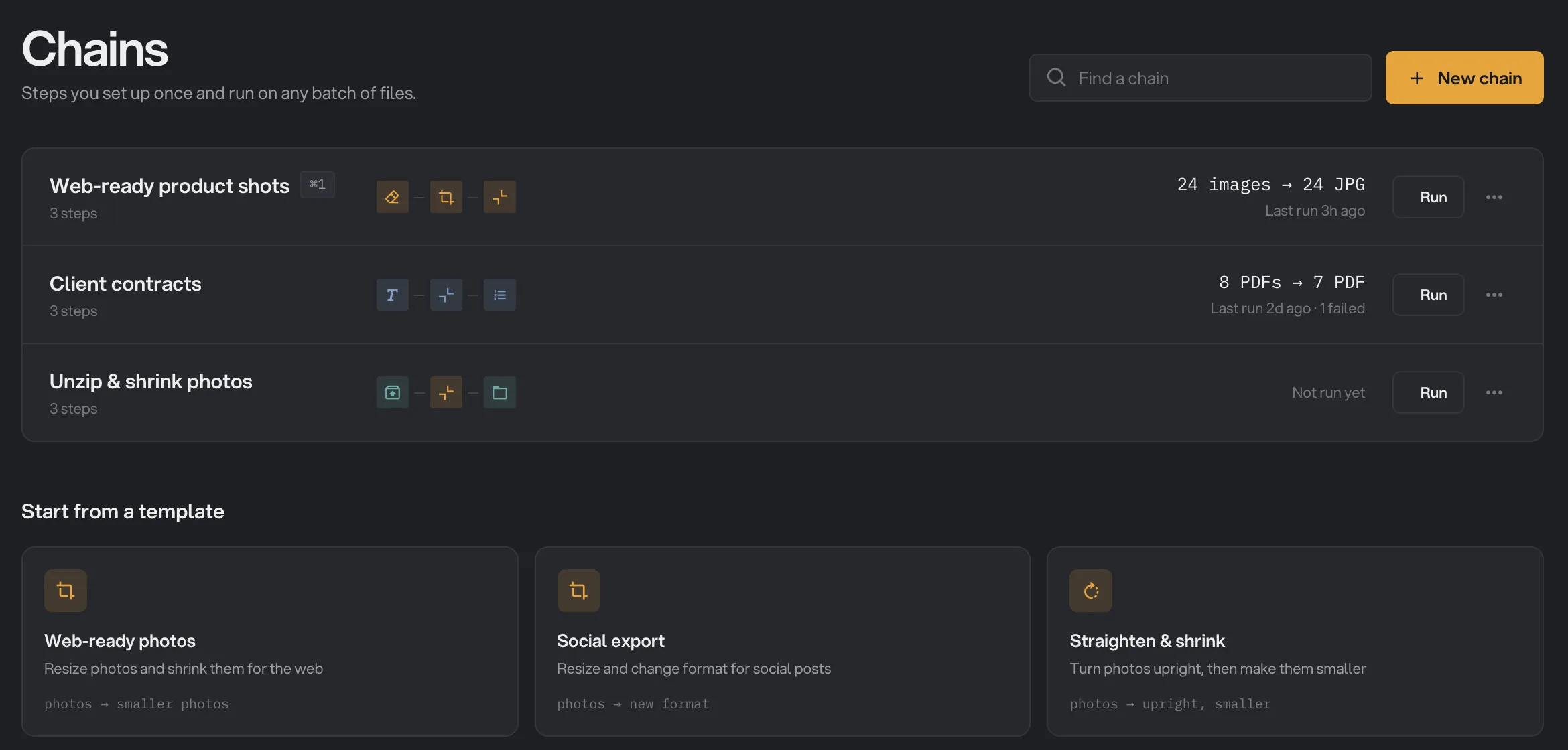
- Find a chain
- Chain and its last run
- Run
- Start from a template
No chain yet? Start from a template offers 12 ready-made chains, from Web-ready photos and Social export to Searchable scans, Podcast clean-up and Captioned videos. Pick one, save it, and it appears in the list with its own Run button.
Step 2: Add your files
Drop the files onto the queue on the left, or click Add more and pick them. The queue header counts them up: Queue · 6 files · 25 MB.
Add one file or hundreds. Drag the handle at the left of a row to change the order, and click Clear all to start the queue again.
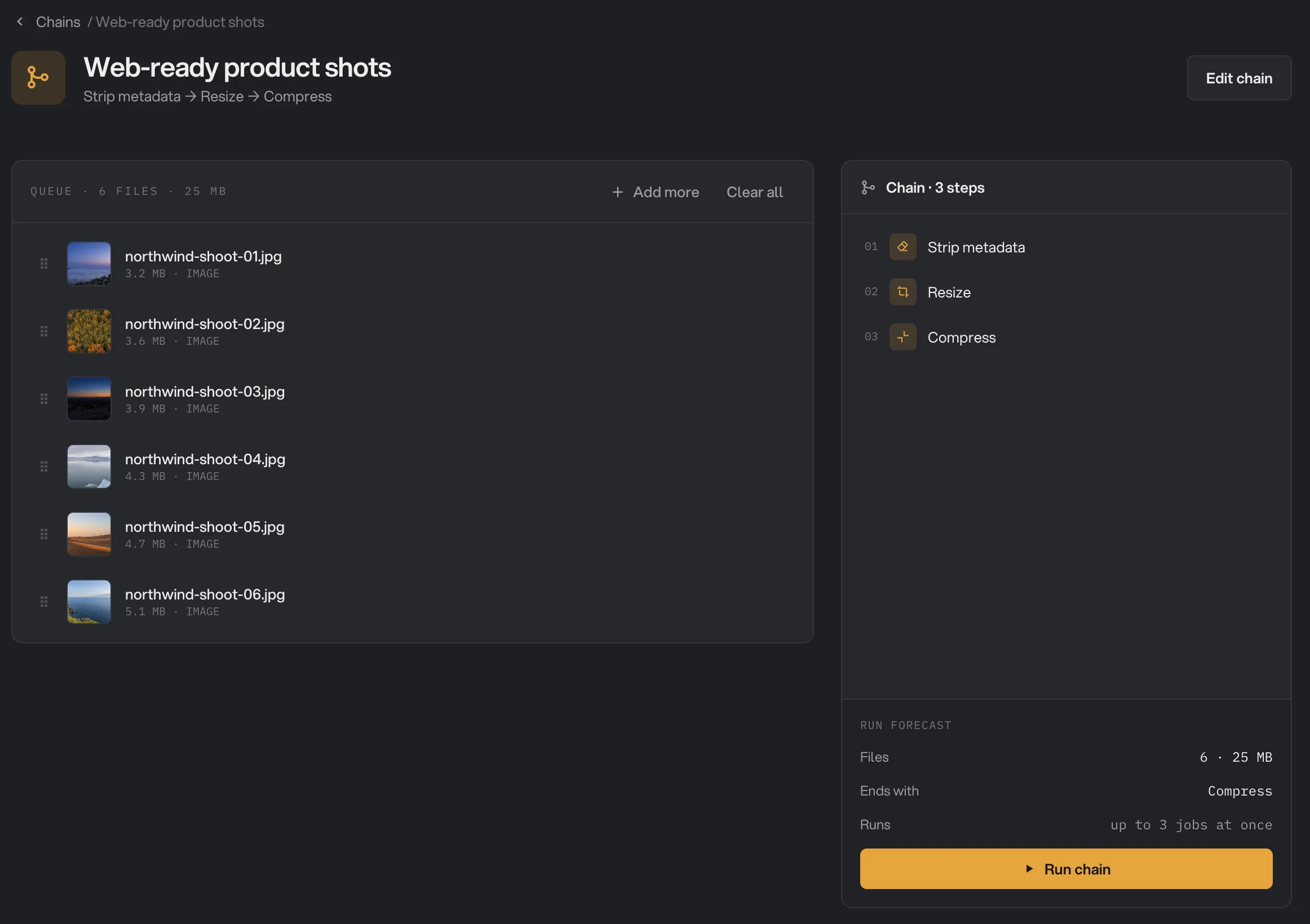
- Queue · 6 files · 25 MB
- Add more
- Chain · 3 steps
- Run forecast
- Run chain
The first step decides what the chain accepts. Northwind's chain starts with Strip metadata, so it takes images. A chain that starts with Split PDF takes PDFs.
Step 3: Check the run forecast
The panel on the right lists the steps in order, here Chain · 3 steps: Strip metadata, Resize, Compress. Under it, Run forecast sums up what will happen before you commit:
- Files: how many you queued and their total size, here 6 · 25 MB.
- Ends with: the last step, which is what the saved files come out of. Here that is Compress.
- Runs: how many files Hangar will work on at the same time, here up to 3 jobs at once. The line is hidden when the chain can only work on one file at a time.
The number of jobs depends on your computer. Hangar uses half of its processor cores, between 2 and 6, and lowers that for heavy steps. At most two video or audio jobs run together. PDF to Images, Stamp, Sign and Redact, the AI tools (Remove background, AI Upscale, Vectorize) and tools that use a helper process (OCR, Transcribe, Captions, Extract Text, PDF to Markdown, HTML to PDF, HTML to Image) run one file at a time.
Something not right in the steps? Click Edit chain at the top of the page to change a step or its settings before you run. The editor is covered in build your first chain.
A chain with an Encrypt or Unlock step asks for its passwords here, under that step, because chains never save them. Fill in the required ones and Run chain becomes available. The note under them reads Passwords are used for this run only. Never saved.
Step 4: Run the chain and watch it work
Click Run chain. The header switches to Running with a count such as 2 of 6, and the queue turns into a table with one column per step.
Each row shows a check mark as that file clears each step, a spinner on the step it is in now, and its final size with Done once the last step finishes. Files still waiting read Queued. On the right, Working on now lists the files being processed, with the step each one is in and a progress bar.
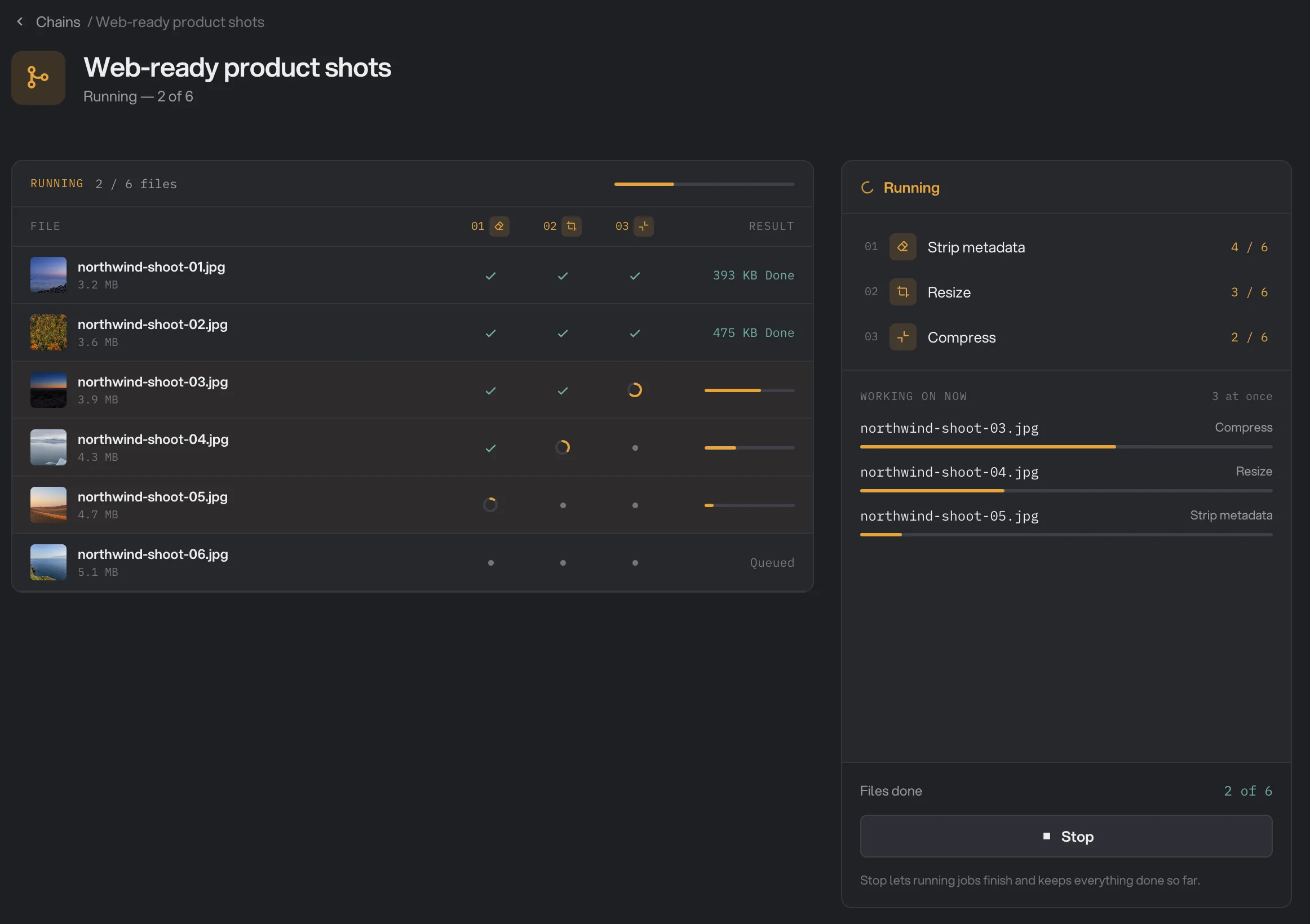
- Running 2 / 6 files
- One column per step
- Files through each step
- 3 at once
- Stop
This is where a chain differs from a single tool. A tool works through its queue one file at a time; a chain runs several files at once, so in the screenshot three photos are in three different steps at the same moment. For long batches the difference adds up.
To stop early, click Stop. The jobs in progress finish, no new ones start, and everything done so far is kept. The header then reads Run stopped, and Run again starts the batch over. While the button reads Stopping…, pressing it again ends the running jobs too, and the run ends as Run cancelled.
When the run finishes
The header changes to Run complete, or Run failed if every file failed. The panel on the right shows the count, here 6 of 6 done in 12 seconds, and a count for each step, such as 6 / 6. A count in red marks the step where something went wrong.
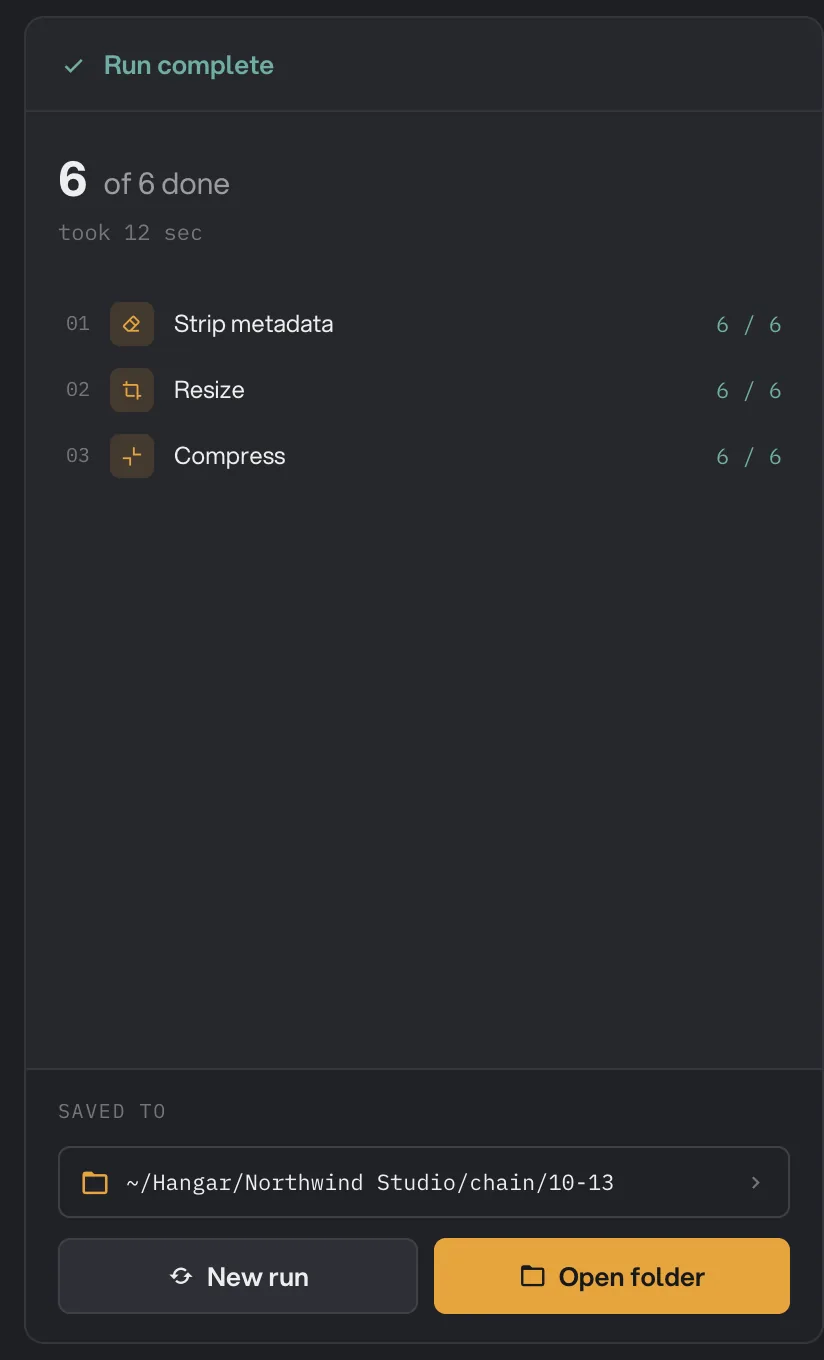
- 6 of 6 done
- Saved to
- Open folder
- New run
Click Open folder to see the results on your computer, or New run to go back to the queue for another batch. The queue still holds the same files, so click Clear all before you add the next ones. If any file failed, a What failed box names it and gives the reason, and the rest of the batch is still saved.
On the left, Final inspection opens on Results, which compares each original with its final result. Click Process for a grid of where every file went, step by step, with a mark per step from Done and No change needed to Skipped and Failed. Read a chain run, step by step explains every mark.
Where are the files saved?
A chain saves its final results in your workspace's output folder, inside a chain subfolder and a subfolder for today's date. Northwind's run went to Northwind Studio/chain/10-13, which is the path shown under Saved to.
Files keep their original names, sometimes with a suffix from the last step, and if a name is already taken Hangar adds (2), (3) and so on. A chain run never overwrites a file, and the originals you added stay where they were. For the folder and naming rules in full, see where Hangar saves your files.
Run the same chain every week
This is what chains are for. Northwind gets a new set of product photos every Monday, and the steps never change, so nobody rebuilds them: the designer opens Chains, clicks Run on Web-ready product shots, drops in this week's files and clicks Run chain.
The row on the Chains page keeps the last outcome in view, such as 24 images → 24 JPG and Last run 3h ago, so you can tell at a glance whether last week's batch went through. Each run also lands on the Runs page with its date, so you can reopen a past chain run and check its Final inspection months later.
You can also run a saved chain without opening the main window. Click the Hangar icon in the menu bar (the system tray on Windows) and drop the files on it. Your chains whose first step takes those files are listed under Chains; click one and it starts right away with its saved steps. A chain with an Encrypt or Unlock step opens here in Hangar instead, so you can type its password on the Run screen. See Use Hangar from the menu bar.
Hangar does not run chains on a timer. You start each run yourself, which keeps every file on your own computer and lets you glance at the forecast before anything happens.
Common questions
Can I add a folder to a chain?
No. A chain queue only takes files, and a dropped folder is skipped. Open the folder, select the files inside it and drag the selection across, or click Add more and pick them.
How many files does a chain process at the same time?
The Runs line in the run forecast tells you, for example up to 3 jobs at once. Hangar picks the number from your processor, between 2 and 6, and lowers it for heavy work: at most two video or audio jobs run together, and steps such as PDF to Images, Sign, Remove background or OCR run one file at a time.
What happens when I press Stop during a chain run?
The jobs already in progress finish, no new ones start, and everything done so far stays in the output folder. The run ends as Run stopped. While the button reads Stopping, a second press ends the running jobs too, and the run ends as Run cancelled instead.
What if one file fails partway through the chain?
The other files keep going. The failed file shows Failed at the step that broke, the reason appears under What failed, and the successful results are already saved. Fix the file and run it again on its own.
Can I turn a finished tool run into a chain?
Not from the run itself; a finished tool run does not offer to save as a chain. Go to Chains, click New chain or start from a template, add the same steps and save it. From then on it is one click to run on any batch.
Still stuck?
One person reads every message, usually with a reply within a day.