 Agencies and studios
 Photographers
 Podcasters
 Video and social creators
 Marketers and content teams
This page is about reading a finished run. If you have not built or run a chain yet, start with Build your first chain and Run a chain on many files. The examples use a Northwind Studio chain with three steps, Strip metadata, Resize images and Compress images, run on six product photos, plus a second chain that starts by unpacking a ZIP.
The Run complete panel: how many files made it
When the last job ends, the panel on the right switches its header to Run complete. If you pressed Stop it reads Run stopped, and if you pressed Stop a second time while it read Stopping…, Run cancelled. If every file failed, it reads Run failed. The big number underneath is the headline: "6 of 6 done" means every file you added came out the other end, and "took 12 sec" is how long the whole run lasted.
Below that, every step is listed in order with its count, such as "6 / 6" once the run is over. A count in red marks the step where something failed, and Final inspection shows exactly which files.
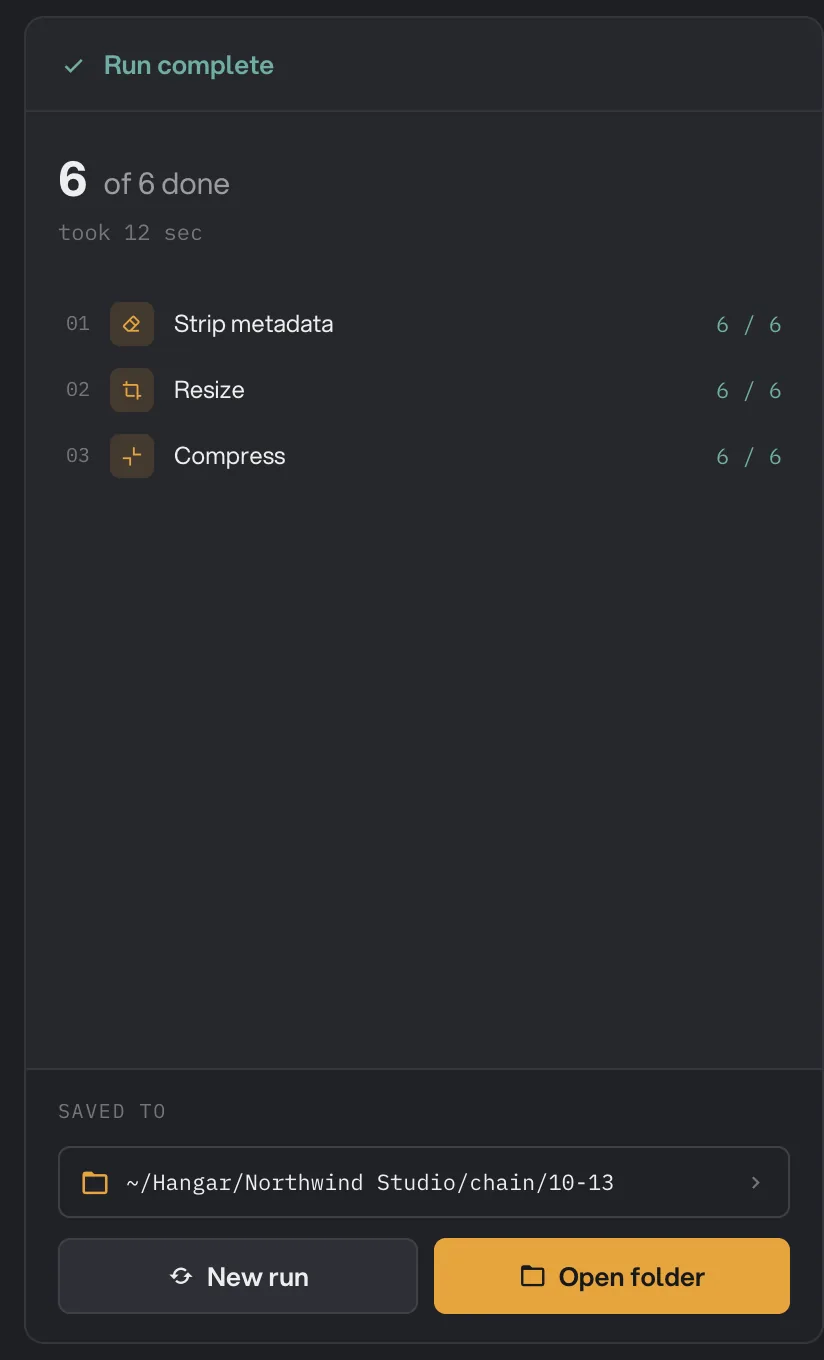
- Files done
- Count per step
- Saved to
- New run
- Open folder
At the bottom, Saved to shows the folder that holds the final results: your workspace output folder, then a "chain" subfolder, then the date, such as Northwind Studio/chain/10-13. Click the path to reveal it, or press Open folder. New run takes you back to the queue without touching what was just saved; the queue still holds the same files, so click Clear all before you add the next batch. How the output folder is chosen is covered in Where Hangar saves your files.
Final inspection: where every file went, step by step
The left side of the screen is Final inspection. It opens on Results, covered further down; click Process for a grid with one row per file you added and one column per step in the chain. The last column, Result, shows the size of the final file and its state. Scan a row from left to right and you see what happened to that file at each step without opening anything.
Each cell holds one mark. A check mark means Done. A red square means Failed at that step, and a dash, Skipped, in the columns after it means those steps were never run for that file. While a run is still going you will also see Working on it and Waiting.
Two marks mean the file passed through unchanged, and they are good news rather than errors. No change needed, a gray check mark, means the step ran and found nothing to do, such as a compressor on a photo that was already small. Copied as is means the step cannot open that kind of file, so Hangar carried it forward untouched instead of dropping it.
The Result column has words of its own: Kept for a file that came out unchanged, Kept as is for a piece a step could not open, Not made for a file that did not reach the end, and Queued while a file is still waiting its turn.
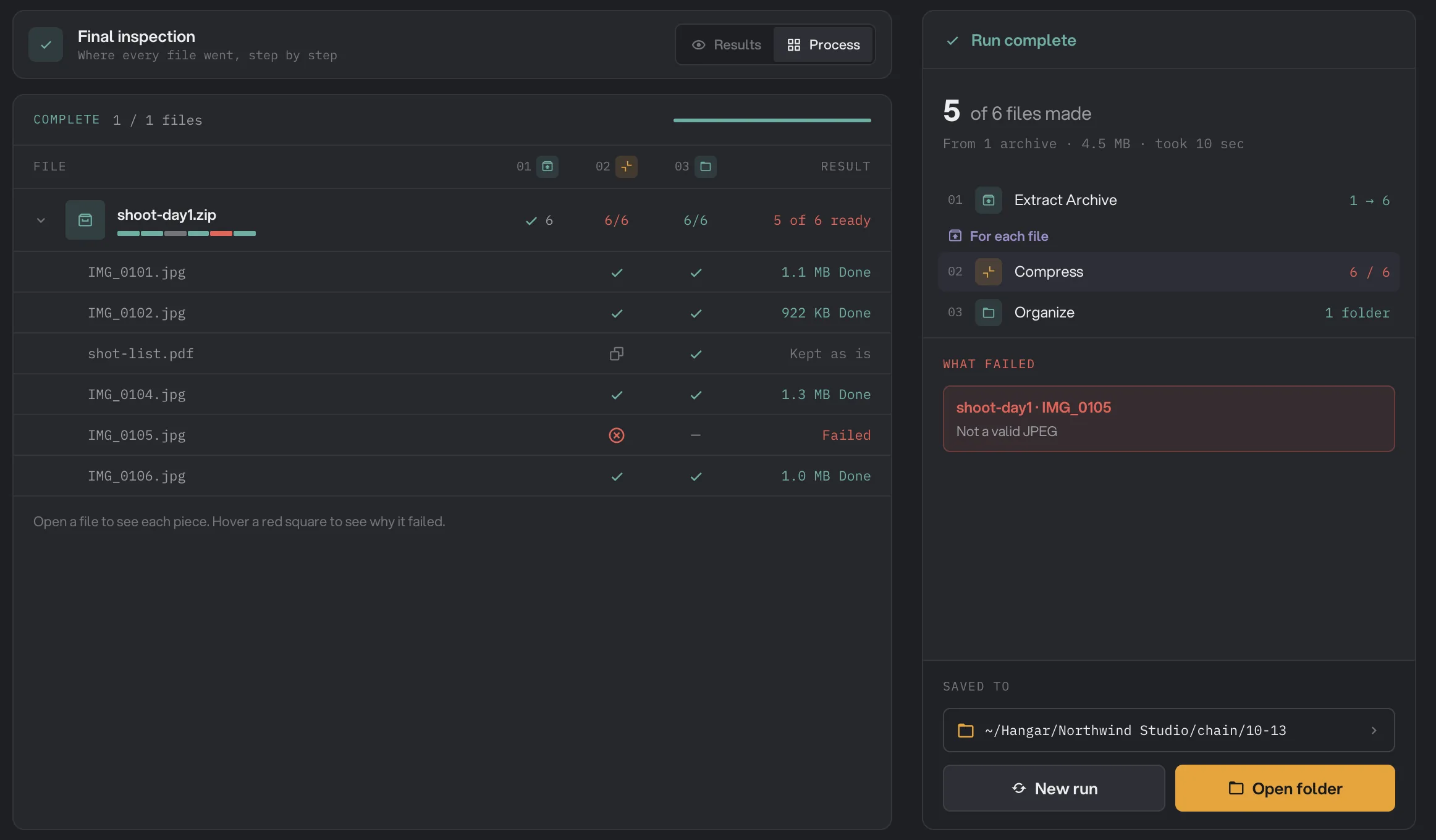
- Results / Process
- One column per step
- For each file
- Failed at this step
- What failed
The toggle at the top right switches between this Process grid and the Results view. In a chain with a split step, a hint under the grid reminds you of the two things you can do here: open a file to see each piece it produced, and hover a red square to read why that step failed.
Split steps: one file in, many files out
Five steps turn one file into several: Extract archive, Split PDF, Extract Pages, PDF to Images and Split video. In the editor these are the steps with a For each box, and every step inside the box runs on each piece separately. The run panel shows this as an arrow, "1 → 6" in the screenshot, meaning one archive became six files.
In Final inspection the source file gets a row of its own, with the pieces folded underneath; click the small arrow at the left of the row to unfold them. The source row sums up its pieces, so "5 of 6 ready" in the Result column tells you at a glance that one piece did not make it, and the small colored bar under the name shows which ones did.
The pieces can be different kinds of file. In the example, shoot-day1.zip held five photos and a PDF shot list. The photos went through Compress images and came out smaller; the PDF is not something an image compressor can open, so its Compress cell reads Copied as is, its result reads Kept as is, and it still reaches the final step with everything else.
What happens when a step fails for one file?
A failed file never stops the chain. The other files carry on through every step and are saved as normal. The failed file is marked Failed in the column where it stopped, and the steps after that show a dash because they were never run for it.
The reason is written out in two places. Hover the red square in the grid to read it, or look at What failed in the right-hand panel, which lists each failed file with its reason. In the example, IMG_0105.jpg failed at Compress with "Not a valid JPEG": the file had a .jpg name but was not really a JPEG. The count next to that step turns red so you can spot the problem step from the panel alone.
The run still counts as complete, so the header reads Run complete and the headline says "5 of 6 files made". When the reason points at the file itself, fix or convert that file, then click New run, Clear all, add it and run the chain again. For the common reasons behind a failure, read A file failed: what to check.
Compare a file with its final result
Switch the toggle to Results to judge the outcome by eye. Hangar compares the file as it Started, before the first step, with the Final result after the last step, so you see the total effect of the chain rather than one step at a time. The header counts your position, "Result 1 of 6", and Open comparison enlarges the view.
The comparison works like the one for single-tool results. Swipe lays both versions on top of each other; drag the handle across the picture. Side by side places them next to each other and is used automatically when a step changed the picture's shape.
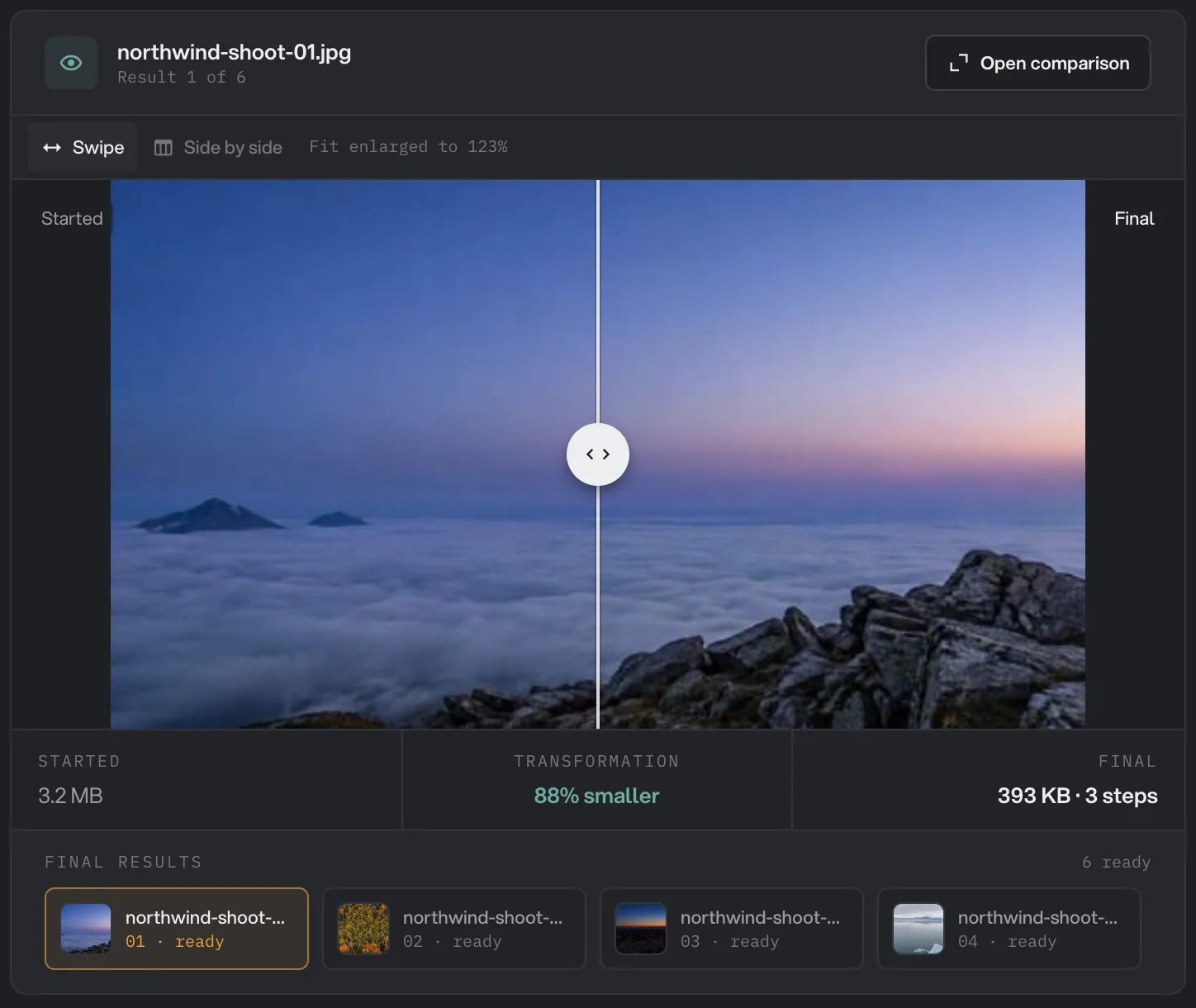
- Swipe / Side by side
- Drag to compare
- Transformation
- Final size and step count
- Final results
The strip under the picture reads Started, Transformation and Final. In the screenshot a 3.2 MB photo became 88% smaller and finished at 393 KB after 3 steps. The Final results row at the bottom lists every file that came through, with "6 ready" on the right; click any thumbnail to compare that file instead. PDF pages, video players and the rest of the preview window are explained in See and compare your results.
Stopped and cancelled runs
If you pressed Stop once during the run, the jobs already running were allowed to finish and everything done so far was kept. The header reads Run stopped, Final inspection shows which files finished and which never started, and Run again starts the batch over. There is no separate Cancel button: a run reads Run cancelled when you pressed Stop a second time, while it read Stopping…, which also ends the jobs in progress. Stop itself is covered in Run a chain on many files.
Find a chain run later
Closing the chain does not lose the inspection. Every chain run is recorded on the Runs page in the sidebar, grouped by day, with the number of files and how long it took. The filter tabs include Complete, Failed and Cancelled, plus Stopped once you have a stopped run. Click a row to reopen the run in its chain view with Final inspection as it was. The files themselves stay in the folder shown under Saved to. More in Run history: reopen past results.
Common questions
Why does the panel say Run complete when one of my files failed?
A chain run finishes once every file has either made it through or stopped at a step. One failed file does not fail the run; it is listed under What failed, and the count at the top tells you how many files were made out of how many you added.
How do I rerun just the file that failed?
Fix or replace the file first, since the reason under What failed is usually about the file itself. Then click New run, click Clear all to empty the queue, add that one file and run the chain again. The results from the first run stay where they were saved.
What do No change needed, Copied as is and Kept as is mean?
All three mean a file came through unchanged, not that something broke. No change needed, a gray check mark, means the step opened the file and had nothing to do. Copied as is means the step cannot open that kind of file, such as a PDF in an image step, so Hangar passed it along untouched; the Result column then reads Kept as is.
Can I edit the chain from the results screen?
Not from the finished run. Go back to Chains in the sidebar, open the row menu for the chain and choose Edit. Your saved results are not affected by edits.
Where are the files from the steps in the middle of the chain?
Hangar does not keep them. Only the final results are saved, in the Saved to folder. The Process grid shows what each step did to each file, and the Results view compares the original with the final result.
Still stuck?
One person reads every message, usually with a reply within a day.