 Agencies and studios
 Photographers
 Podcasters
 Video and social creators
 Marketers and content teams
PDF Studio is one window for everything you do to a single document. Each job has its own mode in the tab row along the top, and each mode has its own guide. This page covers what they share: opening a file, finding your way around, how your work is kept and how to save it.
Open a PDF
Step 1: Open the Studios home
Click Studios at the top of the sidebar. Drop a PDF on Drop a file to open it, or press Open file (⌘O, Ctrl+O on Windows) and choose one.
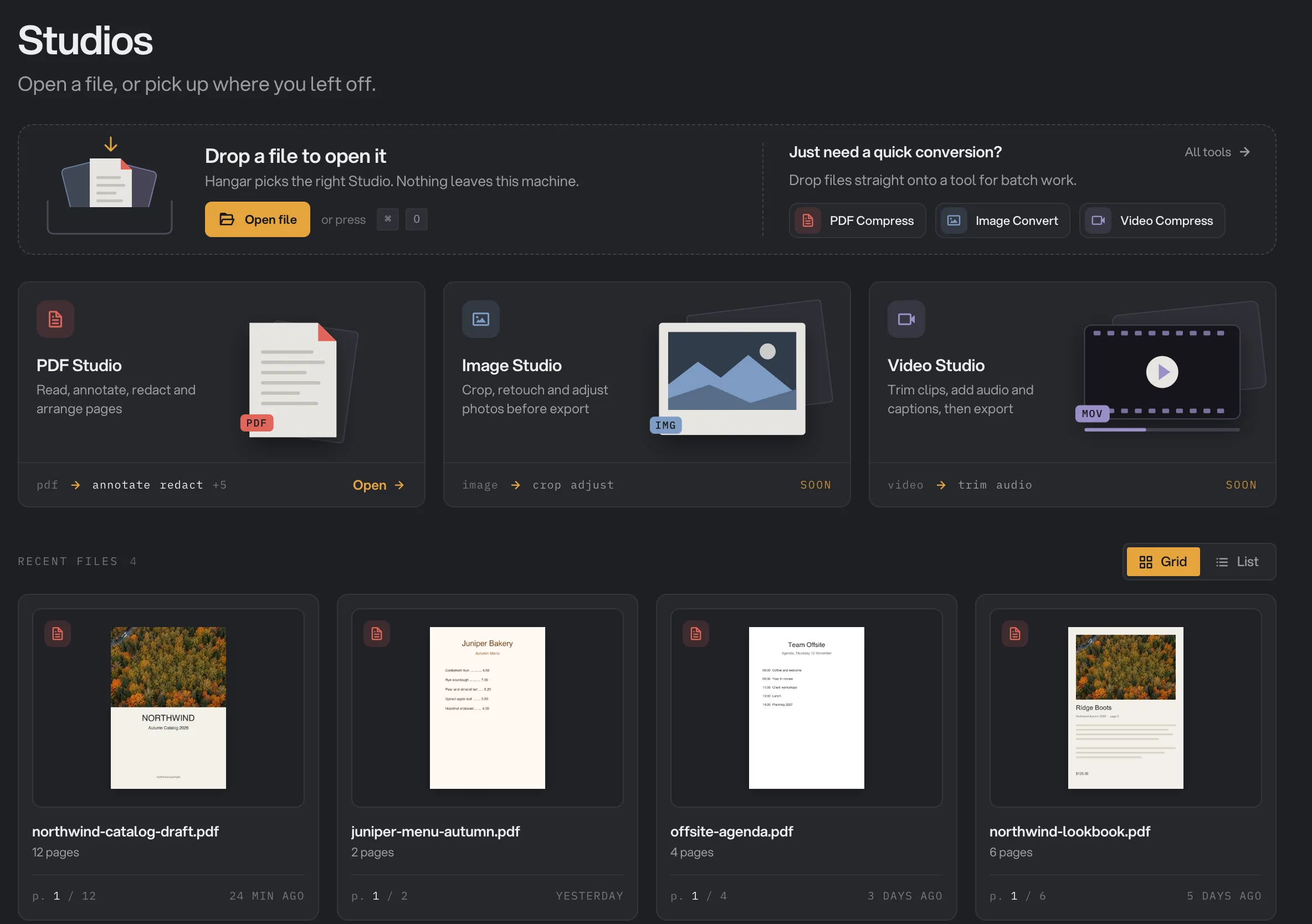
- Open file (⌘O)
- PDF Studio: Open
- Recent files
Step 2: Or pick up where you left off
Recent files lists the PDFs you have opened in this workspace. Open brings one back at the page you stopped on, and the PDF you were last working on shows Continue.
If a file was moved or renamed, its card says Moved or missing. Press Reconnect and pick the file in its new place; Hangar matches it to your draft, so nothing is lost.
Find your way around
The header shows the file name, the page you are on and the state of your work: Source untouched until you change something, then Edited draft. Below it are the eight modes, and Review on the right opens the list of every note in the document.
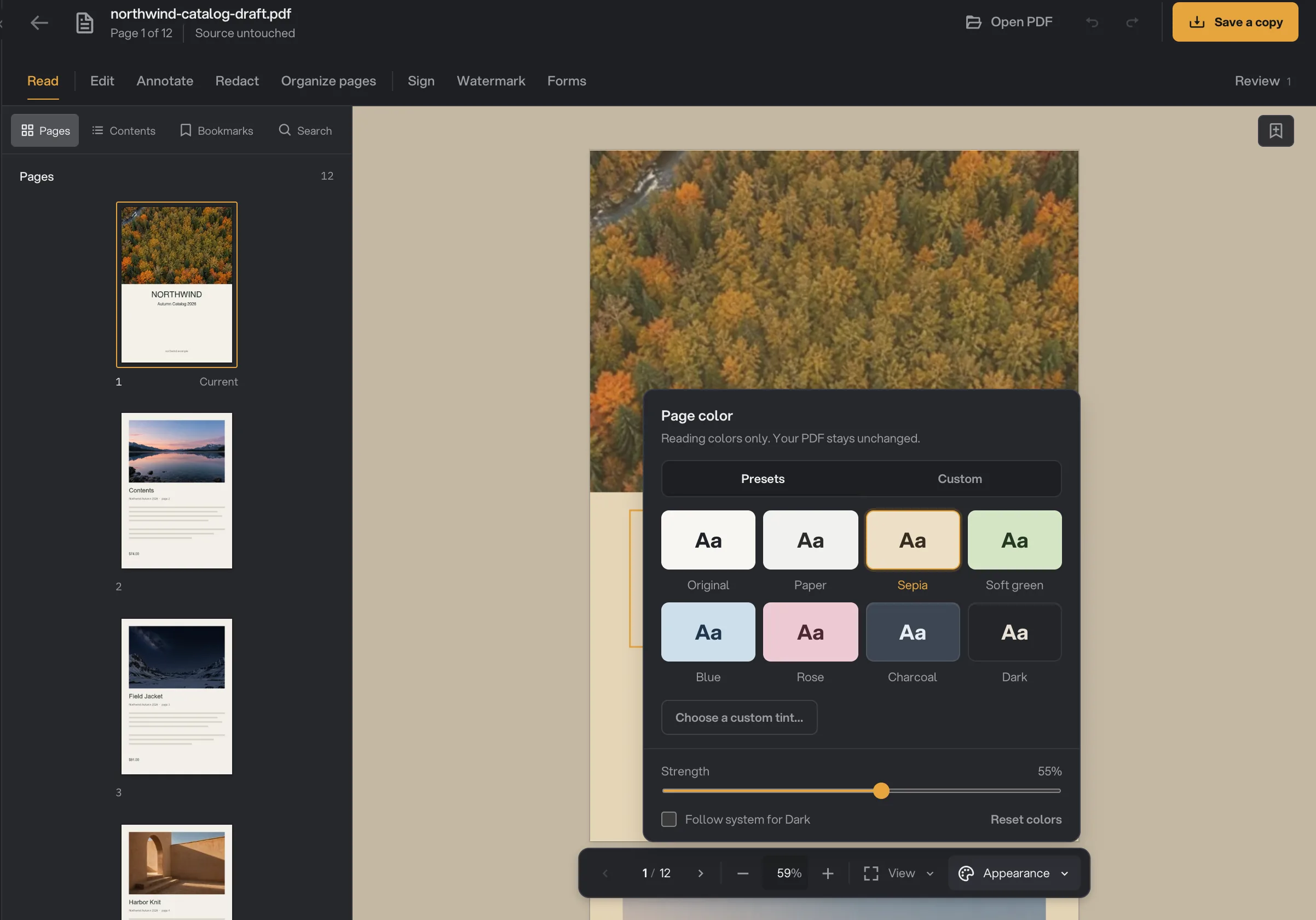
- Pages, Contents, Bookmarks, Search
- Appearance
- Bookmark this place
- Read: move through pages, search, bookmark, change the page color and recognize scanned text.
- Edit: change the words already on the page, and add text boxes and shapes.
- Annotate: highlight, comment and draw, then go through every note in Review.
- Redact: remove names, numbers and areas for good.
- Organize pages: reorder, rotate, duplicate, extract, insert and delete pages.
- Sign: place a saved signature on any page.
- Watermark: stamp text, a logo or both across the document.
- Forms: add fields other people can fill in.
The bar under the page holds page numbers, zoom (25% to 200%), View and Appearance. It stays the same in every mode, so you can zoom in to place a signature or a form field just as you would to read.
How your work is kept
PDF Studio never writes to the file you opened. When you open a PDF, Hangar makes a private working copy, the draft, and every change goes there. The draft also remembers your page, zoom, layout and reading colors.
Click the back arrow to return to the Studios home at any time. Nothing closes: the PDF waits under Continue, and opening another PDF keeps the first one's draft in Recent files.
Save your work
When you are done, press Save edited copy at the top right (it reads Save a copy until you change something), or press ⇧⌘S (Ctrl+Shift+S on Windows). Choose where the new PDF goes; Hangar suggests the original name with "Copy" added. A toast confirms PDF copy saved.
Saving does not end the draft. You can keep working and save another copy later, which is handy for sending a version for review and carrying on. Where Hangar saves your files explains how saving works across the rest of the app.
Undo and start over
Undo and redo sit in the header (⌘Z and ⇧⌘Z). They keep your last 10 changes and start empty each time you open the file. Applying redactions clears them, on purpose, so removed text cannot be brought back.
Reset throws the whole draft away and reloads the original. It asks first, because text edits, OCR, Hangar annotations, bookmarks, view changes and undo history are all discarded. Press Reset document to confirm; the original PDF is still untouched.
Keyboard shortcuts
On Windows, use Ctrl wherever this table shows ⌘. Single-letter shortcuts only work while you are not typing.
| Shortcut | What it does |
|---|---|
| ⌘O | Open a PDF |
| ⇧⌘S | Save a copy |
| ⌘F | Search the document |
| ⌘B | Bookmark this place |
| ⌘Z / ⇧⌘Z | Undo or redo |
| ⌘+ / ⌘− | Zoom in or out (or ⌘ and scroll) |
| [ / ] | Rotate the view |
| ← / → | Previous or next page, in the Single page layout |
| ⌘D / Delete | Duplicate or remove the selected shape or signature |
| T / S / V / I | In Edit: text box, shape, select, inspector |
| Esc | Close a menu, cancel or deselect |
What PDF Studio cannot do yet
- Open anything other than a PDF. Images and videos go to Tools.
- Add a certificate-based digital signature. Sign places an image of your signature.
- Number pages. Use the Page numbers tool, then open the result here.
- Make a new document from nothing, or insert images. You can insert blank pages into a PDF you have open.
- Move, insert or extract pages once a PDF has form fields.
For the same change on many PDFs at once, such as compressing, merging or signing a stack of files, use the PDF tools in Tools. Studios: tools with a hands-on editor explains when to use a Studio and when to use a tool.
Common questions
Does PDF Studio change my original PDF?
No. Every change goes into a private draft that Hangar keeps for that file, and the original is never written to. Your work only becomes a PDF when you press Save edited copy and choose where the new file goes.
Can I close PDF Studio and finish later?
Yes. Your draft stays on your computer with your page, zoom and reading colors. Open the file again from Recent files on the Studios home and carry on. Undo history starts fresh each time you open it.
Can I open two PDFs at once?
No. PDF Studio works on one document at a time. Opening another PDF replaces the one on screen, and the first one keeps its draft in Recent files.
Where is my draft kept?
In Hangar’s own data folder on your computer, next to the app’s other local files. It is never uploaded, and Reset replaces it with a fresh copy of the original.
Still stuck?
One person reads every message, usually with a reply within a day.