 Agencies and studios
 Photographers
 Podcasters
 Video and social creators
 Marketers and content teams
Activation takes about a minute and you only do it once per computer. Everything below also applies if your trial has already run out: the same window appears, and the same key unlocks it.
Step 1: Open the license window
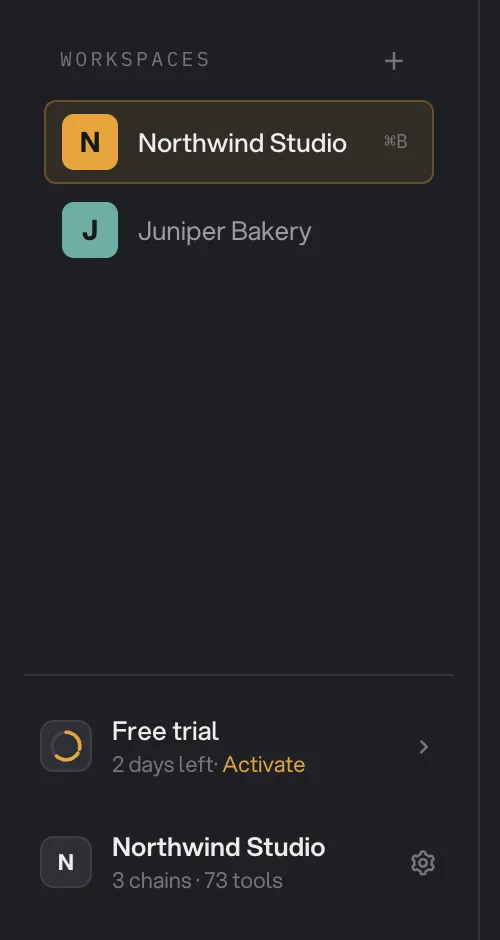
Look at the bottom of the sidebar, under your workspaces. During the trial you see a card that reads Free trial with the days you have left and an Activate link.
Click the card. The Activate Hangar window opens.
- Free trial card with days left
- Activate
Step 2: Enter your license key
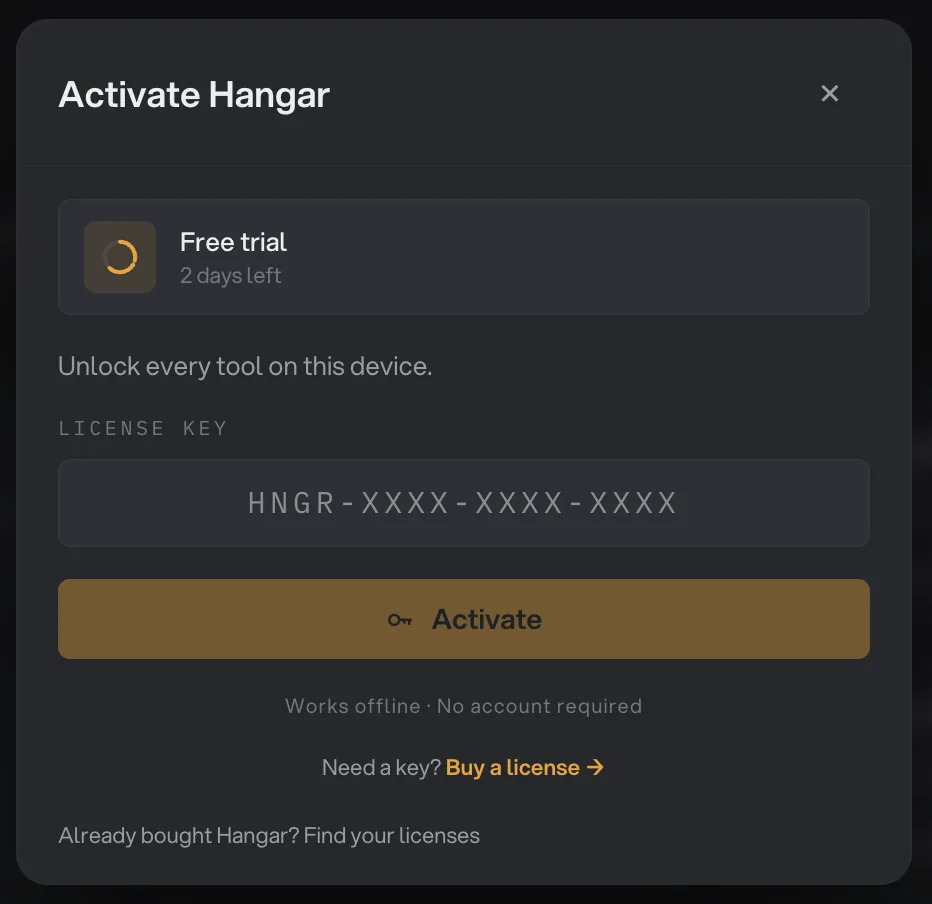
Paste your key into the License key field. Hangar keys look like HNGR-XXXX-XXXX-XXXX, and the field shows that pattern until you type.
Click Activate. The button reads Activating… for a moment while Hangar checks the key.
- Trial status
- License key field
- Activate
- Buy a license
No key yet? Buy a license opens the pricing page in your browser. If you bought Hangar earlier and cannot find your key, Find your licenses at the bottom of the window opens Settings → License, where you confirm your purchase email with a code. You can also look your key up at hangar.tools/licenses.
Step 3: Check that it worked
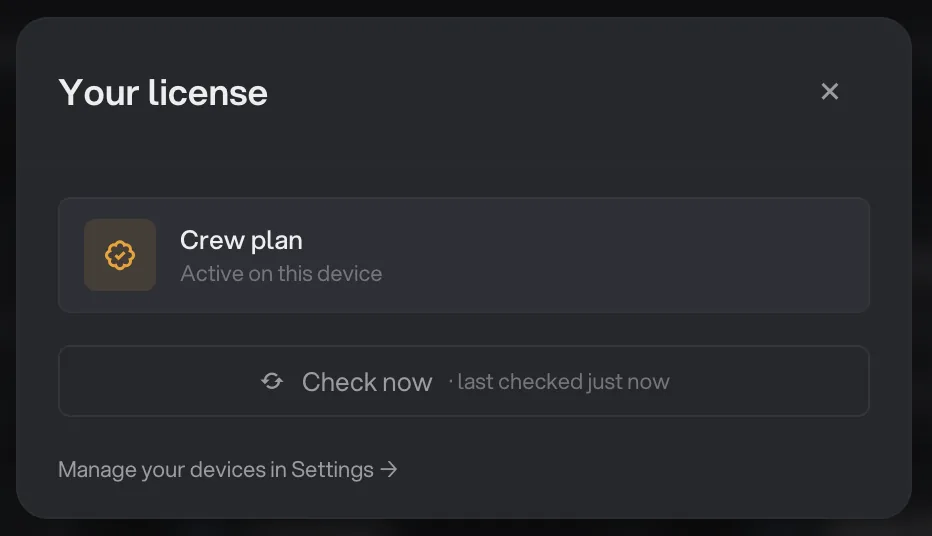
When the key is accepted the window title changes to Your license. It shows your plan, for example Crew plan, with Active on this device underneath.
Close the window. The sidebar card is gone, and every tool and chain in this workspace and every other workspace on the computer now runs without limits.
- Plan and status
- Check now
- Manage your devices in Settings
Where do I find my license key?
Your key is issued when you buy Hangar from the pricing page. It is a one-time purchase, not a subscription, so one key is all you ever receive for a plan.
Lost it, or need it for a second computer? Settings can show it or email it to you once you confirm your purchase email; the steps are in finding a lost license key.
What does the free trial include?
The trial is the whole app for 3 days, counted from the first launch. Every tool and every chain runs exactly as it does after activation, and your files never leave the computer. There is no account to create and no card to enter.
Three days is short on purpose. Hangar is a batch tool, so most people know within an afternoon whether it fits: drop a batch of photos on Compress images, run a heavy catalog through Compress PDF, build one chain. If you are mid-evaluation and the clock is in the way, write to support.
What happens when the trial ends?
When the 3 days are used up the sidebar card switches to Trial ended, and tool and chain runs no longer start. Nothing is deleted: your workspaces, chains, run history and every file you already exported stay exactly where they are.
Open the card, enter a key and click Activate, and runs start again immediately. The window reminds you of this with the line Your trial has ended. Enter a license key to keep working.
If a run refuses to start and you are not sure why, an ended trial is the first thing to rule out. The file failed guide lists the other causes.
How are devices counted?
A device is one Mac or Windows PC with Hangar activated on it. Plans differ only by how many devices they cover: Solo for 1, Crew for 3 and Fleet for 10. Workspaces, users and files on a computer are never counted, only the computer itself.
Enter the same key on each computer to activate it. If a new computer shows Waiting for the license owner, every seat is taken: approve it from the email Hangar sends, or see moving Hangar to a new computer.
Common questions
Do I need an account or a credit card to start the trial?
No. The 3-day trial starts the first time you open Hangar, with no account and no card. You only need a key when you decide to keep using it.
Does activation need an internet connection?
Hangar checks your key once when you activate, then works offline. If the computer stays offline for a long stretch the sidebar shows License check due with the number of days left to reconnect, so connect at least once every 7 days. The warning appears after 3 days offline.
Can I use one license key on two computers?
Yes, if your plan has room. Solo covers 1 computer, Crew 3 and Fleet 10. Enter the same key on each one; when the plan is full, deactivate an old computer in Settings before adding a new one.
Does the trial version limit what I can do?
No. The trial is the full app: every tool and every chain, with files that stay on your computer. The only difference is the 3-day clock.
Still stuck?
One person reads every message, usually with a reply within a day.