 Agencies and studios
 Photographers
 Podcasters
 Video and social creators
 Marketers and content teams
Settings is a small window with seven sections in a column on the left: General, Appearance, Menu bar (System tray on Windows), Updates, Privacy, License and About. Most people visit it twice: once to pick a theme and once to check the version. Everything else, such as the output folder and brand defaults, lives with your workspace instead.
How do I open Settings?
Press ⌘, (Ctrl+, on Windows) from any screen, or click the gear in the title bar (its tooltip reads Settings). The window opens on Appearance, or on License when a device approval is waiting for you.
Click a section name in the left column to switch. Your version number sits at the bottom of that column, under About, so it is visible whichever section you are on. The × in the top right corner closes the window. Everything you change here is saved on this computer.
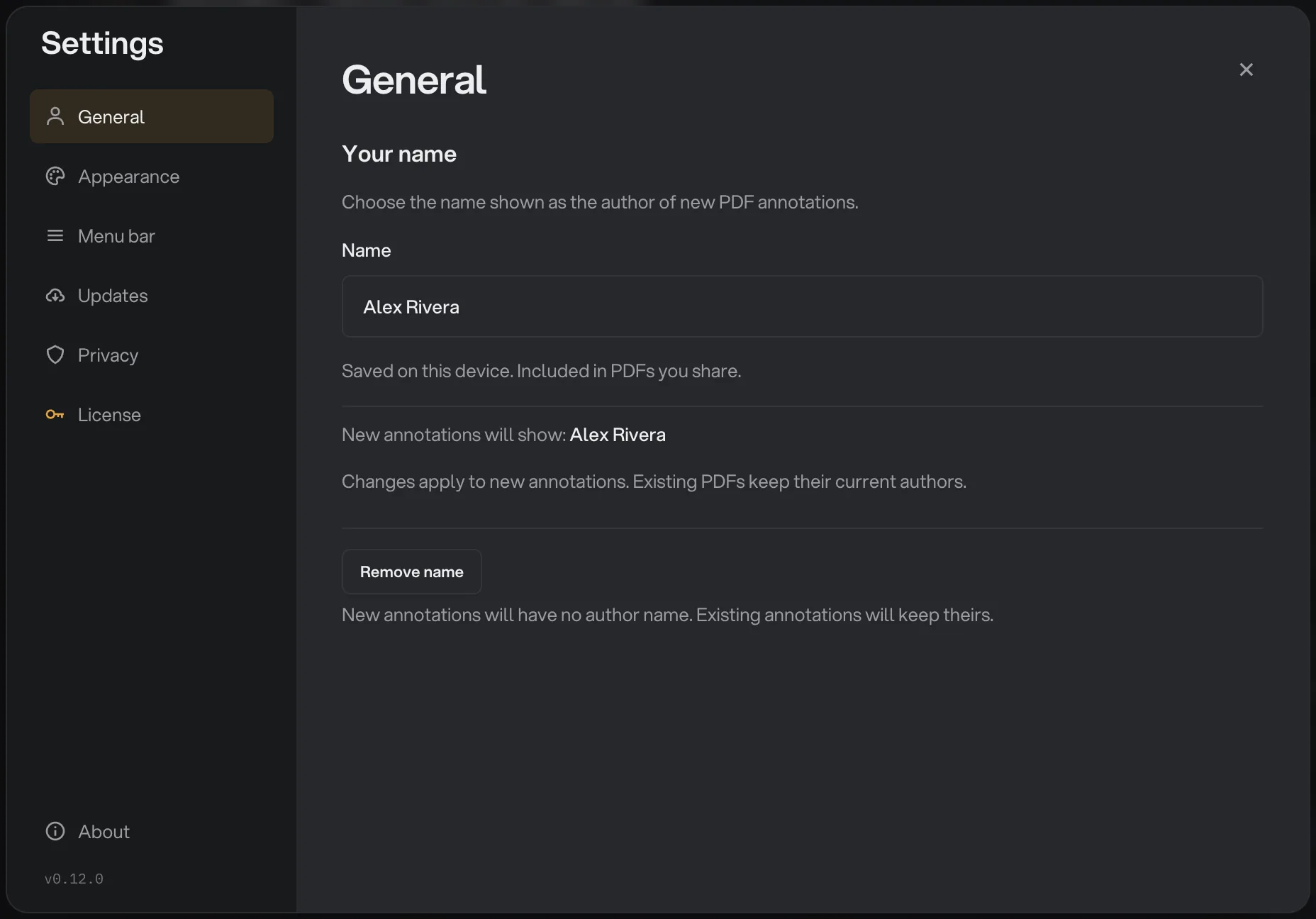
- Section list
- Name field
- Remove name
- Your version
- Close
General: the name on your PDF notes
General holds one setting, Your name. It is the author name Hangar writes into new PDF annotations, the comments and marks you add to a document in PDF Studio. Type a name or your initials into the Name field, which reads Name or initials while empty, then click Save changes or press Return (Enter). A short Name saved message confirms it.
The name is saved on this computer only, and it travels inside the PDFs you share, so use the name your clients know you by. Changing it affects new annotations only; PDFs you already marked up keep their current author. Remove name clears it, after which new annotations carry no author at all.
Appearance: dark, light or system theme
Appearance is where you choose the theme. Theme offers three options: Dark, Light and System. The note under it explains the default: Graphite, Hangar's dark theme, is what you see on first launch, and System follows whatever your Mac or PC is set to, so Hangar changes whenever your computer does.
Pick the one you want; the choice is saved on this computer. The Accent color below the theme shows AMBER and is marked Locked in this release, so for now every Hangar wears the same amber for its buttons and highlights.
Updates: how Hangar updates itself
You do not need to download new versions by hand. Hangar checks for an update when it launches, every 15 minutes while it is open, and each time you come back to its window. When one is found, a banner reads Hangar v… is ready, followed by Install it now and Hangar restarts on its own when it's done. When the version has notes, a few lines under Release notes tell you what changed.
Click Install and restart and the banner shows Preparing update…, then Downloading update with a percentage, then Installing…. Hangar closes and reopens on the new version by itself, and your workspaces, chains and run history are exactly as you left them. Finish any run that is in progress before you click, since the app restarts.
Not a good moment? Click Later. The banner goes away, but a button stays in the title bar reading Update to v… with the new version number, or simply Update available. Click it whenever you are ready; it shows Updating… and the percentage while it works. On a narrow window the button is hidden, and Updates in Settings does the same job.
To check on demand, open Settings and choose Updates. The Hangar row shows the installed version and the last check, for example Version 0.12.0 · checked just now, and Up to date when there is nothing new. Click Check now; it reads Checking… for a moment.
When an update is ready, the row reads Hangar … is ready, with its notes and an Install and restart button, so you can install it right there. The row then shows Downloading update and Installing update with the progress. You can keep working; Hangar restarts on its own when it's done. If something goes wrong, you see The update could not be installed. Your current version is unchanged, so check your connection and click Try again.
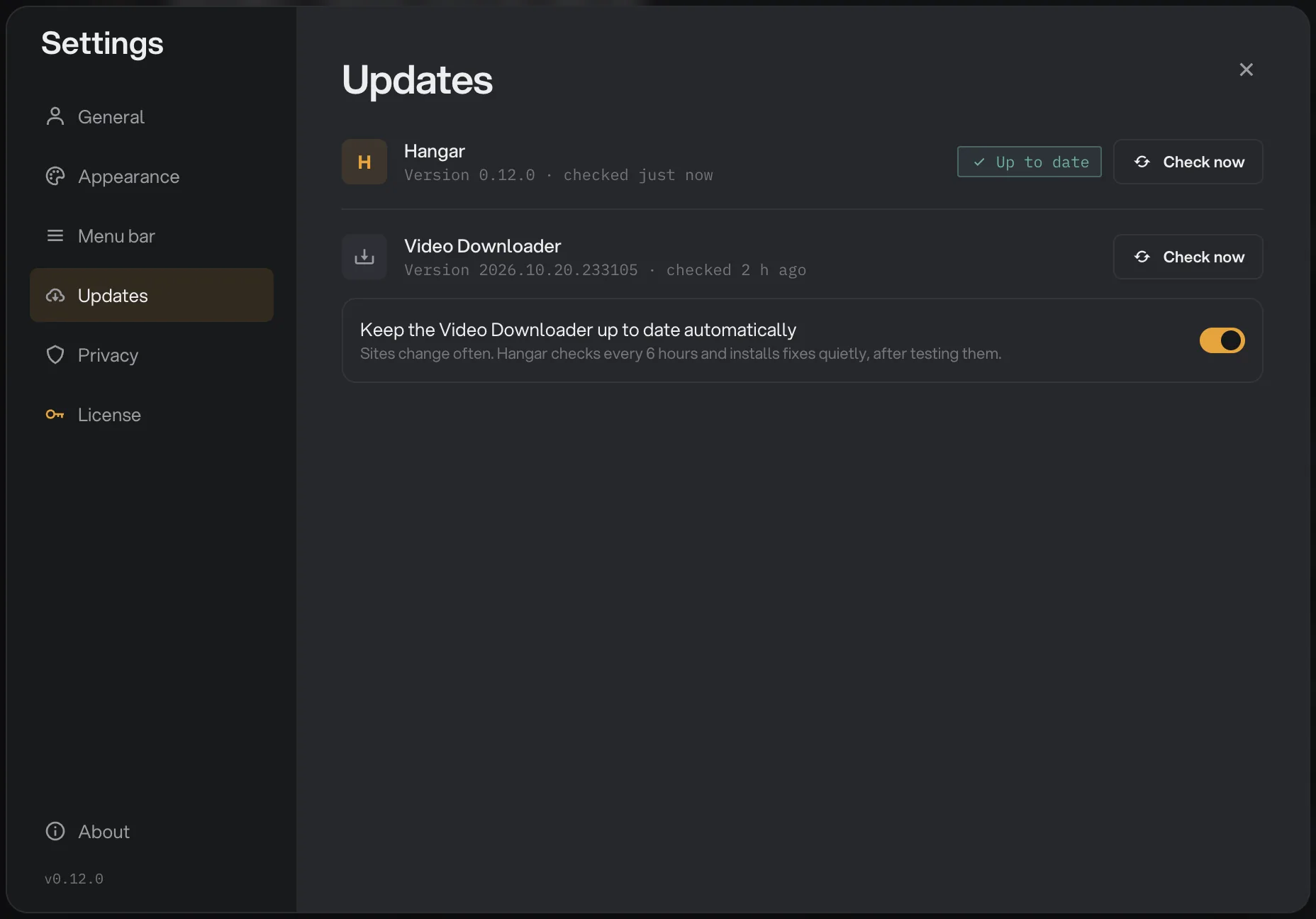
- Updates
- Your Hangar version
- Check now
- Video Downloader
- Automatic downloader updates
Once you have set up the Video downloader, a second row shows its version and last check, with its own Check now. Video sites change often, so Keep the Video Downloader up to date automatically is on by default: Hangar checks every 6 hours and installs fixes quietly, after testing them.
Menu bar: the icon for quick jobs
Menu bar (System tray on Windows) has two switches, both on at first. Show Hangar in the menu bar puts the Hangar icon there, so you can drop files on it for quick jobs without opening the window. Keep running when the window closes leaves Hangar running in the menu bar when you close its window, so runs finish in the background; quit from the menu bar icon. Use Hangar from the menu bar covers what the icon can do.
Privacy: the anonymous usage switch
Hangar is local-first. Every tool runs on your computer and your files never leave it; there is no upload and no cloud step. The Privacy section has a single switch, Share anonymous usage, which is on by default.
When it is on, Hangar sends anonymous usage events: which tools and Studios get used, how runs turn out (file counts, duration and the kind of error, if any) and the app version and system they ran on, plus scrubbed crash diagnostics so that a tool that fails can be fixed. File names, paths and contents are never included. The text under the switch sums it up: tool usage and scrubbed crash diagnostics, never your files.
To turn it off, click the switch, and click it again whenever you want to turn it back on. A one-time banner titled Sharing anonymous usage offers the same choice up front, with Opt out and Continue buttons; whichever you picked then, this switch is where you change your mind.
After that banner, the Home screen asks three quick questions, once: What do you do?, Who works with you? and What lands on your desk? Click Skip to leave them. While usage sharing is on, your answers about your role and team size are sent with the anonymous usage events. The answers are picked from a list, never typed, and are never linked to your files.
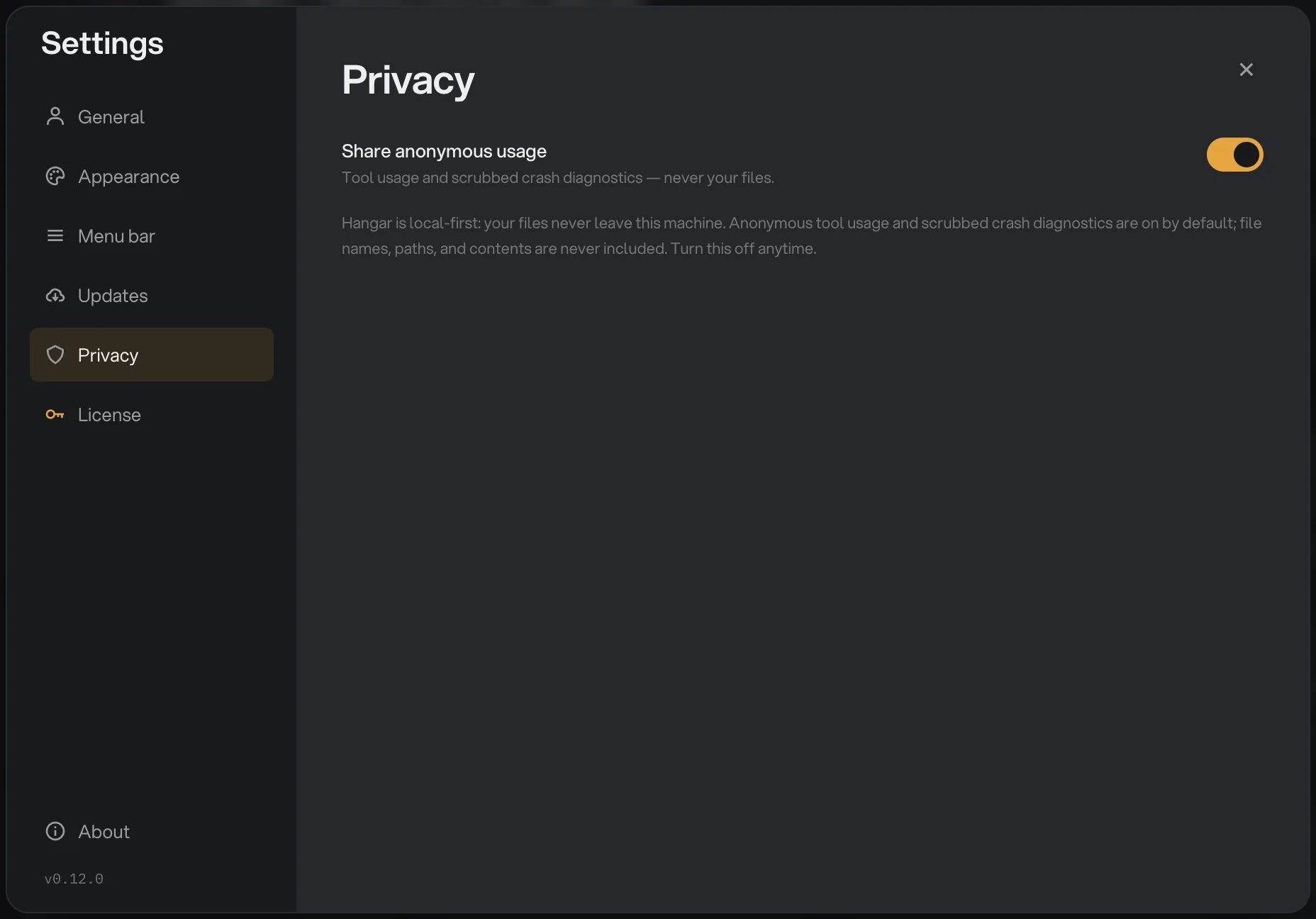
- Privacy
- Share anonymous usage
- On/off switch
The full policy is on the privacy page, which is also linked from About inside the app.
License: your key and your devices
License is the home of your license key and the computers it is active on. At first it shows only your installed license and a Verify ownership form: enter your purchase email, click Send code, then type the code and click Verify. After that the section lists your Devices with Rename and Deactivate buttons, lets you Reveal the masked key or Email my key to yourself, and has Sign out and Need help with a license? at the bottom. When someone activates your key on a new computer, the request to Approve or Decline it appears here too, as long as you have verified, and the gear in the title bar opens this section directly while an approval is waiting.
Activating for the first time is covered in activate your Hangar license. Freeing a device slot is in managing your license and devices, and the licenses and devices topic covers new computers, lost keys and refunds.
About: find your Hangar version
When support asks which version you have, or you want to know whether a fix has reached you, open Settings and click About, the last entry in the left column. It shows Hangar and the version underneath, for example v0.12.0. The same number is printed at the bottom of the column on every section and on the Hangar row in Updates, so you never have to hunt for it.
Below the version are three links: Website opens hangar.tools in your browser, Support starts an email to support, and Privacy opens the privacy policy. When you write in about a problem, include the version and the name of the tool, which saves a round trip.
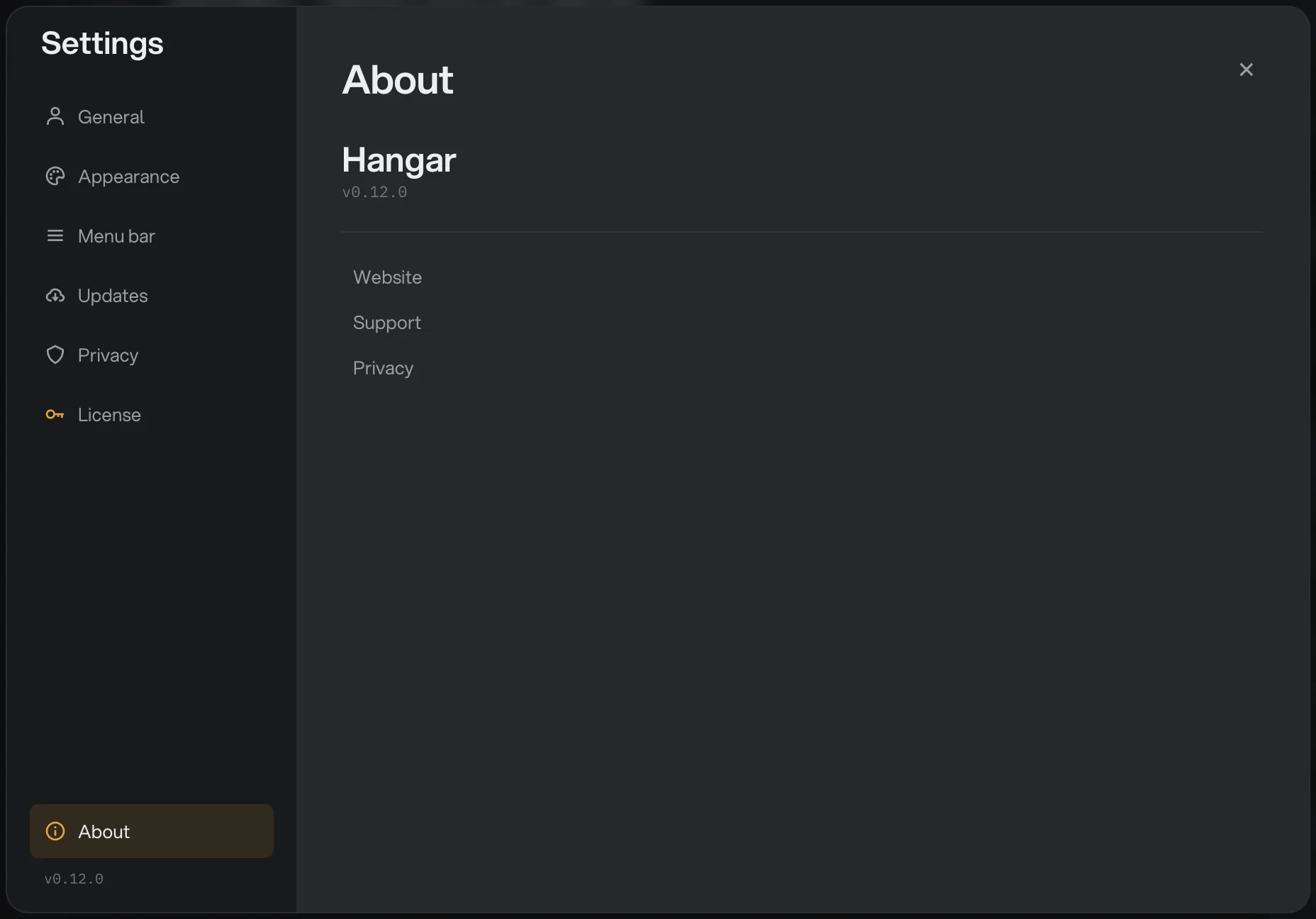
- About
- Version number
- Website, Support and Privacy links
Common questions
Where are Hangar’s preferences on Windows?
In the same place as on a Mac. Press Ctrl+, or click the gear in the title bar. The window is called Settings and has the same seven sections on both systems. The one called Menu bar on a Mac is called System tray on Windows.
Does Hangar update automatically?
Hangar checks for updates on its own, but it never installs one without asking. When a new version is ready a banner offers Install and restart; choose Later and the update waits in the title bar and in Settings under Updates until you are ready.
What does Share anonymous usage actually send?
Anonymous usage events, such as which tools are used and how runs turn out, plus scrubbed crash diagnostics. File names, paths and contents are never included, and your files never leave the computer either way. The switch is on by default and you can turn it off at any time in Settings under Privacy.
Where do I set the default output folder? It is not in Settings.
Output folders belong to the workspace, not the app, so that each client or project can save somewhere different. Press ⌘B (Ctrl+B on Windows) to open Workspace defaults and set Default output there.
How do I find out which version of Hangar I have?
Open Settings and look at the bottom of the left column, under About. The version is printed there on every section, and again in the About and Updates sections.
Still stuck?
One person reads every message, usually with a reply within a day.