 Agencies and studios
 Photographers
 Podcasters
 Video and social creators
 Marketers and content teams

To remove spaces from file names in bulk, trim the ends of each name, collapse double spaces, then swap what’s left for dashes. Batch rename in Hangar does all three in one pass and shows every new name before it changes anything. A plain swap in Finder or a terminal turns a double space into a double dash.
We tested this on 46 made-up office files with every kind of mess in their names, using Hangar 0.12.2 and 0.12.3 and Finder on macOS 27.0.1, and PowerShell on Windows.
Clean a whole folder in Hangar
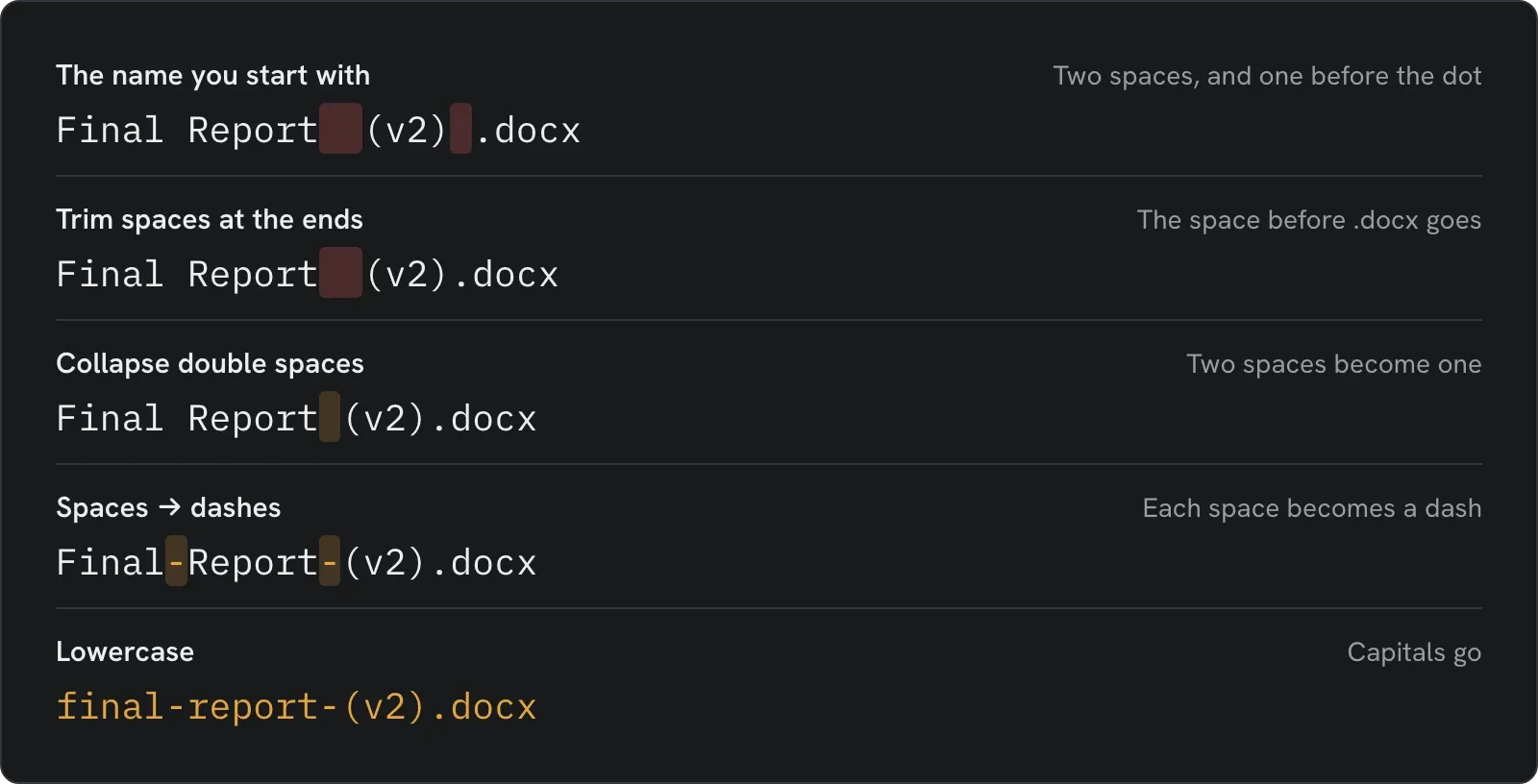
Here’s what each step does to one messy name:
-
Open Batch Rename, click Folder and pick the folder.
-
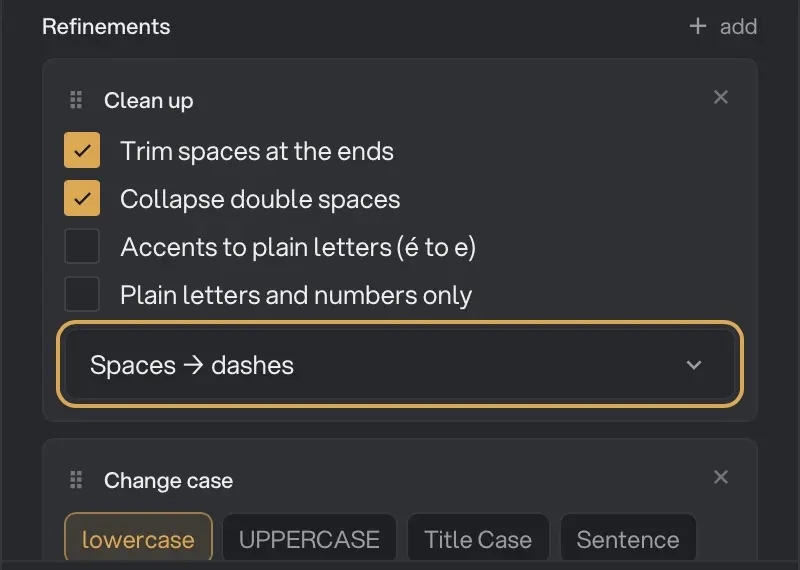
Click add next to Refinements and pick Clean up. Trim spaces at the ends and Collapse double spaces start on.
-
Change Keep spaces to Spaces → dashes.
-
Add Change case. It starts on lowercase.
-
Read down the queue. Each file shows its new name under the old one, and clashes show in red.
-
Leave Save copies selected so your originals stay as they are, then click Rename 46 files to copies (the button shows your own file count).

Hangar flagged 2 name clashes and blocked the run, because Hero Image.png and Hero-Image.png would both become hero-image.png. We removed one from the queue and the other 45 went through:
| Before | After Hangar |
|---|---|
| Final Report (v2) .docx | final-report-(v2).docx |
| Read me first .txt | read-me-first.txt |
| “ leading space.txt“ | leading-space.txt |
| INVOICE #0042 .pdf | invoice-#0042.pdf |
| Agenda - Monday.docx | agenda—monday.docx |
“agenda—monday” shows what clean-up can’t guess: a dash that was already in the name stays, and so do symbols.
Clearing out symbols and repeated dashes
Two more Find and replace refinements finish the job. Add them below Change case, tick Regex on each, and leave Replace with empty on the first.
| Find | Replace with | What it does |
|---|---|---|
[^\p{L}\p{N}-]+ |
nothing | Removes everything except letters, numbers and dashes |
-{2,} |
- |
Turns any run of dashes into one |

That turned agenda—monday.docx into agenda-monday.docx and q3-p&l-#draft.xlsx into q3-pl-draft.xlsx. Check two things in the preview. Underscores go as well, so résumé_v2 became résumév2. A bracket with no space before it joins up, so q4-forecast(v3) became q4-forecastv3.
More on patterns like these is in our guide to find and replace in file names.
Why spaces in file names cause trouble
- Links. A space isn’t allowed in a web address, so it gets percent-encoded as %20. “Hero Image.png” turns into Hero%20Image.png.
- The command line. A space separates one word from the next, so a script reads “Hero Image.png” as two files unless the name is in quotes.
- Windows. Microsoft’s naming rules say a file name shouldn’t end with a space or a period, which matters for a name like “Budget .xlsx”.
Dashes or underscores?
Use dashes for anything that might end up on the web. Google recommends hyphens over underscores to separate words in URLs. Underscores are fine for files read by code, where a hyphen can mean minus. Pick one and use it for the whole folder.
Which characters still cause problems?
- On Windows:
< > : " / \ | ? *are reserved and can’t appear in a file name at all. - In web links:
#,?,%and&have their own meaning in a URL, so they get encoded or cut the link short.
Accents work on current systems, and the regex above keeps them. If you need plain letters, tick Accents to plain letters in Clean up: “Résumé_v2 .docx” became resume_v2.docx. Leave Plain letters and numbers only off for this job. It deletes those letters instead, so “Café menu.pdf” became Caf menu.pdf.
Remove spaces with Finder
File > Rename, Replace Text, a space in Find and a dash in Replace with. That suits tidy names with single spaces. On messy names it replaces each space and nothing else:
| Before | After Finder |
|---|---|
| Agenda - Monday.docx | Agenda—–Monday.docx |
| Read me first .txt | Read-me-first-.txt |
| Hero Image.png | Hero-Image 2.png |
The last row is the one to watch. A file named Hero-Image.png already existed, so Finder added “ 2“ without asking, which put a space back in the name. Cmd+Z straight after put all 46 names back.
Remove spaces with a terminal line
File Explorer can’t do this at all, because it only gives a selection one new name with a number after it. One line does the plain swap on either system. Neither version shows a preview or collapses double spaces, so run it on a copy.
On a Mac, in Terminal (zsh):
for f in *' '*; do mv -n -- "$f" "${f// /-}"; doneOn Windows, in PowerShell:
Get-ChildItem -File | Where-Object Name -Like '* *' | Rename-Item -NewName { $_.Name -replace ' ', '-' }Both left Hero Image.png as it was, because the name was taken. On the Mac, it renamed the 44 files it could.
Our guide to renaming multiple files at once has the full naming rule, and our look at Bulk Rename Utility on a Mac helps if you’re coming from Windows. The rest of Hangar’s file tools are in the archive group.
Clean up a whole folder of file names offline, with every new name shown first.