 Agencies and studios
 Photographers
 Podcasters
 Video and social creators
 Marketers and content teams

Put the files in the order you want, then number them with enough leading zeros for the whole set: 001 to 180, not 1 to 180. Batch rename in Hangar does both on one screen and shows every new name first. Finder pads with five digits or none, and File Explorer only gives you brackets.
We tested this on 24 files named image (1).jpg to image (24).jpg and 180 files named 1.txt to 180.txt, in Hangar 0.12.2 and 0.12.3 and Finder on macOS 27.0.1, and in File Explorer on Windows.
How to number files in Hangar
Batch rename numbers by the order of the queue, so the queue comes first.
-
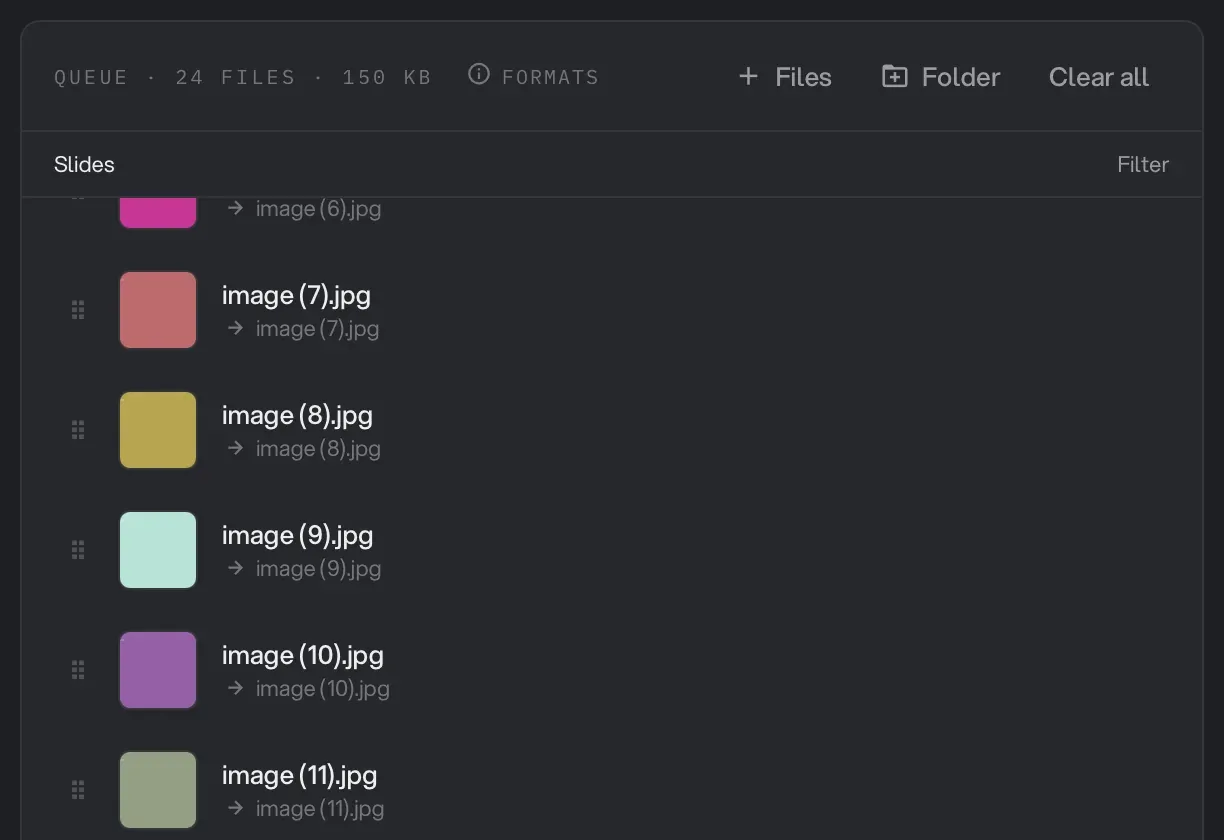
Open Batch Rename and click Folder, or Files to pick them by hand.
-
Check the order. Folder sorts the way a person counts, so our image (10) landed after image (9). Drag files by the handle at the left of a row to change the order. The numbers update as you drag.
-
In New name, replace
{name}with your text, such asslide_. -
Click Counter and pick 001, 002, 003. The box now reads
slide_{n:3}.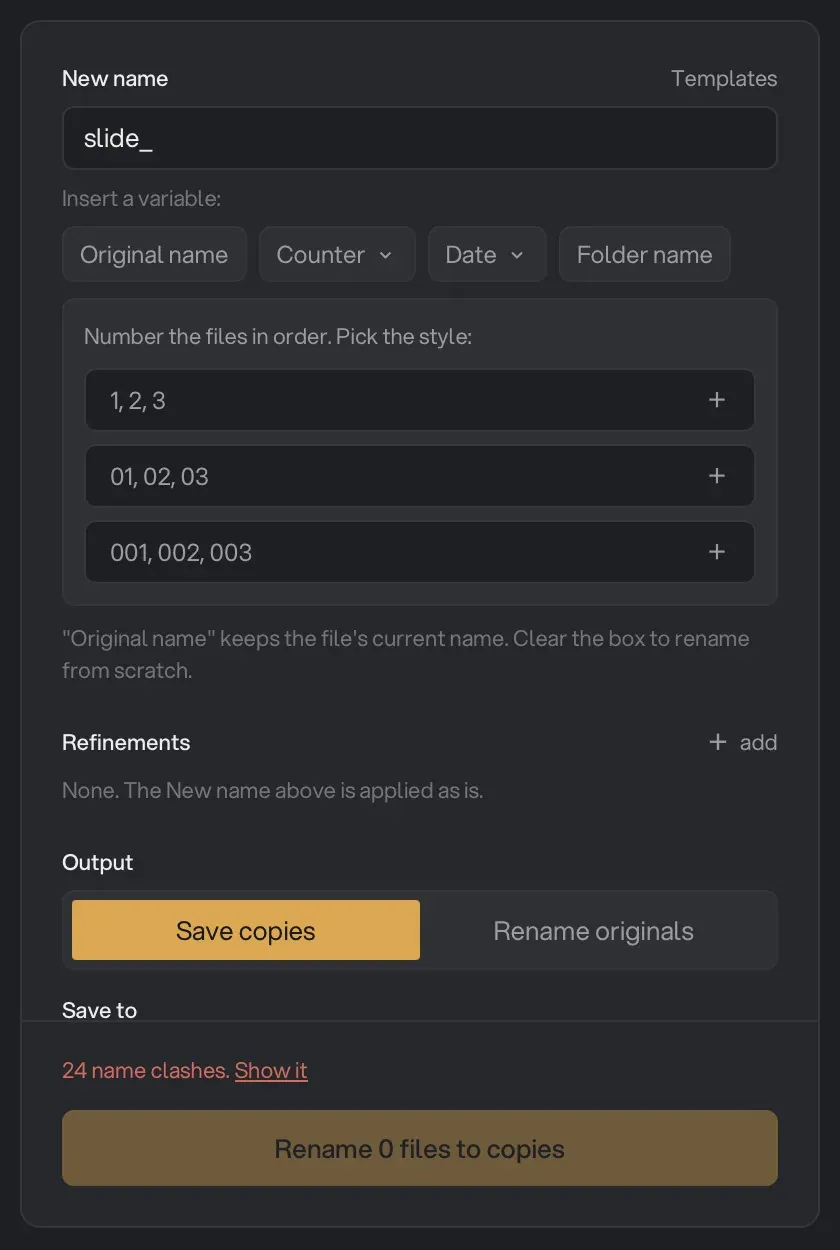
-
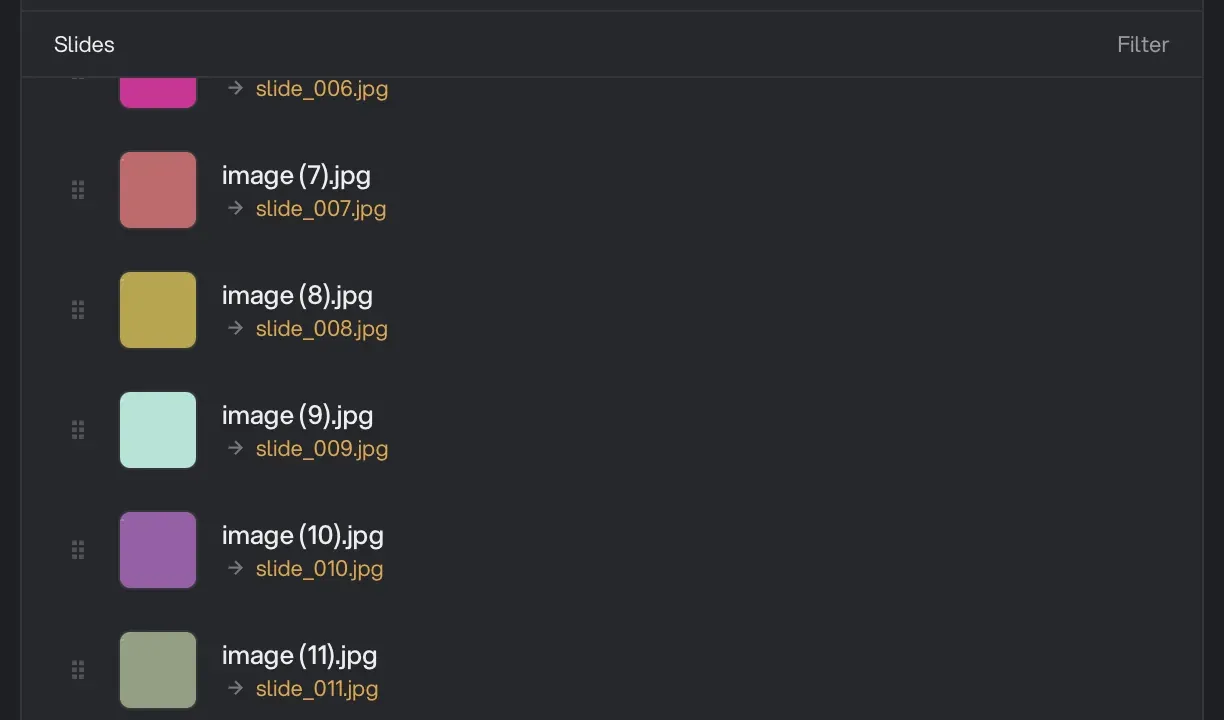
Read down the queue. Each file shows its new name under the old one.
-
Leave Save copies selected and click Rename 24 files to copies (the button shows your own file count). Your originals stay as they are.
Skip step 4 and every file gets the same name. Hangar counted 24 name clashes and kept the run button off until we added the counter.
To keep the old name, leave {name} in the box and add the counter after it: {name}_{n:3} turned DSC_0501.jpg into DSC_0501_001.jpg.
To carry on from a first batch, use the Number refinement instead of Counter. It has start, step and digits. With New name set to Lisbon_ and start at 181, our 12 files became Lisbon_181.jpg, Lisbon_182.jpg and so on. Step 10 leaves gaps for files you’ll add later: Lisbon_181, 191, 201.
When the old names already hold the right number
A counter closes gaps, so if numbers are missing, take the number from the old name instead. Add two Find and replace refinements with Regex ticked:
| Find | Replace with | Handles |
|---|---|---|
^image \((\d)\)$ |
slide_00$1 |
image (1) to image (9) |
^image \((\d\d)\)$ |
slide_0$1 |
image (10) to image (24) |
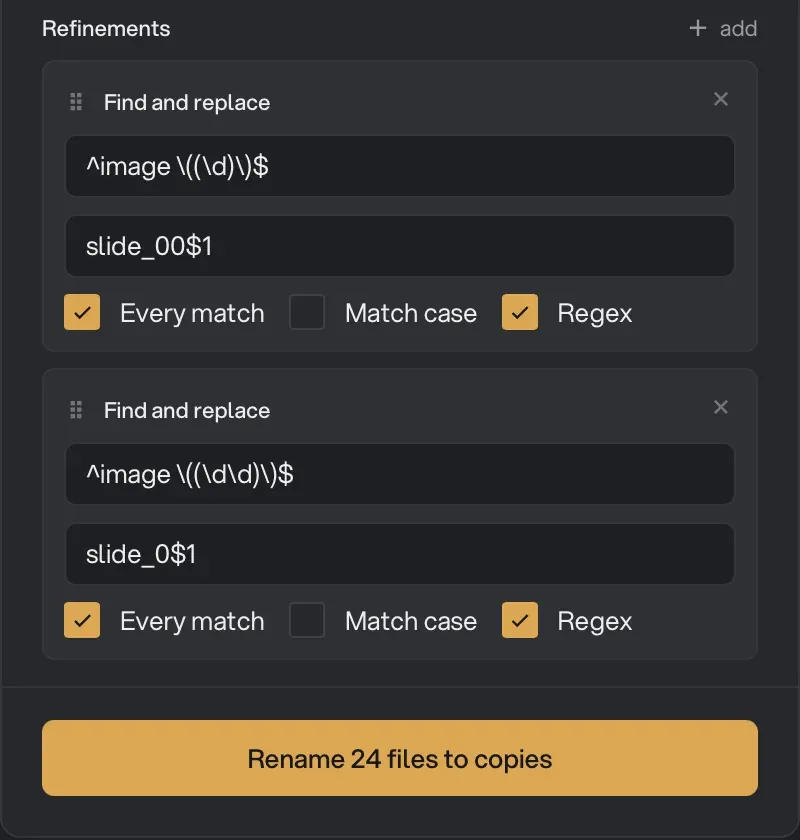
We ran this on all 24 files and checked the result on disk: slide_010.jpg was the same file as image (10).jpg, byte for byte.
Why do my numbered files sort wrong?
Because a plain sort reads a name one character at a time. “10” starts with a 1, so it lands before “2”. Run ls in Terminal on our 180 files and you get 1, 10, 100, 101, and so on.
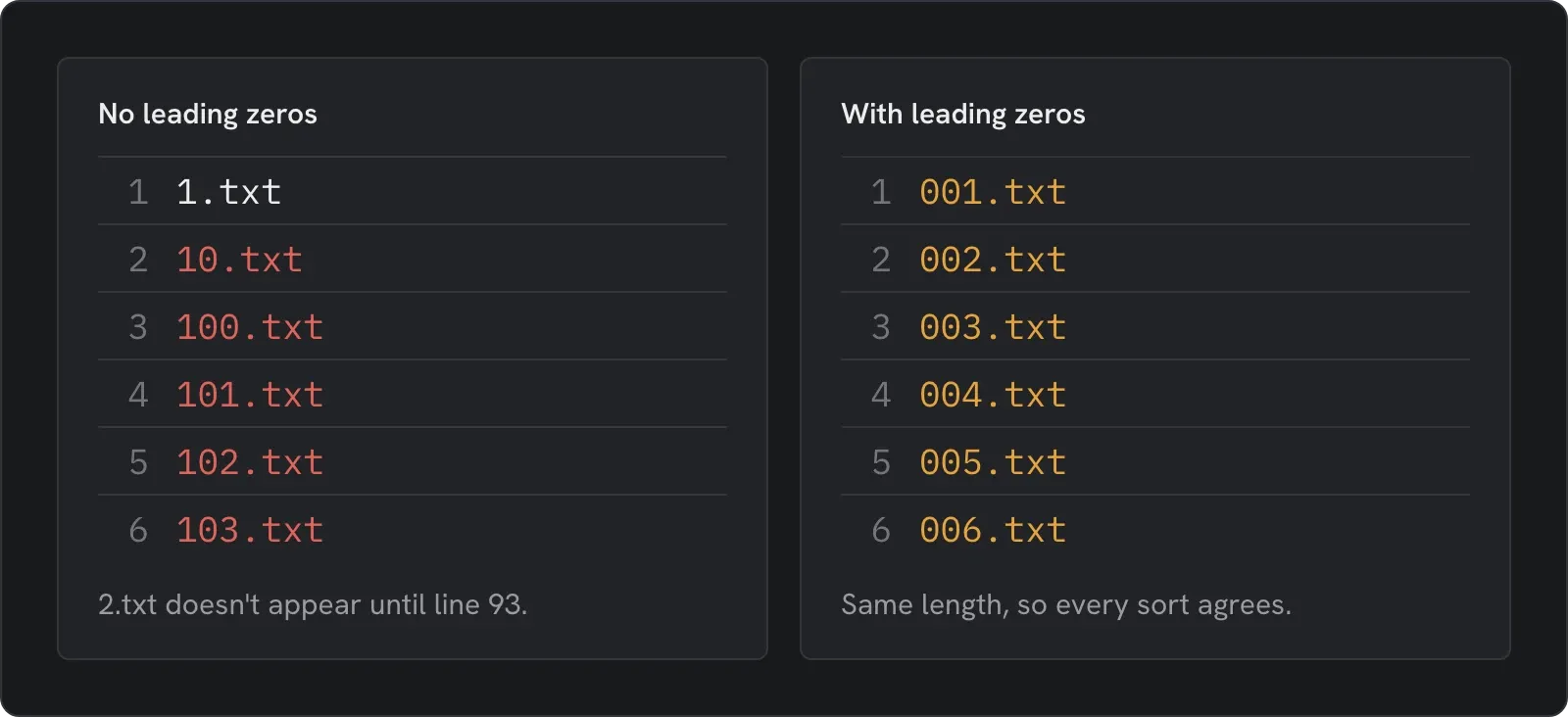
Finder and File Explorer hide this by counting the way a person would, but command-line tools and many other programs don’t. Leading zeros fix it everywhere, because every name has the same length. Pad for the final size of the set, not the current one:
| Files in the set | Digits | Example |
|---|---|---|
| Up to 99 | 2 | 07 |
| Up to 999 | 3 | 007 |
| Up to 9,999 | 4 | 0007 |
How to number files with Finder
Sort the Finder window the way you want the numbers to run, because in our test they followed the window’s sort. Select the files, choose File > Rename, pick Format, and set Name Format. The two number formats behave differently, and the labels don’t tell you:
| Name Format | Our result | Limit |
|---|---|---|
| Name and Index | slide1, slide2 … slide24 | No padding, so a plain sort breaks past 9 files |
| Name and Counter | slide00001, slide00002 | Always five digits |
Neither lets you choose the padding or a step, and Finder replaces the whole name, so nothing of the old name survives. If you picked the wrong order, press Cmd+Z straight after. It put all 24 names back in one press. More in how to undo a batch rename.
How to number files on Windows
In File Explorer, select the files, press F2, type a name and press Enter. Our 50 test files became a (1), a (2) and so on, and that’s the only format. For padded numbers, Hangar also runs on Windows, though we ran the steps above on a Mac.
Does the file extension change?
No. Hangar keeps the extension unless you add Change extension, so a mix of .jpg and .png keeps its mix.
Dates sort the same way, which is why we put them first in a name. See renaming photos by the date they were taken. For the wider rule, read renaming multiple files at once, and to change text in names, see find and replace in file names. Hangar’s other file tools are in the archive group.
Number a whole folder in order, offline, with every name shown first.