 Agencies and studios
 Photographers
 Podcasters
 Video and social creators
 Marketers and content teams

To rename photos by the date they were taken, use a tool that reads the date stored inside each photo, not the date on the file. Batch rename in Hangar does it with one template and shows every new name first. All 180 of our test photos came out right, even after we set every file date to the same day.
We tested this on macOS 27.0.1 with Hangar 0.12.3, Finder and ExifTool 13.55, using 180 test photos with shooting dates from May to September.
Rename by date taken in Hangar
-
Open Batch Rename, click Folder and pick your photos.
-
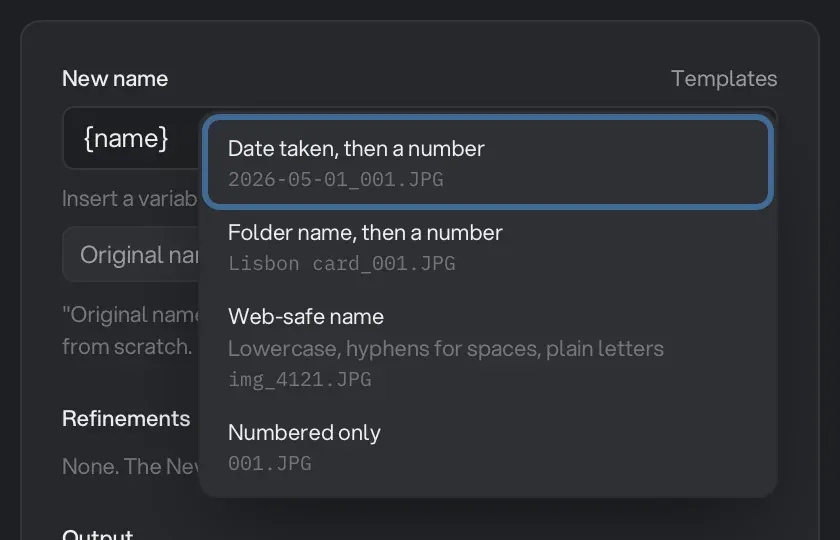
Open Templates and pick Date taken, then a number.
-
Read down the queue. The New name box now reads
{taken:%Y-%m-%d}_{n:3}, and every file shows its new name under the old one.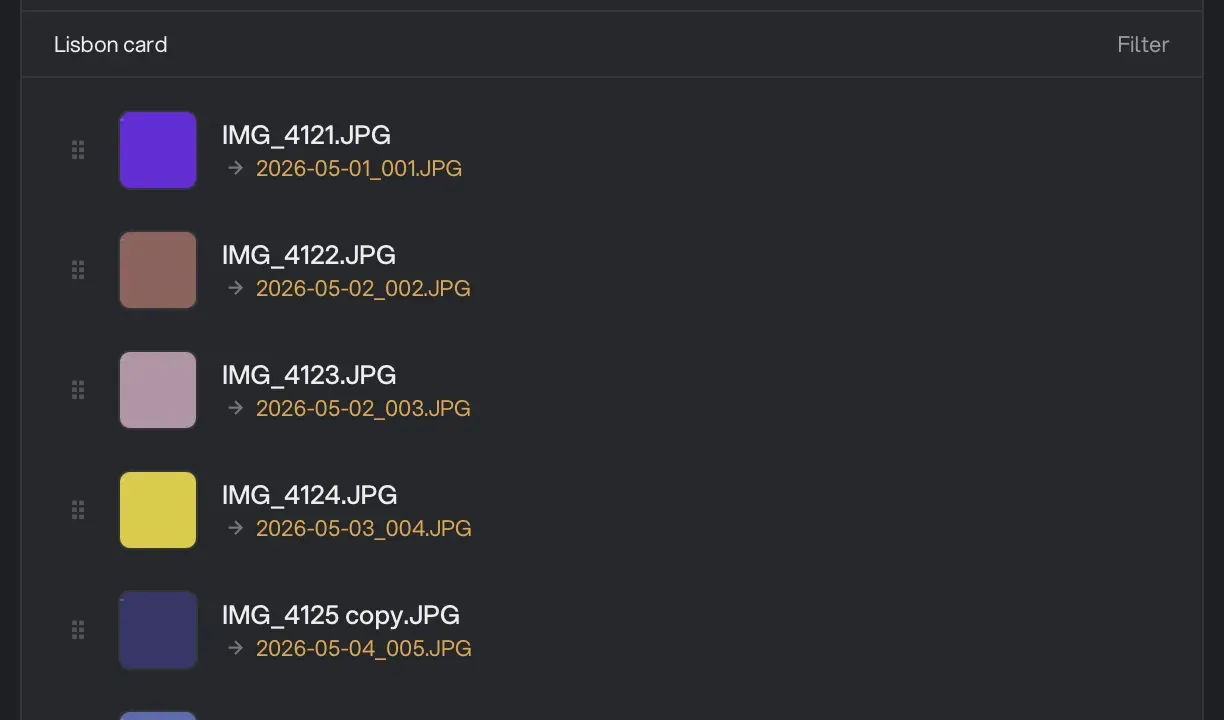
-
Leave Save copies selected and click Rename 180 files to copies (the button shows your own file count).
Keep the counter. With the date alone Hangar won’t run, since some days hold more than one photo and those names would clash.
Our run gave 2026-05-01_001.JPG to 2026-09-12_180.JPG, and all 180 dates matched the date inside each photo. The same pattern with {modified:%Y-%m-%d} named all 180 after the one day we’d set on the files.
File dates still work on a folder whose dates are right: on our untouched folder, Date modified matched all 180. A photo with no date inside falls back to its file date, and so do Camera RAW files. We didn’t test those.
Which date is “date taken”?
A photo has three dates, and they can all be different:
- Date taken is stored inside the file as EXIF data, and ExifTool calls it DateTimeOriginal. It’s set when the photo is taken.
- Date modified belongs to the file on your disk, and is the last time its contents were written.
- Date created also belongs to the file on your disk, and is when that copy appeared there.
Only the first travels with the photo. We took one photo shot on 2 May 2026 at 03:13 and copied it four ways:
| How the copy was made | Date taken | Date modified | Date created |
|---|---|---|---|
| Copied, keeping dates | 2 May 03:13 | 2 May 03:13 | 2 May 03:13 |
Plain copy with cp |
2 May 03:13 | Today | Today |
| Re-saved by an image tool | 2 May 03:13 | Today | Today |
| Metadata stripped | None | Today | Today |
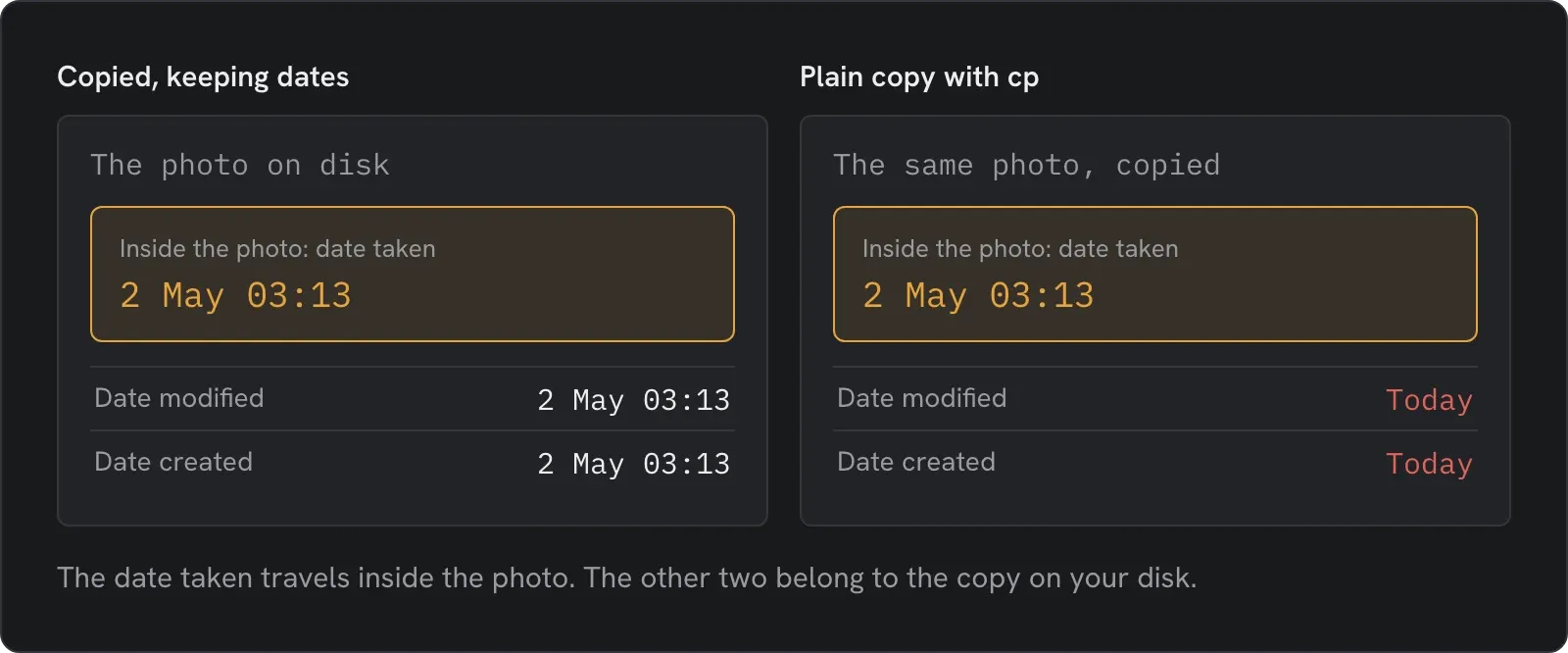
That’s why a folder sorted by date can come out in the wrong order after a transfer. We haven’t run photos through the Photos app, AirDrop or WhatsApp, so check your own files.
How to check what date your photos have
- On a Mac, select a photo in Finder and press Cmd+I. Get Info shows Created and Modified.
- On Windows, right-click a photo and choose Properties, then Details, and look for Date taken.
Why Finder and File Explorer can’t do this
Finder’s Rename has a Name and Date format, but it uses today’s date and the current time. Our photos from May previewed as slide2026-10-31 at 10.36.50 AM.jpg. File Explorer’s F2 only gives you a name and a number in brackets.
Rename by date taken in a terminal
ExifTool is free and runs in a terminal. Move into the photo folder and run this:
exiftool '-FileName<DateTimeOriginal' -d '%Y-%m-%d_%H%M%S%%-c.%%e' .It names each file by year, month, day and time. The %%-c adds a copy number if two photos share the same second, and %%e keeps the extension.
All 180 of our photos were renamed correctly. There’s no preview and it changes the originals, so run it on a copy of the folder first. We only ran it on a Mac.
Mixing phones and cameras
Files from different devices only sort together if their clocks agreed. A camera still set to home time after a flight is hours out from your phone, and no renamer can know that.
Fix the clock first. ExifTool’s FAQ shows how: exiftool -alldates+=1 -P DIR moves the dates inside a folder of photos forward an hour, and -alldates-=1 moves them back. Run it on a copy. We took this from the FAQ and didn’t run it.
Then put the date first in the name, because names like 2026-05-01_001 sort correctly in any app. Our guide to numbering files explains why. Photographers can then split the folder by month with Sort & route.
One order to keep: rename before you strip metadata. Stripping removes the date taken, and after that no tool can recover it. If you’re coming from Windows, see how Hangar compares in our look at Bulk Rename Utility on a Mac.
Rename a card import by date, with every new name shown first.