 Agencies and studios
 Photographers
 Podcasters
 Video and social creators
 Marketers and content teams
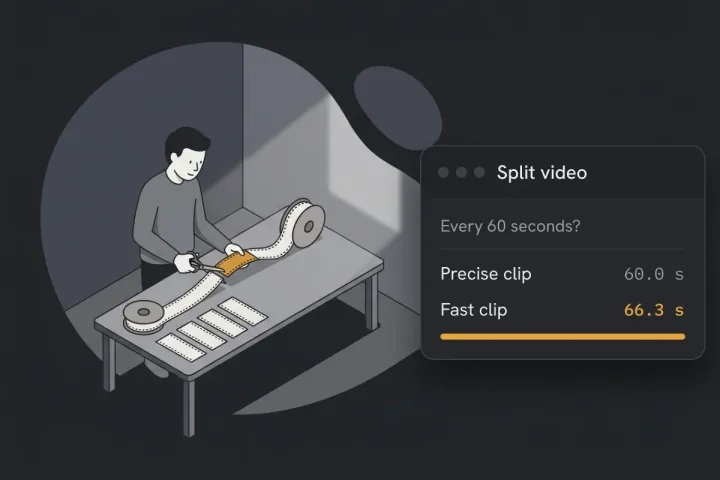
To split a video into 60-second clips, use a splitter that cuts by time, set it to 60 seconds, and choose the mode that re-encodes for exact cuts. The instant mode copies the video, and a copy can’t cut at an exact time. On our test video it turned “60 seconds” into clips of 62 and 66.
We tested this on 11 November 2026 with our own 4 minute 41 second tutorial, on an M1 MacBook Pro. We ran the Split video engine from Hangar 0.12.5 directly, with the settings the app sends, so the times are the engine’s own. The numbers are in the table further down.
Do you need 60 seconds? The limit on each platform
Not always. An Instagram story clip is 60 seconds and a WhatsApp status is 90. X takes 140 seconds on a free account, and a YouTube Short can run 3 minutes. Pick the clip length from where you post, then split once.
| Where you post | Longest video | Set the splitter to |
|---|---|---|
| Instagram Stories | 60 seconds per clip | 60 |
| Telegram Stories | 60 seconds per story | 60 |
| Snapchat My Story, from the web | 5 to 60 seconds | 60 |
| WhatsApp Status | 90 seconds | 90 |
| X, free account | 140 seconds, 512 MB | 140 |
| YouTube Shorts | 3 minutes, square or vertical | 180 |
Each link goes to the platform’s own help page, read on 13 November 2026. Limits move, so check the page before a big job. Many guides still give 30 seconds for a WhatsApp status and 15 for an Instagram story. The platforms’ own pages say 90 and 60.
You don’t need to split for Instagram Reels (up to 20 minutes), TikTok (10 minutes recorded in the app, 60 minutes uploaded), Facebook Reels (no length limit) or LinkedIn (15 minutes). Instagram does say it won’t recommend a reel longer than 3 minutes to people who don’t follow you.
What happens to a clip that’s too long depends on the platform:
- WhatsApp shares only the first 90 seconds and drops the rest.
- Instagram and Telegram cut a longer story into 60-second clips themselves. A clip that runs a few seconds over gets cut again.
- Snapchat’s web upload asks for a video of 5 to 60 seconds.
Why are my 60-second clips longer than 60 seconds?
Because the fastest way to split a video copies it without re-encoding (compressing it again), and a copy can only begin on a keyframe. A keyframe is a full picture that the video stores every few seconds. When there’s no keyframe at the 60-second mark, the cut lands on a keyframe nearby, and the clip comes out longer or shorter than you asked.
Here is our video, cut every 60 seconds both ways in Hangar’s Split video:
| Fast (copy) | Precise (exact cut) | |
|---|---|---|
| Time to split | 1 second | 48 seconds |
| Clip 1 | 60.0 s | 60.0 s |
| Clip 2 | 66.3 s | 60.0 s |
| Clip 3 | 61.9 s | 60.0 s |
| Clip 4 | 65.5 s | 60.0 s |
| Clip 5 | 43.0 s | 41.2 s |
| All five, end to end | 4 min 57 s | 4 min 41 s |
| Total size | 60 MB | 38 MB |
| Picture | The original, untouched | Re-encoded |
Both runs were on the M1 MacBook Pro. Sizes are as Hangar shows them. The original is 57 MB.
In the Fast run, clip 2 began at 53.7 seconds of the original, the nearest keyframe before the 60-second cut. So it ran 66.3 seconds and replayed the last 6.3 seconds of clip 1. Nothing was lost, but 15.5 seconds of video appeared twice across the five clips.
How far off you land depends on the file. The gap between keyframes is set by whatever recorded or exported the video. In ours, an exported screen tutorial, keyframes were up to 8.3 seconds apart. You can’t tell by looking.
Other copy tools hit the same limit differently. ffmpeg’s segment copy, the usual free command, cuts at the next keyframe after the mark. On our file it gave clips of 62.0, 61.6, 59.3, 57.4 and 40.9 seconds, with nothing repeated. That is closer than Hangar’s Fast, and still over 60 twice. ffmpeg’s documentation warns that the split isn’t accurate unless keyframes sit at the cut times.
A cut at the exact second needs a re-encode.
How to split a video into exact 60-second clips in Hangar
Hangar is a desktop app for Mac and Windows. Split video cuts every video you give it into clips of the length you set. It runs on your computer and your video isn’t uploaded, so a long recording starts splitting right away.
- Open Split Video. It’s under Tools, in the Video tab.
- Drop your video on the queue. Add several if you have them, and they’ll all be split the same way.
- Under Split by, click By duration.
- Set Seconds per piece to 60. Use 90 for WhatsApp Status, 140 for X or 180 for Shorts.
- Under Mode, click Precise.
- Click Run split.
- When it’s done, click Open folder to see the clips.
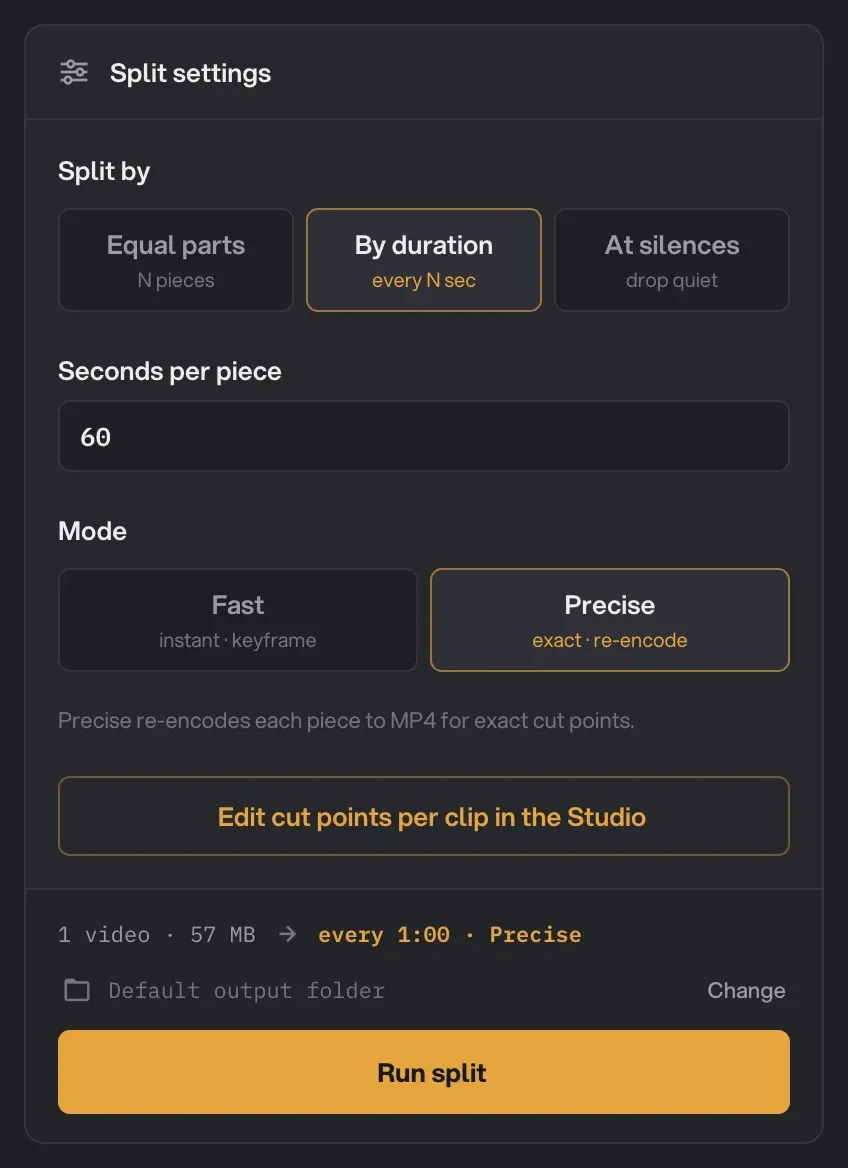
Precise saves the clips as new MP4 files, Fast keeps the original’s format, and both leave your original where it was. Each clip keeps the video’s name with a number added, so ours came out as captions-tutorial-1.mp4 to captions-tutorial-5.mp4. Post them in that order. With ten or more clips, check the order first, because some file pickers list -10 before -2.
We ran every test on a Mac. On a Windows PC with no hardware H.264 encoder, Precise saves AV1 video, a newer format, inside the MP4. Check that one clip plays where you post before you split the rest. Every setting is explained in the Split video guide.
The clips are also listed in the app. Click 5 files under the video.
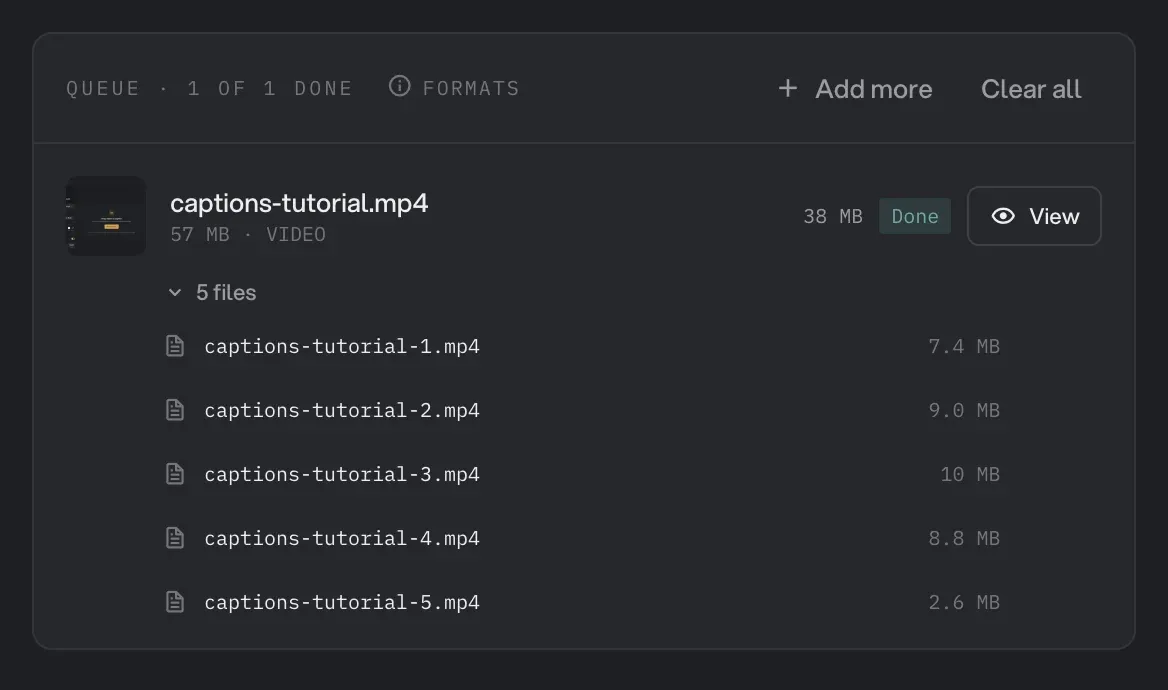
The last clip holds whatever is left. Ours was 41.2 seconds. At 90 seconds per piece, the same video made four clips: three of 90.000 seconds and one of 11.2. That run took 50 seconds on the same Mac. At 30 seconds per piece it made ten clips: nine of 30.000 seconds and one of 11.2.
When Fast is the better choice
Use Fast when nothing enforces a length: cutting a long recording into chunks to store or send, or posting somewhere that takes long videos. It split our 4 minute 41 second video in 1 second on the M1, and each clip is a copy of the original. We compared the video data in Fast clip 1 with the first 60 seconds of the original, and they matched exactly.
Precise compresses the picture and sound again, so it isn’t an exact copy. Precise clip 2 scored 0.991 for similarity to the original, where 1.0 is identical, and we couldn’t see a difference side by side. The four full Precise clips were 7.4 to 10 MB each at 1080p.
How to stop a clip ending mid-sentence
A fixed length cuts wherever the 60 seconds run out. To cut at pauses, place the cuts yourself in the Studio, a full-screen view with a player and a timeline.
- In Split Video, click Edit cut points per clip in the Studio.
- Play the video, stop at a pause before the 60-second mark and click + Cut here.
- Note the time shown under the timeline, such as 0:57. Put the next cut at a pause less than 60 seconds after it, and carry on to the end.
- Click Precise next to the buttons, close the Studio and click Run split.
The Studio shows how many pieces you’ll get, not how long each one is. Leave a few seconds of margin on each cut and check the clip lengths after the run.
At silences doesn’t do this job. It keeps each spoken stretch as its own clip and drops the pauses, so the lengths vary. On our tutorial it made 64 clips, from 0.1 to 16 seconds long.
What if the video is on your phone?
Try the app you post from first.
- Instagram and Telegram cut a long story into 60-second clips for you.
- WhatsApp’s status editor has a slider at the top to trim the video. It doesn’t turn a long video into several statuses.
- Phone splitter apps do the whole job. Check a test export for a watermark, and check the clip lengths.
A computer is the better place when the video is already on it, such as a screen recording or an export from your editor. It also suits a batch of videos, and clips that must be an exact length.
Other ways to split a video on a computer
- ffmpeg is free and runs from the command line:
ffmpeg -i input.mp4 -c copy -f segment -segment_time 60 -reset_timestamps 1 part-%02d.mp4. It took 0.2 seconds on our file. It’s a copy, so the clips land on keyframes, as shown above. It can also cut exactly if you re-encode and force keyframes at the cut times. - LosslessCut is free and open source, for Mac, Windows and Linux. It cuts without re-encoding and can divide a video into segments of a set length. Its documentation says a lossless cut can only start at a keyframe. We didn’t test it for this post.
- Clipchamp comes with Windows. You can split a video on its timeline, but it exports the timeline as one video. Someone with a 5-minute video to turn into 30-second clips asked Microsoft’s forum: “Any way to do this without doing ten projects?” The most helpful answer was to export one clip, undo, and repeat. That thread is from 2023, so your version may have changed.
- A video editor you already use is fine for one video. It usually means one export per clip.
- Most online splitters need the whole video uploaded before they can cut it, which is slow for a long file. A few work inside the browser. We wrote about when uploading a file is fine and when it isn’t.
After the split: make the clips vertical
A wide video in a vertical story shows as a small strip. Resize video has formats for a YouTube Short, an Instagram Reel and a TikTok, and fills the frame with a crop or a blurred background. Hangar’s other tools for this kind of work are on the page for video creators.
Quick answers
Does splitting a video reduce the quality?
Not with a copy. Hangar’s Fast mode and ffmpeg’s -c copy move the original picture and sound into the clips unchanged. An exact cut re-encodes, which changes the picture slightly. In our test the re-encoded clip scored 0.991 for similarity, where 1.0 is identical.
How many clips will I get?
Divide the video’s length by the clip length and round up. Our 4 minute 41 second video made five clips at 60 seconds and four at 90. The last clip is the short one. A leftover under a tenth of a second is added to the clip before it.
Can I split several videos at once?
Yes. Every video in the queue is split with the same setting, in one run. A video with its own cut points from the Studio uses those.
Can I post a long video on WhatsApp Status without splitting it?
Not in one go. WhatsApp shares the first 90 seconds and nothing after it. Split the video into 90-second clips and post them in order, or send the whole video in a chat.
Split your video into exact clips on your own computer with Hangar. It’s free to try for 3 days, with no account.