 Agencies and studios
 Photographers
 Podcasters
 Video and social creators
 Marketers and content teams
Hangar puts a small icon in your Mac's menu bar, or in the system tray on Windows. Click it to run a quick job on a few files, or to download a video from a link, without opening the main window. It also shows what Hangar is working on and your recent runs.
Open the menu bar window
Click the Hangar icon in the menu bar (the system tray on Windows). A small window opens below it. Click the icon again, or press Esc, to close it. The window stays open when you click elsewhere, so you can drag files into it from a folder.
Right-click the icon for a short menu: Open Hangar, Settings… and Quit Hangar.
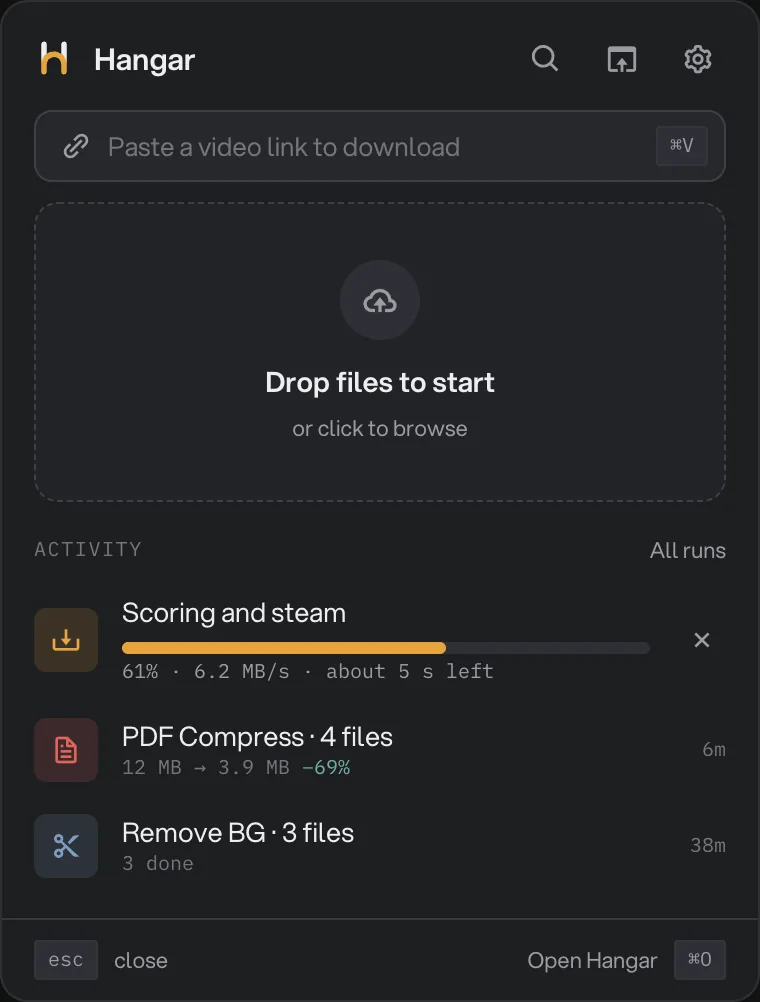
- Paste a video link
- Drop files
- Activity
- Settings and Quit
Across the top, the magnifier searches all tools in the main window, the next button opens Hangar, and the gear offers Menu bar settings… and Quit Hangar.
Run a quick job on your files
Drag files onto Drop files to start, or click it to pick them. Hangar shows how many files you added, their formats and their total size, then lists the tools that take all of them. Folders are not accepted: add the files inside instead.
Click a tool, or press its number key. The first one also runs with Return. Type in the filter box to narrow the list. Tools that need more room, such as Studios, are listed under Open in Hangar and open in the main window with your files. Your saved chains are listed under Chains when their first step takes all the files you added. Click one and it starts right away with its saved steps.
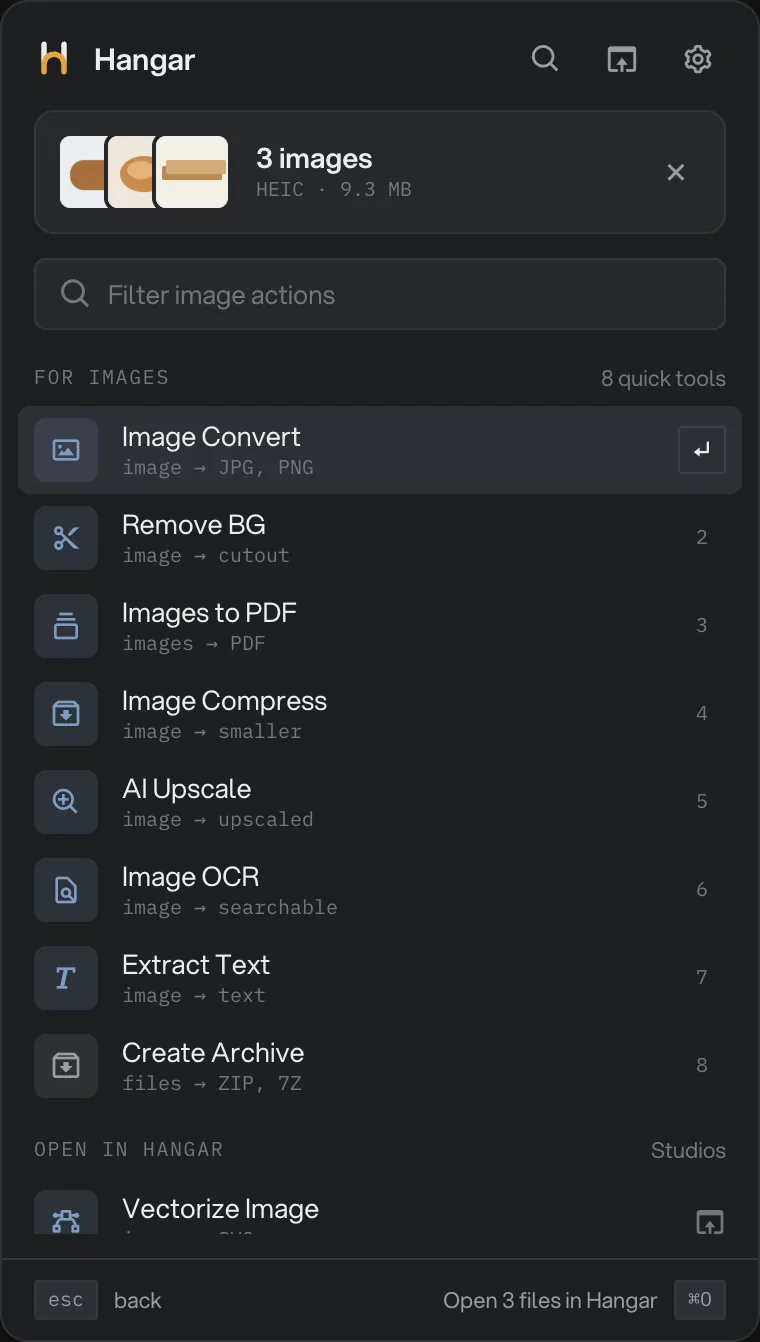
- Your files
- Quick tools
- Open in Hangar
- Open the files in Hangar
Next, Hangar shows the settings it will use: the ones from your last run of that tool, or its defaults. Click the button, such as Run on 3 images, to start. The job runs in the background, so you can close the menu bar window. To use other settings, click Change settings in Hangar instead.
While it runs, you see how many files are done and a Stop button. When it finishes, click Reveal to see the new files, or Chain another tool to run another tool on them. Files are saved to your workspace's output folder.
Download a video from a link
Paste a link into Paste a video link to download. Hangar reads it and shows the video's picture, title, length and approximate size. Pick a format (MP4, Best quality, Audio MP3 or Audio original) and click Download. The line below shows the folder it saves to; click Change to pick another.
For a playlist, click Download all, or Pick videos in Hangar to choose which ones in the main window. Downloads you start here join the same list as the Video downloader tool. The first time, the window offers to set the downloader up. Only download videos you have the rights to use.
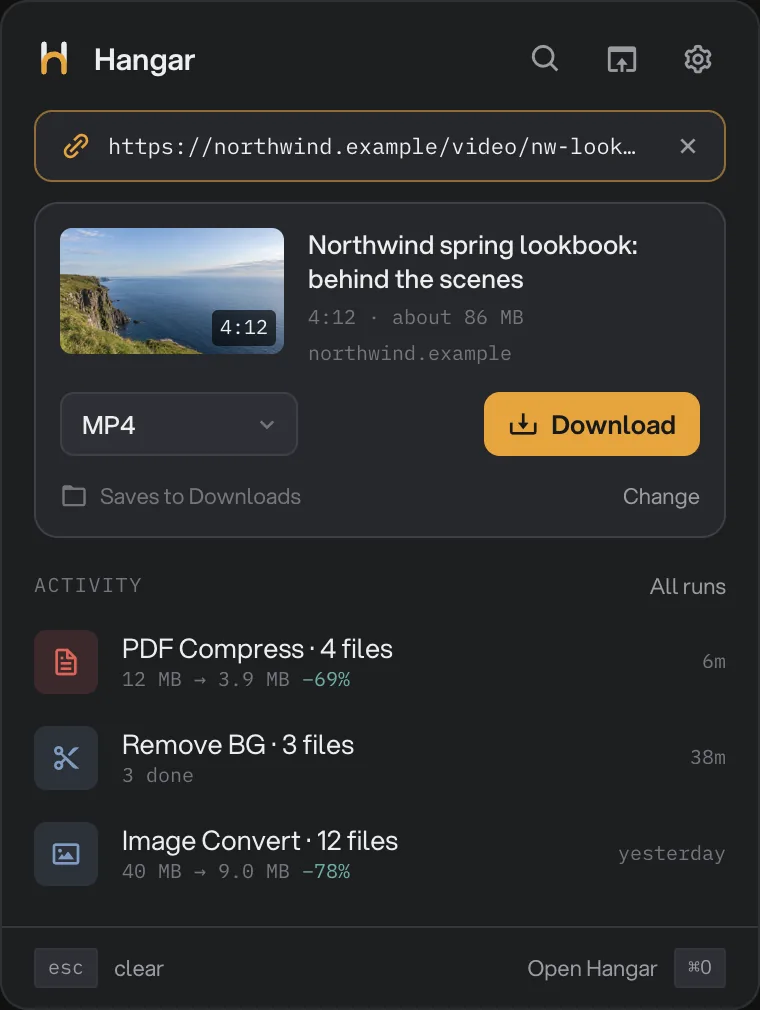
- The video
- Download
- Where it saves
Follow your runs and downloads
The Activity list shows downloads in progress, with a × to cancel, and your most recent runs with how much smaller the files got. Reveal in Finder (Show in Explorer on Windows) opens the files of a finished run, and Try again reruns one that failed. All runs opens the full run history in Hangar.
Turn the icon on or off
Open Settings and click Menu bar (System tray on Windows). Two switches, both on at first:
- Show Hangar in the menu bar (in the system tray on Windows): shows the icon, so you can drop files on it without opening the window.
- Keep running when the window closes: closing the main window leaves Hangar running in the menu bar, and runs finish in the background. To quit, use Quit Hangar from the icon. This switch needs the icon to be on.
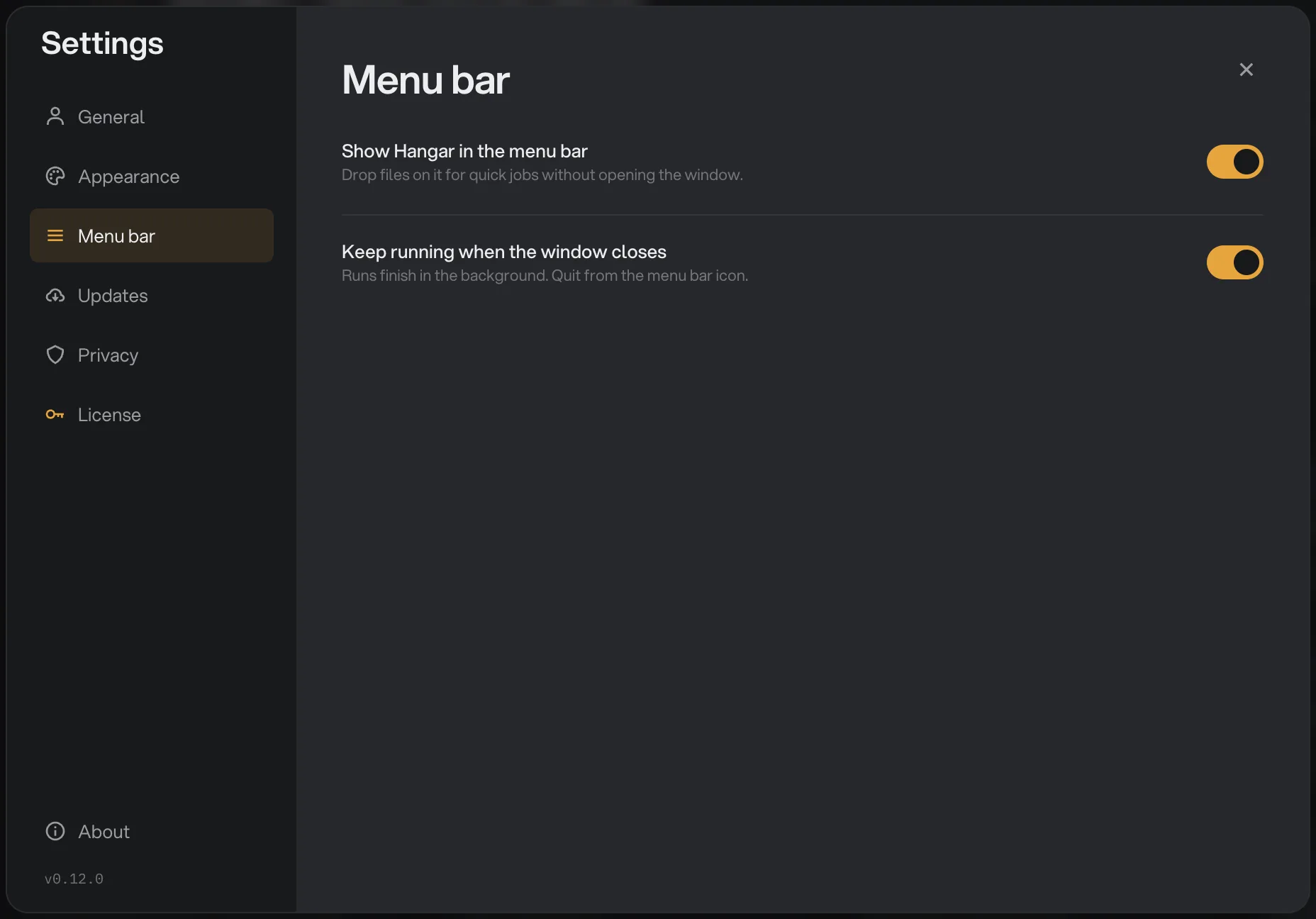
- Menu bar
- Show the icon
- Keep running
If you quit while a run is in progress, Hangar asks first, since quitting stops the run.
Common questions
Does it work on Windows?
Yes. On Windows the Hangar icon sits in the system tray, at the bottom right of the screen, and the Settings section is called System tray. Everything else works the same.
Which settings does a quick job use?
The settings from your last run of that tool, or its defaults if you have never run it. To change them, click Change settings in Hangar, which opens the tool in the main window.
Where are the finished files saved?
In the output folder of your current workspace, the same place a run from the main window would save them. Click Reveal when the job is done to see them.
How do I remove the icon?
Open Settings, choose Menu bar (System tray on Windows) and turn off Show Hangar in the menu bar. Hangar then quits when you close its window.
Still stuck?
One person reads every message, usually with a reply within a day.