 Agencies and studios
 Photographers
 Podcasters
 Video and social creators
 Marketers and content teams
What does the Video downloader do?
The Video downloader saves videos from a link to your computer. In the app the tool is called Video Downloader. Paste one link, a playlist, or several links at once. Hangar shows each video with its title, length and size, then saves it as MP4, in the best quality the site has, or as sound only.
Only download videos you have the rights to use, such as your own uploads, openly licensed videos, or videos the owner lets you save.
Step 1: Open the tool and set it up once
Click Tools in the sidebar, open the Create tab and click Video Downloader in the From scratch section. You can also type "download" in the search box at the top.
The first time, the tool needs a one-time setup, about 55 MB on a Mac and 18 MB on Windows. Click Set up. Hangar downloads the downloader, checks that the download is genuine and tests it. The steps show as Download, Check signature and Test. Click Cancel to stop, or Try again if it fails.
After that, Hangar keeps the downloader up to date in the background, so sites keep working when they change.
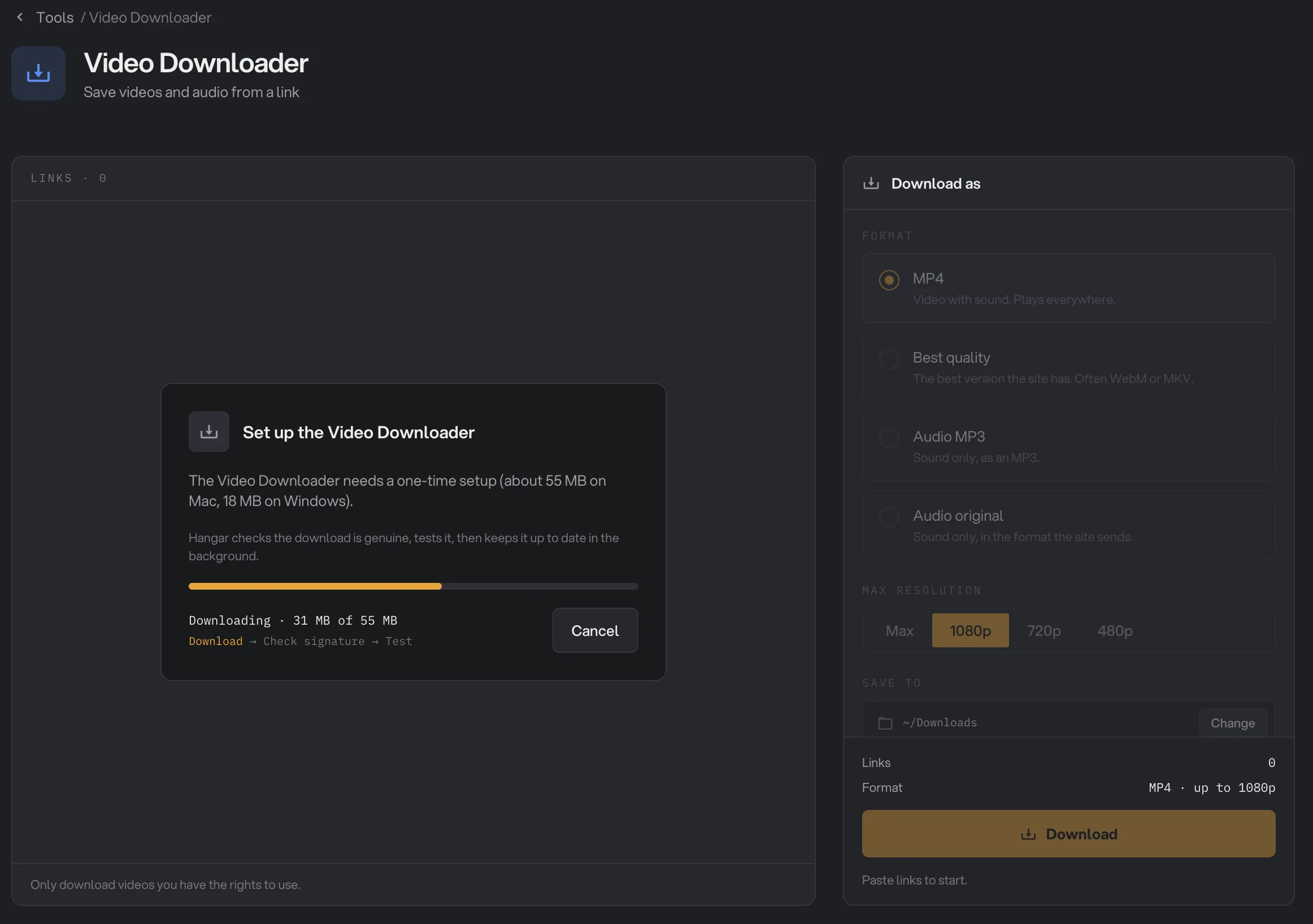
- Setup
- Download step
- Cancel
Step 2: Paste your links
Click the box that says Paste links here. Several at once is fine. and paste a link, or press Enter after typing one. You can paste:
- One video: the address of the video page.
- A playlist: Hangar lists every video in it.
- Several links: one per line, all in one paste.
Each link shows Reading… for a moment, then its title, Length and Size, and Ready. Text that is not a link is turned away with "Not a link".
A playlist shows how many videos it has and how many are picked. Click Show videos to see them, and untick any you do not want; unticked videos show Skipped. Tick the box beside the playlist to pick or drop them all, and click × to remove the playlist. Playlists of more than 50 videos start folded.
Very large videos wait for you. A video over 2 GB, over 3 hours long, or live shows a note such as "Large: 2.4 GB, 3 h 41 min. Confirm to include it." Click Download anyway to include it.
Links Hangar cannot read move to Couldn't read at the bottom of the list, with the reason under each one. Remove all clears them. Clear list at the top empties the whole list.
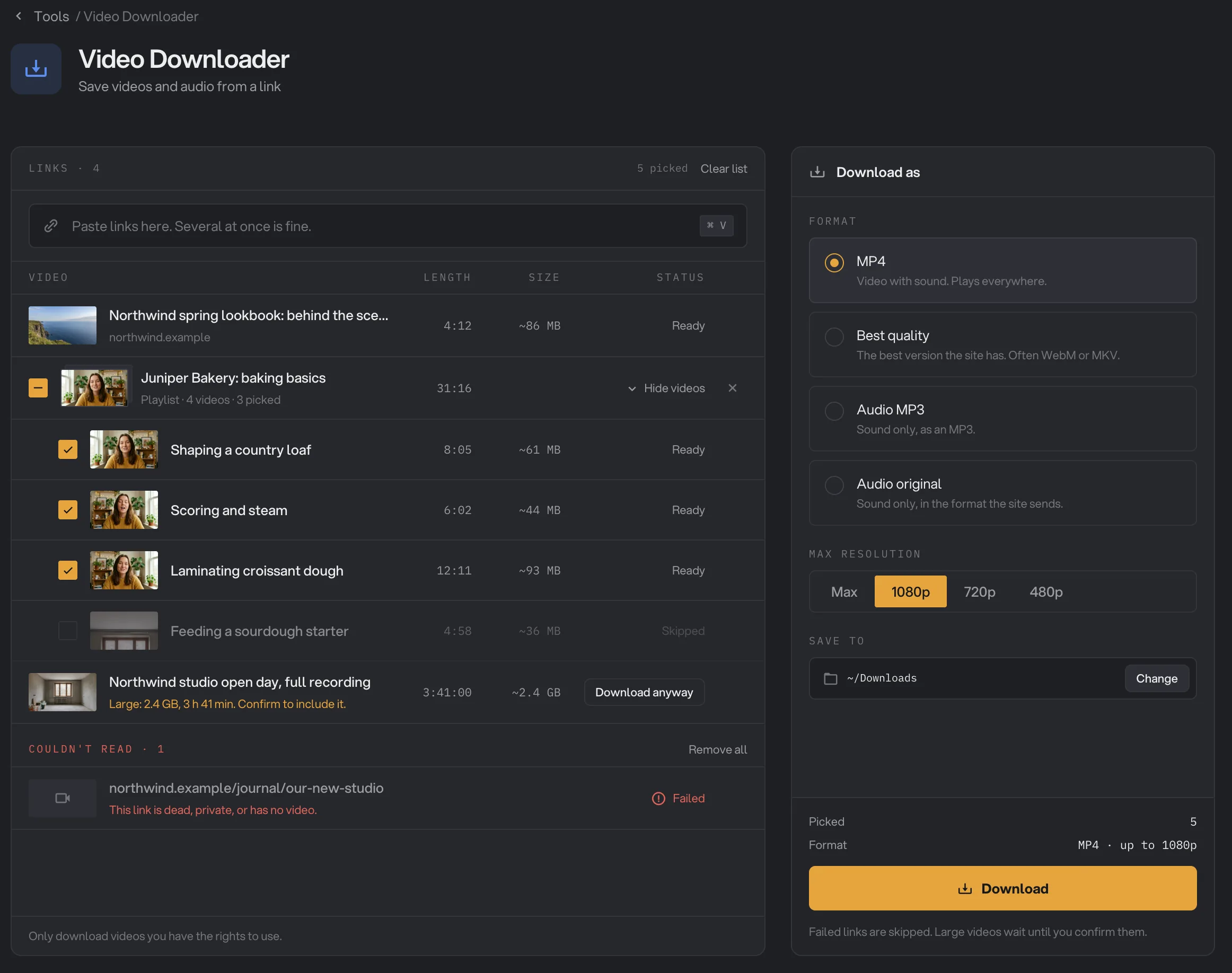
- Paste links
- Playlist
- Download anyway
- Format
- Max resolution
- Save to
- Download
Step 3: Choose the format and folder
On the right, under Download as, pick a Format. It applies to every video in the list.
- MP4: video with sound that plays everywhere. The default.
- Best quality: the best version the site has, often WebM or MKV, which some players and editors do not open.
- Audio MP3: sound only, as an MP3.
- Audio original: sound only, in the format the site sends.
With MP4, Max resolution caps the picture size at 1080p (the default), 720p or 480p, or Max for the largest size the site has. A lower resolution makes a smaller file. A video smaller than the cap keeps its own size.
Save to shows the folder the files go to: the one you used last time, or your Downloads folder at first. Click Change to pick another.
Step 4: Download
The panel shows how many videos are Picked and the format you chose. Click Download. Two videos download at a time, and the rest wait their turn.
Each row shows how far it has got, with the speed and the time left. Merging… means Hangar is joining the picture and the sound, and Converting… means it is making the audio file. A finished row shows Done and the file name. A row that fails shows the reason, and Try again when trying again can help.
Cancel all stops what is downloading and keeps the finished files.
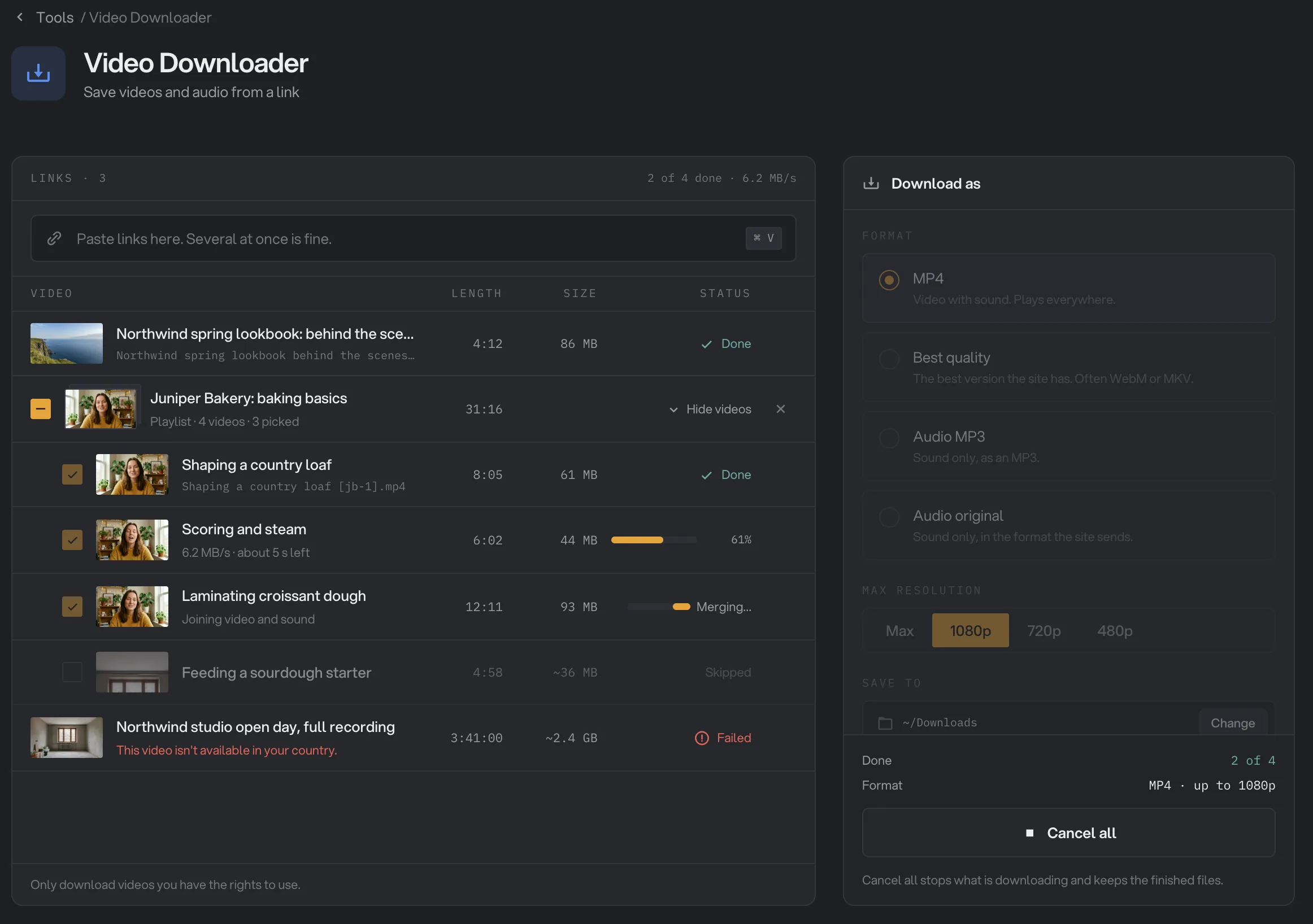
- Progress
- Done
- Merging
- Why it failed
- Cancel all
When the list finishes, a receipt shows how many files were saved. Click Open folder to see them, or Use in another tool to put the finished downloads in your file queue on Home, where you pick the next tool, such as Trim video or Transcribe.
Files are named after the video title, followed by the video's id in brackets, for example Shaping a country loaf [jb-1].mp4.
Every setting, and when to change it
- Format
The kind of file saved for every video in the list.
- RangeMP4, Best quality, Audio MP3, Audio original
- DefaultMP4
- Max resolution
With MP4, the largest picture size to save. Lower makes a smaller file.
- RangeMax, 1080p, 720p, 480p
- Default1080p
- Save to
The folder every file is saved in.
- DefaultThe last folder used, or Downloads
- Playlist videos
Which videos of a playlist are downloaded.
- DefaultAll ticked
- Download anyway
Includes a video over 2 GB, over 3 hours long, or live.
- Keep the Video Downloader up to date automatically
In Settings, Updates. Hangar checks for a new downloader every 6 hours and installs it after testing it.
- DefaultOn
How to get the best results
- Pick MP4 unless you need more. It opens in every player, editor and Hangar tool. Best quality can be larger and is often WebM or MKV.
- Lower the resolution to save space. 720p is plenty for a phone or a lesson you watch once.
- Choose audio for talks and interviews. Audio MP3 is a fraction of the size of the video.
- Untick what you do not need. In a long playlist, untick lessons you already have before you click Download.
- Leave updates on. Sites change often. With automatic updates on, Hangar fixes the downloader before you notice.
Why a download fails
Hangar shows the reason under each link. The most common ones:
- "This link is dead, private, or has no video." Open the link in your browser to check it still plays, then copy the address again.
- "This video needs an account, which isn't supported yet." Videos you must sign in to see, including age-restricted ones, cannot be downloaded.
- "This video is only for paying members or subscribers." or "This video is copy-protected, so it can't be downloaded." These cannot be saved.
- "This video isn't available in your country." The site does not offer it where you are.
- "This stream hasn't started yet. Try again once it's live." Click Try again once the stream has started.
- "The site refused the request.", "The site is having trouble right now." or "The site took too long to answer." Wait a few minutes, then click Try again.
- "This site changed. Hangar is updating the downloader…" Hangar is installing a fix. Click Try again when it is done.
- "This video doesn't come in the format you picked." Pick another Format, such as Best quality, and try again.
- "Your disk is full." or "Hangar can't save to this folder." Free up space, or click Change to pick another folder.
- "Your computer's security software stopped the downloader." Allow Hangar in your security software, then click Try again.
- "The downloader's files are missing. Set it up again." Run the one-time setup again.
- "You're offline." Connect to the internet, then click Try again.
Limits
- Needs an internet connection to read links and download. The one-time setup is about 55 MB on a Mac and 18 MB on Windows.
- No videos that need you to sign in, members-only videos or copy-protected videos.
- Saves the whole video or its sound. No subtitles, and no cutting before download.
- One format for the whole list. Two videos download at a time.
- The list lasts while Hangar is open. The files stay in your folder.
- Video Downloader cannot be added as a step in a chain.
Common questions
Which videos can I download?
Only download videos you have the rights to use, such as your own uploads, openly licensed videos, or videos the owner lets you save.
Which sites does it work with?
Most video sites, large and small. Paste the link and Hangar shows whether it can read it before anything downloads. If a site is not supported, the link shows "This site isn't supported."
Can it download videos that need me to sign in?
No. Private videos, videos that need an account, videos for paying members and copy-protected videos cannot be downloaded.
Can I download subtitles, or only part of a video?
Not yet. Hangar saves the whole video or its sound. To keep only part of it, open the download in Trim video.
Is my list kept after I quit Hangar?
No. The list lasts while Hangar is open. Finished files stay in your folder, but the list starts empty the next time you open Hangar.
Can I download from the menu bar?
Yes. Paste a video link in the Hangar menu bar or system tray window to download it without opening the main window. It joins the same list.
Still stuck?
One person reads every message, usually with a reply within a day.