 Agencies and studios
 Photographers
 Podcasters
 Video and social creators
 Marketers and content teams
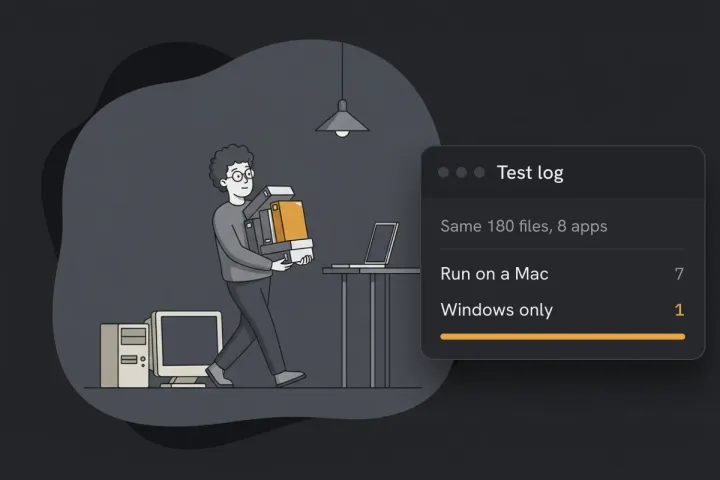
Stop and press undo before you do anything else. On a Mac, click the Finder window and press Cmd+Z. On Windows, click the File Explorer window and press Ctrl+Z. In our tests one press put a whole batch back on both systems.
If you used Rename originals in Hangar, click Undo last rename. It’s still there after you clear the queue, or quit and reopen the app.
We tested this on macOS 27.0.1 and on Windows in a virtual machine, with batches of 24 to 50 files, and in Hangar 0.12.2 and 0.12.3.
Undo a batch rename on a Mac
Click anywhere in a Finder window and press Cmd+Z, or choose Edit > Undo. The whole batch counts as one step, so one press restored all 24 files in one test and all 46 in another.
Undo is a stack, so order matters. If you copied or moved something after the rename, the first press undoes that, and the second undoes the rename. Check the folder after each press.
Undo a batch rename on Windows
Click the File Explorer window and press Ctrl+Z. We renamed 50 files with F2, and one press put all 50 back, from scan-01 to scan-50.
It’s a stack here too. We renamed the 50 files and then made a new folder. The first Ctrl+Z removed the folder and the second restored the names.
Undo a batch rename in Hangar
After a Rename originals run, Undo last rename appears above the run button:
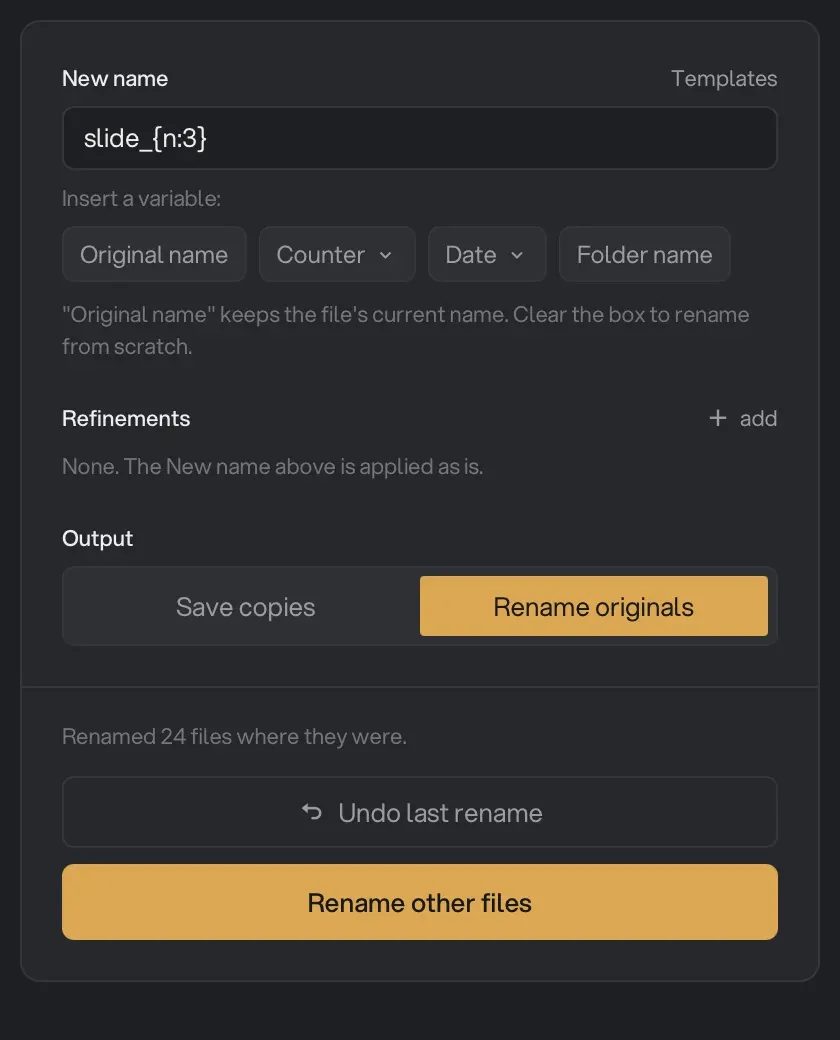
It goes back one level. In our test it restored all 50 files from a first run. After a second run it went back only to the first run’s names, and the button disappeared.
What cancels undo?
We didn’t test everything, so the gaps are marked.
| After the rename, you… | Finder | File Explorer |
|---|---|---|
| Did nothing else | 1 press restores the batch | 1 press restores the batch |
| Did one more thing (a copy or move on the Mac, a new folder on Windows) | 2 presses | 2 presses |
| Closed the window | Undo still worked | Not tested |
| Relaunched Finder | Undo gone, 8 files stayed renamed | Not applicable |
| Restarted the computer | Not tested | Not tested |
Assume a restart clears it. Don’t count on undo tomorrow if you can use it today.
Undo is gone. Now what?
If the wrong name kept part of the right one, reverse it. A prefix, a swapped word or an added date can be taken back with find and replace. On 50 files wrongly named report_01 to report_50, replacing report_ with scan- gave back scan-01 to scan-50.
If the old names are gone completely, use a backup. Names like slide1 or Photo (34) hold nothing of the original, so no replacement can rebuild them. Copy the current folder somewhere else first, so anything you added since the backup stays safe. We didn’t run either restore for this guide.
- On a Mac, open the folder, open Time Machine and go back to a date before the rename. Select the folder and click Restore. Apple has the full steps.
- On Windows, right-click the folder and choose Restore previous versions, which needs File History to have been on. Microsoft has the details, and warns that replacing the current files can’t be undone.
If you used a renaming app, look for its own record. Bulk Rename Utility’s Undo Rename put all 180 of our names back. In Hangar, the Runs view reopens a run’s settings, which shows you the pattern to reverse, though it has no undo of its own.
Why the rename went wrong
- The sort order. Finder numbers files in the window’s current order. See how to number files in order.
- Finder’s Name and Date format. It stamps today’s date, not the file’s date. See how to rename photos by the date they were taken.
- A find that matched too much. “Jo” is inside Joanna. See the two traps in the find and replace guide.
How to make the next rename safe
Finder and File Explorer change the real files, and only Finder shows you even one example name first. Batch rename in Hangar shows every new name, won’t run while two files would get the same name, and has Save copies on by default, so your originals stay as they are. Switch to Rename originals once the pattern is right.
For more on the everyday methods, read our guide to renaming multiple files at once, or see the rest of Hangar’s file tools.
Rename with every new name shown first and the originals kept.