 Agencies and studios
 Photographers
 Podcasters
 Video and social creators
 Marketers and content teams
What does Sort & route do?
Sort & route tidies a messy folder by putting its files into subfolders, on your own computer. In the app this tool is called Organize. It can make one folder per kind of file (images, PDFs, videos and so on), one folder per month, or both, and you can add your own rules, such as "every file with invoice in its name goes to Finance".
Before anything moves, Organize shows the full plan: every folder it will create and the files that will land in each one. A sort can be undone.
Step 1: Open Organize and choose where the folders go
Click Tools in the sidebar, open the Any file tab and click Organize in the Organize section. You can also type "organize" or "sort" in the search box at the top. Organize opens on its own full screen: your choices on the left, the plan on the right.
Under Where folders go, pick one:
- In place (the default) creates the new subfolders inside the folder you are tidying. Use it to clean up a folder such as Downloads or a client handoff.
- Another folder puts the new subfolders in a separate folder you choose. Use it to sort files from one place into an archive somewhere else.
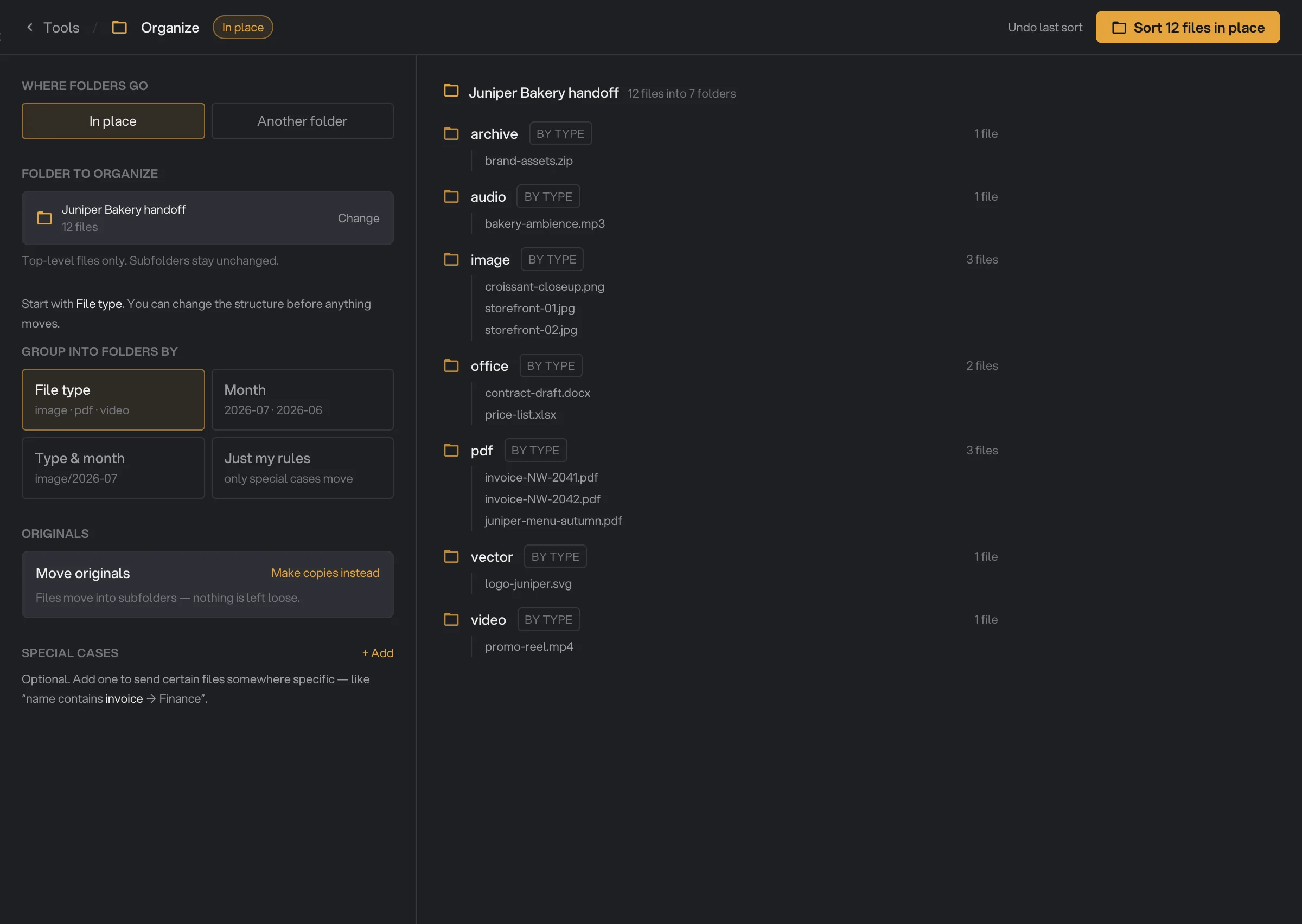
- In place
- Folder to organize
- File type
- Make copies instead
- A planned folder
- Sort 12 files in place
Step 2: Choose the folder or files
With In place, click Choose folder… under Folder to organize and pick the folder. Organize loads every file directly inside it and shows how many there are. Files in its subfolders and hidden files are left out. Click Change to pick another folder.
With Another folder, first add the files under Files to sort: Folder adds the files directly inside a folder, and Files lets you pick single files. You can use both, more than once. Then click Choose… under Destination folder and pick where the new subfolders go.
The rest of the settings appear once Organize has both files and a folder.
Step 3: Pick how to group the files
Under Group into folders by, pick one card. Each file keeps its own name inside its new folder.
- File type (the default) makes one folder per kind of file, named in lowercase:
image,pdf,video,audio,office(Word, Excel and PowerPoint files),archive(zip and similar),vector(SVG),raw(camera RAW photos),ebook,html, andotherfor everything else. - Month makes one folder per month, such as
2026-10, from the date each file was last modified. - Type & month makes month folders inside type folders, such as
image/2026-10. - Just my rules sorts only the files your special cases pick (step 5). Every other file stays where it is.
Step 4: Choose to move or copy
Under Originals, Organize starts on Move originals: each file is moved into its new folder, and nothing is left behind where it was. To keep your originals, click Make copies instead. The section then reads Make copies, and Organize puts copies in the new folders and leaves the originals where they are. Click Move originals instead to switch back.
Organize remembers your choice until you quit Hangar. The next time you start Hangar, it is back on Move originals, so check this section before every sort.
The choice applies to every file, including the ones your special cases send elsewhere. Copies need as much free space as the originals.
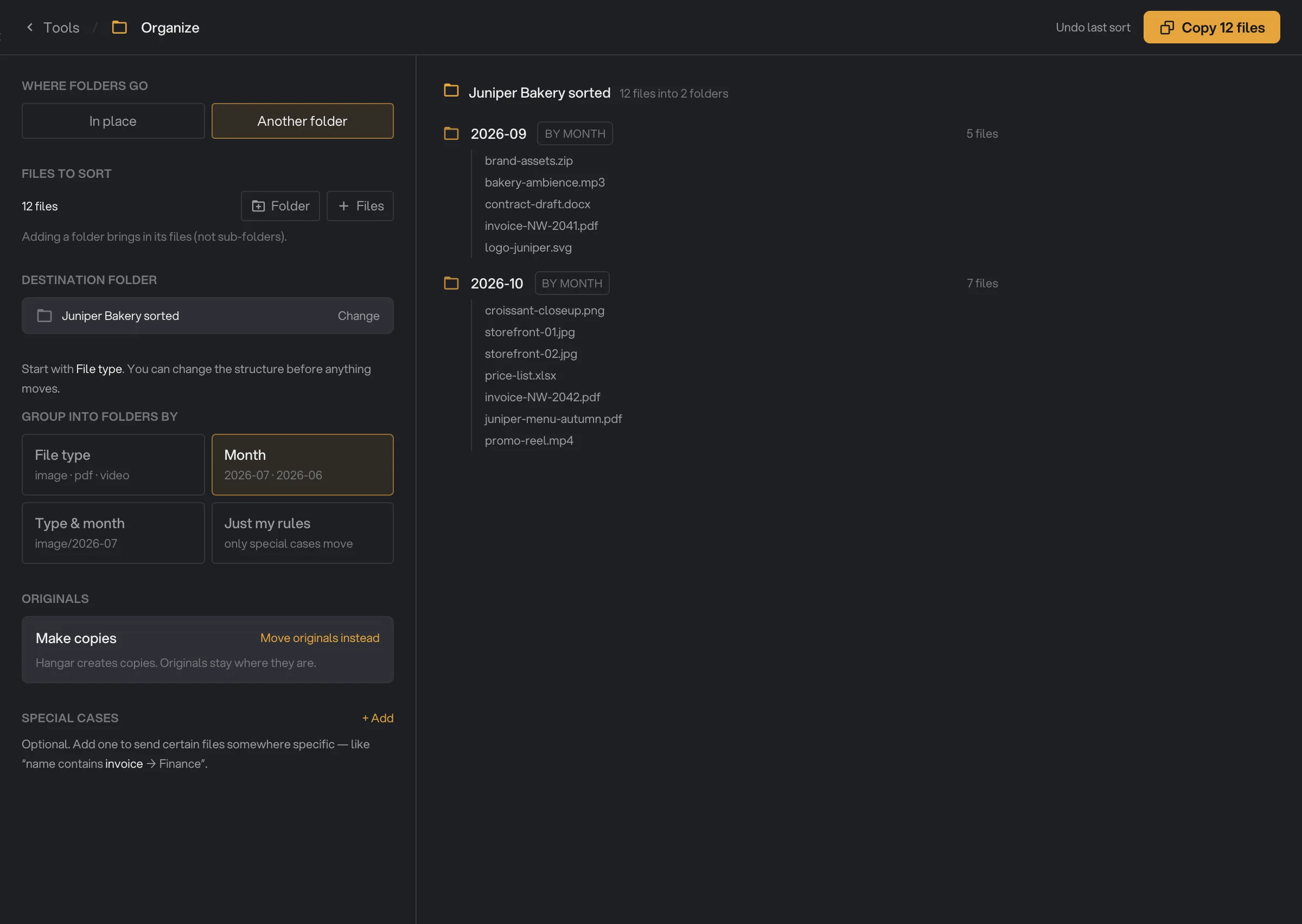
- Another folder
- Destination folder
- Month
- Move originals instead
- A month folder
- Copy 12 files
Step 5: Add special cases if you need them
Special cases send certain files to a folder of your choice, before the grouping is applied. Click + Add next to Special cases, then fill in the sentence:
- After When, pick a condition from the menu.
- Type the value, or pick a date.
- Choose Put in folder and type a folder name, such as
Finance, or choose Skip them to leave those files where they are.
The conditions are:
- name contains: the text appears anywhere in the file name, capital letters or not. "invoice" catches Invoice-2041.pdf and NW-invoice.docx.
- has extension: the file type at the end of the name, such as
pdformov. Type it with or without the dot. "jpg" does not catch .jpeg files: add a second rule for those. - modified after and modified before: the date the file was last modified, compared with the start of the day you pick.
- is larger than and is smaller than: the file size in MB.
- name matches (regex): for patterns, if you know regular expressions. Here capital letters must match exactly.
A folder name with a slash, such as Finance/2026, makes a folder inside a folder. Once a rule is complete it shows how many files it catches, for example "2 files match". Until then it is a draft and catches no files.
If a file fits more than one rule, the rule nearest the top wins. New rules are added at the bottom, and rules can't be reordered, so add the most specific one first. Remove a rule with the cross at its top right.
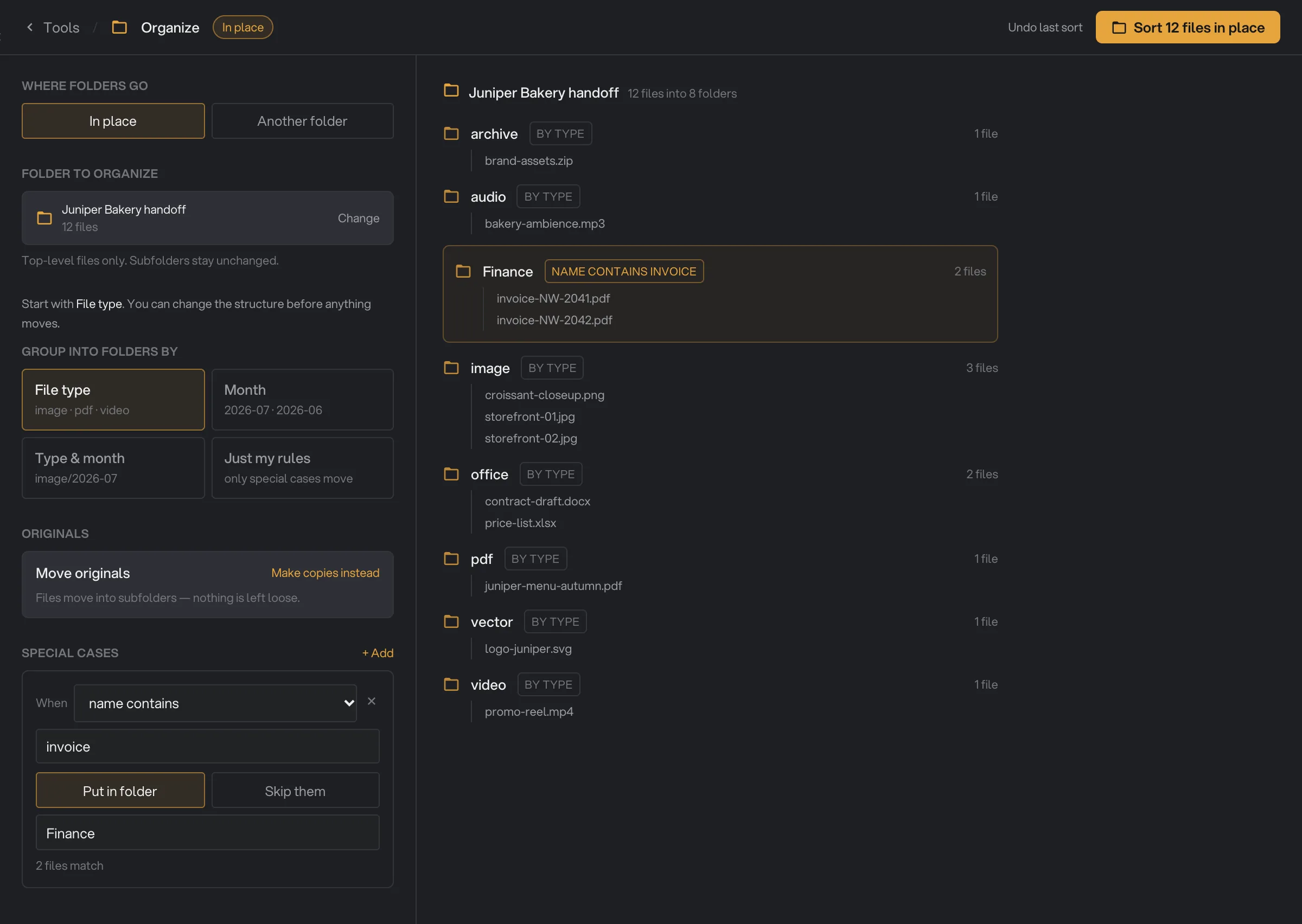
- + Add
- Condition
- Put in folder
- Files matched
- Finance folder
Step 6: Check the plan
The right side shows the plan, updated as you change any setting. At the top: the folder, the number of files and the number of folders. Below, each new folder with its files, and a tag that says why they are there, such as by type, by month or the special case that caught them. Folders filled by a special case have an amber frame. Files that stay put are listed under Left in place.
Each folder lists up to 8 files; click +N more to see the rest. Point at a special case, or at Group into folders by, to fade out every folder it did not fill.
The line at the bottom sums it up, for example "12 files → 8 folders" and "0 left in place". If a file would land next to a file with the same name, Organize adds a number such as (2) to it, and the line says how many files get renamed this way.
Step 7: Sort, then check the result
The button at the top right says what will happen: Sort 12 files in place, Move 12 files or Copy 12 files (the number matches your files). It is grayed out while something is missing, and reads Nothing to sort yet when every file would stay where it is.
When Organize is about to move originals, it first asks you to confirm. The window shows the folder, how many files move and how many folders it creates. Click Move 12 files to go ahead, or Cancel. Copies start right away.
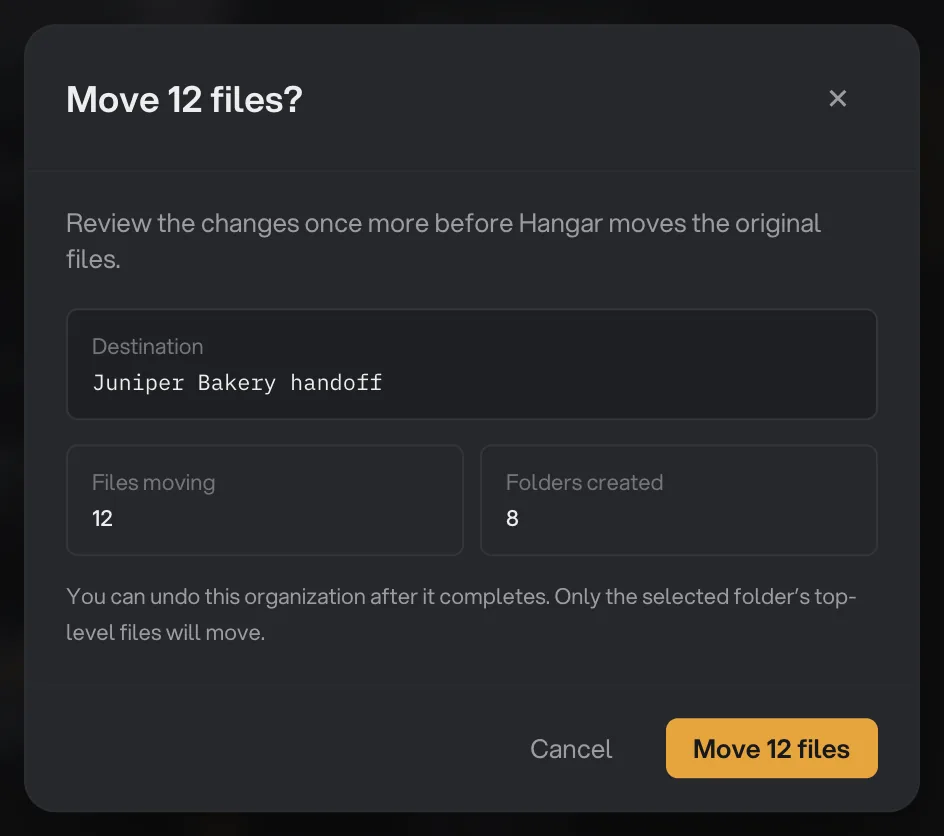
- Files moving
- Folders created
- Undo note
- Move 12 files
While it works, the button reads Working…, then returns to normal. Organize doesn't show a summary when it finishes, so open the folder in Finder or File Explorer to see the result. If a file could not be moved or copied, the others are still sorted. Each sort is also listed on the Runs page.
How do I undo a sort?
Click Undo last sort at the top of Organize. It works on the folder that is chosen on screen: with In place, the folder you organized; with Another folder, the destination folder. To undo later, even after quitting Hangar, open Organize and choose that same folder first.
- Moved files go back to where they came from. Copies made by that sort are deleted, including any changes you made to them since.
- Click it again to undo the sort before that one, and so on, as long as the sorts went to that folder.
- The folders the sort created stay behind, empty. Delete them yourself if you don't want them.
- If a file can't go back because another file now has its name in the old place, it stays in its new folder.
- Hangar shows "Sort undone" when it is done, or "Nothing to undo" if that folder has no sort left to undo.
To make this possible, Hangar keeps a small record in a hidden folder named .hangar-sort inside the folder you sorted into. Leave it there while you might want to undo. On Windows, this folder is not hidden.
Every setting
- Where folders go
Create the new folders inside the folder you tidy, or in a separate folder you choose.
- RangeIn place, Another folder
- DefaultIn place
- Folder to organize
With In place: the folder whose top-level files are sorted, and where the new folders go.
- RangeAny folder
- Files to sort
With Another folder: the files to sort. Folder adds the files directly inside a folder.
- RangeFolder, Files
- Destination folder
With Another folder: where the new folders are created.
- RangeAny folder
- Group into folders by
The folders every file goes into, unless a special case says otherwise.
- RangeFile type, Month, Type & month, Just my rules
- DefaultFile type
- Originals
Move the files into their new folders, or leave them and put copies there.
- RangeMove originals, Make copies
- DefaultMove originals
- Special cases: When
Which files the rule catches.
- Rangename contains, has extension, modified after, modified before, is larger than, is smaller than, name matches (regex)
- Defaultname contains
- Special cases: action
Send the files to the folder you name, or leave them where they are.
- RangePut in folder, Skip them
- DefaultPut in folder
Recipes for common jobs
- Clean up Downloads: In place, File type, Move originals. Add "has extension dmg, Skip them" (or "exe" on Windows) to leave installers alone.
- Archive a client handoff by month: Another folder, add the files, pick an archive folder as the destination, choose Month and Make copies instead.
- Gather the paperwork: add "name contains invoice, Put in folder Finance" and "name contains contract, Put in folder Legal" on top of File type.
- Move only the big files: choose Just my rules and add "is larger than 500 MB, Put in folder Large files". Everything else stays put.
- Split a photo dump by month: Type & month keeps photos and videos apart, with one folder per month inside each.
Why did a file not go where I expected?
- A file landed in the neighboring month. Months are worked out in world time (UTC), not your computer's clock, so a file saved late on the last day of a month (or early on the first, depending on where you live) can land in the month next to it.
- A photo landed in the wrong month. Month uses the date the file was last modified, not the date the photo was taken. Editing or re-saving a photo changes that date.
- Text files went into an ebook folder. File type treats .txt files as ebooks. Add a special case such as "has extension txt, Put in folder Notes" to send them elsewhere.
- A special case catches nothing. Check that it has both a value and, with Put in folder, a folder name. If another rule above it catches the same files first, that rule wins.
- I clicked the button and nothing moved. A special case is blocking the whole sort: either a rule on Put in folder has no folder name, or a name matches (regex) pattern has a mistake (it shows 0 files). Fix the rule or remove it with the cross, then sort again.
- Some files got a number such as (2). A file with the same name was already in that folder, or two of your files had the same name. Hangar never overwrites a file.
- A file is still in the old place after a move. It could not be moved, for example because you don't have permission to change that folder. Organize doesn't list the files it could not move, so compare the folder with the plan.
For other errors, see A file failed: what to check.
Limits
- Organize only looks at the files directly inside a folder, never in its subfolders, and skips hidden files.
- It changes where files are, not their names or contents, apart from the number added to avoid a clash.
- Month and the date conditions use the date a file was last modified.
- Special cases can't be reordered. Remove and add them again to change the order.
- Organize can't be a step in a chain.
- The new folders are not removed when you undo.
- Everything runs on your computer. Nothing is uploaded.
Common questions
Does Organize move my original files?
Yes, by default. Organize moves the originals into the new folders, after asking you to confirm. To keep them where they are, click Make copies instead under Originals before you sort: Organize then puts copies in the new folders.
Can I undo a sort?
Yes. With the same folder chosen in Organize, click Undo last sort. Moved files go back where they were, and copies made by that sort are deleted. Click it again to undo the sort before that one. The new folders stay behind, empty.
Does Organize sort files inside subfolders?
No. It only looks at the files directly inside the folder you choose. Files in its subfolders are not touched.
What happens if two files end up with the same name?
Nothing is overwritten. Hangar adds a number to the new copy or moved file, such as storefront (2).jpg, and the plan counts how many files get a new name this way.
Does Organize change the files themselves?
No. Files keep their names and their contents. Only their folder changes, apart from the number Hangar adds when a name is already taken.
Can I sort photos by the date they were taken?
No. Month uses the date each file was last modified, not the date a photo was taken. Editing or saving a file again changes that date.
Still stuck?
One person reads every message, usually with a reply within a day.