 Agencies and studios
 Photographers
 Podcasters
 Video and social creators
 Marketers and content teams
What does Extract archive do?
Extract archive unpacks ZIP and 7z files on your own computer and saves the files inside them to a folder. Use it to open a delivery from a photographer, a set of files a client zipped up, or a download that came as a 7z. In the app the tool is called Extract Archive.
There is nothing to set up: Hangar recognizes the format by itself. You can unpack one archive or a whole batch in one run.
Step 1: Add your archives
Click Tools in the sidebar, open the Any file tab and click Extract Archive in the Archive section. You can also type "extract archive" in the search box at the top.
Drop your ZIP and 7z files on the queue, or click it to pick them. To add more later, use Add more.
Files Hangar can't unpack are set aside under Not applicable. RAR, TAR, GZ, BZ2 and XZ archives show a label such as RAR · not supported yet. Remove them with the cross on that label before you run: if they stay in the queue, they come back marked Failed.
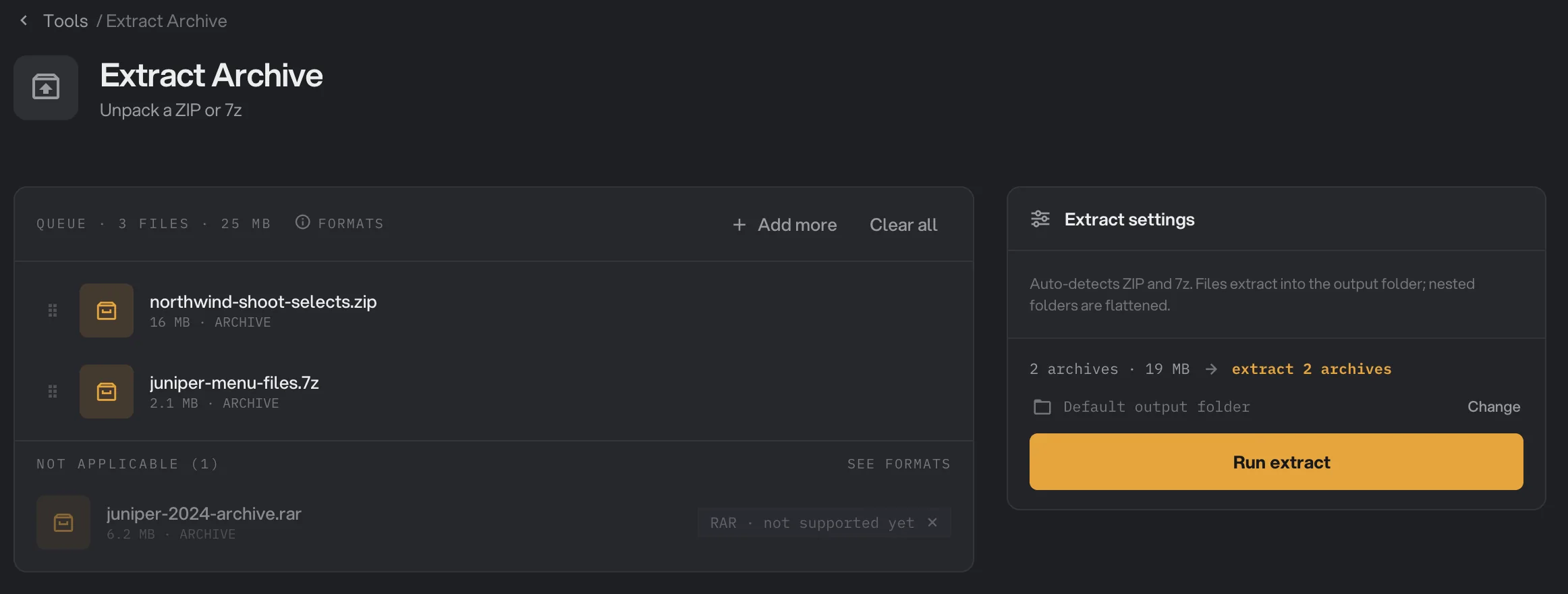
- An archive in the queue
- Not supported yet
- Nothing to set
- What the run will do
- Run extract
Step 2: Choose where the files go, then run
The panel has no settings, only a note: Hangar detects ZIP and 7z by itself, and folders inside the archive are flattened. The line above the button sums up the run, for example "extract 2 archives".
Check where the files will go: Default output folder saves them in your workspace's output folder, in an extract folder with a subfolder for today's date, such as 10-15. Click Change to unpack into another folder for this run. Then click Run extract.
Step 3: Check what came out
When the run ends, each archive is marked Done with the total size of what it held. Click the files count under an archive, such as 8 files, to list every file that came out of it with its size. The panel on the right shows how many archives were unpacked, the Output size and the folder under Saved to. Click Open folder to go to the files.
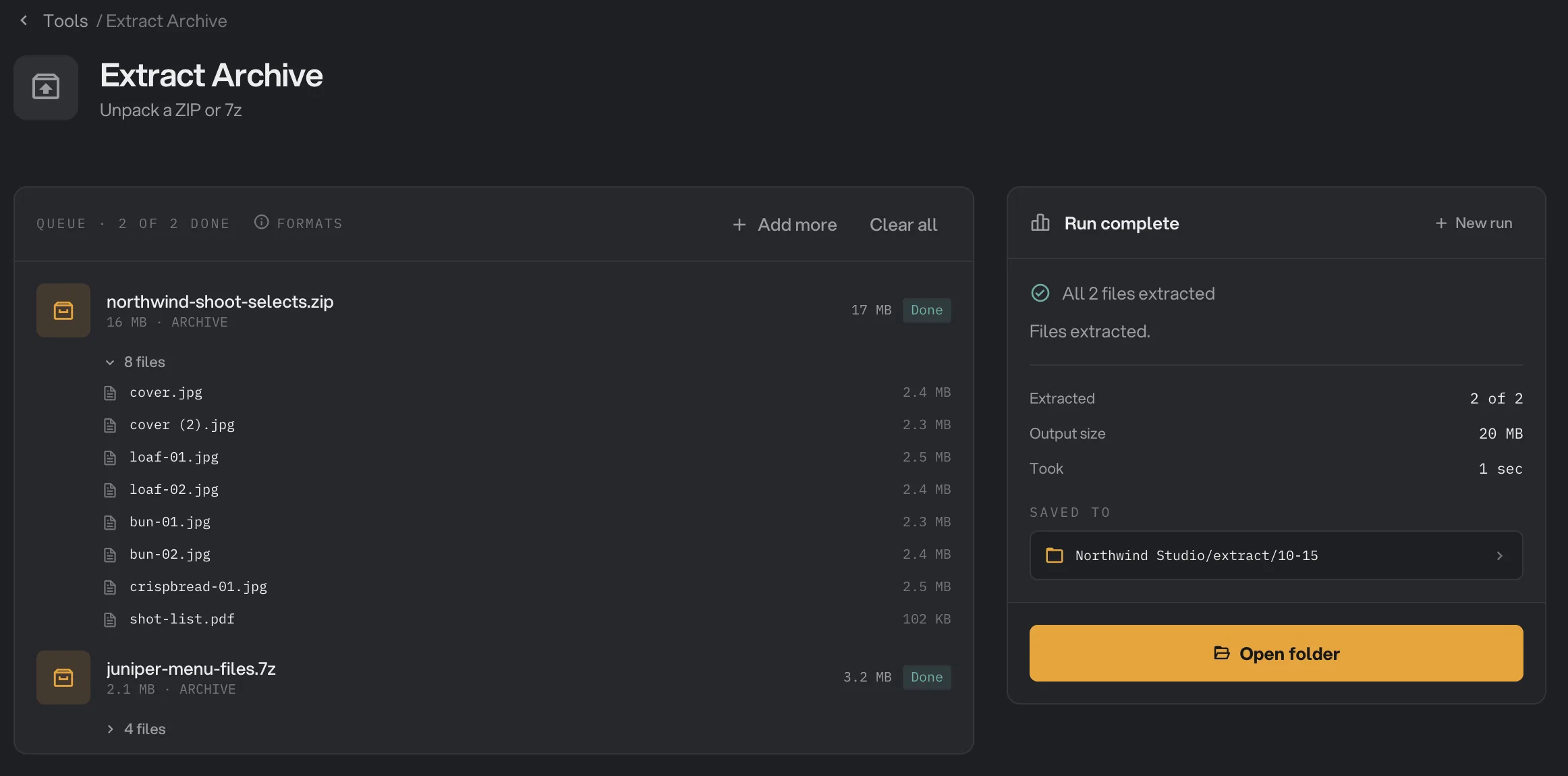
- Files inside the archive
- A name that clashed gets (2)
- Output size
- Saved to
- Open folder
The files can't be opened from the results list. Open them from the folder, or add them to another tool from there. See Where Hangar saves your files.
Settings
Extract Archive has no settings. It works out whether a file is a ZIP or a 7z by looking at the file itself, not its name. The only choice you make is the destination, with Default output folder or Change above the Run extract button.
How folders and file names come out
- Everything lands in one folder. Folders inside the archive are not recreated, so
day1/cover.jpgcomes out ascover.jpg. When you unpack several archives in one run, all their files go into the same folder too. - Clashing names are numbered. If a name is already taken, by another file in the run or a file already in the folder, Hangar adds (2), (3) and so on:
cover.jpg, thencover (2).jpg. Nothing is ever replaced. - Files without an extension get .bin. A file named
READMEinside the archive is saved asREADME.bin. Rename it in Finder or File Explorer to remove.bin. - Archives inside the archive stay packed. A ZIP inside a ZIP comes out as a ZIP file. Run Extract Archive again on it if you need its contents.
Why did an archive fail?
A failed archive leaves no files behind, and the other archives in the run carry on. Each failed archive is listed under What failed in the right-hand panel with its reason.
- "Format error: not a ZIP or 7z archive". The file is a RAR, TAR, GZ, BZ2 or XZ archive, or it has a .zip or .7z name but is really another kind of file. Unpack it with another app, or ask the sender for a real ZIP.
- A message that the file is password-protected. Hangar can't unpack archives that need a password. Use an app that asks for the password.
- "Format error: couldn't read ZIP" or "couldn't read 7z". The archive is damaged, for example a download that didn't finish. Download it again, or ask the sender for a new copy.
If the run worked but something looks odd:
- There are extra files whose names start with ._ ZIP files made on a Mac sometimes include small hidden helper files. Hangar unpacks them too. Finder hides them, and you can delete them safely.
- The folders are gone. That is how Extract Archive works: see How folders and file names come out.
For other errors, see A file failed: what to check.
Limits
- ZIP and 7z only. RAR, TAR, GZ, BZ2 and XZ files are not supported yet.
- Archives that need a password can't be unpacked.
- Folders inside the archive are not kept, and files without an extension get
.binadded. - Archives inside the archive are not unpacked in the same run.
- There is no set limit on archive size or the number of files. You need enough free disk space for everything inside.
- To pack files into a ZIP or 7z, use Create archive.
- Everything runs on your computer. Nothing is uploaded.
Common questions
Which archives can it open?
ZIP and 7z files. Hangar recognizes the format from the file itself, so you never choose it. RAR, TAR, GZ, BZ2 and XZ files are not supported yet.
Does it keep the folders inside the archive?
No. Every file comes out into one folder, and the folders inside the archive are not recreated. If two files have the same name, the second one gets (2) added.
Can I open a password-protected archive?
No. There is no way to enter a password, so the archive is marked Failed. Unpack it with another app that asks for the password.
Can I unpack several archives at once?
Yes. Add them all to the queue and run once. Every archive is unpacked into the same folder, and the results list shows which files came from which archive.
Is my archive deleted after unpacking?
No. The archive stays where it was, unchanged. Hangar only writes the unpacked files to your output folder.
Still stuck?
One person reads every message, usually with a reply within a day.