 Agencies and studios
 Photographers
 Podcasters
 Video and social creators
 Marketers and content teams
What does Create archive do?
Create archive packs a set of files into one ZIP or 7z file, on your own computer. Use it to send a client one file instead of twenty, to bundle the exports of a project, or to put a batch of files aside in a single file. In the app the tool is called Create Archive.
Every file you add goes into the same archive. You choose the format, how hard to compress, and the archive's name.
Step 1: Add your files
Click Tools in the sidebar, open the Any file tab and click Create Archive in the Archive section. You can also type "archive" in the search box at the top.
Drop your files on the queue, or click it to pick files. Any kind of file works: photos, PDFs, videos, documents, even other archives. You need at least two files. To add more later, use Add more.
Folders can't be added: a folder you drag in is skipped. Open it and select the files inside instead. Files go into the archive under their own names, with no folders. If two files have the same name, the second one is saved inside the archive with (2) added, such as logo (2).png.
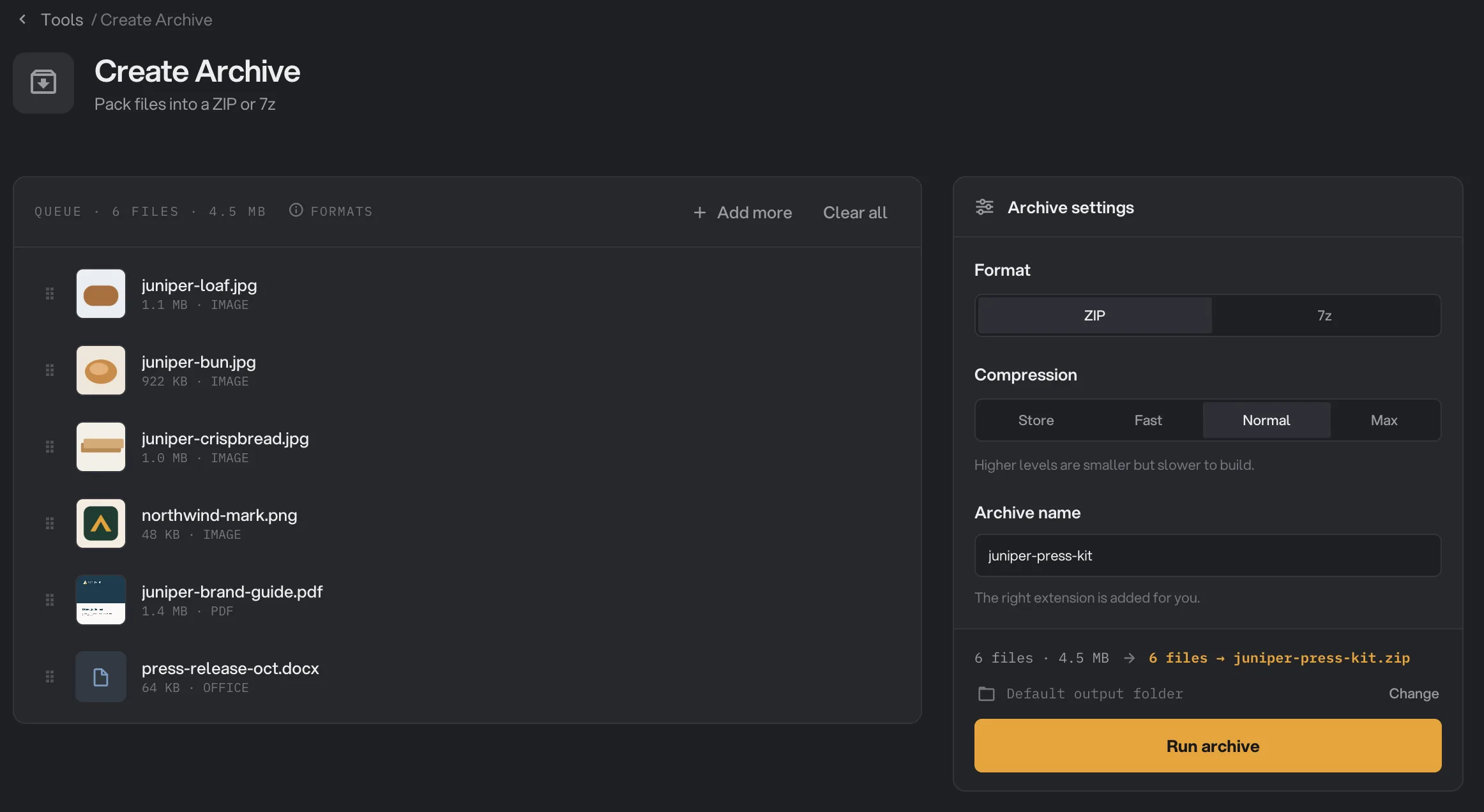
- Add more
- Format
- Compression
- Archive name
- What the run will make
- Run archive
Step 2: Choose the format and compression
- Format: ZIP (the default) or 7z. ZIP is the safe choice for anything you send.
- Compression: Store, Fast, Normal (the default) or Max. Store packs the files without compressing them, which is the quickest. With ZIP, Fast, Normal and Max trade speed for size. With 7z, every level except Store gives the same result.
- Archive name: the name of the new file,
archiveto start with. Type just the name: Hangar adds.zipor.7zto match the format.
Step 3: Run, then check the result
The line above the button sums up the run, for example "6 files → juniper-press-kit.zip". Check where the archive will go: Default output folder saves it in your workspace's output folder, in a create folder with a subfolder for today's date, such as 10-15. Click Change to pick another folder for this run. Then click Run archive.
When the run ends, every file in the queue is marked Merged, which means it went into the archive. The panel on the right shows the new archive with its size and the number of files in it. There is no View button, because an archive has nothing to show on screen. Click Open folder to go to it.
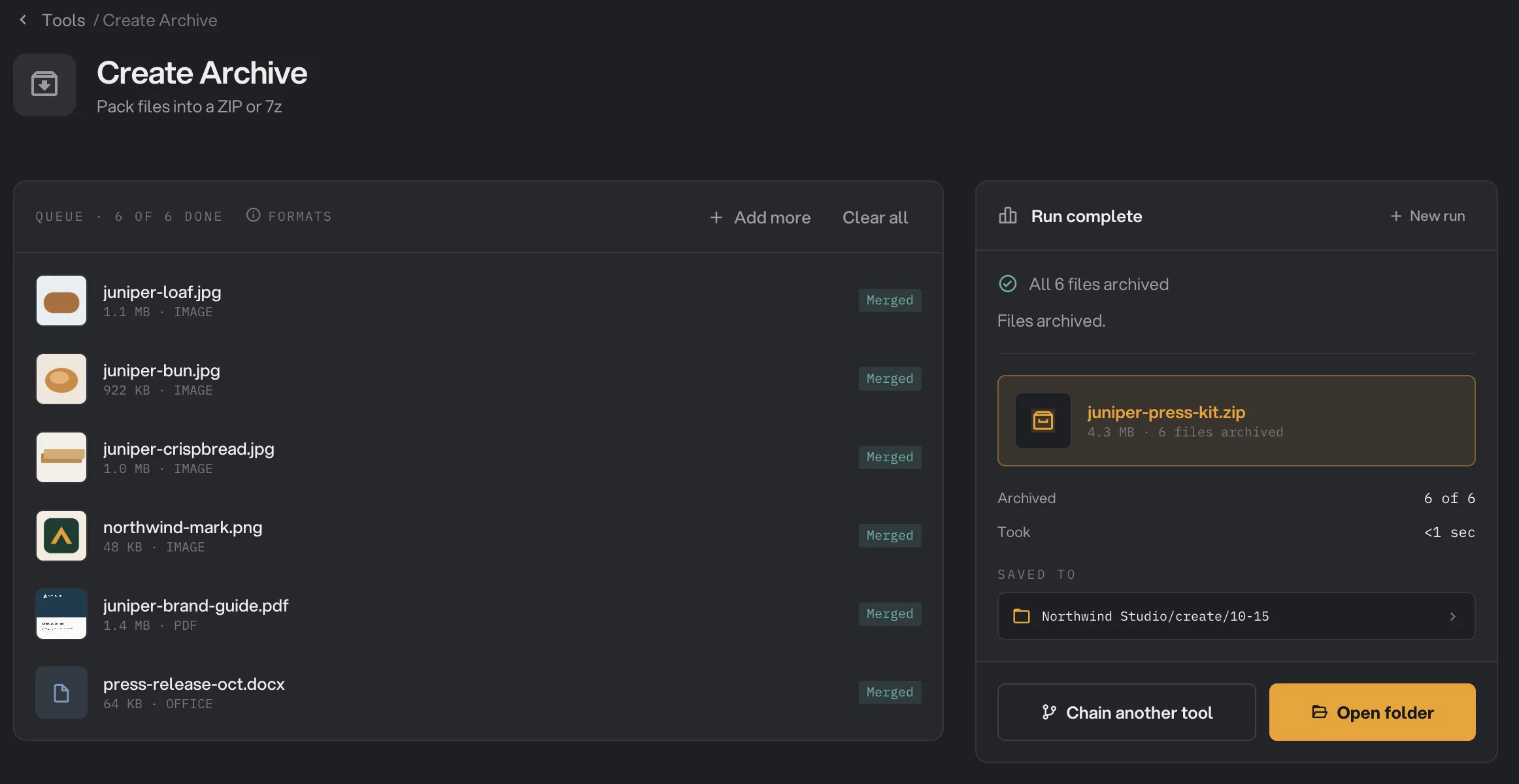
- Merged
- The archive
- Saved to
- Open folder
If a file with the same name is already in the folder, Hangar adds (2), (3) and so on to the new archive. It never replaces an existing file. See See and compare your results and Where Hangar saves your files.
Every setting
- Format
The type of archive. ZIP opens almost everywhere. 7z can be smaller for text and documents.
- RangeZIP, 7z
- DefaultZIP
- Compression
How hard Hangar compresses. Store does not compress at all and is the fastest. With ZIP, higher levels are smaller and slower. With 7z, Fast, Normal and Max give the same result.
- RangeStore, Fast, Normal, Max
- DefaultNormal
- Archive name
The name of the new archive. Hangar adds .zip or .7z for you, and adds (2) if the name is already taken in the folder.
- RangeAny file name
- Defaultarchive
Which format and level should I use?
- Sending files to someone: keep ZIP and Normal. Anyone can open the archive with the tools already on their computer.
- Photos, videos, music or PDFs: these are already compressed, so a higher level barely helps. Choose Fast or Store to finish sooner with almost the same size.
- Text, spreadsheets, documents and code: these shrink well. Choose Max with ZIP, or try 7z if the person receiving it can open 7z files.
- Need it smaller still? Shrink the files first with Compress images, Compress PDF or Compress video, then pack the smaller copies.
Why did my archive not turn out as expected?
- "Could not start the run", with a note to add at least 2 supported files. Create Archive needs two or more files. Add another file and run again.
- The archive is nearly as big as the files. The files were already compressed, such as photos or videos. That is normal, and a higher level won't change much.
- Every file failed with "Invalid output name". The name in Archive name uses a character that file names can't contain, such as
/or:. Change the name and run again. - The run failed and no archive was saved. Hangar couldn't read one of the files, for example because it was moved or deleted after you added it, or the disk is full. A run is all or nothing, so no half-made archive is left behind. Read the reason under What failed, fix that file, and run again.
- The folders are missing when I open the archive. Create Archive keeps file names only. To keep things grouped, make one archive per folder and give each a clear name.
- The archive won't open on another computer. If you chose 7z, the other person may need an app that opens 7z files. Make a ZIP instead.
For other errors, see A file failed: what to check.
Limits
- Each run makes one archive from every file in the queue, and needs at least two files.
- Folders can't be added, and the archive has no folders inside it.
- There is no password option.
- The same file can only be in the queue once.
- There is no set limit on the number or size of files. You need enough free disk space for the new archive.
- To unpack ZIP and 7z files, use Extract archive.
- Everything runs on your computer. Nothing is uploaded.
Common questions
Should I choose ZIP or 7z?
Choose ZIP when you are sending files to other people. It opens on almost any computer without extra software. 7z can make text and documents a little smaller, but some people may need an extra app to open it.
Can I add a folder?
Not as a folder. Open it, select the files inside and drag them onto the queue. Each file goes into the archive under its own name, without the folder.
Why is my archive almost as big as the files?
Photos, videos, music and PDFs are already compressed, so packing them saves very little. The archive is still useful as one file to send. Text files, spreadsheets and documents shrink much more.
Can I protect the archive with a password?
No. Create Archive has no password option. To protect a PDF, use Encrypt PDF on it before you pack it.
Are my original files changed or moved?
No. Hangar reads them to build the archive and leaves them where they were.
Still stuck?
One person reads every message, usually with a reply within a day.