 Agencies and studios
 Photographers
 Podcasters
 Video and social creators
 Marketers and content teams
To redact many PDFs at once, put every name, number and email address you need gone into one list. Run that list across all the files as search terms, and every match on every page is deleted in one pass. Scanned pages have no text to search, so run OCR on them first, or the names stay.
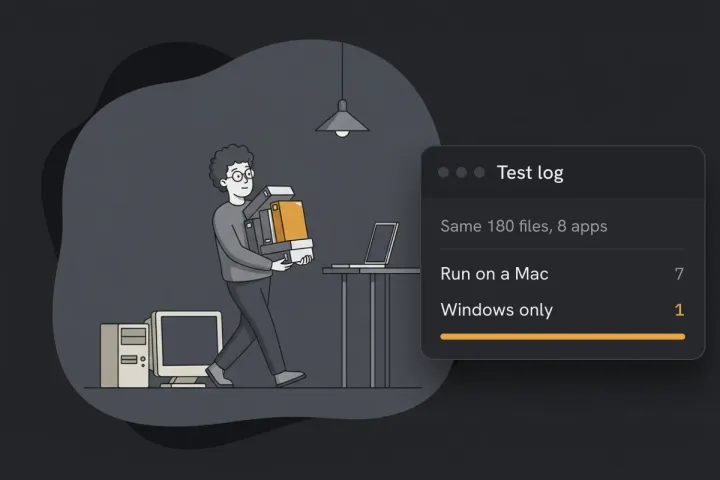
We tested this on a folder of 24 made-up HR documents, one of them a 5-page phone scan, with a 12-term list, in Hangar 0.12.1 on macOS.
Can you redact many PDFs at once?
Yes, as long as what you’re removing can be typed. A search-term redaction finds each term in the text of every file and deletes it, then blacks out the spot. It works the same on one file or on two hundred.
What it can’t find:
- Text that isn’t text. Scans, photos of documents and signatures are pictures. OCR fixes scans. Signatures and photos need a box drawn by hand.
- Spellings you didn’t list. “Okafor” removes “Okafor” from “Okafor-Hughes” but leaves “Hughes”, and it never catches initials like “M.O.”.
So most of the work is in the list.
Build your list of terms first
For each person, write down every form their name and details take in the documents. Our list for three people came to 12 terms:
| Write down | Example | Why |
|---|---|---|
| First name and surname, separately | Marta, Okafor | Catches “Dear Marta” and “Ms Okafor” |
| Each part of a double-barrelled name | Okafor, Hughes | Each part is removed on its own, so list both |
| Initials if documents use them | M.O. | Signature blocks and minutes |
| Email addresses in full | m.okafor@example.com | Headers of exported emails |
| Phone numbers in each format used | 07700 900123, 07700900123 | Matching is exact, so spaces count |
| ID, account and case numbers | QQ 12 34 56 C | Usually the most sensitive item |
Matching ignores capital letters for plain A to Z letters, so “okafor” also removes “OKAFOR”. For names with accents, type them exactly as they’re printed, and add the capitalized version if the documents use one.
Save the list as a TXT file, one term per line, or as a CSV if it comes out of a spreadsheet. You’ll reuse it when the next batch of documents arrives.
How to redact the whole folder
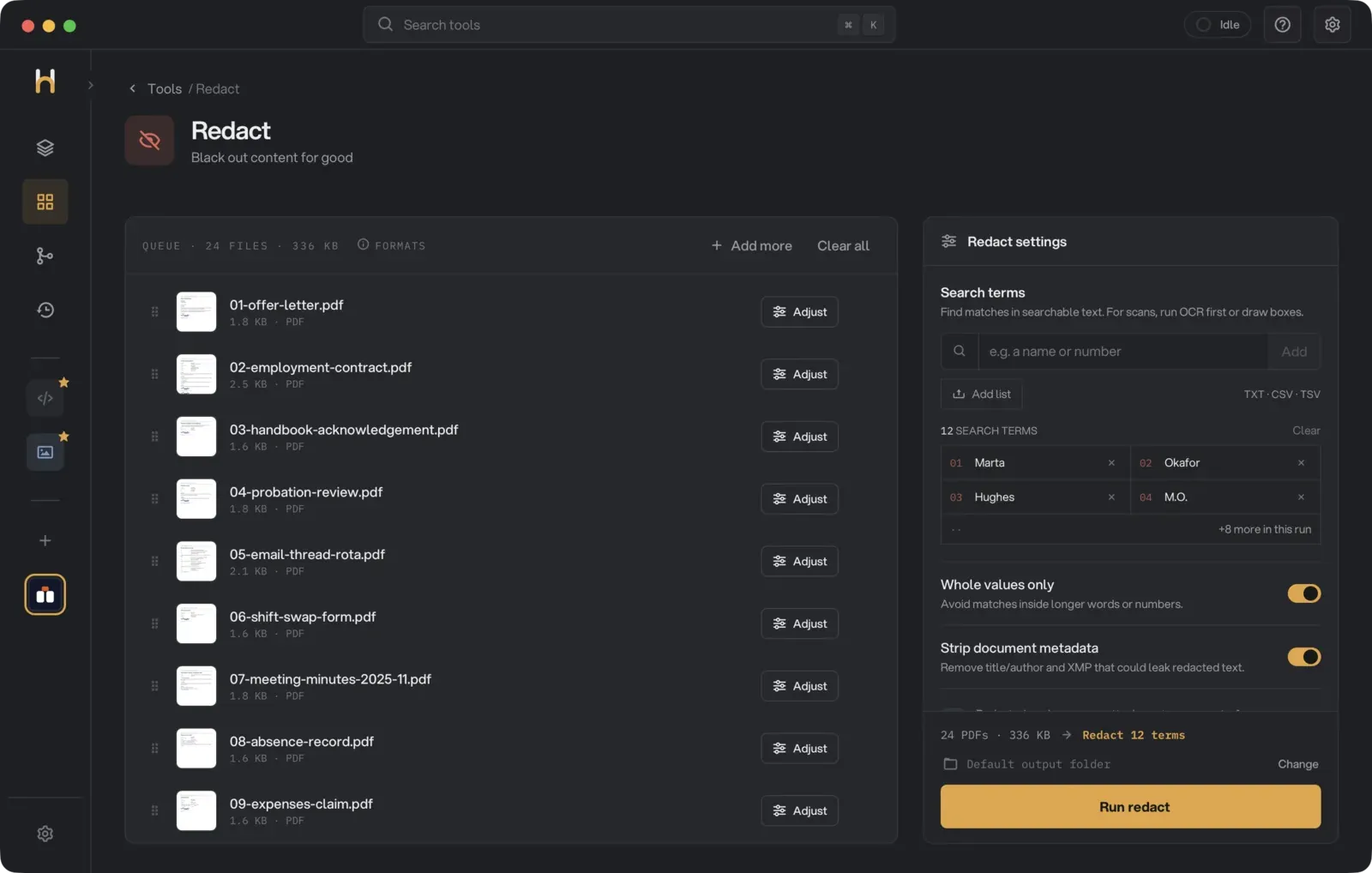
- Open Redact in Hangar and add every PDF. You can drop the whole folder on the queue.
- Under Search terms, click Add list. Paste your terms, or click Import .txt, .csv or .tsv and pick your file. Click Add N terms.
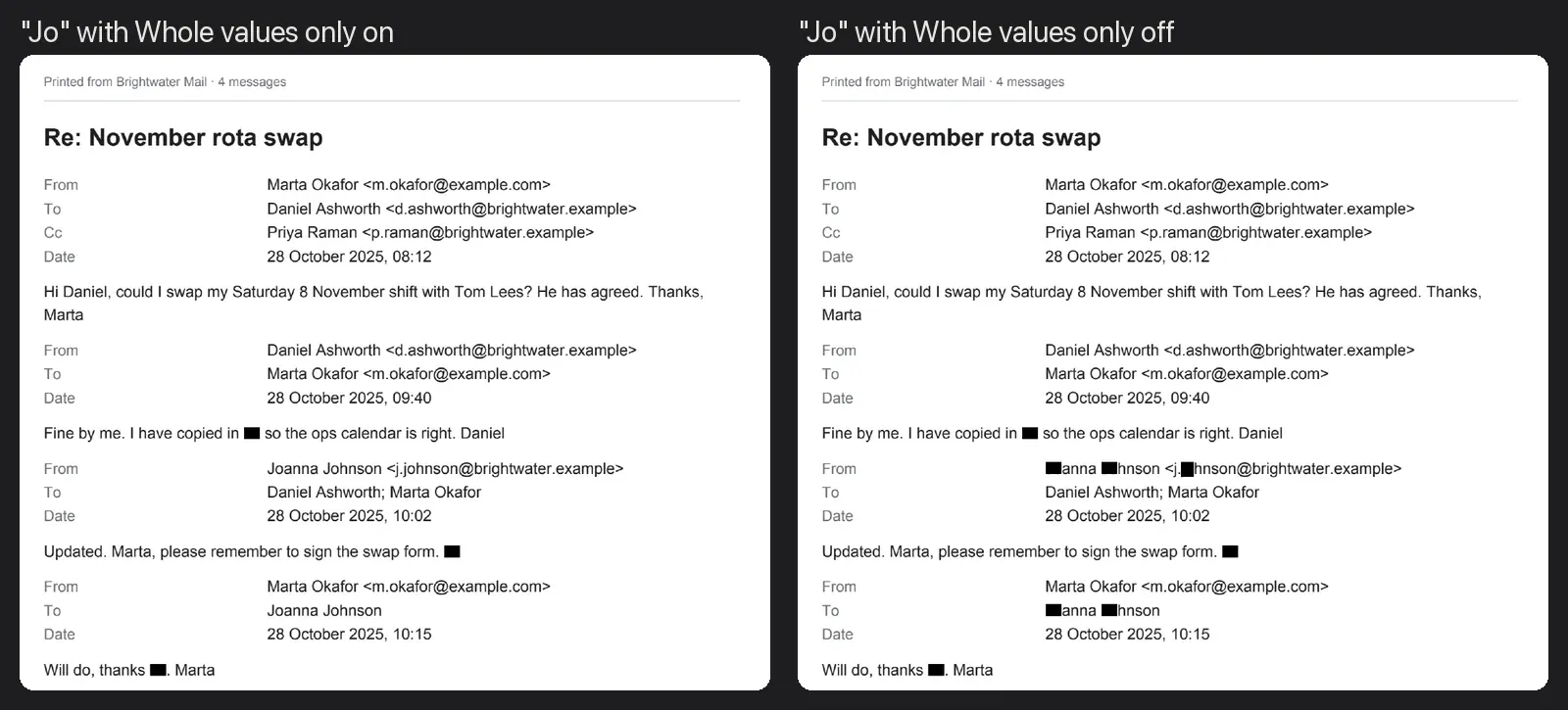
- Leave Whole values only on. With it on, “Jo” removes “Jo” but leaves “Joanna” and “Johnson” alone.
- Leave Strip document metadata on. A document’s title or author field often holds the very name you’re removing.
- Click Run redact. Each file gets a redacted copy, and your originals stay as they were.
We tried Whole values only both ways on an exported email thread, with “Jo” as the only term:
The search terms apply to every PDF in the queue. If one file needs something extra, like a signature, use Draw areas manually to open that file in the Redact Studio and draw a box.
All 24 files came back redacted. The 23 typed files held 181 matches for our list between them. We read every page of the copies back with OCR, and none of the 12 terms was left. The title and author fields, which held names in 13 of the files, were empty.
Hangar’s redacted copies also drop attachments, comments, form fields and bookmarks, which is where names hide in exported email threads and filled-in forms. Hangar only edits text in place on simple pages, and turns anything more complex into an image so nothing is left underneath. In our folder, every page with a match came out as an image. Those pages can’t be searched afterwards, which matters for the next two sections.
What about scanned pages?
A scan is a picture of text, so a search term can’t find anything on it. Redact will run without complaint and leave every name in place.
On our test folder, the 5-page phone scan holds 34 matches for our list. It went through Redact on its own and came out unchanged, all 34 still on the page. We then ran it through OCR PDF first, which adds a hidden layer of recognized text, and Redact blacked out 30 of the 34.
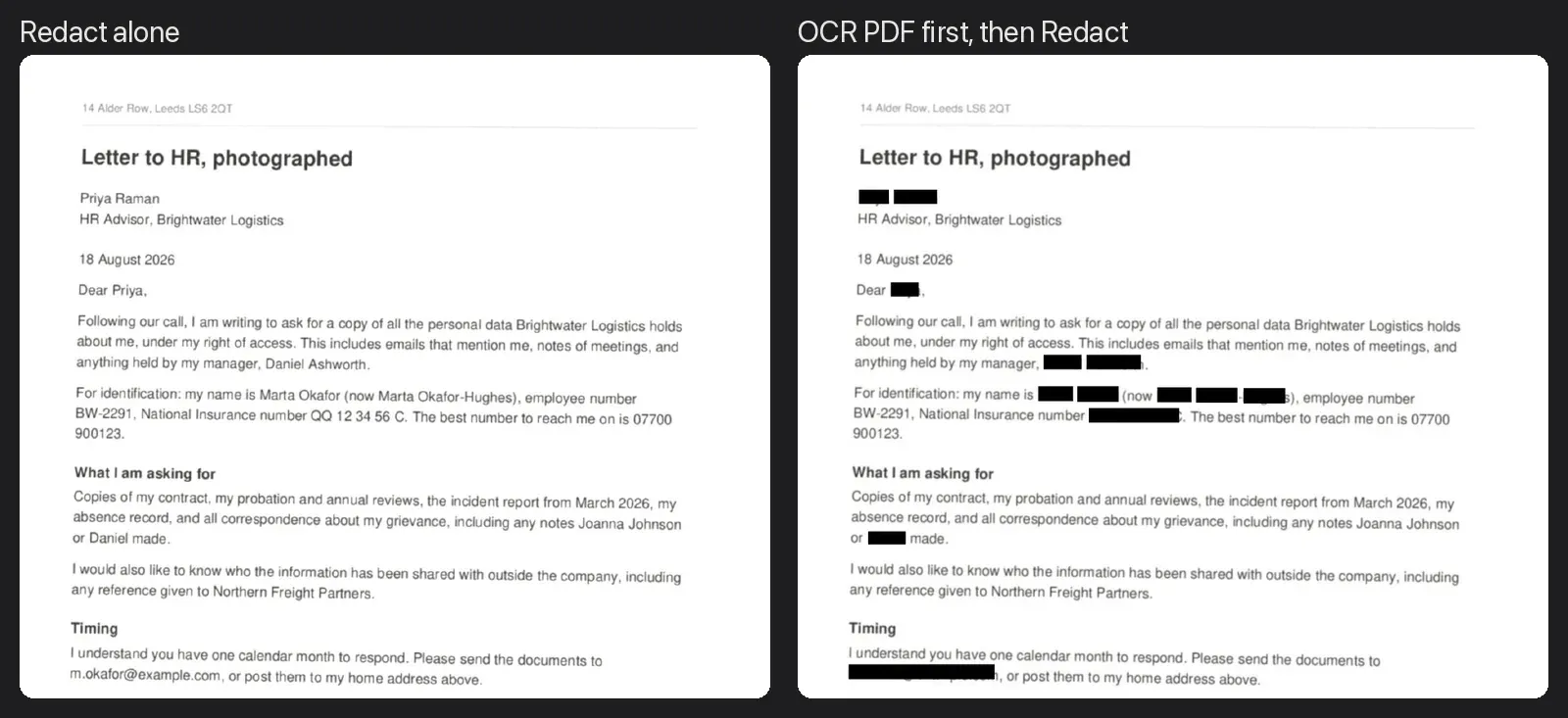
To do this for a mixed folder, run the whole folder through OCR PDF first. Pages that already have real text are skipped, so it’s safe to include every file. Then redact the OCR’d copies: when the OCR run finishes, click Chain another tool and pick Redact. The OCR’d copies become Redact’s queue, so you add your list and run. If you do this every month, build the two steps as a chain in the Chains editor and click Save chain, so the next batch is one run.
OCR isn’t perfect, and the four it left show how. The phone number wraps onto a new line, “07700” at the end of one line and “900123” at the start of the next, so it no longer matches a term with a space in it. The name printed small and grey under the signature wasn’t read at all. And because the photo is slightly tilted, a few bars sit a little off, leaving the edge of a letter showing. Look at every scanned page yourself after the run, and draw a box by hand over anything that’s left.
The matches a term list misses
We checked our outputs page by page. These are the ones a list can miss:
- Names split across two lines. These are fine when you list first name and surname separately. Our incident report breaks “Marta” and “Okafor” over two lines, and both were blacked out, because each is its own term.
- A full name entered as one term. “Marta Okafor” as a single term only matches when both words sit side by side. List first name and surname separately as well.
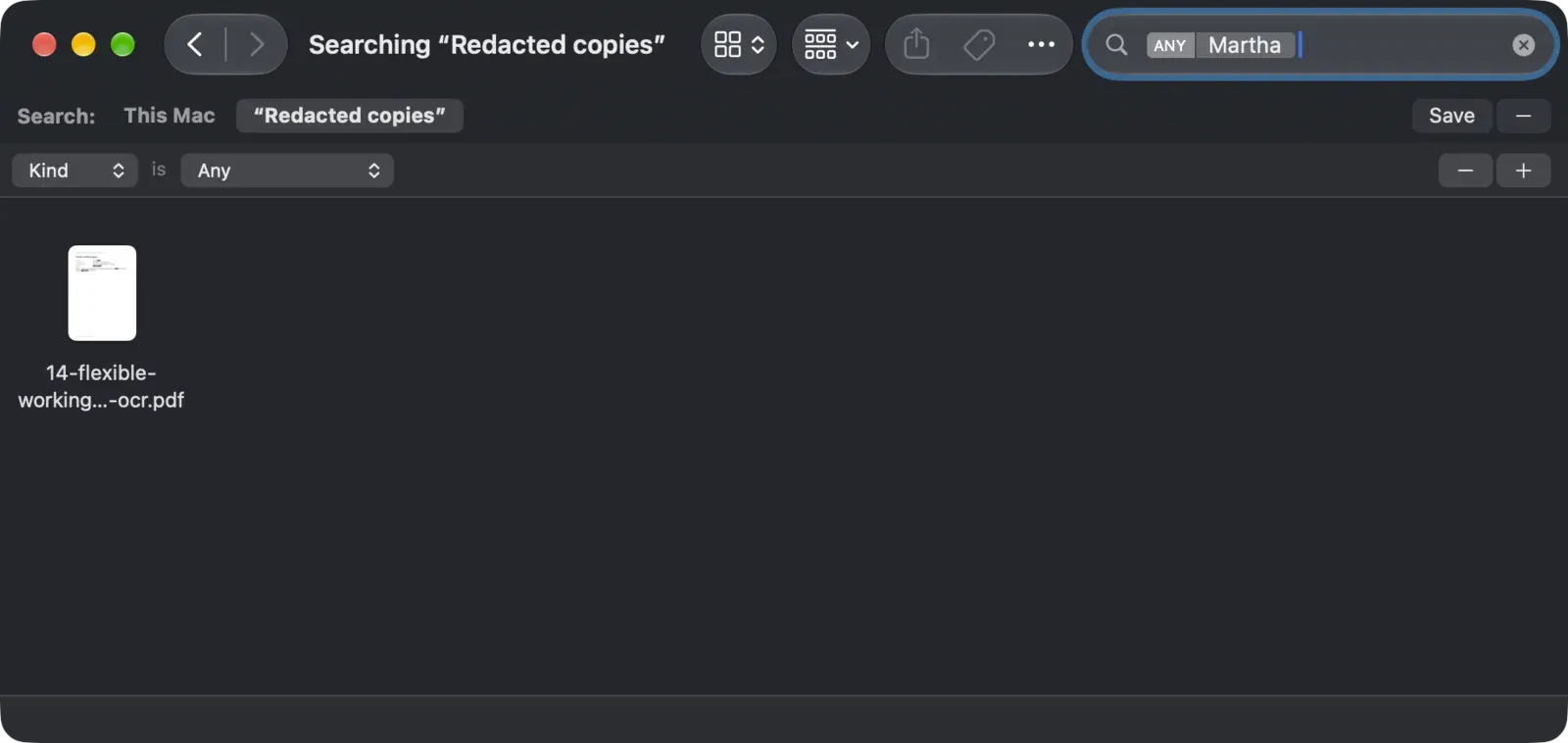
- Nicknames and misspellings. “Martha” is a different word. Our flexible working request misspells the name that way, and it came through untouched. If the documents were typed by people, search the outputs for likely variants.
- Signatures, photos and logos. Draw these by hand in the Redact Studio.
How to check 50 files without opening each one
If Hangar turned the pages into images, as it did with ours, the copies have no text, and any search comes back empty whether a name is there or not. So first run the redacted copies through OCR PDF to give them a text layer again. Then search them for each term, all at once:
- On a Mac, open the folder of OCR’d copies in Finder, press Cmd+F and type a term. In the list that drops down, pick the Content option rather than Name. Next to Search, click the folder’s name instead of This Mac. Finder searches the text inside PDFs through Spotlight. New files showed up in our searches within a minute of being saved. A folder you’ve excluded from Spotlight in System Settings won’t be searched at all.
- On Windows, don’t trust File Explorer’s search for this. It only finds text inside PDFs when Windows is set to index PDF contents, and whether it is varies from one computer to the next. An empty result can mean “not indexed” rather than “not there”. Open a sample of the copies in your browser and use Ctrl+F instead.
We searched our 24 OCR’d copies for all 12 terms and got no results. Then we searched for “Martha”, and Finder found the one file where it was misspelled:
A search can only vouch for what OCR could read. On scans, small or faint print may not be read at all, so look at those pages too.
Other ways to batch redact
- Adobe Acrobat Pro can do it, on a paid plan. You build an Action in the Action Wizard that runs Find Text & Redact, applies the redactions and saves, then run it on a folder. It takes some setting up, and Adobe’s own community experts suggest working in batches on large jobs.
- Foxit PDF Editor can search and redact across a folder. It’s paid, and the folder search needs the files to have searchable text, the same as ours.
- A script using a free library like PyMuPDF does the job for developers, and it’s free. You’ll write your own checks.
- Online redaction tools and add-ons can process batches too, but you upload every file to do it. This is usually the most sensitive batch of documents you’ll ever handle. We wrote about when uploading documents is fine and when it isn’t.
Hangar runs on your computer, so none of these documents is uploaded anywhere.
Quick answers
How many terms can I use at once?
Up to 2,000 different terms in one run. That covers most disclosure and anonymization jobs. A longer list can be split across two runs.
Will the redacted files still be searchable?
Not straight away. Pages Hangar edits in place keep their text, but in our test every page with a match was turned into an image, which has none. Run the copies through OCR PDF to get search back. The redacted words don’t return, because they’re no longer on the page.
Can I check a single file the same way?
Yes. Our guide on how to redact a PDF so the text is really gone walks through the copy and paste test on one document.