 Agencies and studios
 Photographers
 Podcasters
 Video and social creators
 Marketers and content teams
Annotate adds notes on top of a PDF without touching its content. In the example, Alex at Northwind Studio reviews the 12-page catalog draft and leaves notes for the photographer before the next round.
The annotation tools
Click Annotate in the mode tabs. The toolbar under the page holds every tool, and the line above it says what the current tool expects, such as Select text to highlight.
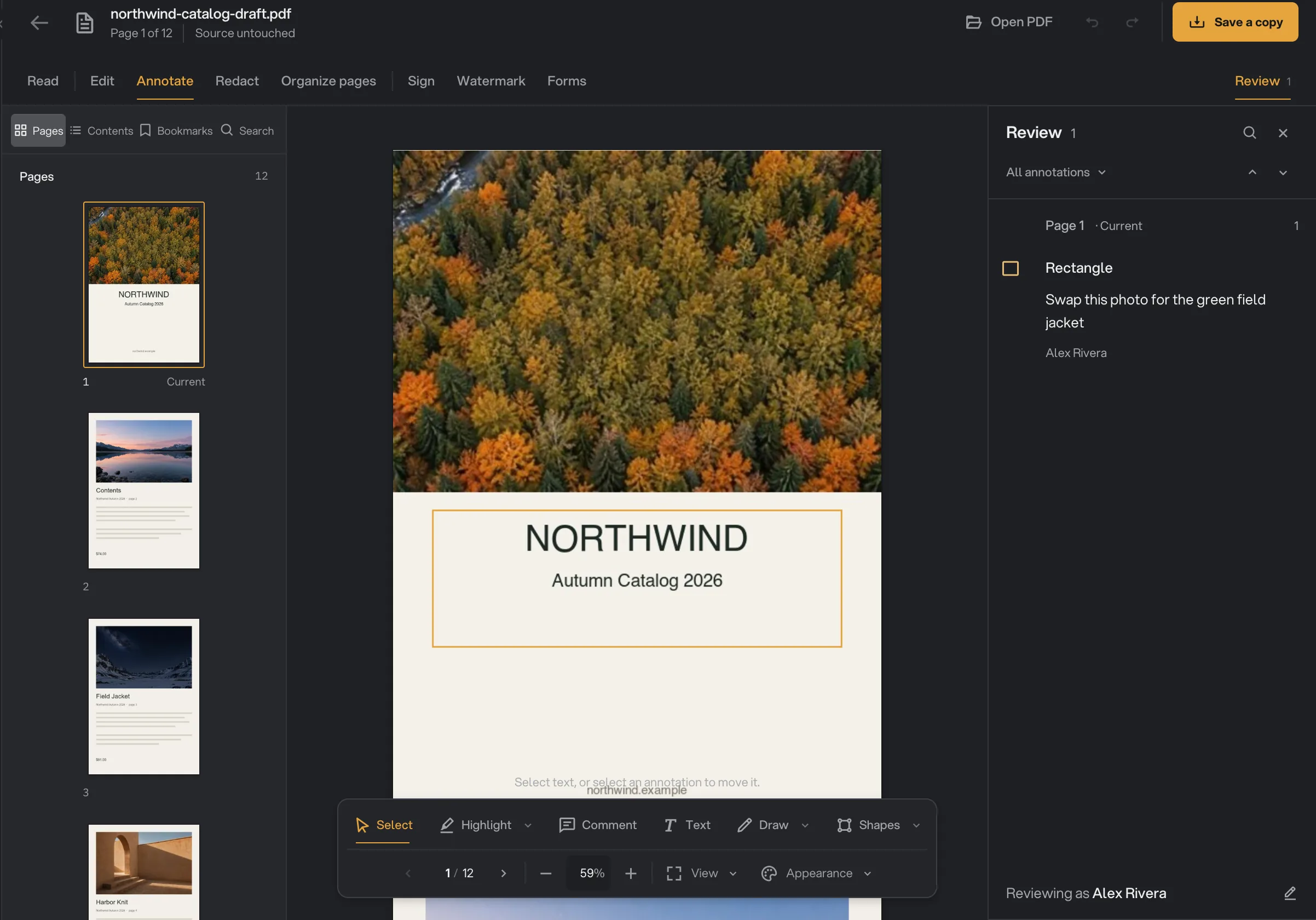
- Mode tabs
- Annotation toolbar
- Review list
- Reviewing as
- Select: select text, or select a note to move it.
- Highlight, with Underline and Strikeout in its menu.
- Comment: a note pinned to a spot or to selected text.
- Text: a text box written on the page.
- Draw: freehand ink.
- Shapes: Rectangle, Ellipse, Line or Arrow.
Press Esc, or click outside the page, to go back to Select.
Highlight, underline or strike out
Choose Highlight (or Underline or Strikeout from its menu) and select the text. The mark goes on straight away, and a small card opens where you can change its Color and Add a note, such as "Check this price". Press Save note, or Done to skip the note.
There are seven colors: Yellow, Orange, Red, Pink, Purple, Blue and Green. Highlights start yellow, underlines blue and strikeouts red.
Add a comment
Choose Comment and click the spot the comment is about. Type it under What should the reader know? and press Add comment (⌘↵, Ctrl+Enter on Windows).
If you select text first, the comment is attached to that text as a highlight, so the reader sees exactly which words it means.
Write on the page with a text box
Choose Text and click or drag where it goes, then type. Its toolbar sets the font, size, bold, italic, underline, text color, a background color and alignment. The box grows as you type, and the next one you add starts with the same style.
Press Done (⌘↵) to finish. Double-click a text box to edit it again, or drag it to move it.
Draw by hand
Draw has three instruments: Pen for clean, even ink, a translucent Marker and a fine Pencil. Pick a color, a width and an opacity, then drag on the page.
To remove a stroke, choose Erase a stroke in the same menu and click the stroke. Strokes can also be dragged to a new place with Select.
Draw shapes
Choose a shape in Shapes, then drag on the page. Hold Shift to keep a line straight or a rectangle square. Set the stroke color and width, a fill for rectangles and ellipses, an arrow end for lines, and the opacity.
A selected shape can be moved, resized with its handles, nudged with the arrow keys, duplicated with ⌘D or deleted with Delete. Its menu also has Dashed stroke and Add comment, so you can explain what a box is pointing at.
Review every note
Press Review at the right of the mode tabs. The list shows every annotation grouped by page, with its kind, its author and the passage it marks. Click one to jump to it.
- Filter the list to All annotations, Comments or Needs review (notes Hangar can show but not fully edit).
- Search by author, comment or the text that was marked.
- Use the trash button to delete a note you made. Undo brings it back.
Notes that came inside the PDF from another app show a lock. They are kept exactly as they were.
Put your name on your notes
At the bottom of Review, Reviewing as shows the name saved on each new note, so the people you send the PDF to can see who wrote what. Click it to change the name, or set it in Settings, under General.
Your notes are standard PDF annotations. When you save a copy, they open in Preview, Acrobat and other readers, with your name as the author.
Common questions
Will other people see my highlights and comments?
Yes. Hangar saves them as standard PDF annotations, so they show up in Preview, Acrobat and other PDF readers, with your name as the author.
How do I change the name on my comments?
Click Reviewing as at the bottom of the Review list, or go to Settings, General. The name you set is used on every new note.
Can I reply to a comment or mark it resolved?
Not yet. Each note stands on its own. You can search and filter them in Review, and delete the ones you made in Hangar.
Why can’t I edit some annotations?
Notes that came inside the PDF from another app show a lock in Review. Hangar keeps them exactly as they are, so they can be read but not changed.
Still stuck?
One person reads every message, usually with a reply within a day.