 Agencies and studios
 Photographers
 Podcasters
 Video and social creators
 Marketers and content teams
Organize pages lays out every page of the PDF as a card, so you can rearrange the whole document at a glance. In the example, Northwind Studio swaps two products in its 12-page catalog draft and adds a blank page for a late addition.
Select pages
Click Organize pages in the mode tabs. Click a page to add it to the selection, and click it again to take it out. Shift-click selects every page between the last one you clicked and this one.
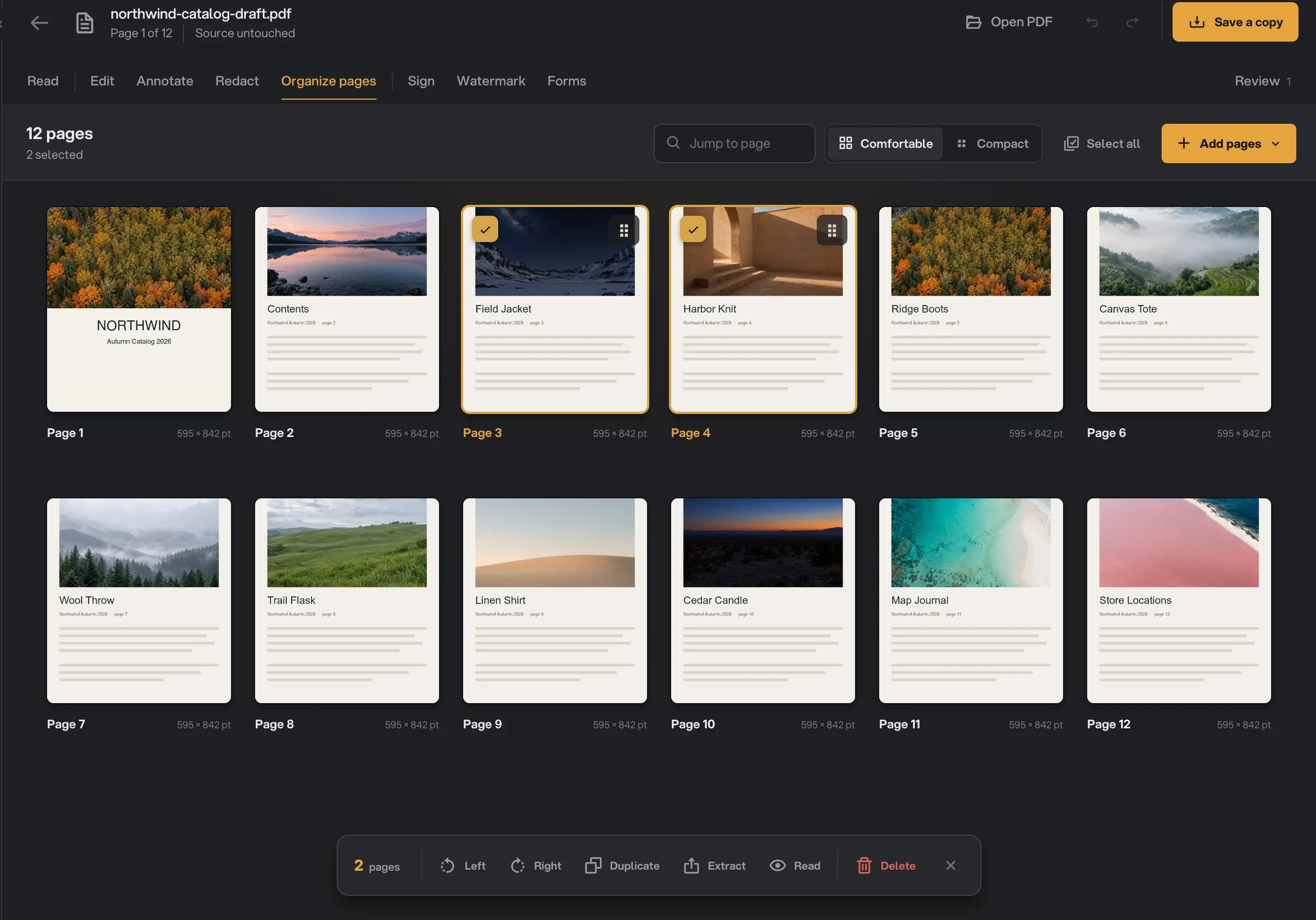
- Selected pages
- Add pages
- Selection actions
- Select all, or ⌘A (Ctrl+A on Windows), selects every page. Esc clears the selection.
- Jump to page scrolls to a page number in a long document.
- Comfortable and Compact change the size of the cards.
- Double-click a page to open it in Read.
Move pages
Drag a page, or a selection of pages, to its new place. A marker shows where they will land, such as "Move before 7", and the board scrolls when you drag near its edge. Press Esc while dragging to cancel.
Signatures and watermarks you placed move with their pages.
Rotate, duplicate or delete
The bar at the bottom acts on the selected pages:
- Left and Right turn the pages a quarter turn. This changes the saved PDF, unlike rotating in View.
- Duplicate puts a copy right after each page.
- Extract saves the selected pages as a new PDF. See below.
- OCR, with one page selected, recognizes the text on a scanned page.
- Read opens the first selected page in Read.
- Delete removes the pages, along with any notes on them. Delete on the keyboard does the same.
After each change a notice says what happened, such as "2 pages moved", with an Undo button for a few seconds. ⌘Z works too. A PDF must keep at least one page.
Add pages
Select the page the new ones should go in front of, then press Add pages. With no page selected, they go at the end. The menu says where, for example Insert before page 3.
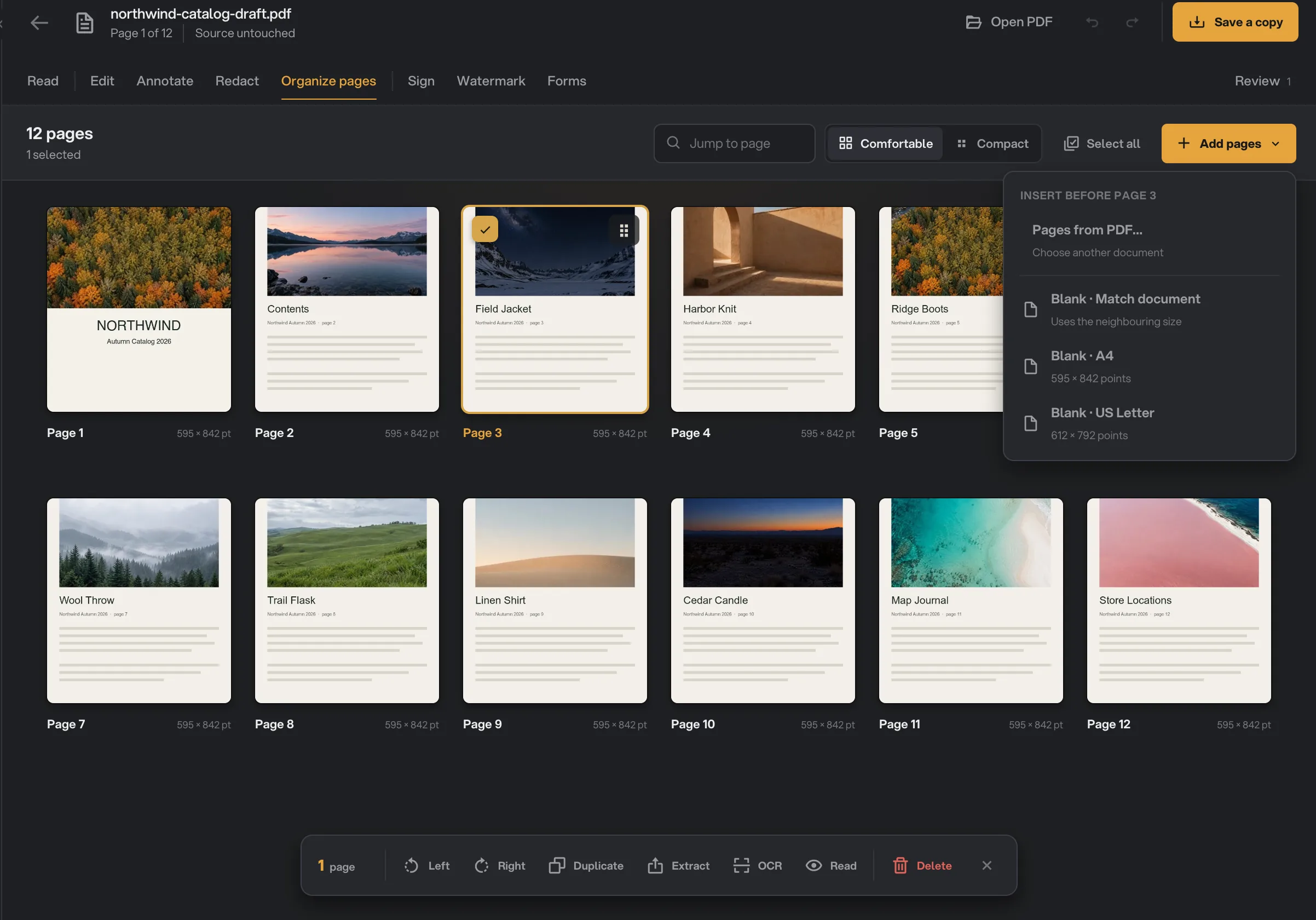
- Add pages
- Where they go
- Pages from PDF
- Blank pages
- Selected page
- Pages from PDF… inserts every page of another PDF you choose.
- Blank · Match document adds an empty page the same size as its neighbor.
- Blank · A4 and Blank · US Letter add an empty page in that size.
A blank page is a good place for a text box added in Edit, or a signature page. A password-protected PDF has to be unlocked before its pages can be inserted.
Extract pages to a new PDF
Select the pages and press Extract. Choose where the new PDF goes; Hangar suggests the original name with the number of pages added. A toast confirms Extracted PDF saved, and your draft is left as it was.
To pull pages out of many PDFs at once, use the Extract pages tool instead. For the same moves on a batch of files, the Organize Pages tool works on a queue.
PDFs with form fields
Common questions
Does rotating in Organize pages change the saved PDF?
Yes. Left and Right turn the pages themselves, so the saved copy opens rotated in every reader. Rotating in View only turns your screen.
Can I get a deleted page back?
Yes. Press Undo on the notice that appears, or press ⌘Z (Ctrl+Z on Windows). The original PDF is never changed either.
How do I add pages from another PDF?
Select the page they should go in front of, press Add pages and choose Pages from PDF. Every page of the file you pick is inserted there.
Why can’t I move pages in my PDF?
The PDF has form fields. Hangar cannot yet keep fields working when pages move, so moving, inserting and extracting are turned off. Organize the pages before you add fields.
Still stuck?
One person reads every message, usually with a reply within a day.