 Agencies and studios
 Photographers
 Podcasters
 Video and social creators
 Marketers and content teams
Watermark stamps text, a logo or both across a PDF, so a draft reads as a draft or a document carries your brand. In the example, Northwind Studio marks its catalog draft so nobody prints it by mistake.
Add a text watermark
Click Watermark in the mode tabs. The rail opens on Setup. Type your text in Type watermark text…, such as DRAFT, and it appears across the page when you click away.
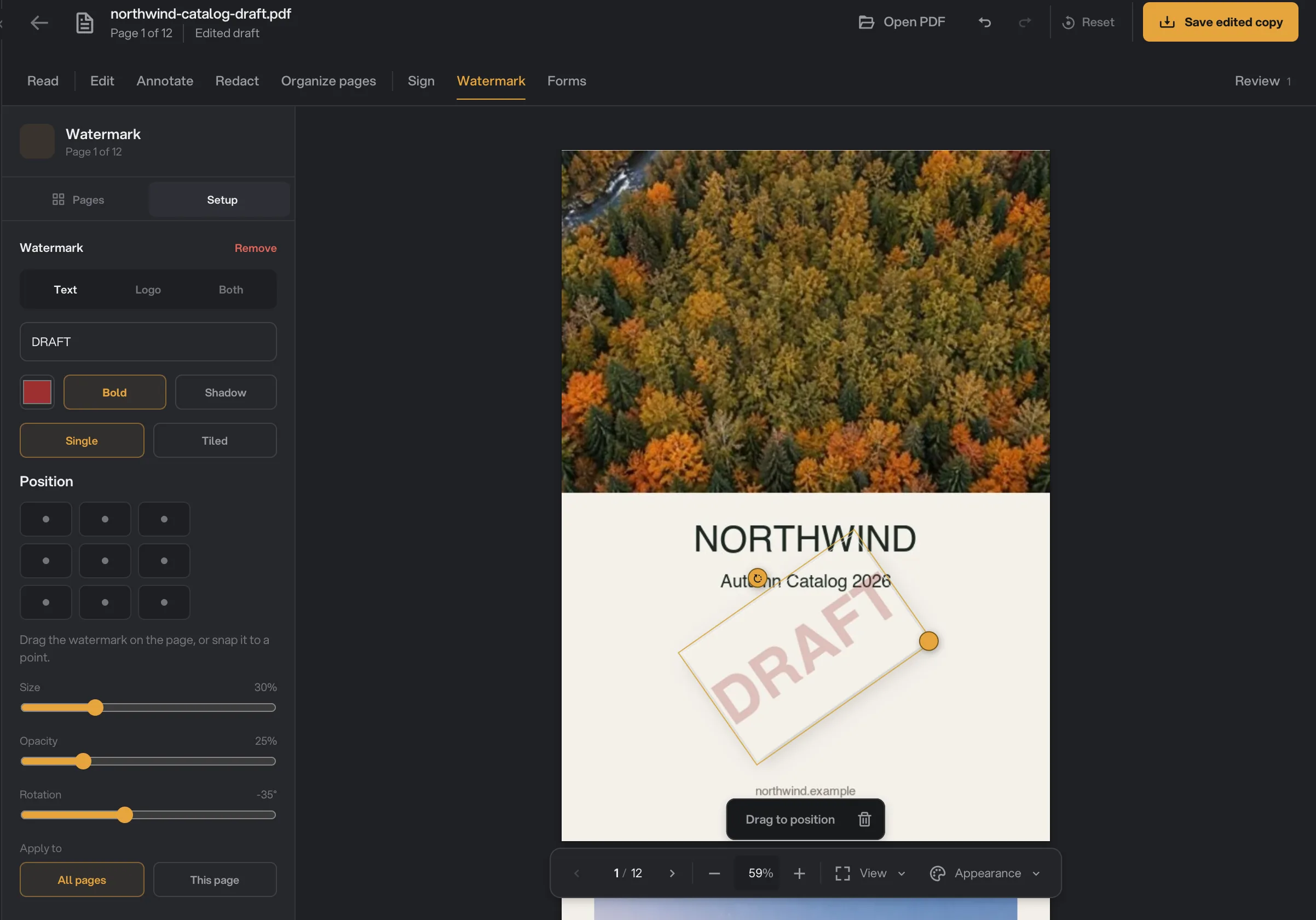
- Text, Logo, Both
- Single or Tiled
- Drag to position
- Apply to
Choose its color, and turn Bold or Shadow on or off. A new text watermark starts bold, in a deep red, rotated −35° at 16% opacity, which is faint enough to read the page through.
Use a logo
Switch the source from Text to Logo, or to Both for a logo with text. Press Choose a logo: your workspace's own logos are listed under Workspace defaults, and logos you added before under Library.
Import adds a new one from a PNG, JPEG, WebP, BMP or SVG file. It is kept on your computer, ready for the next document.
One mark or a pattern
Single places one mark. Tiled repeats it across the whole page, for documents you want marked edge to edge.
Position, size and angle
With a single mark, drag it on the page, or snap it to one of nine points, from Top left to Bottom right. Clicking the page moves the mark there, and its handles resize and rotate it.
- Size, from 3% to 100%.
- Opacity, from 3% to 100%. In the example it is raised to 25% so DRAFT stands out on the cover.
- Rotation, from −180° to 180°.
Each slider applies when you let go. Undo (⌘Z, Ctrl+Z on Windows) steps back through your changes.
Choose the pages
Apply to chooses All pages or This page, the page you are on. A document has one watermark, so to mark a cover differently from the rest, put the different pages in their own PDF with Extract.
Change or remove it
The watermark stays editable in your draft, even after you close PDF Studio and come back. Press Remove in the rail, or the trash button above the page, to take it off.
Watermarks often go with a signature or a review round: Sign a PDF with a saved signature and Highlight, comment and draw on a PDF cover those.
Common questions
Can I remove a watermark later?
Yes, while you are still in the draft: press Remove in the rail or the trash button above the page. In a copy you have saved, the watermark is part of the page and cannot be taken off in Hangar.
Can I put my logo on every page?
Yes. Choose Logo, or Both for a logo with text, pick one of your workspace logos or import one, and leave Apply to on All pages.
Which image files can I use as a logo?
PNG, JPEG, WebP, BMP and SVG. A PNG or SVG with a transparent background looks best over the page.
Can I watermark only some pages?
You can choose all pages or just the page you are on. To mark a few pages, extract them to their own PDF first and watermark that.
Still stuck?
One person reads every message, usually with a reply within a day.