 Agencies and studios
 Photographers
 Podcasters
 Video and social creators
 Marketers and content teams
Sign puts your signature on a PDF without printing it. You create the signature once, and it is saved on your computer for every document after that. In the example, Alex Rivera signs Northwind Studio's agreement with Juniper Bakery.
Step 1: Create your signature
Click Sign in the mode tabs. Under Your signatures, press + to open Create a signature, then choose how to make it:
- Draw: sign with your mouse or trackpad. Clear drawing starts again.
- Type: type your name and Hangar writes it in a script font.
- Upload: use a photo or scan of your signature. A PNG with a transparent background gives the cleanest result.
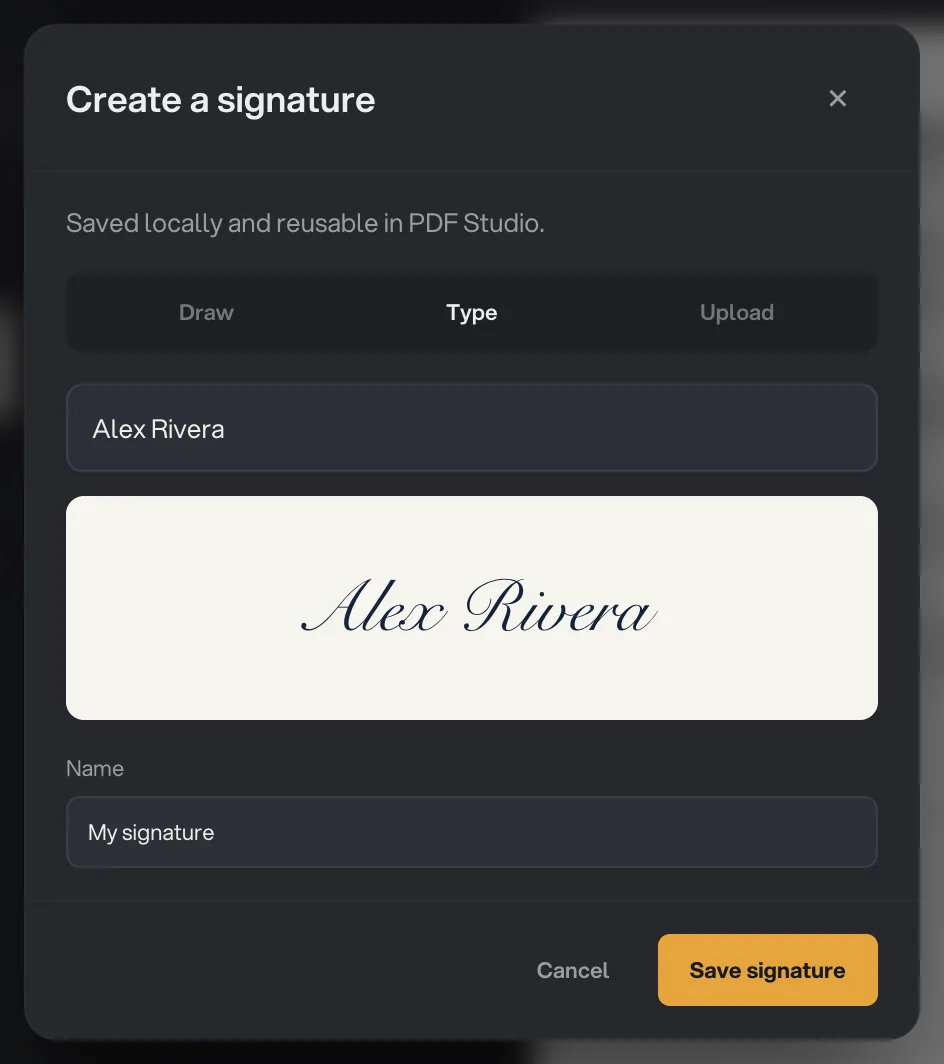
- Draw, Type, Upload
- Your name
- Preview
- Name
- Save signature
Give it a Name, such as "Alex Rivera" or "Initials", and press Save signature.
Step 2: Place it on the page
Choose a signature in the rail, then click the page where it goes. It lands centred on your click. Each click places another copy, so click once per spot.
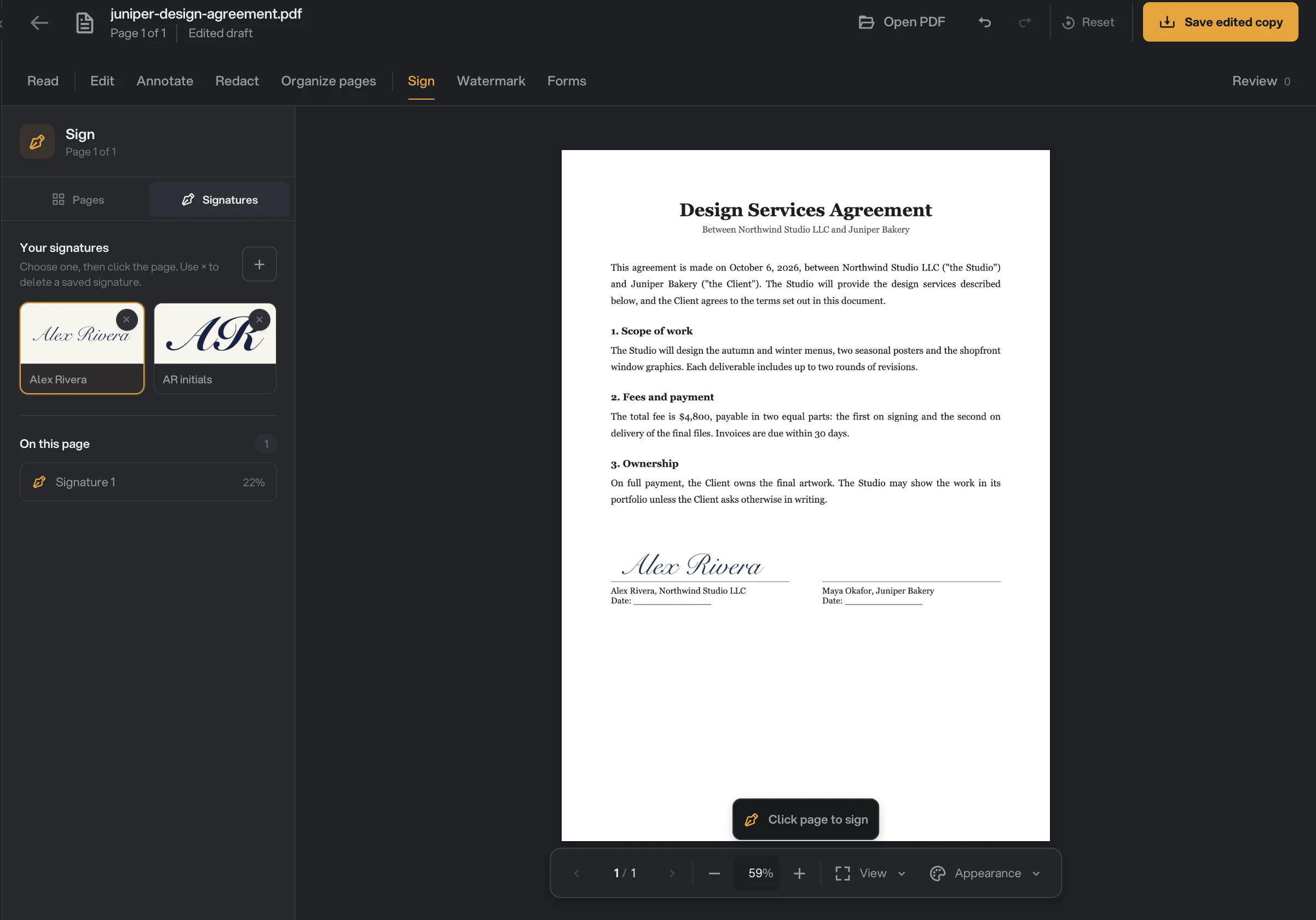
- Create a signature
- Saved signatures
- Placed signature
- Save edited copy
Step 3: Adjust it
Drag the signature onto the line. Its handles resize and rotate it, and its × removes it. The rail's Selected signature section has exact controls:
- Size, from 3% to 80% of the page.
- Rotation, from −180° to 180°.
- Opacity, from 8% to 100%.
Duplicate (⌘D, Ctrl+D on Windows) adds a copy just beside it, and Delete removes it. On this page lists every signature placed on the page you are viewing.
Step 4: Save the signed copy
Press Save edited copy and choose where the signed PDF goes. Until then the signature stays movable in your draft; in the saved copy it becomes part of the page.
Initial every page
Place your initials on one page and press Repeat on all pages. A copy goes on every other page, slightly offset from the original spot, so check each one and nudge it if needed.
Manage your saved signatures
Saved signatures appear as cards under Your signatures. Press a card's × to delete it from this computer. Hangar will not delete a signature that is placed in the open PDF, or one set as your workspace's default; remove it from the page, or choose another default, first.
A visual signature, not a digital one
To sign a batch of PDFs with the same signature, use the Sign PDF tool instead; Sign PDF: settings and best results covers it.
Common questions
Is this a digital signature?
No. Sign places an image of your signature on the page, like signing a printout. It does not add a certificate-based digital signature, so use a signing service when a contract requires one.
Where is my signature stored?
On your computer, in Hangar’s own data folder. It is never uploaded, and it is ready in PDF Studio every time you sign another document.
Can I initial every page?
Yes. Save your initials as a second signature, place them once, then press Repeat on all pages.
Can I move a signature after I place it?
Yes, until you save a copy. Drag it, resize it or remove it in the draft at any time. In the saved PDF it is part of the page.
Still stuck?
One person reads every message, usually with a reply within a day.