 Agencies and studios
 Photographers
 Podcasters
 Video and social creators
 Marketers and content teams
Redact removes text and areas from a PDF for good, so they cannot be selected, copied or recovered. In the example, Northwind Studio sends its agreement with Juniper Bakery to a printer who should not see the fee or the client's name.
Step 1: Find the text to remove
Click Redact in the mode tabs. Type a word, name or number in Enter text to redact… and press Find all. Every match in the document is marked on the page and listed in the rail with its page.
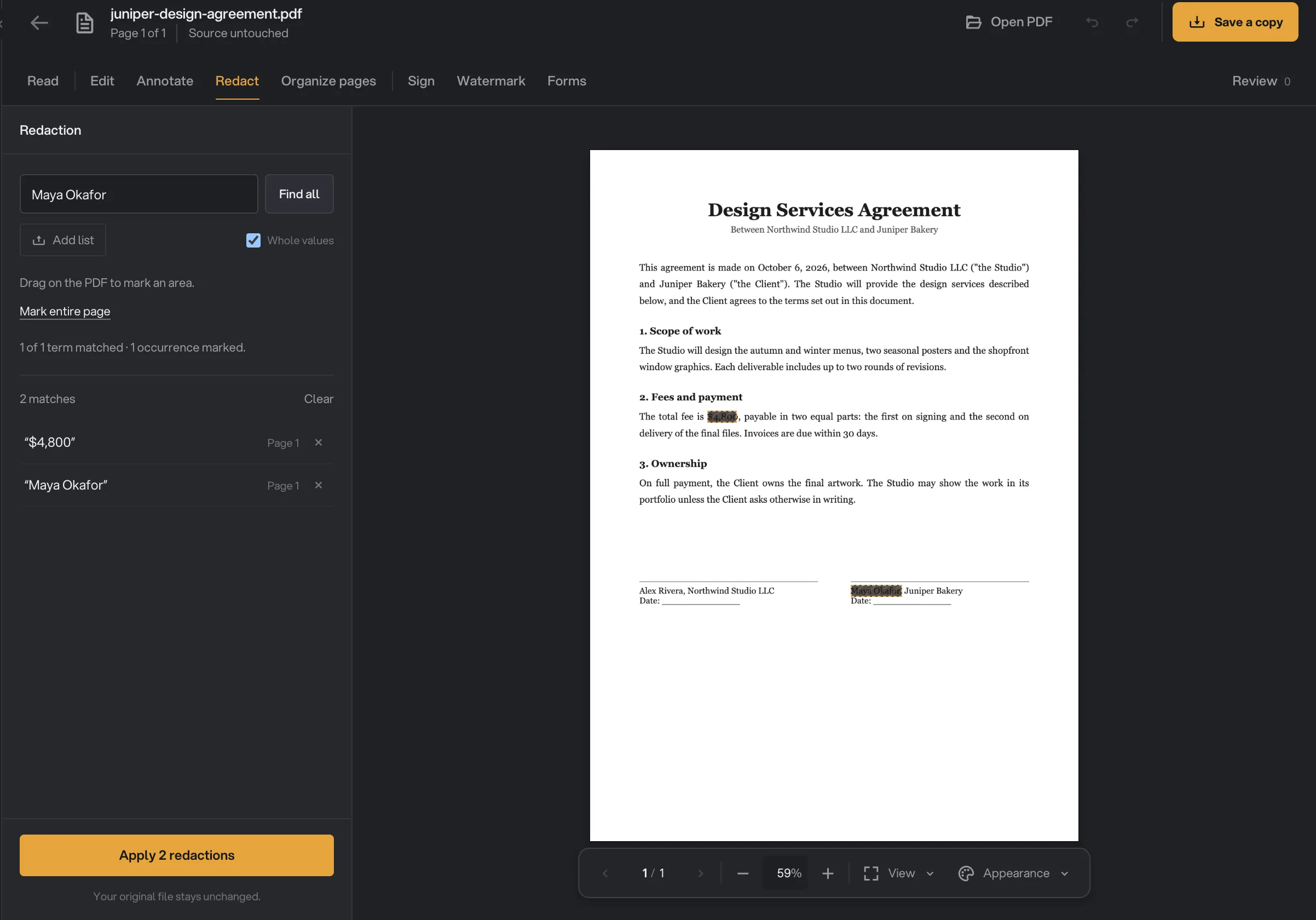
- Enter text to redact
- Whole values
- Marked match
- Apply 2 redactions
Search again to add more terms; each search adds to the marks you already have. Leave Whole values ticked so 4,800 does not also catch 14,800. English letter case is ignored, so "maya okafor" finds "Maya Okafor".
A line under the box sums up each search, such as how many terms matched and how many places were marked. If nothing is found, it suggests drawing a box instead, because scanned or outlined text cannot be searched.
Step 2: Or add a whole list
For many names or account numbers at once, press Add list. Paste one item per line, or press Import .txt, .csv or .tsv to load a file. Nothing leaves your computer.
With a spreadsheet, tick the Columns to redact and whether the First row is headings. The dialog counts the items ready and the duplicates and blank values it ignored, then a button such as Find 24 terms marks them all. A list can hold up to 2,000 terms.
Step 3: Mark anything search cannot find
Drag on the page to draw a box over a logo, a photo, a scanned signature or a stamp. Mark entire page covers the whole page you are on.
Every mark is listed in the rail as a match or a Drawn area. Click one to jump to it, press its × to remove it, or press Clear to start over. You can mark up to 500 areas at a time.
Step 4: Apply the redactions
Press Apply 2 redactions (the number follows your marks). A dialog asks Apply redactions permanently? and lists what will be removed.
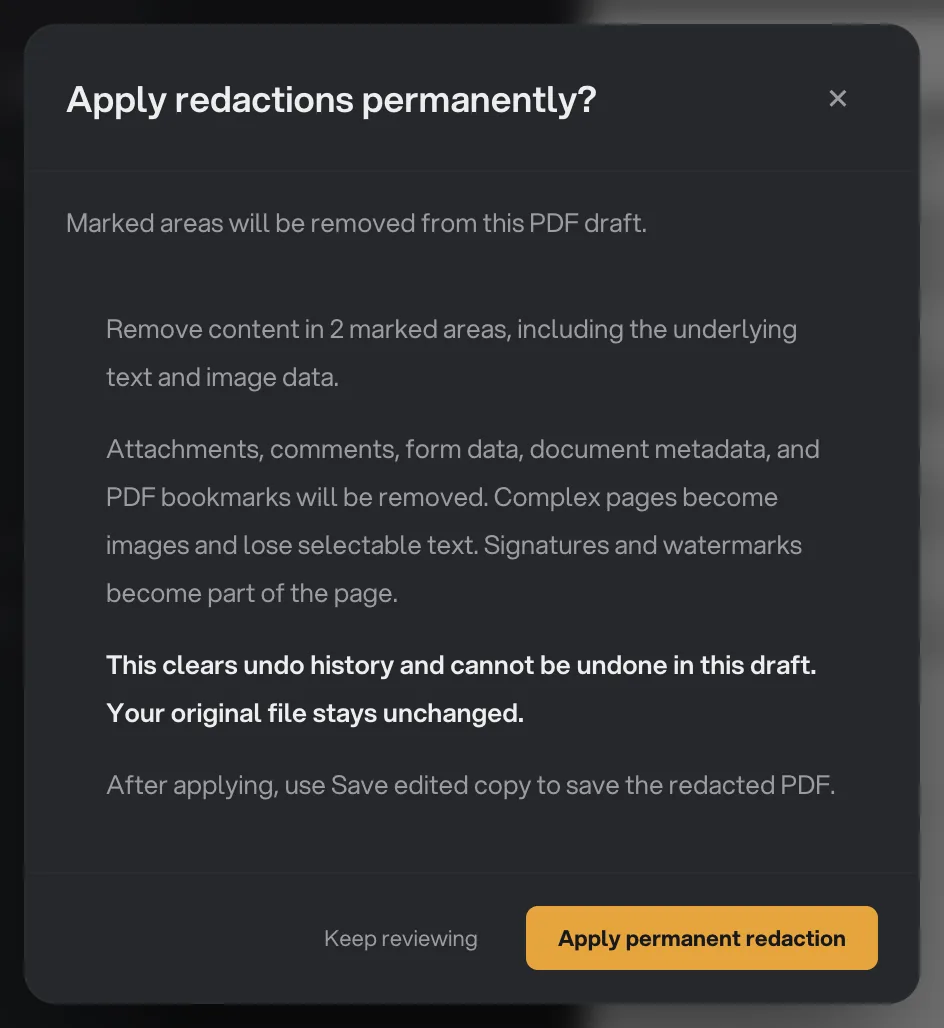
- What is removed
- Cannot be undone
- Keep reviewing
- Apply permanent redaction
Read it, then press Apply permanent redaction, or Keep reviewing to go back to your marks. A toast confirms Redactions applied.
Step 5: Save the redacted copy
Press Save edited copy and choose where the redacted PDF goes. Give it a name that says it is redacted, so it is not confused with the original, which stays unchanged.
What applying removes
Redaction does more than black out the marks, because hidden parts of a PDF can leak information too:
- Everything under each mark: the text, and any image data.
- The document's attachments, comments, form data, metadata and PDF bookmarks.
- Selectable text on complex pages. Pages with images, drawings or unusual fonts become images, so their text can no longer be selected.
Signatures and watermarks you placed become part of the page, and the draft's undo history is cleared. Before the change is kept, Hangar checks the result and searches every mark again; if any marked text can still be found, nothing is applied.
One PDF or many
Redact in PDF Studio is for one document you want to check by eye. To remove the same terms from many files at once, use the Redact PDF tool; Redact PDF: remove names and numbers for good walks through it.
Common questions
Is the redacted text really gone, or just covered?
It is gone. Applying a redaction removes the text and image data under each mark, and Hangar searches the result again before keeping it. If any marked text can still be found, nothing is applied.
Can I undo a redaction?
Not within the draft: applying clears the undo history on purpose. Your original file is never changed, and Reset starts a fresh draft from it if you need to begin again.
Does redaction work on a scanned PDF?
Find all only searches selectable text, so it cannot see words in a scan. Drag a box over them instead, or run Recognize text in Read first to make the scan searchable.
Can I redact the same names in many PDFs at once?
Yes, with the Redact PDF tool in Tools. It takes the same kind of term list and runs it over every file in the queue.
Still stuck?
One person reads every message, usually with a reply within a day.