 Agencies and studios
 Photographers
 Podcasters
 Video and social creators
 Marketers and content teams
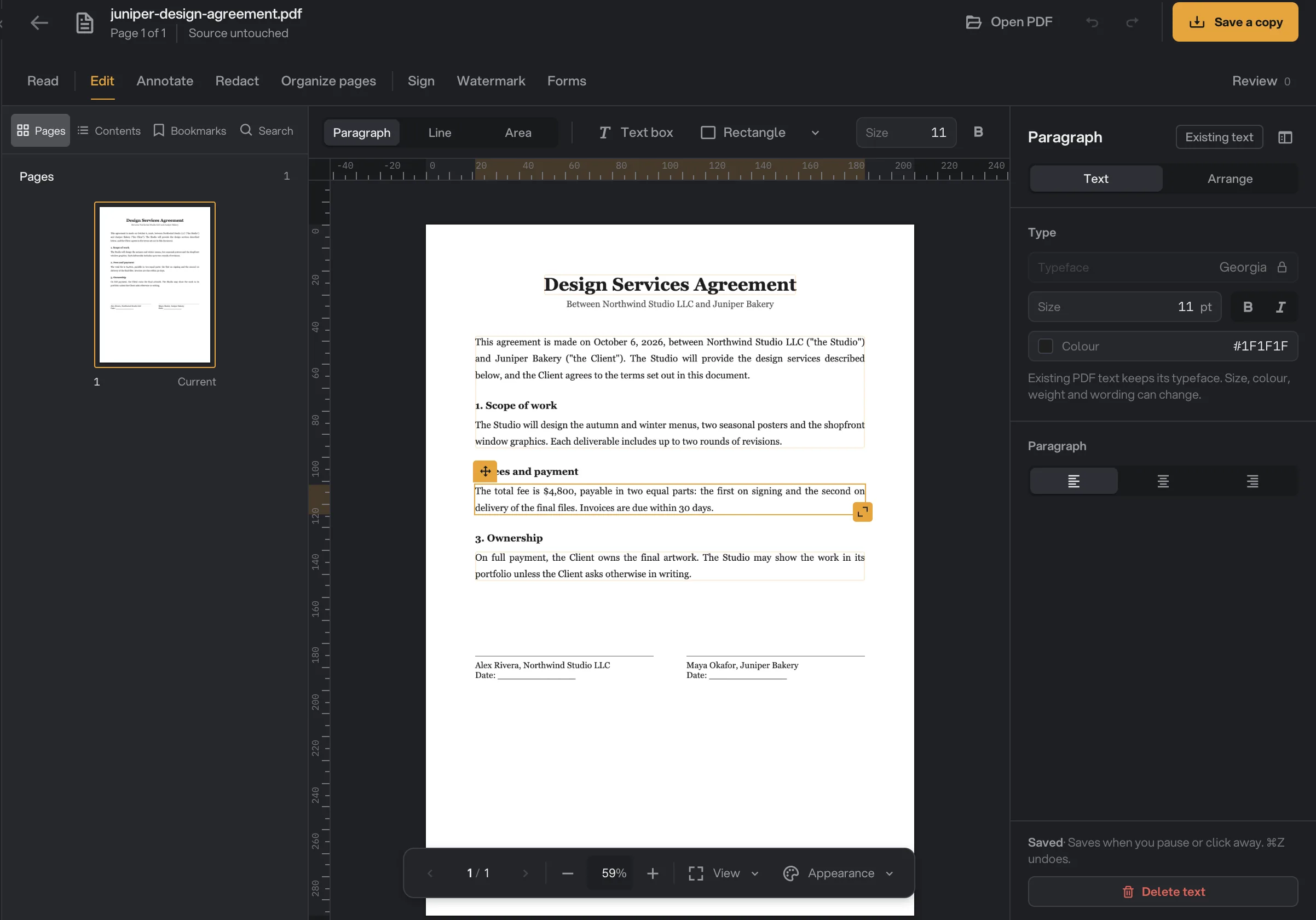
Edit changes the words that are already in the PDF, the way you would in a word processor. In the example, Northwind Studio fixes the payment terms in an agreement for Juniper Bakery before anyone signs it.
Step 1: Choose what a click selects
Click Edit in the mode tabs. The bar above the page sets what a click picks up:
- Paragraph: a whole block of text, which reflows as you type. This is where Edit starts.
- Line: one line, corrected with its original formatting kept exactly. Best for a wrong date or a misspelled name.
- Area: drag around the text you want to rewrite, such as half a table or a caption.
- Paragraph, Line, Area
- Text box
- Selected paragraph
- Typeface stays locked
- Saves as you go
Step 2: Click the text and type
Click the paragraph and type. Paragraph and area edits save on their own when you pause or click away: the inspector shows Saving…, then Saved, and ⌘Z (Ctrl+Z on Windows) undoes the change.
A line correction waits for you to confirm it. Type the fix and press Apply, or Cancel to leave the line as it was. Delete line removes it.
Step 3: Adjust the style and position
The inspector on the right (I shows or hides it) sets Size, bold, italic, Colour and alignment. Reset to the original style undoes your styling but keeps your words.
The Arrange tab moves the text: type a position in millimetres, or use Align to page. You can also drag the paragraph's handle, and arrow keys nudge it by 1 pt (10 pt with Shift).
What stays the same
The typeface is locked. Existing PDF text keeps its typeface, while size, color, weight and wording can change. This is because a PDF often embeds only the letters it uses, so a new font cannot be swapped in safely.
- Line keeps everything about the line except its words. Switch to Paragraph to restyle or move it.
- The height of a paragraph follows its text. Widen the area to give it more room.
- Scripts such as Arabic, Hebrew and Indic scripts cannot reflow as paragraphs yet. Use Line for them.
If the new text does not fit, Edit warns that it cannot fit without becoming too small or reaching nearby content. Widen the area or shorten the text.
Add a text box or a shape
Press Text box (T), then click or drag on the page and type. A text box can use Sans, Serif, Mono or one of six display fonts, with its own size, color, background, alignment and opacity.
The shape button (S) draws a Rectangle, Ellipse, Line or Arrow. In the inspector, set its stroke color and width, a dashed line, an arrow end and, for rectangles and ellipses, a fill.
Select anything you added to move it, Duplicate it (⌘D) or Delete it. Press V or Esc to go back to selecting text.
Edit a scanned page
On a scan, Edit says there is no editable native text on the page. Go to Read, press Recognize text, and PDF Studio brings you back to Edit when it is done.
Recognized text is an invisible layer over the scan, so it is edited line by line and only its wording can change. Click a line, correct the words OCR got wrong and press Apply.
Want to mark a change rather than make it? Highlight, comment and draw on a PDF covers notes that leave the text alone.
Common questions
Can I change the font of existing PDF text?
No. Existing text keeps its typeface, because a PDF often carries only the letters it uses. You can change its wording, size, color, weight and alignment, and text boxes you add can use any of nine fonts.
Why does Hangar say a replacement font was used?
The PDF’s embedded font did not contain a letter you typed, so Hangar drew that text with a bundled font instead. Check the line before saving your copy.
Can I edit text in a scanned PDF?
Yes, after you run Recognize text in Read mode. Recognized text is an invisible layer over the scan, so you edit it line by line.
Can I add an image to a PDF in Edit?
Not yet. Edit adds text boxes and shapes. To place a signature image, use Sign; to stamp a logo, use Watermark.
Still stuck?
One person reads every message, usually with a reply within a day.