 Agencies and studios
 Photographers
 Podcasters
 Video and social creators
 Marketers and content teams
Read is where PDF Studio opens. It is built for getting through a long document: a 12-page catalog draft from Northwind Studio, say, or a one-page agreement you need to check before signing.
Move around the document
The rail on the left has four tabs: Pages (thumbnails, with the page you are on marked Current), Contents (the PDF's own outline, when it has one), Bookmarks and Search. Click any entry to jump there.
The bar under the page has the page number, which you can type into, and zoom from 25% to 200%. ⌘+ and ⌘− (Ctrl on Windows) zoom too, and so does scrolling while you hold ⌘.
View sets the page size (Fit width, Fit page or 100%) and the layout: Continuous scrolls through every page, Single page shows one at a time, turned with ← and →. It also rotates the view with [ and ], which only turns your screen; to turn the pages in the saved file, use Organize pages.
Search a PDF
Press ⌘F or open the Search tab, type a word or phrase in Search document and press Return. Every match is highlighted on the page and listed in the rail by page, with the line around it.
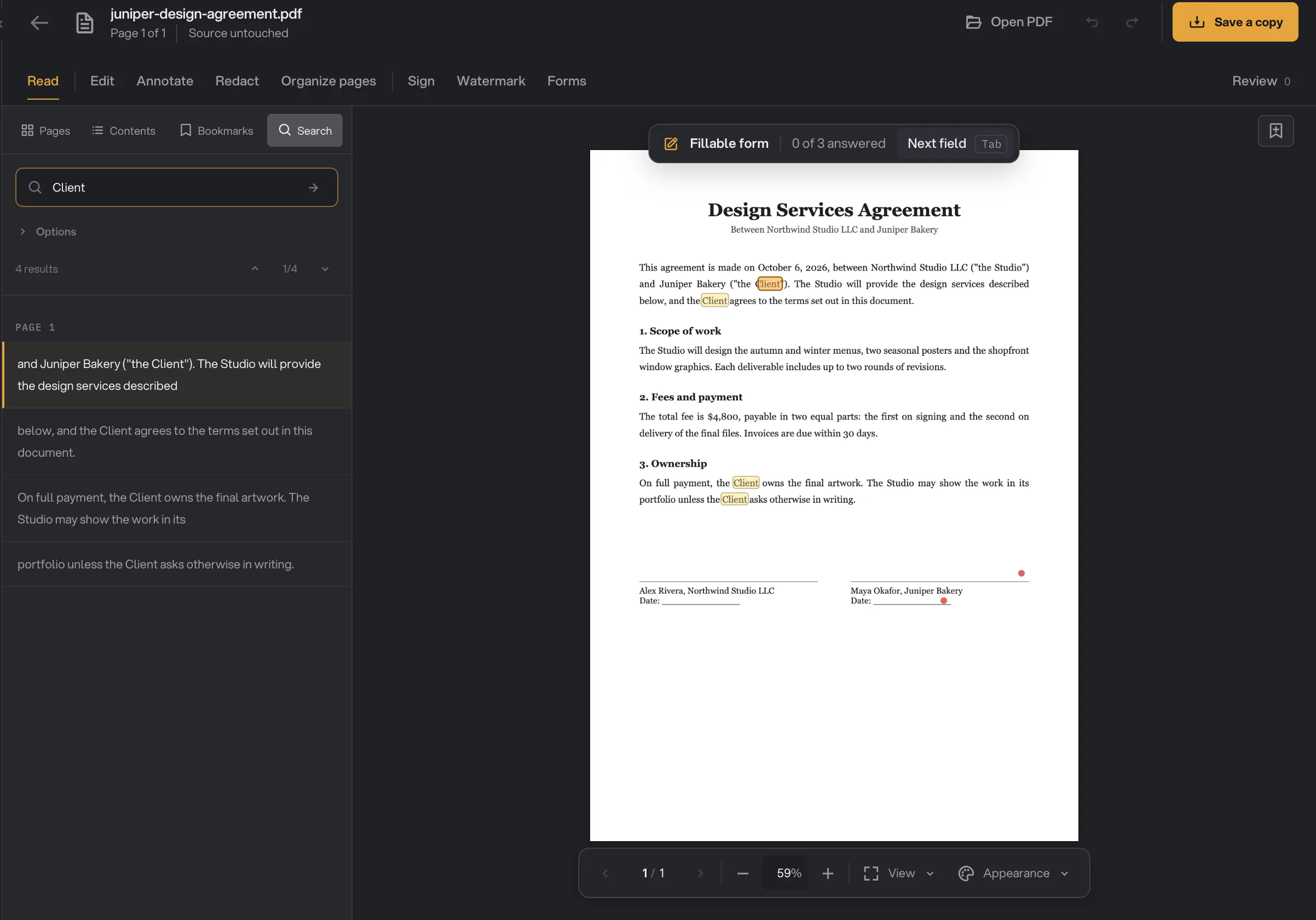
- Search document
- Options
- Previous and next
- Match in context
- Highlighted match
Click a result, or use the arrows next to the count, to step through them. Options adds Match case and Whole words, so a search for "Client" can skip "Clients". If nothing is found, the rail says No matches in this document.
Bookmark a place
Press ⌘B, or the bookmark button at the top right of the page, to save where you are. Hangar names the bookmark after the text you selected or the nearest heading, and you can rename it from its menu.
The Bookmarks tab lists every place you saved, with a search box. A bookmark's menu can Pin for quick access, Preview it without leaving your page, or Remove bookmark. After you jump to a bookmark, a button takes you back to the page you were reading.
Bookmarks are kept in Hangar on your computer, not written into the PDF, so they never change the file you send. They are different from Contents, which shows the outline that came inside the PDF.
Change the page color
Appearance in the bar under the page tints the page for easier reading. As the panel says, these are reading colors only and the PDF stays unchanged.
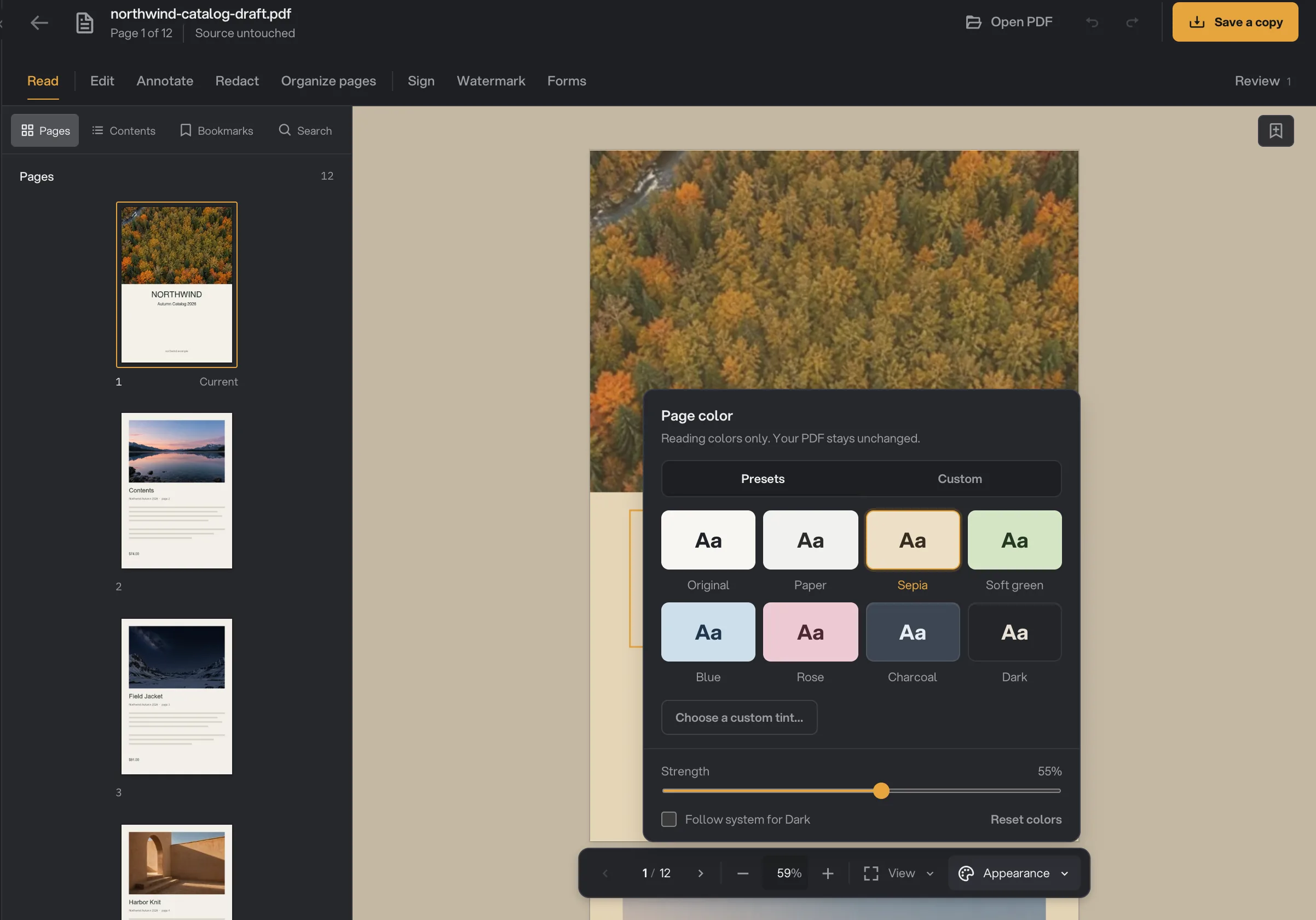
- Page color presets
- Appearance
- Presets: Original, Paper, Sepia, Soft green, Blue, Rose, Charcoal and Dark.
- Custom: pick any tint and press Use tint.
- Strength: how strongly the tint is applied, from 0% to 100%.
- Follow system for Dark: switches to Dark when your computer does.
Reset colors goes back to the original page. Your choice is remembered for that PDF, so it opens the same way next time.
Recognize text on a scanned page
A scanned page is a picture of text, so you cannot select or search it. PDF Studio notices and says Text isn’t selectable on that page, with a Recognize text button.
The menu that opens runs Accurate OCR. Choose the Document language (General covers English, French and most business documents; Thai uses its own pack), then Recognize current page or All pages without text. Pages that already have text are skipped.
When it finishes, a toast confirms how many pages were recognized and PDF Studio switches to Edit, where you can correct the recognized lines one by one. The text is now selectable and searchable too.
Select text, copy and follow links
Select text with the mouse and a small menu appears: Highlight, underline, strike out, comment, Edit content and Copy. Marks you add here are saved straight away; Annotate has every option for notes.
Links inside the PDF work in Read. A link to another page jumps there. A link to a website first asks Open external link? and shows the address, so a PDF cannot open a site without you seeing it.
If the PDF is a form, a bar at the top says Fillable form and counts your answers. Click a field to type, and press Tab for the next one. Make a fillable PDF form covers filling in more detail.
Common questions
Do reading colors change my PDF?
No. Sepia, Dark and the other page colors only change how the page looks on your screen. The PDF you save or send keeps its original colors.
Are my bookmarks saved in the PDF?
No. Bookmarks are kept in Hangar on your computer, so they never change the file you send. They come back each time you open the same PDF, until you reset its draft.
Why can’t I select or search the text on a page?
The page is probably a scan, which is a picture of text. Press Recognize text to run Accurate OCR on it, and the text becomes selectable, searchable and editable.
Does recognizing text upload my document?
No. Accurate OCR runs on your computer. It downloads its model once, and after that the pages are read locally without an internet connection.
Still stuck?
One person reads every message, usually with a reply within a day.