 Agencies and studios
 Photographers
 Podcasters
 Video and social creators
 Marketers and content teams
Forms turns any PDF into a form people can fill in, with fields that keep working in every PDF reader. In the example, Northwind Studio adds date and name fields to its agreement so Juniper Bakery can complete it without printing.
Step 1: Add a field
Click Forms in the mode tabs. The rail, Fillable form, offers four kinds of field: Text field (one line), Long answer (several lines), Checkbox and Dropdown.
Choose one, then drag the field into place on the page and drag its lower corner to resize it. Arrow keys move a selected field by 1 pt, or 10 pt with Shift.
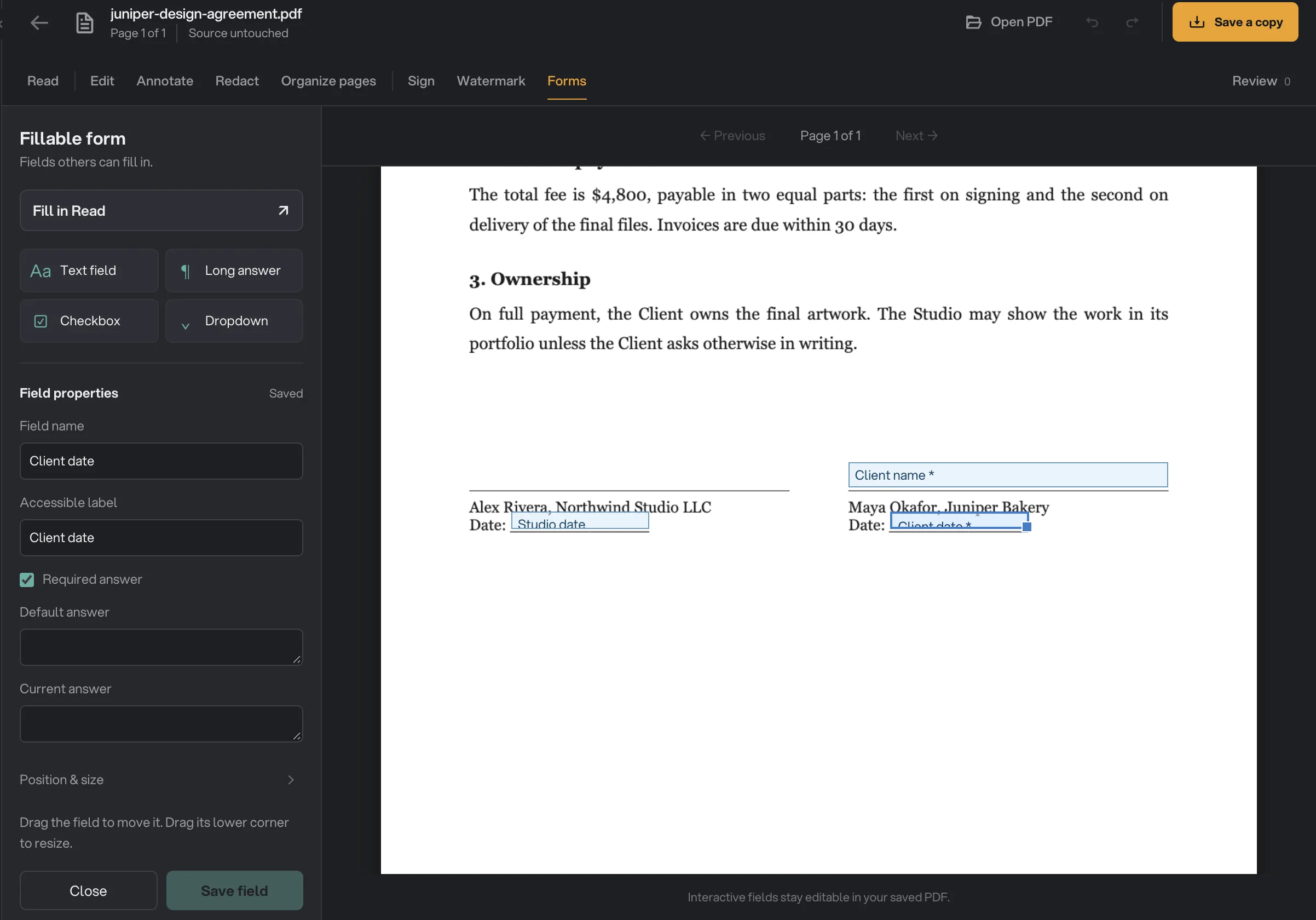
- Field types
- Required answer
- Selected field
- Fill in Read
Step 2: Set its properties
The properties panel names and shapes the field:
- Field name: a unique name, such as "Client date", without dots or line breaks.
- Accessible label: what a screen reader says. It falls back to the field name.
- Required answer: the field must be filled in.
- Choices, one per line: the options of a dropdown, up to 100.
- Default answer: text that is already there, or Checked by default for a checkbox.
Press Add field, or Save field for one you changed. A saved field can also be duplicated with Duplicate field or removed with Delete field.
Step 3: Check the tab order
Fields & tab order lists every field in the order Tab moves through them, with its page, type and whether it is required. Use the arrows to move a field earlier or later. Fields follow the pages, so the order can only change within a page.
Step 4: Try it
Press Fill in Read to test the form the way the person receiving it will. A bar at the top says Fillable form and counts the answers, and Next field (or Tab) moves from one field to the next.
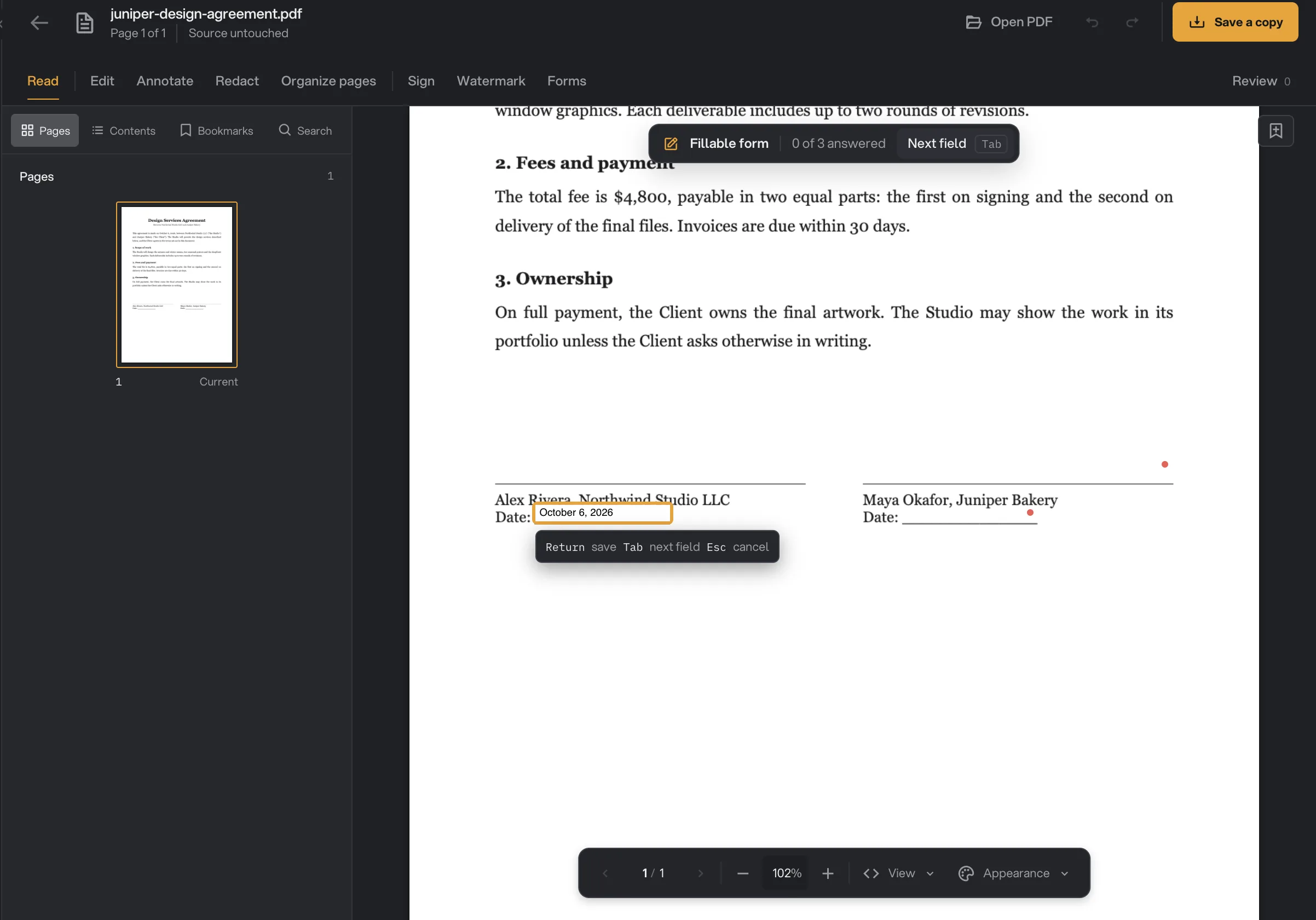
- Fillable form
- Next field
- Field being filled
- Return, Tab, Esc
Click a field and type. Press Return to save the answer, Tab for the next field or Esc to cancel. Answers are saved into your PDF, so clear any test answers before you send it.
Step 5: Save the form
Press Save edited copy and choose where it goes. The fields stay fillable in the saved PDF, in Hangar and in other PDF readers.
Fill in a form you received
Open the PDF in PDF Studio and stay in Read. If it has fields, the Fillable form bar appears: click a field, type, and press Tab to move on. Dropdowns and checkboxes work the same way, and radio buttons can be picked with the arrow keys.
When you are done, save a copy and send that. The original stays empty, so you can fill it in again for someone else.
What Forms cannot do yet
- Create or change radio buttons. Existing ones can be filled in Read.
- Edit XFA forms, or forms with grouped or scripted fields. Hangar keeps their data, and says the form is read-only; fill those in Preview or Acrobat.
- Add or change fields on rotated pages.
- Flatten a form, or make a field read-only.
If you only need to put your own name on a form, Sign a PDF with a saved signature may be all you need.
Common questions
Will my form work in other PDF readers?
Yes. Hangar saves standard PDF form fields, so the copy you send can be filled in Preview, Acrobat and other readers as well as in Hangar.
Can I add radio buttons?
Not yet. You can add text fields, long answers, checkboxes and dropdowns. Radio buttons that are already in a PDF can be filled in Read but not created or changed.
Can I fill in a PDF form someone sent me?
Yes. Open it in PDF Studio and stay in Read. Click a field, type, and press Tab for the next one, then save a copy.
Can I flatten a form so it can no longer be changed?
Not in PDF Studio. The saved copy keeps its fields fillable.
Still stuck?
One person reads every message, usually with a reply within a day.