 Agencies and studios
 Photographers
 Podcasters
 Video and social creators
 Marketers and content teams
What does Compress images do?
Compress images makes photos and graphics smaller on your own computer, so a website loads faster or files fit under an upload limit. It keeps each file’s format and name, and gives back one smaller file for each image you add. In the app the tool is called Image Compress.
Image Compress saves JPEG, WebP and AVIF files again at the quality you choose, can make oversized images smaller, and stores PNG files more compactly without changing a pixel. If a file cannot get smaller, Hangar keeps the original.
Step 1: Add your images
Click Tools in the sidebar, open the Image tab and click Image Compress in the Optimize section. You can also type "compress" in the search box at the top.
Drop your images on the queue, or click it to pick files. Image Compress takes JPG, PNG, WebP, AVIF and BMP files, plus HEIC and HEIF on a Mac. GIF and TIFF files are listed under Not applicable and are skipped. Use Add more to add files later.
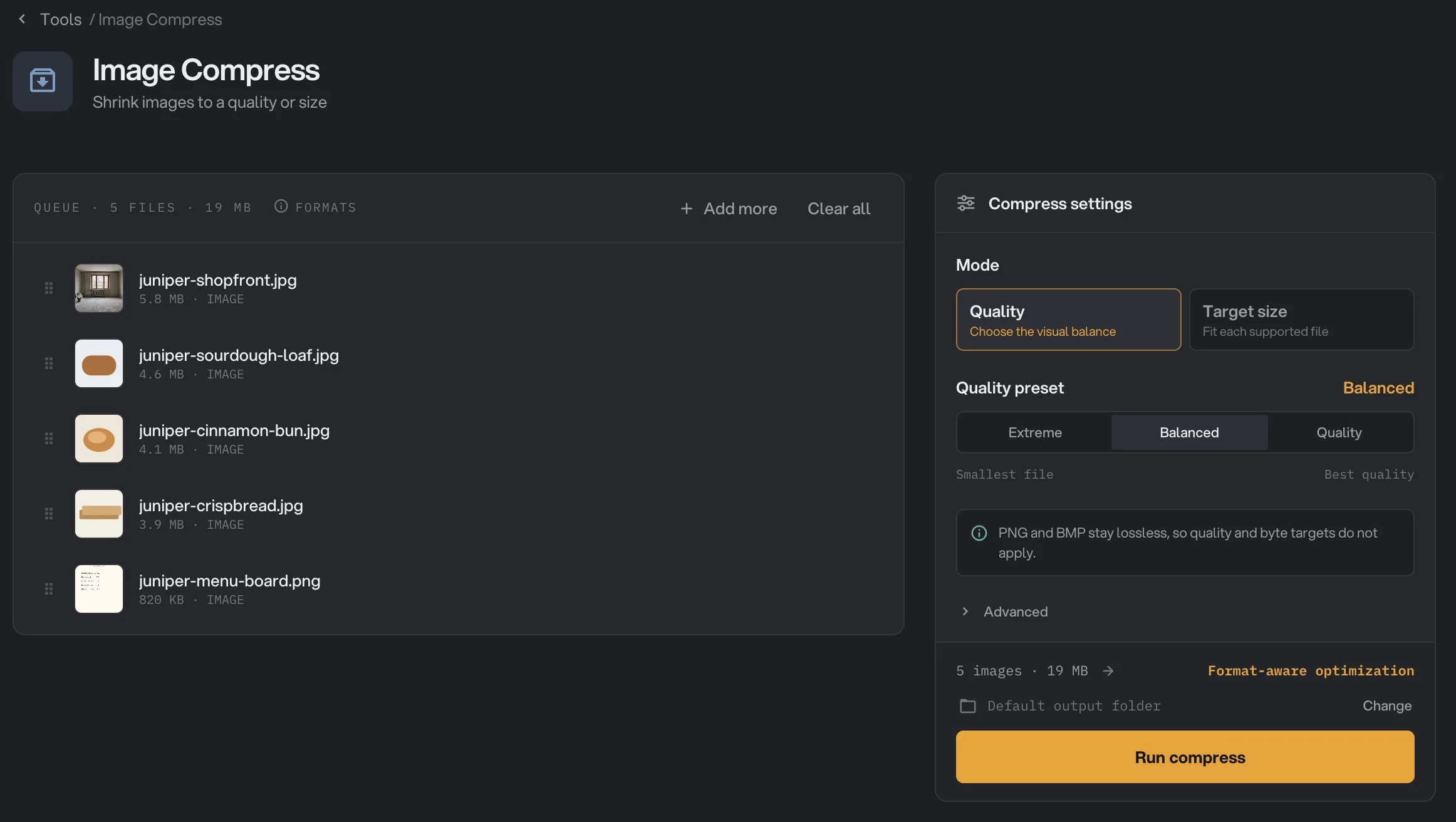
- Add more
- Mode
- Quality preset
- Advanced
- Run compress
Step 2: Pick a preset
Keep Quality selected under Mode, then pick one of the three presets under Quality preset:
- Extreme makes the smallest files. It lowers quality to 40, makes images no larger than 1600 pixels on the longest side and removes photo details. Good for thumbnails and previews.
- Balanced is the default. Quality 62, images up to 2560 pixels, photo details removed. Good for most websites and email.
- Quality keeps the most detail. Quality 82, no resizing, and photo details such as the camera and date are kept. Good for portfolios and print proofs.
For photos, the line above the run button estimates the saving, for example "Est. ~30–60% smaller". If you change any setting yourself, the preset name changes to Custom. Clicking a preset again resets every setting, including the ones under Advanced.
Step 3: Or aim for a file size
When a website or form has a size limit, choose Target size under Mode and type the limit in Maximum size per file, in KB. Hangar tries up to seven quality levels for each JPEG, WebP and AVIF file and keeps the highest quality that fits.
Target size does not apply to PNG, BMP or HEIC files, or to WebP files when Lossless WebP is on. They are compressed the usual way, and the panel tells you so.
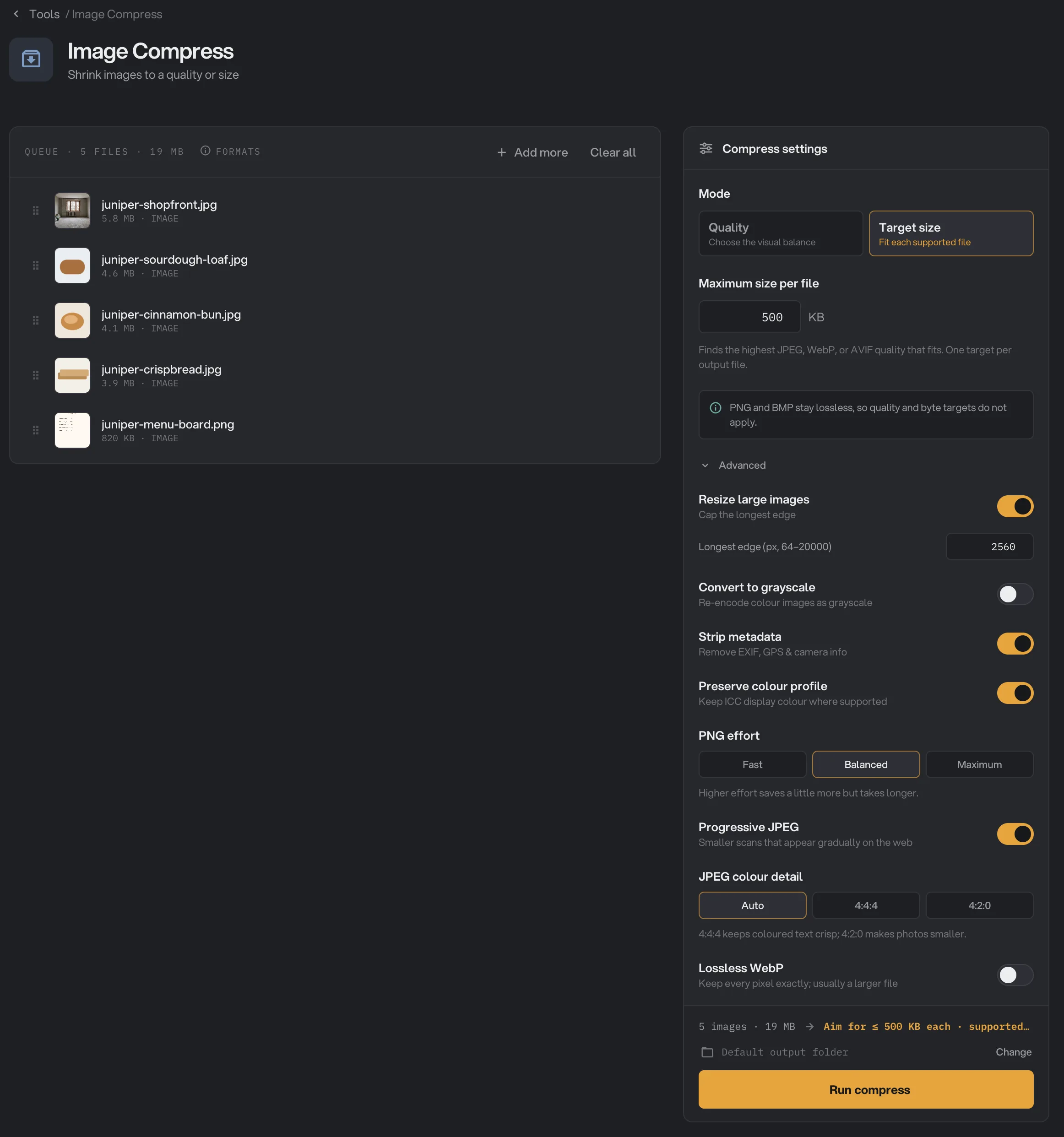
- Target size
- Maximum size per file
- Resize large images
- Strip metadata
- JPEG colour detail
Step 4: Run, then check the result
Check where the files will go: Default output folder saves them in your workspace’s output folder, in a compress folder with a subfolder for today’s date, such as 10-15. Click Change to pick another folder for this run. Then click Run compress.
When the run ends, each file shows Done with its new size, or Kept if it could not get smaller. The panel shows how much space you saved in total. Click View on a file to compare it with the original, and Open folder to go to the smaller copies. See See and compare your results and Where your files are saved.
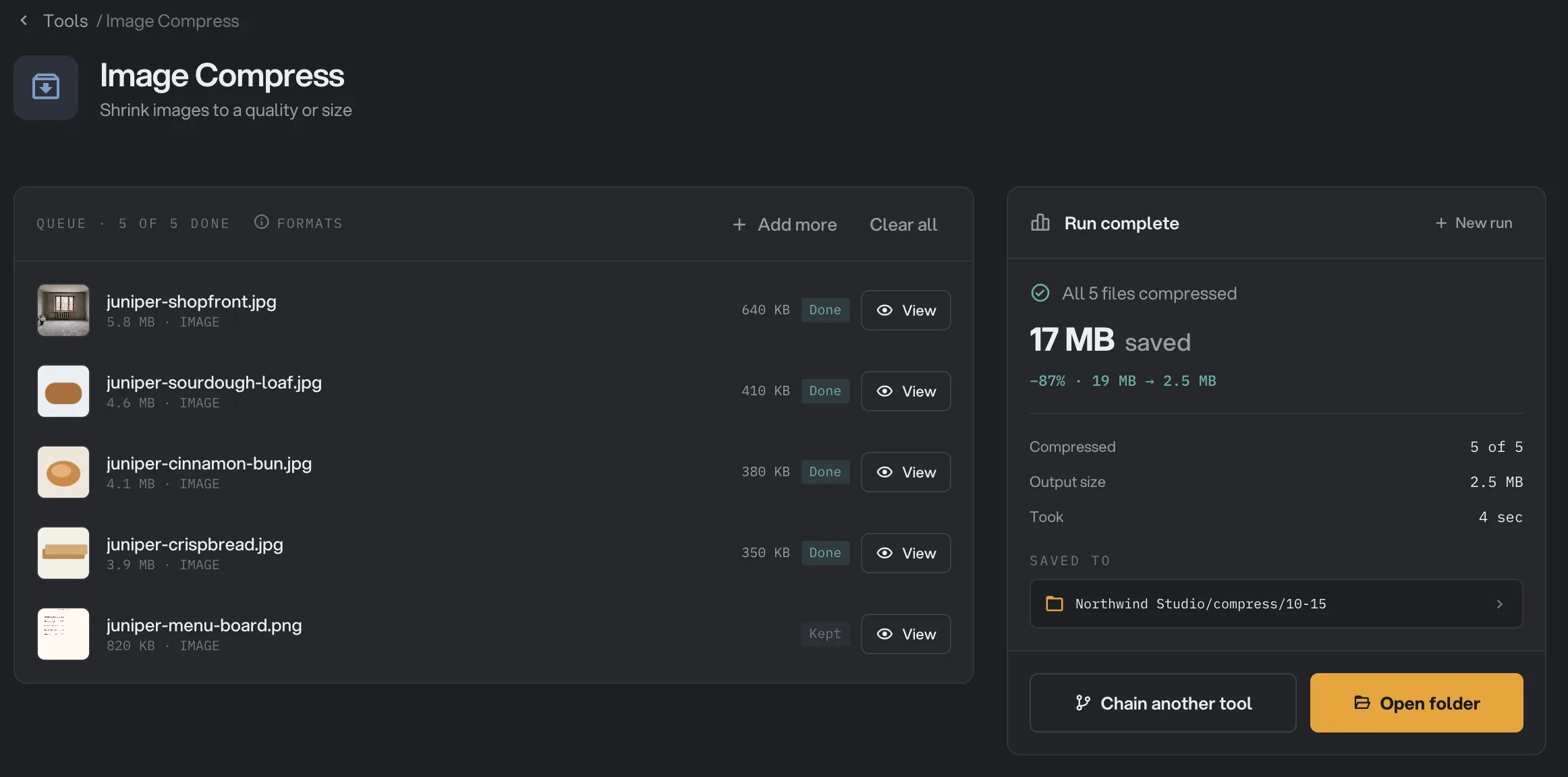
- Done
- View
- Saved to
- Open folder
- Kept
Every setting, and when to change it
Mode and the presets sit at the top of the panel. Everything else is under Advanced. Each row shows what the three presets set it to.
- Mode
Quality uses the quality you set. Target size aims for a maximum file size instead.
- RangeQuality, Target size
- ExtremeQuality
- BalancedQuality
- QualityQuality
- Maximum size per file
With Target size, the largest each JPEG, WebP or AVIF file should be.
- Range16 to 1,048,576 KB
- Extreme500 KB
- Balanced500 KB
- Quality500 KB
- Image quality
How much detail JPEG, WebP, AVIF and HEIC files keep. Lower means smaller and softer. PNG stays lossless.
- Range1 to 100
- Extreme40
- Balanced62
- Quality82
- Resize large images
Makes images smaller when their longest side is over the limit. It never makes an image bigger.
- ExtremeOn
- BalancedOn
- QualityOff
- Longest edge (px, 64–20000)
The longest side an image may have when Resize large images is on.
- Range64 to 20,000 pixels
- Extreme1600
- Balanced2560
- Quality2560
- Convert to grayscale
Saves color images in shades of gray, for a smaller file.
- ExtremeOff
- BalancedOff
- QualityOff
- Strip metadata
Removes hidden details such as the camera, date and GPS location.
- ExtremeOn
- BalancedOn
- QualityOff
- Preserve colour profile
Keeps the color information that makes colors display correctly, where the format allows it. WebP and AVIF files cannot keep it.
- ExtremeOn
- BalancedOn
- QualityOn
- PNG effort
How hard Hangar works to shrink PNG files. Higher saves a little more but takes longer.
- RangeFast, Balanced, Maximum
- ExtremeMaximum
- BalancedBalanced
- QualityBalanced
- Progressive JPEG
Saves JPEGs so they appear gradually while a web page loads.
- ExtremeOn
- BalancedOn
- QualityOn
- JPEG colour detail
4:4:4 keeps colored text and fine colored lines crisp. 4:2:0 makes photos smaller.
- RangeAuto, 4:4:4, 4:2:0
- Extreme4:2:0
- BalancedAuto
- Quality4:4:4
- Lossless WebP
Saves WebP files without losing any detail. Usually a larger file, and it cannot use Target size.
- ExtremeOff
- BalancedOff
- QualityOff
How do I get the best results?
- Start with Balanced, then click View on a few results. If they look fine, try Extreme on the same files.
- Resizing saves the most. A phone photo is often 4000 pixels wide, far more than a web page shows. Keep Resize large images on and set the longest edge to the size the photo is shown at, or a little more.
- Screenshots and slides with text: set JPEG colour detail to 4:4:4 so colored text stays crisp.
- Keep Strip metadata on for photos you post online. It removes the GPS location and shrinks the file a little more. A file marked Kept is an exact copy of the original, so its details stay in. To be sure they are gone, run Strip Metadata as well.
- For PNG graphics, set PNG effort to Maximum. For a much smaller file, convert them to WebP with Image Convert.
Why did a file barely shrink?
- It was already compressed. Photos saved by a website or a messaging app are often already small. Saving them again at a similar quality gains little.
- It is a PNG or BMP. These keep every pixel, so Image Compress can only store them more compactly. Convert PNG photos to JPEG or WebP for real savings.
- It is smaller than the resize limit. Resize large images only shrinks images above the limit, so small images keep their size.
- You picked the Quality preset. It keeps the most detail and does not resize, so savings are smaller.
What does Kept mean?
Kept means Hangar could not make that file any smaller, so it saved an exact copy of your original in the output folder instead. You never get back a larger file, even with Resize large images or Grayscale on. If the changed version would be bigger, which can happen with simple graphics saved as PNG, Hangar keeps the original at its full size.
Because a Kept file is an exact copy, Strip metadata does not apply to it: the camera, date and GPS details stay in the file.
The same holds for phone photos that are stored sideways with a rotation setting, and for images saved with the wrong extension, such as a JPEG photo named .png. Hangar reads what the file really is, compresses it in that format and keeps its name.
The run summary still counts a Kept file as compressed. Look at each row to see which files were really reduced: they show their new size and Done.
Troubleshooting
- A file failed with a message that the image is too large to compress. Image Compress handles images up to 100 megapixels. Make it smaller with Resize Image first.
- A GIF, TIFF or HEIC file failed or was skipped as not supported. Convert it to JPEG or PNG with Image Convert, then compress the result. HEIC compression works on a Mac only.
- An animated WebP failed. Image Compress does not compress animated WebP files, so the animation is never lost.
- A file is still over my Target size. Turn on Resize large images and lower the longest edge.
- Colors look a little different in a WebP or AVIF file. These files cannot keep the photo’s color profile. Keep wide-color photos as JPEG.
For other errors, see A file failed: what to check.
Limits
- Image Compress takes JPG (including .jfif), PNG, WebP, AVIF and BMP files, and HEIC and HEIF on a Mac. GIF and TIFF are not supported yet. For PDFs, use Compress PDF.
- Images up to 100 megapixels.
- Each file keeps its format. To change formats, use Image Convert.
- Target size works for JPEG, WebP and AVIF only.
- HEIC files use the quality setting only.
- Animated WebP files are not supported.
- Add image files, not folders.
- Everything runs on your computer. Nothing is uploaded.
Use Image Compress in a chain
Compress is available as a step in chains, under the Image steps, with the same presets, modes and Advanced options as the tool. The starter chains Web-ready photos (resize, then compress) and Straighten & shrink (rotate, then compress) both use it. A Kept file passes to the next step unchanged.
Put Compress after steps that change the picture, such as Resize or Rotate / Flip, so each image is compressed once at its final size. To run the same chain on new files each week, see Run a chain on many files.
Common questions
Does it change the file format?
No. A JPEG stays a JPEG and a PNG stays a PNG, with the same file name. If a name does not match what is inside, like a JPEG photo named .png, Hangar compresses it as what it really is and keeps the name. To change the format, use Image Convert.
Can it get every photo under a size limit, like 500 KB?
Yes, for JPEG, WebP and AVIF. Choose Target size under Mode and type the limit in Maximum size per file. Hangar picks the highest quality that fits. If a photo is too large to fit even at the lowest quality, turn on Resize large images under Advanced.
Could it make a file bigger?
No. If a file would not get smaller, Hangar saves an exact copy of the original and marks it Kept. This holds even when you asked for a resize or grayscale.
Is PNG compression lossless?
Yes. PNG files are stored more compactly without changing a single pixel, so they stay perfectly sharp. That also means they shrink less than photos.
Does it work on iPhone HEIC photos?
On a Mac, yes, using the quality setting only. Resize, grayscale and Strip metadata are skipped for HEIC files. On Windows, convert HEIC photos to JPEG with Image Convert first.
Is my original changed?
No. Hangar saves the smaller copy in your output folder and leaves the original where it was.
Still stuck?
One person reads every message, usually with a reply within a day.