 Agencies and studios
 Photographers
 Podcasters
 Video and social creators
 Marketers and content teams
What does QR code do?
QR code makes styled QR codes for posters, menus, packaging, business cards and slides. In the app the tool is called QR Code. A code can open a link, show some text, join a Wi-Fi network, start an email or a text message, or save a contact. You choose the dot shapes and colors, add your logo and a caption, and save a PNG. Everything happens on your own computer.
QR Code opens as a Studio. In a wide window you see what the code holds on the left, a live preview in the middle and the design settings on the right. You do not add any files, except an optional logo.
Step 1: Open QR Code and enter what it holds
Click Tools in the sidebar, open the Create tab and click QR Code in the From scratch section. You can also type "QR" in the search box at the top.
Under Content, pick what the code does, then fill in the fields:
- Link: type the address in URL, for example
https://northwind.example/lookbook. If you leave outhttps://, Hangar adds it. - Text: any short text, shown on the phone when scanned.
- Wi-Fi: Network name, Password, Security (WPA/WPA2, WEP or None), and Hidden network if the network does not show in the list. Guests scan to join.
- Email: To, Subject and Message. Scanning opens a new email.
- SMS: Phone and Message. Scanning opens a new text message.
- Contact: Name, Organization, Phone, Email and Website. Scanning offers to save the contact.
Under the preview, Encodes shows what the code holds. If a required field is empty, the export button says what to fill in, such as Enter a URL.
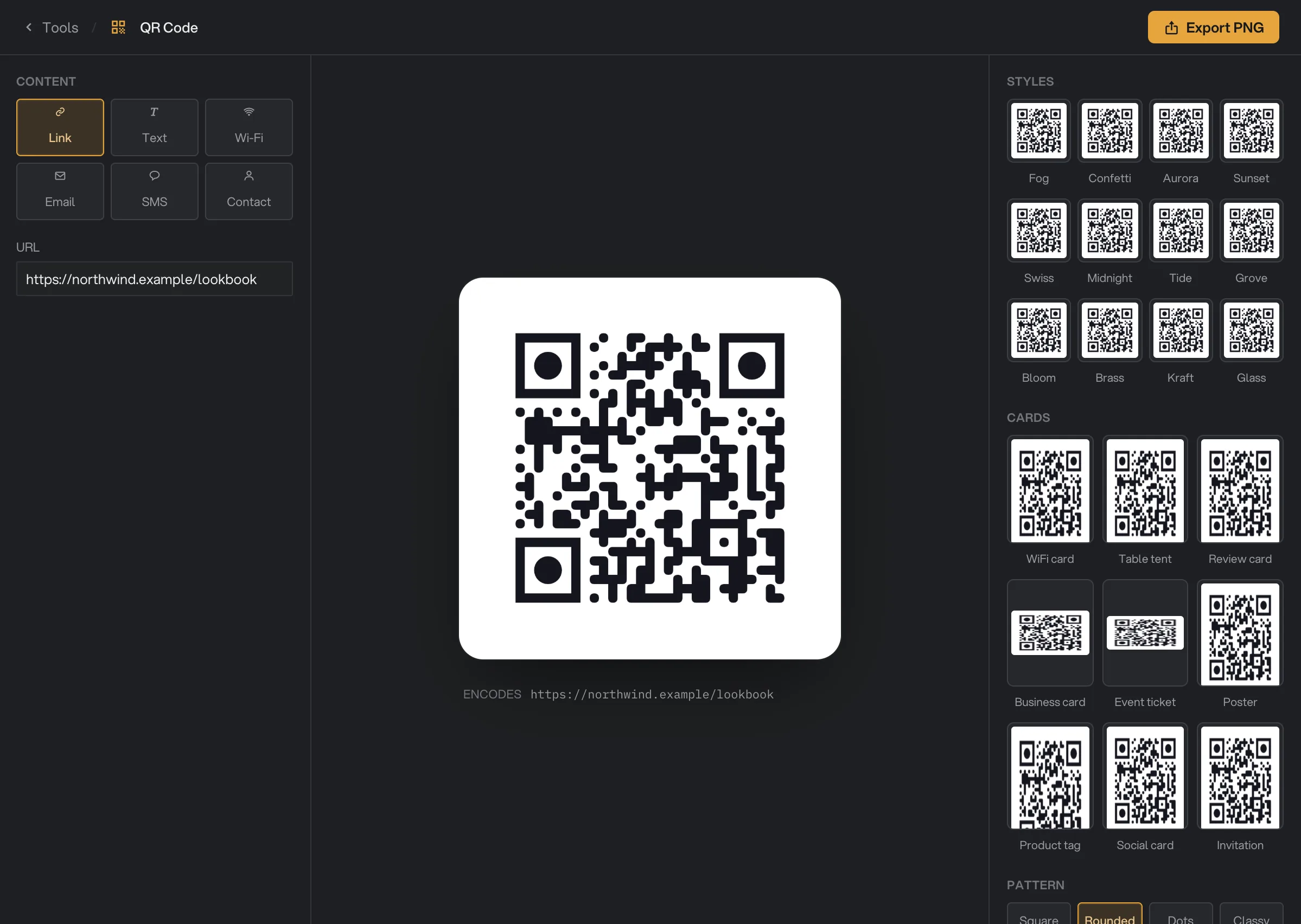
- Content type
- URL
- Encodes
- Styles
- Cards
- Export PNG
Step 2: Choose a style
Under Styles, click one of the 12 looks, such as Fog, Aurora, Midnight or Kraft. A style sets the dot shapes and colors and places the code on a designed background, with a short caption below it. Type your own words in the caption field, or clear it for no caption. Your content, logo and quality stay.
Under Cards, pick a printable layout around the code: WiFi card, Table tent, Review card, Business card, Event ticket, Poster, Product tag, Social card or Invitation. Each card has its own text fields, such as a headline and a line of detail. A field left empty shows the card's sample text, so fill in every field before you print. Card and Accent set the card's two colors, and Reset brings back its own. Long text gets smaller and wraps to fit its space.
A WiFi card fills in the network name and password from a Wi-Fi code by itself. Cards with a round spot for a logo show your logo there too, or the first letter of the name when there is no logo. Click Plain code to go back to the code alone.
Under Pattern, pick the dot shape: Square, Rounded, Dots or Classy. The three large squares in the corners are the eyes. Set their outer shape with Eye frame and their middle with Eye center: Square, Rounded, Circle or Leaf.
Step 3: Set the colors
Under Color, pick Solid for one color, or Linear or Radial for a gradient across the code. Click a swatch to change its color. Gradients use 2 to 4 colors: click + to add one. With Linear, the slider sets the angle.
Tick Custom eyes to give the three eyes their own color. Click the background swatch to change the background, or tick Transparent for none. Roundness rounds the corners of the background.
Step 4: Add a logo
Under Logo, click Add a logo and pick a PNG, JPG, WebP or BMP image. It sits in the middle of the code. Use Size to make it larger or smaller and Padding for the space around it. Keep Clear space behind ticked so the logo sits on a clean patch of background instead of on top of the dots.
Adding a logo sets the code to the toughest quality, H, so it still scans with part of it covered. The note "Error-correction raised to High for the logo" confirms it. Click Remove to take the logo off.
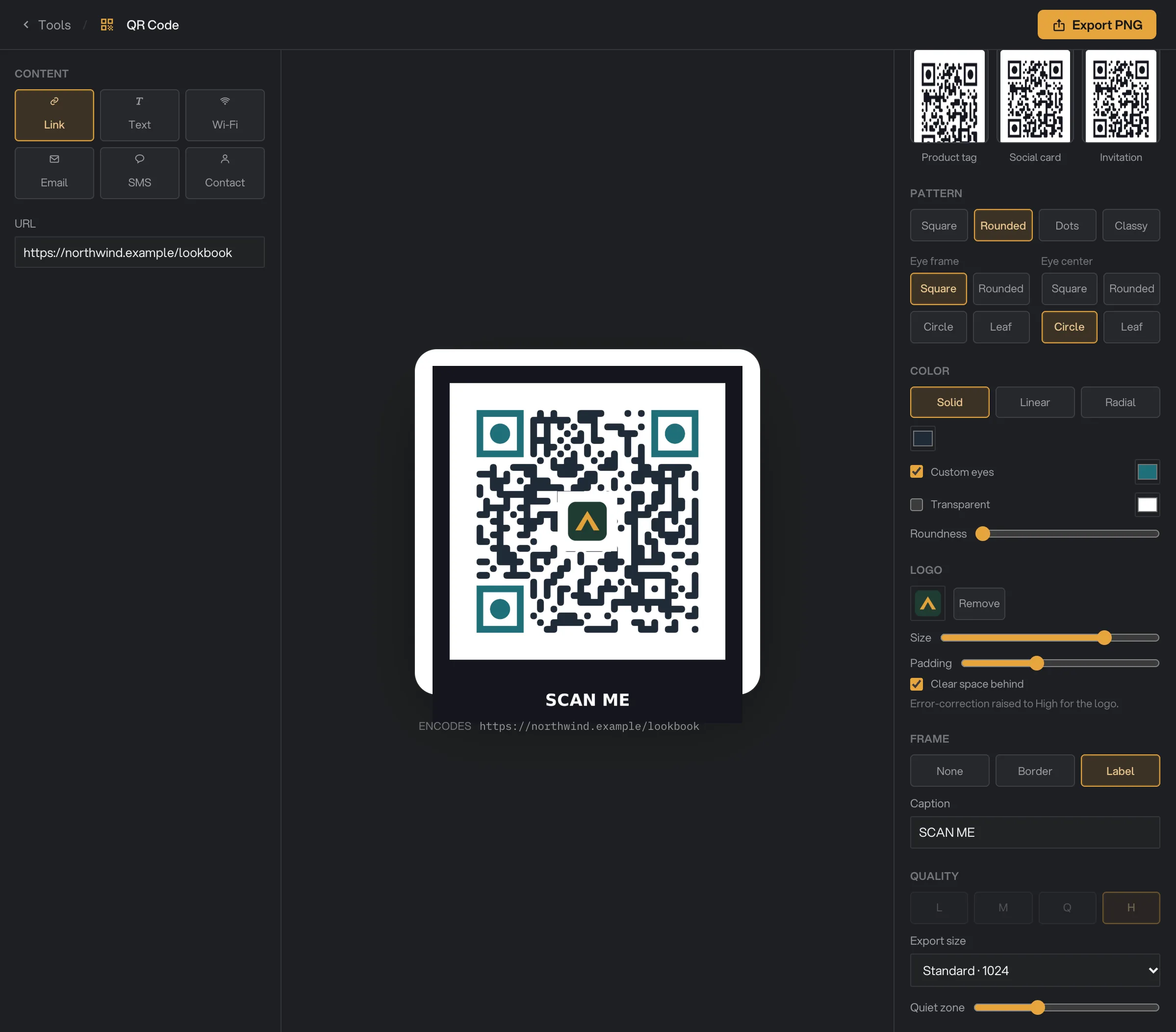
- Logo
- Size
- Clear space behind
- Caption
- Quality
- Export size
Step 5: Add a frame and caption
Under Frame, pick Label to put a dark frame around the code with a caption below it. Type your own words in Caption; the default is "SCAN ME". The caption is one line, so keep it short.
Border also adds the dark frame, and it shows the same caption. For a frame with no text, pick Label and delete the caption.
Frame is hidden while a style or card is picked, since those bring their own background and text.
Step 6: Set the quality and size
Under Quality, choose how tough the code is. L is the smallest and suits clean screens. M is the balanced default. Q suits print and signs. H is the toughest and is used whenever there is a logo. Tougher codes have more, smaller dots.
Export size sets the width of the image: Web · 512, Standard · 1024 or Print · 2048 pixels. Quiet zone sets the empty margin around the code. Scanners need some margin, so do not make it too small.
Step 7: Export the PNG
Click Export PNG at the top right and choose a folder. The code is saved there as qr-code.png, or named after the style or card, such as qr-table-tent.png, and a message QR saved shows the full path at the bottom right.
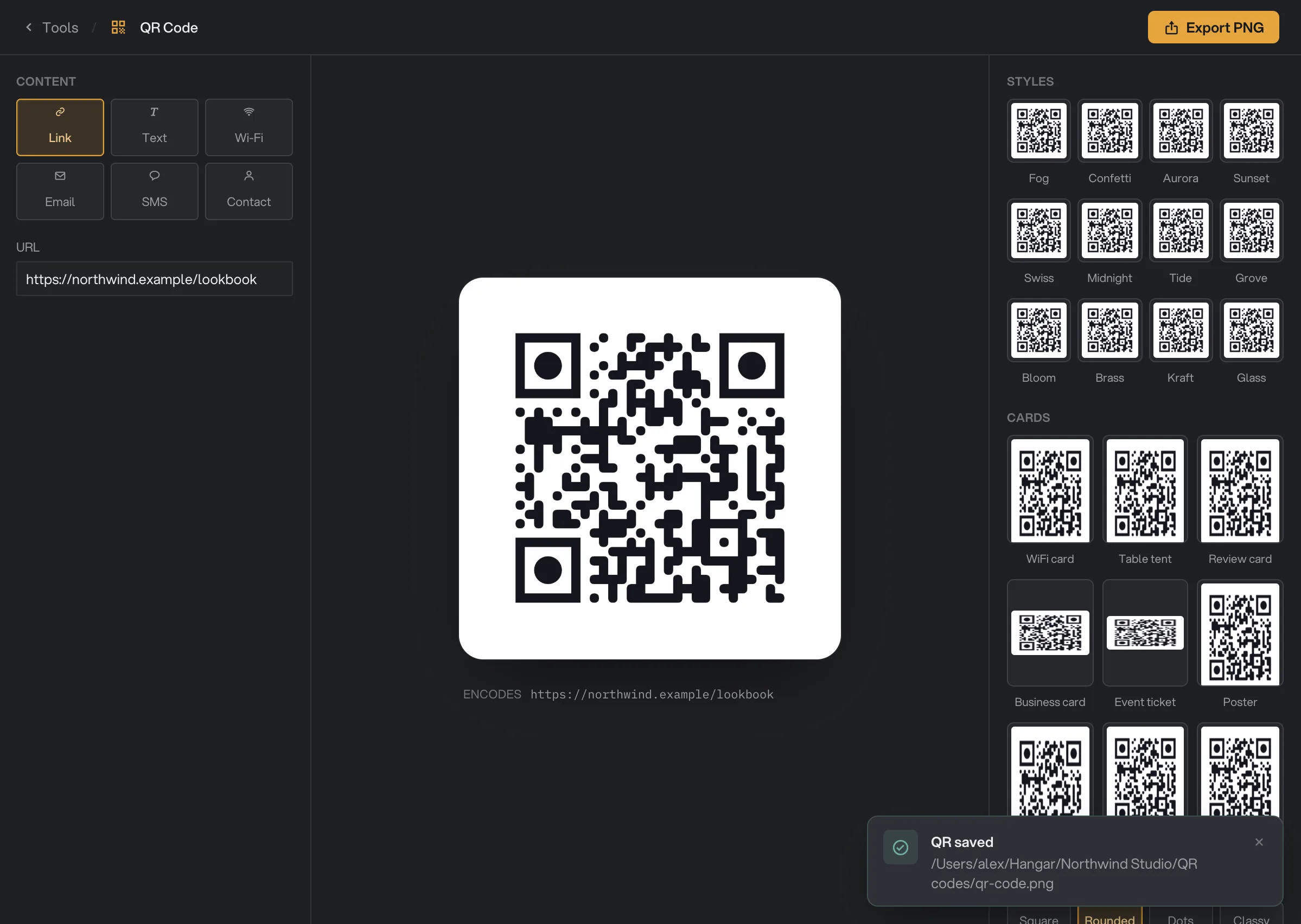
- QR saved
- Export PNG
Every setting, and when to change it
Some settings only appear when they apply, such as the gradient colors or the logo sliders.
- Content
What the code does when scanned.
- RangeLink, Text, Wi-Fi, Email, SMS, Contact
- DefaultLink
- Styles
Sets the shapes and code colors and puts the code on a designed background with a caption. Content, logo and quality stay.
- Range12 looks
- Cards
A WiFi card, table tent, review card, business card, event ticket, poster, product tag, social card or invitation around the code.
- Range9 printable layouts
- Card text
The headline and other lines of the picked card. Empty fields show the card's sample text.
- Card, Accent
The two colors of the picked card.
- Pattern
The shape of the small dots.
- RangeSquare, Rounded, Dots, Classy
- DefaultRounded
- Eye frame
The outer shape of the three corner eyes.
- RangeSquare, Rounded, Circle, Leaf
- DefaultSquare
- Eye center
The middle of the three corner eyes.
- RangeSquare, Rounded, Circle, Leaf
- DefaultCircle
- Color
One color or a gradient of 2 to 4 colors for the dots.
- RangeSolid, Linear, Radial
- DefaultSolid, near-black
- Custom eyes
Gives the eyes their own color. Off, they use the first dot color.
- DefaultOff
- Transparent
Removes the background. Off, the background is white unless you pick another color.
- DefaultOff
- Roundness
Rounds the corners of the background.
- RangeSquare to fully round
- DefaultSquare
- Add a logo
An image in the middle of the code. Sets quality to H.
- RangePNG, JPG, WebP, BMP
- Size
How large the logo is, as a share of the code width.
- Range5 to 22
- Default18
- Padding
The space around the logo.
- Range0 to 8
- Default3
- Clear space behind
Clears the dots behind the logo so it sits on clean background.
- DefaultOn
- Frame
A dark frame around the code with a caption below. Hidden while a style or card is picked.
- RangeNone, Border, Label
- DefaultNone
- Caption
With Label, the text under the code. One line.
- DefaultSCAN ME
- Quality
How much damage the code survives. Higher means more, smaller dots.
- RangeL, M, Q, H
- DefaultM
- Export size
The width of the image in pixels.
- RangeWeb · 512, Standard · 1024, Print · 2048
- DefaultStandard · 1024
- Quiet zone
The empty margin around the code, in dots.
- Range2 to 8
- Default4
How to get the best results
- Test with a phone before you print. Scan the preview on your screen with two different phones, and once more on a test print.
- Keep strong contrast. A dark code on a light background scans best. Pale colors and light codes on dark backgrounds can fail on some phones.
- Use a square logo. The logo is fitted into a square, so a wide logo looks squeezed. Use a square mark or icon instead of a long wordmark.
- Keep the logo modest. The default Size of 18 is a good balance. Keep Clear space behind ticked.
- Test fancy eye shapes. Rounded, Circle and Leaf eyes look softer. If a phone struggles to scan the code, set Eye frame back to Square.
- Shorter links make simpler codes. A short link gives bigger dots that are easier to scan from far away.
- Size for where it goes. Use Print · 2048 for posters and packaging, and Q or H quality for signs that may get dirty or scratched.
Why a result disappoints
- The export button is grayed out. A required field is empty. The button says which one, such as Enter the network name.
- The preview stopped changing, or the export failed. There may be too much content for one code. Shorten the text or link. Without a logo, a lower Quality such as L also leaves more room.
- My earlier QR code was replaced. Every plain export is called
qr-code.png, and a card or style export is named after it, so it replaces a file with the same name in that folder. Rename files right after export. - My card shows text I did not type. An empty card field shows the card's sample text, such as "Your venue". Type your own words in every field.
- My card is wider or taller than the export size. Export size sets the width. A card keeps its own shape, so a table tent at Standard is 1024 by 1434 pixels.
- The logo looks squeezed. Logos are fitted into a square. Use a square version of your logo.
- Border shows SCAN ME. Border uses the same caption as Label. Pick Label, change or delete the Caption, then pick Border again if you like.
- Part of the caption is missing. The caption is one line, and words that do not fit are left out. Use fewer words.
- I can’t change the Quality. A logo always uses H. Remove the logo to choose another level. After removing it, Quality stays at H until you change it.
- The image is not exactly the size I chose. Each dot uses whole pixels, so the code can come out a few pixels under the chosen size, for example 999 pixels for Standard. A frame adds its border around the code and its caption below, so a framed image is larger.
- A phone will not scan it. Raise the contrast, switch Eye frame to Square, make the logo smaller, or raise the Quiet zone. Then test again.
- My settings or logo are gone. Settings last while Hangar is open. They reset after you quit, and you need to add the logo again.
Limits
- One code per export, saved as a PNG named
qr-code.png, or after the style or card. An existing file with the same name in that folder is replaced. - Three export sizes: 512, 1024 and 2048 pixels wide. No SVG or PDF.
- Gradients use up to 4 colors. Eyes are always one solid color.
- The frame is always dark with white text, and the caption is one line.
- Card text is set in the card's own fonts. Each field holds a few lines at most; longer text ends with "…".
- Contact codes hold a name, organization, phone, email and website.
- Logo images can be PNG, JPG, WebP or BMP, and are shown as a square.
- Your brand kit is not used. Set brand colors by hand.
- QR Code cannot be added as a step in a chain.
- Everything runs on your computer. Nothing is uploaded.
Common questions
Will my QR code stop working one day?
No. Your link, text or contact details are stored in the code itself. It does not pass through any Hangar service, so it keeps working as long as the link it points to works.
Can I see how many people scanned it?
No. The code opens your link directly, so Hangar does not count scans. To count visits, use a link from your own website or analytics tool.
Can I export with a transparent background?
Yes. Under Color, tick Transparent. The PNG then has no background, which suits printing on colored paper or placing the code on a design.
Can I export an SVG or a PDF?
No. QR Code exports PNG images only. For print, choose Print · 2048 under Export size for the sharpest result.
Can I change the color of the frame?
No. The Border and Label frames are always dark with white caption text.
Are my settings saved for next time?
They stay while Hangar is open, including your logo. They reset when you quit Hangar.
Still stuck?
One person reads every message, usually with a reply within a day.